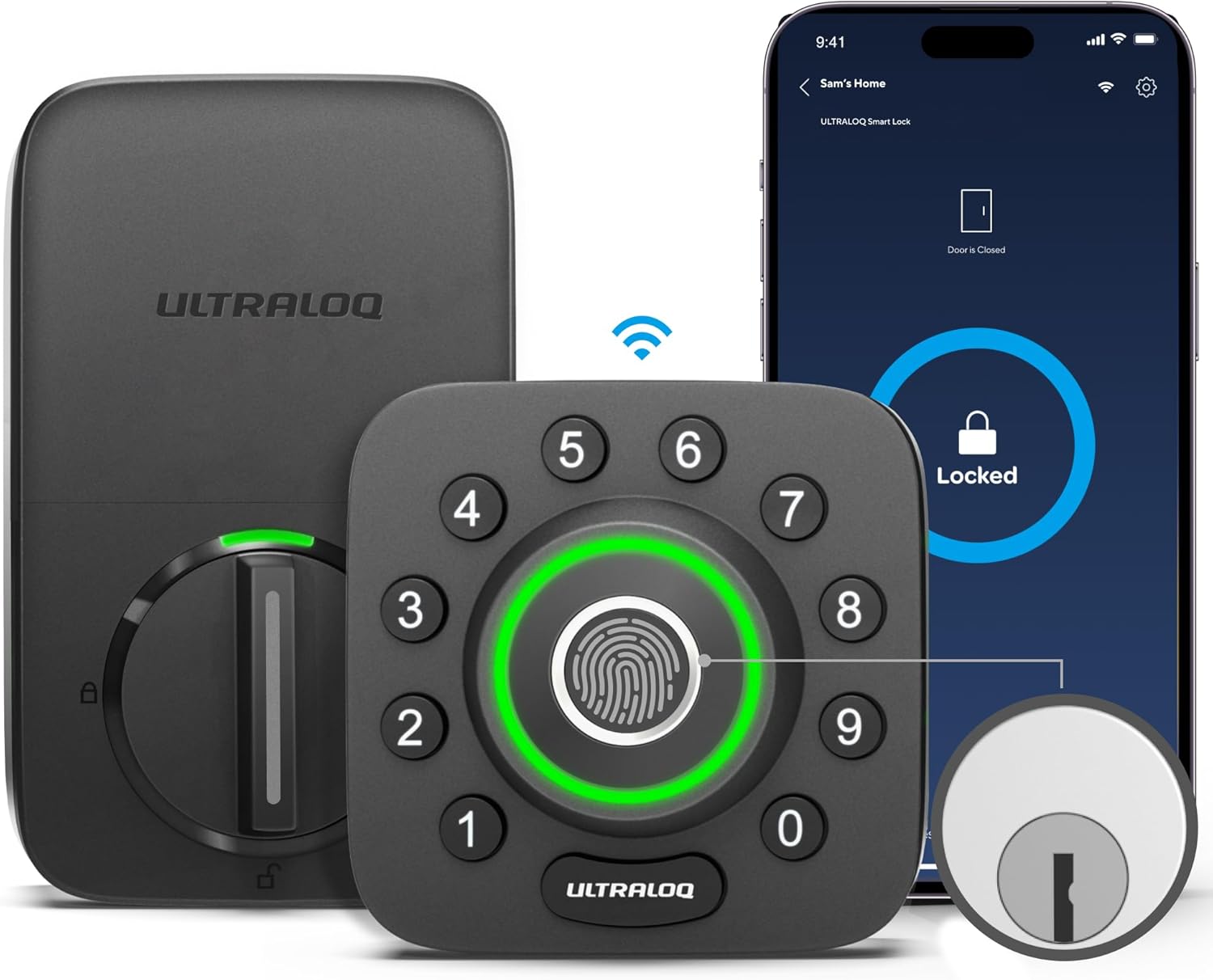
Why Is My Ultraloq Auto Unlock Not Working After iPhone or Android Update?
- Location permission reset to while-using only
- Battery optimization blocks background checks
- Bluetooth scanning disabled by OS policy
Problem Description
Auto Unlock worked previously but stopped after a mobile OS or app update. Users still receive geofence notifications, but the lock does not unlock at the door. This issue is commonly tied to background permission changes, battery optimization settings, Bluetooth state, or stale Auto Unlock profiles.
Symptoms
- Auto unlock worked before phone update
- Geofence alert appears but lock stays closed
- Unlock only works manually in app
- Auto unlock fails after app reinstall
- Works on one phone but not another
- Issue returns after reboot
Recognize these? Here's what usually causes it.
Common Causes
- Location permission reset to while-using only
- Battery optimization blocks background checks
- Bluetooth scanning disabled by OS policy
- Stale geofence profile in Xthings/U-home app
- Phone motion activity access denied
- Lock firmware and app mismatch state
Most fixes happen in the first 3 steps.
Do not disable passcode or physical backup entry while testing Auto Unlock changes. Keep at least one guaranteed manual access method active.
Tools & Requirements
Step-by-Step Solution
Audit app permissions first
Open phone settings and review every permission for the Ultraloq app: Location must be set to Always, Bluetooth must be enabled, and motion/fitness access must be allowed where required. Recent iOS and Android updates commonly reset one of these silently, which breaks background geofence checks while making the app appear normal.
Disable battery restrictions
On Android, set battery mode for the lock app to Unrestricted. On iOS, make sure Background App Refresh is enabled and Low Power behavior is not restricting app activity. Auto Unlock depends on background location checks and Bluetooth handoff, so aggressive battery controls can stop unlock triggers near the door.
Recreate Auto Unlock profile
In the Ultraloq app, disable Auto Unlock, remove any existing geofence settings, then create a fresh profile with supported geofence distance. Save, sign out once, and sign back in. A rebuilt profile clears stale geofence rules that can survive updates and keep triggering notifications without sending unlock commands.
Validate lock and phone pairing
Stand at the door and verify Bluetooth response from the app first, then walk outside geofence range and return to test Auto Unlock flow. If manual Bluetooth unlock fails intermittently, fix that first by checking lock battery level, firmware, and pairing stability. Auto Unlock reliability depends on clean local Bluetooth handoff.
Update firmware and finalize test
Check for lock firmware updates and apply them before final testing. After updating, reboot phone and lock, then run three live return-home tests. Confirm consistent unlock behavior before relying on it for family or rental access. If still failing, remove mobile key and re-enroll the user account on the lock.
Quick Solutions
Still having issues? This is usually the deeper cause below.
If the keypad rejects valid codes, a lockout timer may be running — five failed entries locks most keypads silently for 5–10 minutes.
For households using multiple phones, configure and test Auto Unlock on each phone separately after updates to catch permission drift early.
Most smart lock failures people label as hardware issues turn out to be a code wiped during a sync, or a setting reset nobody remembers triggering.
- Location permission reset to while-using only
- Battery optimization blocks background checks
- Bluetooth scanning disabled by OS policy
- Stale geofence profile in Xthings/U-home app
- Phone motion activity access denied
Before you go — try one of these (they fix most cases).
Official Manufacturer Manual
Ultraloq provides official product documentation through their online manual rather than downloadable PDF. Access setup guides, troubleshooting steps, and product specifications for your Ultraloq U-Bolt Series.
Source: support.u-tec.com
Need More Help? Ultraloq Support
Note: The contact information below connects you directly to Ultraloq's official customer support team, not Trunetto. They can help with warranty claims, device replacements, and advanced technical issues.
Accessories owners commonly pair with Ultraloq U-Bolt Series.

Amazon Basics 20-Pack AA Alkaline High-Performance Batter...

Amazon Basics CR2032 3V Lithium Coin Cell Batteries for K...

Duracell Coppertop Double AA Batteries with Power Boost I...
As an Amazon Associate we earn from qualifying purchases.