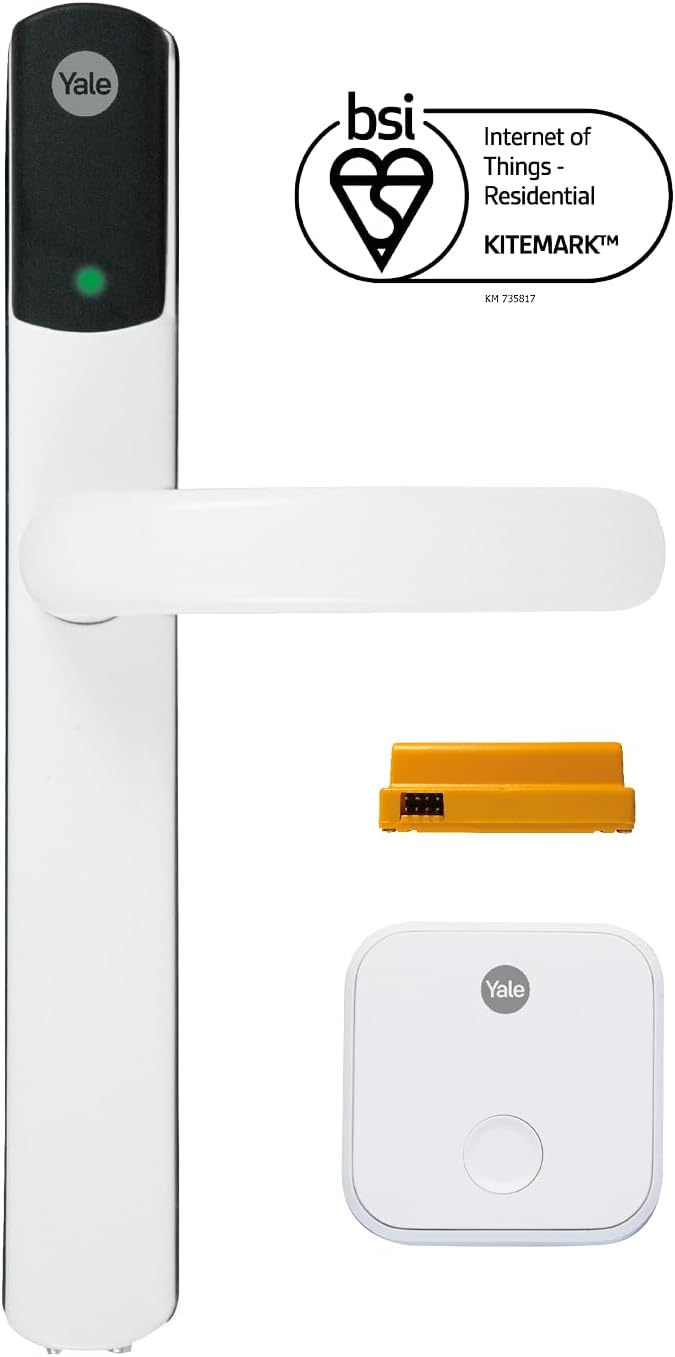
How Do I Install the Yale Linus Smart Lock?
- Batteries running low need replacement
- Lock not calibrated properly for door alignment
- WiFi or Bluetooth connection lost
Problem Description
You are installing the Yale Linus Smart Lock (European market retrofit lock). Check door compatibility — the Linus mounts on the inside of the door over your existing cylinder lock thumbturn. It works with most Euro-profile cylinders. The lock attaches using an adhesive mounting plate on the door. This guide covers compatibility, mounting plate installation, and Yale Access app setup.
Why This Happens in Real Homes
Installing the Yale Linus mounts over the inside thumbturn of a European cylinder lock, so fit and calibration to your cylinder are what make or break it, not wiring. In real installs a cylinder that sticks or a miscalibrated turn range causes failed locks. Confirm cylinder compatibility, mount it square, and run the calibration so the motor learns the full lock and unlock travel.
Symptoms
- Lock does not respond to app commands
- Keypad codes stopped working
- Auto-lock feature not engaging
- Lock shows offline in the app
- Battery draining too quickly
- Lock makes grinding noise but does not engage
- Voice unlock commands fail
Recognize these? Here's what usually causes it.
Common Causes
- Batteries running low need replacement
- Lock not calibrated properly for door alignment
- WiFi or Bluetooth connection lost
- Door or frame misaligned causing friction
- Access codes entered incorrectly
- Lock firmware outdated
- Hub or bridge disconnected
Most fixes happen in the first 3 steps.
Always keep a physical backup key accessible outside your home in case of total lock failure. Never perform a factory reset while locked out as this may disable all electronic access. Ensure battery level is above 50 percent before firmware updates to prevent corruption.
Tools & Requirements
These tools will help you complete this fix.

Measuring tape
10 Pack Bulk Tape Measure 25 FT with Fractions 1/8, ...

Screwdriver
STREBITO 155 in 1 Electric Screwdriver Set, Small El...
As an Amazon Associate we earn from qualifying purchases.
Step-by-Step Solution
Check door compatibility
The Yale Linus Smart Lock is a European-style retrofit lock that mounts on the interior side of your door. It fits most European cylinder locks (oval, euro profile). It does not fit American-style deadbolts — for those, use the Yale Assure Lock range. The Linus requires a door thickness of 35-70mm. Check that your existing thumb turn or cylinder extends far enough for the Linus adapter to grip.
Attach the mounting plate
Use the included adhesive strip to attach the mounting plate to the inside of your door, centred over the lock cylinder or thumb turn. The adhesive is strong enough for permanent use — no drilling required. Press firmly and hold for 30 seconds. If you prefer screws, the mounting plate has screw holes. Wait 24 hours before mounting the lock body if using adhesive alone, to let it cure fully.
Fit the adapter and lock body
Select the correct thumb turn adapter from the included set — the Linus comes with multiple sizes. Attach the adapter to the plate, snap the lock body on, and test. Turn the lock manually using the physical turn on the Linus body — the cylinder should engage and the latch or deadbolt should extend and retract. If it is stiff, check adapter fit and door alignment.
Set up in the Yale Access app
Install the Yale Access app and create or sign into your account. Tap Add Device and select the Linus. The app pairs via Bluetooth. Run calibration: the app asks you to manually lock and unlock the door to teach the Linus the rotation range. After calibration, install the DoorSense magnet on the frame and calibrate it. Connect via the Yale Connect WiFi Bridge for remote access if you want to control the lock when away from home.
Configure Auto-Lock and Auto-Unlock
In the Yale Access app, enable Auto-Lock (locks automatically after a configurable timer when DoorSense confirms the door is closed) and Auto-Unlock (detects your phone via geofence and Bluetooth and unlocks as you approach). Grant the app Always location permission for Auto-Unlock to work. The Linus uses four AA batteries, which last 6-12 months depending on usage frequency and whether WiFi is active through the bridge.
Quick Solutions
Still having issues? This is usually the deeper cause below.
If the keypad rejects valid codes, a lockout timer may be running — five failed entries locks most keypads silently for 5–10 minutes.
Set up auto-lock to engage 30 seconds after the door closes so you never accidentally leave it unlocked. Create temporary access codes for guests and service workers that automatically expire after a set time period.
Most smart lock failures people label as hardware issues turn out to be a code wiped during a sync, or a setting reset nobody remembers triggering.
- Batteries running low need replacement
- Lock not calibrated properly for door alignment
- WiFi or Bluetooth connection lost
- Door or frame misaligned causing friction
- Access codes entered incorrectly
Before you go — try one of these (they fix most cases).
Most popular upgrades chosen by Yale Linus owners.

Yale Assure Lock 2 Deadbolt, Black Suede Smart Keyless En...

Yale Assure Lock 2 Deadbolt, Lifetime Brass Keyed Smart E...

Yale Assure Lock 2 Bluetooth Lock with Wi-Fi Smart Module...
As an Amazon Associate we earn from qualifying purchases.
Official Manufacturer Manual
Yale provides official product documentation through their online manual rather than downloadable PDF. Access setup guides, troubleshooting steps, and product specifications for your Yale Linus.
Source: shopyalehome.com
Need More Help? Yale Support
Note: The contact information below connects you directly to Yale's official customer support team, not Trunetto. They can help with warranty claims, device replacements, and advanced technical issues.
How Does Yale Compare?
Before replacing your Yale device, see how it stacks up against alternatives in our full comparison guides.