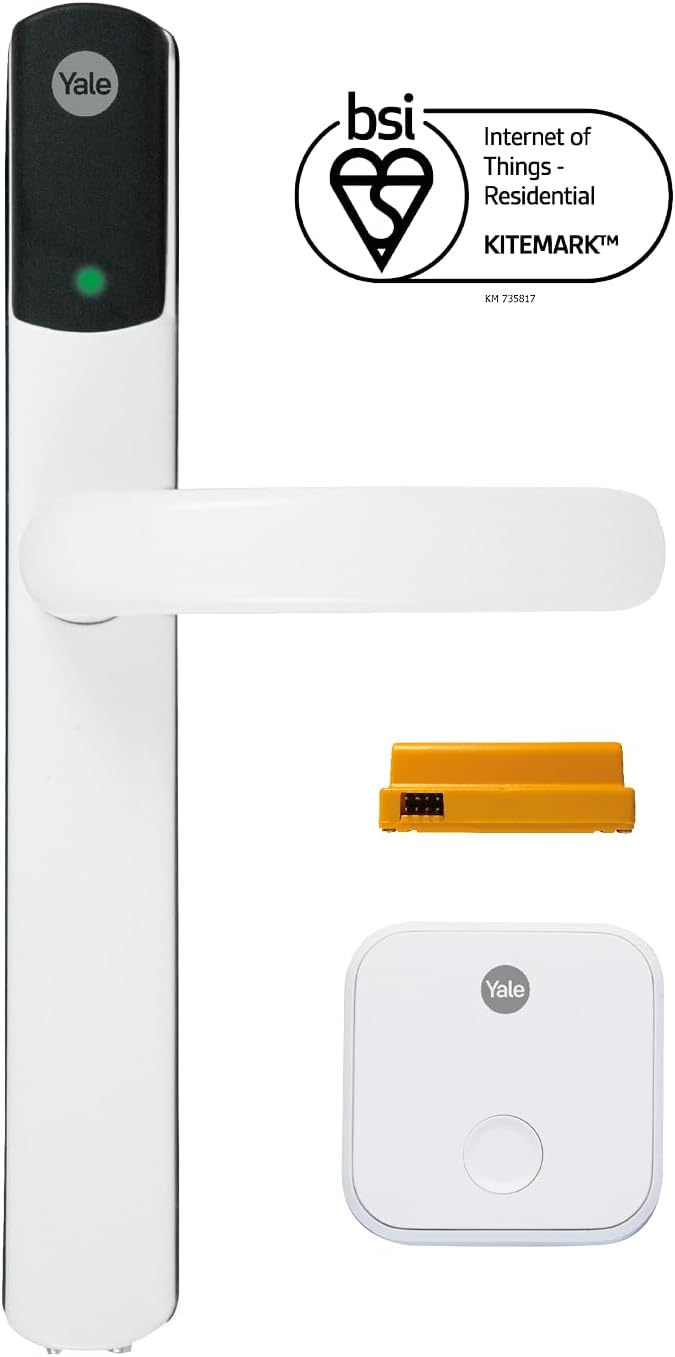
How Do I Set Up the Yale Real Living Touchscreen Lock?
- Low or dead AA batteries
- Moisture, dirt, or fingerprint film on the capacitive screen
- Programming sequence not followed (master PIN must be set first)
Problem Description
You are setting up the Yale Real Living touchscreen deadbolt lock. If the touchscreen is not lighting up, clean it with a dry cloth — moisture, dirt, and fingerprint residue can interfere with touch detection. The touchscreen activates when you touch it or wave your hand near it. This guide covers initial programming, master PIN setup, adding user codes, and touchscreen troubleshooting.
Why This Happens in Real Homes
The Real Living is Yale's touchscreen deadbolt, and its capacitive screen is the source of most complaints. Capacitive means it senses the electrical contact of your skin, so anything between your finger and the glass degrades it: a film of dirt, rain, fingerprint oil, or a thin layer of ice makes the screen slow or unresponsive, and so does a gloved finger, which is why the lock feels worst in winter. A dry wipe fixes a surprising number of dead touchscreens. When the screen is genuinely dark, it is the batteries: four AA cells power everything, and low cells dim the display before the lock quits entirely. On setup, follow the sequence and program the master PIN before you add any user codes, or the codes will not take. And if the lock lives on an exposed door that catches driving rain, a small weather shroud keeps water off the screen and out of the electronics, which prevents the intermittent faults that show up months later.
Symptoms
- Touchscreen does not light when touched
- Only some number areas respond
- Touchscreen lights but ignores taps
- Master PIN will not program
- User codes not accepted after being added
- Touchscreen unreliable in cold or wet weather
- Screen flickers or dims
- Lock beeps but does not accept the code
Recognize these? Here's what usually causes it.
Common Causes
- Low or dead AA batteries
- Moisture, dirt, or fingerprint film on the capacitive screen
- Programming sequence not followed (master PIN must be set first)
- Gloved or very dry-skin touch not registering
- Screen needs a wake tap or wave before entry
- Cold weather reducing touch sensitivity and battery voltage
- Firmware needs an update
- Water intrusion on an exposed, unshielded lock
Most fixes happen in the first 3 steps.
Always keep a physical backup key accessible outside your home in case of total lock failure. Never perform a factory reset while locked out as this may disable all electronic access. Ensure battery level is above 50 percent before firmware updates to prevent corruption.
Tools & Requirements
These tools will help you complete this fix.

Door alignment tool
Door Latch Strike Plate, Stainless Steel Door Lock P...

Replacement batteries
Duracell Coppertop Double AA Batteries with Power Bo...

Screwdriver
STREBITO 155 in 1 Electric Screwdriver Set, Small El...
As an Amazon Associate we earn from qualifying purchases.
Step-by-Step Solution
Clean the touchscreen
The Yale Real Living touchscreen uses a capacitive touch surface that needs direct skin contact. Dirt, fingerprint buildup, or moisture film prevents touch detection. Wipe the screen with a dry microfiber cloth. Do not use window cleaner or harsh chemicals — they leave residue that interferes with the capacitive sensor. In cold weather, breath condensation or thin ice layers block all touch input. Warm the screen with your hand for 10 seconds before entering your code.
Replace the batteries
The Yale Real Living deadbolt uses four AA batteries. When batteries are low, the touchscreen becomes sluggish or unresponsive before the lock motor fails. The screen may light up but not register key presses, or register them after a long delay. Replace all four batteries at once with quality alkaline batteries. After replacing, the lock beeps and the screen lights up. Test by entering your code immediately. Battery life is typically 12-24 months with normal use.
Needed for this step
Duracell Coppertop Double AA Batteries with Pow...
This helps complete the fix you are currently reading.
$6.96Reprogram access codes
If the touchscreen responds but rejects every code, the codes may have been cleared by a power loss or glitch. Enter the master code (set during initial installation). If it works, reprogram user codes: enter master code, press the gear/settings icon, select Add User Code, and enter the new code. If the master code also fails, the lock needs a factory reset — press and hold the reset button inside the battery compartment for 10 seconds until the lock beeps twice. Then reprogram all codes.
Fix ghost touches or random activations
If the lock screen activates on its own or registers phantom key presses, moisture or electrical interference is usually the cause. Check that the weatherstrip around the lock is intact — water ingress causes erratic behavior. Dry the lock thoroughly. If this doesn't help, check for nearby sources of electromagnetic interference (a metal door frame with an intercom wired through it, or a doorbell transformer mounted directly behind the lock). Relocating the interference source or adding a grounding wire may help.
Needed for this step
Door Latch Strike Plate, Stainless Steel Door L...
This helps complete the fix you are currently reading.
$7.49Check the door handing configuration
During installation, the Yale Real Living lock must be programmed for the correct door orientation (left-hand or right-hand, inswing or outswing). If the handing is wrong, the lock may lock when it should unlock and vice versa. The touchscreen shows the wrong status. To reconfigure, enter the master code, go to System Settings, and select Door Handing. Follow the on-screen prompts to set the correct orientation. The lock recalibrates the motor direction.
Quick Solutions
Still having issues? This is usually the deeper cause below.
If the keypad rejects valid codes, a lockout timer may be running — five failed entries locks most keypads silently for 5–10 minutes.
Set up auto-lock to engage 30 seconds after the door closes so you never accidentally leave it unlocked. Create temporary access codes for guests and service workers that automatically expire after a set time period.
Most smart lock failures people label as hardware issues turn out to be a code wiped during a sync, or a setting reset nobody remembers triggering.
- Low or dead AA batteries
- Moisture, dirt, or fingerprint film on the capacitive screen
- Programming sequence not followed (master PIN must be set
- Gloved or very dry-skin touch not registering
- Screen needs a wake tap or wave before entry
Before you go — try one of these (they fix most cases).
Most popular upgrades chosen by Yale Real Living owners.

Yale Assure Lock 2 Deadbolt, Black Suede Smart Keyless En...

Yale Assure Lock 2 Deadbolt, Lifetime Brass Keyed Smart E...

Yale Assure Lock 2 Bluetooth Lock with Wi-Fi Smart Module...
As an Amazon Associate we earn from qualifying purchases.
Official Manufacturer Manual
Yale provides official product documentation through their online manual rather than downloadable PDF. Access setup guides, troubleshooting steps, and product specifications for your Yale Real Living.
Source: shopyalehome.com
Need More Help? Yale Support
Note: The contact information below connects you directly to Yale's official customer support team, not Trunetto. They can help with warranty claims, device replacements, and advanced technical issues.
How Does Yale Compare?
Before replacing your Yale device, see how it stacks up against alternatives in our full comparison guides.