

Why Does My Ecobee Thermostat Keep Losing WiFi After a Router Change?
- Ecobee stored old WiFi credentials that no longer match new router
- New router uses different security type such as WPA3 not supported
- New router broadcasting on 5GHz only and Ecobee needs 2.4GHz
Problem Description
After replacing your home router or changing your WiFi network name or password your Ecobee thermostat can no longer connect to WiFi. The thermostat shows a WiFi icon with an X or a connection error and the Ecobee app shows the thermostat as offline. The thermostat stores WiFi credentials internally and must be updated with the new network name and password through its on-screen setup menu.
Why This Happens in Real Homes
An ecobee losing WiFi after a router change stored the old credentials — the new network name/password (or a new router entirely) doesn't match, so it can't reconnect until you re-enter the details.
Start by reconnecting it: on the thermostat, go to Settings > WiFi, select the new network, and enter the password. If you reused the old SSID and password on the new router, it usually rejoins on its own; otherwise it needs the new credentials, and confirm the network is 2.4GHz on WPA2.
Symptoms
- Ecobee shows WiFi icon with X after router was changed
- Thermostat shows offline in Ecobee app after new router setup
- Ecobee cannot find or connect to the new WiFi network
- WiFi setup in thermostat shows old network name not new one
- Thermostat connects briefly then drops when connecting to new router
- New router has same SSID but Ecobee still will not connect
Recognize these? Here's what usually causes it.
Common Causes
- Ecobee stored old WiFi credentials that no longer match new router
- New router uses different security type such as WPA3 not supported
- New router broadcasting on 5GHz only and Ecobee needs 2.4GHz
- New router SSID same as old but different password not updated
- Router using MAC address filtering blocking new Ecobee connection
- Ecobee stuck in connection retry loop requiring manual intervention
Most fixes happen in the first 3 steps.
Do not use WPA3-only security on your router if you have Ecobee or other older smart home devices. Many devices only support WPA2. Use WPA2/WPA3 mixed mode for broad compatibility.
Tools & Requirements
Step-by-Step Solution
Update WiFi Credentials on Thermostat Screen
On the Ecobee thermostat swipe down from the top to access the quick access menu and tap WiFi. Alternatively go to Main Menu then Settings then WiFi. Tap on the current network name and select Forget or tap the new network name from the available list. Enter the new WiFi password carefully using the on-screen keyboard. Passwords are case-sensitive. After entering tap Connect and wait up to 90 seconds for the thermostat to establish the new connection.
Confirm 2.4GHz Band Is Available
The Ecobee thermostat only connects to 2.4GHz WiFi networks. If your new router is a WiFi 6 or 6E model it may default to 5GHz or 6GHz with the same network name. Log into the new router admin panel and confirm a 2.4GHz band is enabled and broadcasting with a visible network name. If the router uses band steering or a combined SSID the Ecobee may attempt to connect to 5GHz and fail. Create a dedicated 2.4GHz SSID if necessary.
Use Same SSID and Password as Old Router
If you replace your router and configure the new one with the exact same network name and password as the old router the Ecobee will reconnect automatically without any manual credential update. This is the easiest migration strategy when changing routers. Set the new router SSID and WiFi password to match the old values exactly including capitalisation. After the new router broadcasts the Ecobee should reconnect within 5 minutes of the first broadcast.
Check Router MAC Filtering
Log into your new router admin panel and check if MAC address filtering or Access Control is enabled. This feature creates an allowlist of approved device MAC addresses and blocks all others. If enabled add the Ecobee thermostat MAC address to the approved list. Find the Ecobee MAC address in the thermostat menu under Settings then About then Network. Add this MAC to the router allowlist and retry the WiFi connection.
Restart Thermostat After Credential Update
After updating the WiFi credentials on the thermostat perform a full restart by going to Main Menu then Settings then Reset then Restart. This clears the WiFi connection state and initiates a fresh connection attempt with the newly entered credentials. After restart the thermostat displays a connecting animation and the WiFi icon should change from an X to a signal strength indicator within 90 seconds when the new credentials are accepted by the router.
Quick Solutions
Still having issues? This is usually the deeper cause below.
This usually happens right after a router reboot or ISP change — the device rejoins the network but drops its cloud session silently.
Keep a record of your WiFi network name and password in a secure location. Having to look up credentials on the router admin page adds unnecessary time when updating multiple smart home devices after a router change.
Most WiFi drop-offs happen right after a router reboot or ISP swap — the device reconnects to the network but silently loses its cloud registration.
- Ecobee stored old WiFi credentials
- New router uses different security type such as WPA3
- New router broadcasting on 5GHz only and Ecobee needs
- New router SSID same as old but different password
- Router using MAC address filtering blocking new Ecobee connection
Before you go — try one of these (they fix most cases).
Most popular upgrades chosen by Ecobee Smart Thermostat owners.
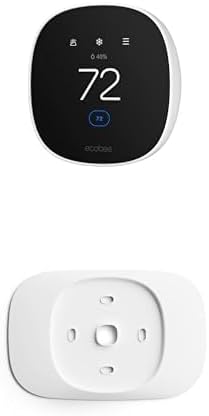
As an Amazon Associate we earn from qualifying purchases.
Official Manufacturer Manual
If you need the complete manufacturer documentation for advanced setup, wiring diagrams, or detailed specifications, you can download the official manual below. The manual includes full technical instructions directly from the manufacturer and may help if your issue requires deeper troubleshooting.
Download the Official Ecobee Smart Thermostat ManualSource: ecobee.com
Need More Help? Ecobee Support
Note: The contact information below connects you directly to Ecobee's official customer support team, not Trunetto. They can help with warranty claims, device replacements, and advanced technical issues.
How Does Ecobee Compare?
Before replacing your Ecobee device, see how it stacks up against alternatives in our full comparison guides.
Accessories owners commonly pair with Ecobee Smart Thermostat.

Ring Rechargeable Quick Release Battery Pack
Ring Chime Pro

SwitchBot Hub Mini Smart Remote - IR Universal Remote, Wi...
As an Amazon Associate we earn from qualifying purchases.


