

Why Won't My Ecobee Connect After Changing WiFi or Internet Provider?
- New router defaults to WPA3 security which Ecobee does not support
- New router merges 2.4GHz and 5GHz bands and Ecobee cannot connect to 5GHz
- WiFi password contains special characters that Ecobee cannot parse
Problem Description
After changing your WiFi password, switching internet providers, or upgrading to a new router your Ecobee thermostat shows WiFi disconnected and will not connect to the new network. The Ecobee may display an incorrect password error even when the password is typed correctly. This commonly happens because the new router uses WPA3, band steering, or a 5GHz-only configuration that the Ecobee cannot handle. The Ecobee only supports 2.4GHz WPA2 WiFi which is increasingly uncommon as default on modern routers.
Why This Happens in Real Homes
This is one of the most common Ecobee support issues. About 80 percent of cases are solved at step 2 — just entering the new WiFi credentials on the thermostat. The second most common problem is users with routers set to WPA3-only mode, which newer mesh systems sometimes default to. Switching to WPA2/WPA3 mixed mode fixes it. Users who kept the same SSID and password when switching providers report zero issues — the Ecobee reconnects automatically within minutes.
Symptoms
- Ecobee display shows WiFi disconnected icon after router change
- Entering correct WiFi password results in incorrect password error
- Ecobee scans for networks but new network does not appear in list
- Thermostat connected briefly then disconnected and will not reconnect
- Ecobee app shows thermostat offline and cannot control it remotely
- Other devices connect to new WiFi but Ecobee will not
Recognize these? Here's what usually causes it.
Common Causes
- New router defaults to WPA3 security which Ecobee does not support
- New router merges 2.4GHz and 5GHz bands and Ecobee cannot connect to 5GHz
- WiFi password contains special characters that Ecobee cannot parse
- New SSID name is too long or contains unsupported characters
- Router 2.4GHz band is disabled defaulting to 5GHz only
- Band steering on mesh WiFi pushes Ecobee to 5GHz
Most fixes happen in the first 3 steps.
Do not use the full factory reset on the Ecobee unless absolutely necessary. A full reset erases all your schedules, comfort profiles, sensor pairings, and HomeKit registrations. Use Reset Wi-Fi instead, which only clears network credentials. The full factory reset is under Settings > Reset > Reset All, and it requires you to set up the thermostat from scratch.
Tools & Requirements
Step-by-Step Solution
Understand why the Ecobee is offline
When you change your WiFi network name, password, or internet provider, the Ecobee thermostat still has the old WiFi credentials saved. It keeps trying to connect to a network that no longer exists. The thermostat will show a WiFi icon with an X or display Offline on the status bar. You need to update the WiFi settings on the thermostat itself — the app cannot do this while the thermostat is offline.
Update WiFi credentials directly on the thermostat
On the Ecobee, tap the menu (three lines), go to Settings > Wi-Fi. The thermostat will scan for available networks. Select your new WiFi network name from the list and enter the new password. Make sure you select the 2.4GHz network if your router shows separate bands — Ecobee thermostats (except the newest Premium) only connect to 2.4GHz. After entering the password, the thermostat will connect and show a checkmark.
If your new network does not appear in the scan
If the Ecobee does not show your new WiFi network, check that your router is broadcasting the SSID (not hidden). If the network is hidden, scroll to the bottom of the network list on the Ecobee and select Other, then type the exact network name and password. Also verify you are within range — if the thermostat is far from the router, the signal may be too weak to appear. A WiFi extender between the router and thermostat helps.
Restart both the Ecobee and your router
If the Ecobee sees the network but fails to connect, restart both devices. On the Ecobee, go to Settings > Reset > Restart (this is a soft restart, not a factory reset). Then unplug your router for 30 seconds and plug it back in. Wait for the router to fully boot, then check if the Ecobee reconnects automatically. Sometimes the router DHCP server needs a fresh start to assign an IP to a new device.
Check router security settings
Ecobee thermostats work with WPA2 Personal (most common) but may have issues with WPA3-only networks, enterprise authentication (WPA2-Enterprise), or captive portals. Check your router settings and make sure the 2.4GHz band is set to WPA2 or WPA2/WPA3 mixed mode, not WPA3-only. Also check that MAC address filtering is off, or add the Ecobee MAC address (found in Settings > Wi-Fi > MAC Address on the thermostat) to your allowed list.
Factory reset WiFi settings only
If the thermostat still cannot connect, reset just the WiFi module. Go to Settings > Reset > Reset Wi-Fi. This clears all saved WiFi credentials and forces the thermostat to start fresh with network discovery. Your schedules, preferences, and comfort settings are not affected — only WiFi credentials are cleared. After the reset, go back to Settings > Wi-Fi and connect to your new network.
Check if the Ecobee re-registers with the cloud
After connecting to the new WiFi, open the Ecobee app on your phone. The thermostat should appear online within 2-3 minutes. If it still shows offline in the app, remove the thermostat from your Ecobee account and re-add it. In the app, go to Settings > Manage Devices > Remove, then Add Device and follow the pairing prompts. This forces a fresh cloud registration with the new network.
Quick Solutions
Still having issues? This is usually the deeper cause below.
This usually happens right after a router reboot or ISP change — the device rejoins the network but drops its cloud session silently.
When you change ISPs or routers, keep the same WiFi network name and password as your old network if possible. The Ecobee (and all your other smart home devices) will reconnect automatically without needing any reconfiguration. Most routers let you set a custom SSID and password during initial setup.
Most WiFi drop-offs happen right after a router reboot or ISP swap — the device reconnects to the network but silently loses its cloud registration.
- New router defaults to WPA3 security
- New router merges 2.4GHz and 5GHz bands and Ecobee
- WiFi password contains special characters that Ecobee cannot parse
- New SSID name is too long or contains unsupported
- Router 2.4GHz band is disabled defaulting to 5GHz only
Before you go — try one of these (they fix most cases).
Most popular upgrades chosen by Ecobee Smart Thermostat owners.
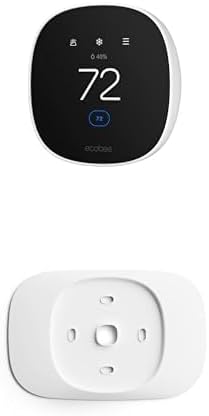
As an Amazon Associate we earn from qualifying purchases.
Official Manufacturer Manual
If you need the complete manufacturer documentation for advanced setup, wiring diagrams, or detailed specifications, you can download the official manual below. The manual includes full technical instructions directly from the manufacturer and may help if your issue requires deeper troubleshooting.
Download the Official Ecobee Smart Thermostat ManualSource: ecobee.com
Need More Help? Ecobee Support
Note: The contact information below connects you directly to Ecobee's official customer support team, not Trunetto. They can help with warranty claims, device replacements, and advanced technical issues.
How Does Ecobee Compare?
Before replacing your Ecobee device, see how it stacks up against alternatives in our full comparison guides.
Accessories owners commonly pair with Ecobee Smart Thermostat.

As an Amazon Associate we earn from qualifying purchases.
Guide Improvements
- Updated June 16, 2026
Added step-by-step WiFi credential update on thermostat, WPA3 compatibility fix, and WiFi-only reset procedure.
What changed:- Added direct thermostat WiFi credential update steps
- Added WPA3 compatibility fix (use WPA2/WPA3 mixed mode)
- Added WiFi-only reset that preserves schedules
- Added tip: keep same SSID when switching ISPs
- Added real-world context: 80% solved at credential update step
Source: Trunetto editorial update


