

Why Is My Ecobee Thermostat Screen Blank or Unresponsive?
- Power issue from HVAC system
- Tripped breaker or blown fuse
- Loose wiring connection
Problem Description
Your Ecobee Smart Thermostat is not responding to commands from the app, voice assistants, or physical controls. The Smart Thermostat appears powered on but ignores inputs, which prevents you from controlling it remotely or through any smart home integration. Specifically, the issue involves thermostat screen blank or unresponsive. The steps below walk you through diagnosing the root cause and applying proven fixes so your Smart Thermostat works reliably again.
Why This Happens in Real Homes
An ecobee that won't turn on is a power problem — no 24V from the HVAC, a tripped breaker or blown fuse, or a missing C-wire so it can't stay powered. The screen is dark because it has no power.
Start by checking the HVAC breaker and the furnace door safety switch, then the small fuse on the furnace control board (a common, cheap failure). Confirm a C-wire (or PEK) is delivering continuous power and all wires are seated; a dead ecobee is almost always upstream power, not the thermostat.
Symptoms
- Screen is completely black/blank
- Touch screen not responding to taps
- Display is frozen on one screen
- Thermostat keeps rebooting
- Screen flickers or dims unexpectedly
Recognize these? Here's what usually causes it.
Common Causes
- Power issue from HVAC system
- Tripped breaker or blown fuse
- Loose wiring connection
- Thermostat needs a reset
- Screen hardware failure
Most fixes happen in the first 3 steps.
Never pull wires out of the terminals while power is on. Always turn off the breaker first to avoid electrical shock or damage to the thermostat.
Tools & Requirements
These tools will help you complete this fix.

As an Amazon Associate we earn from qualifying purchases.
Step-by-Step Solution
Verify HVAC power is on
The Ecobee draws power from your HVAC system, not batteries. If the HVAC breaker tripped, the thermostat has no power. Check the breaker panel for a tripped HVAC breaker and reset it. Also check if your furnace has a secondary power switch — some installations have a light switch-style disconnect near the furnace. Both the breaker and the disconnect must be on.
Check the furnace door safety switch
Most furnaces have a push-button safety switch on the blower compartment door. If the door is even slightly ajar, this switch cuts all 24V power to the thermostat circuit. Push the furnace door firmly closed until you hear the switch click. This is one of the most overlooked causes of a completely dead thermostat — HVAC technicians check it first.
Inspect the thermostat wiring
Pull the Ecobee off its backplate and check each wire terminal. The R wire provides 24V power and the C wire completes the circuit. If either wire has slipped out of its terminal, the thermostat loses power entirely. Push each wire in firmly until it clicks. Also check for a blown 3-amp fuse on the furnace control board — a wiring short during installation commonly blows this fuse. Replace it with a 3-amp automotive fuse from any hardware store.
Test the transformer output
If the breaker is on, the furnace door is closed, and the wiring is secure but the thermostat is still dead, the 24V transformer may have failed. The transformer is usually mounted on or near the furnace control board. Use a multimeter to measure AC voltage across the transformer secondary terminals (the two wires going to R and C). You should read 24-28V AC. If you read 0V, the transformer is dead and needs replacement — this is a $15-30 part and a simple swap.
Try a hard reset
If the screen is completely black and unresponsive, hold the thermostat firmly on the backplate and press the physical reset button (a small pinhole on the bottom or side of the thermostat) with a paperclip. Hold for 10 seconds. If the thermostat has power but the screen controller crashed, this forces a hardware reboot. If nothing happens, the thermostat either has no power (go back to steps 1-4) or has a hardware failure. Contact Ecobee support — they can often diagnose remotely by checking the device connection status from their end.
Quick Solutions
Still having issues? This is usually the deeper cause below.
Schedules that skip randomly are usually a daylight-saving holdover — delete and recreate the schedule to clear the corrupted entry.
If you don't have a C wire and didn't install the PEK, your thermostat will struggle to maintain power. The PEK installation is worth doing right.
Thermostat issues that keep returning are often caused by stale backup-battery memory holding old settings across power cycles without the user realising.
- Power issue from HVAC system
- Tripped breaker or blown fuse
- Loose wiring connection
- Thermostat needs a reset
- Screen hardware failure
Before you go — try one of these (they fix most cases).
Most popular upgrades chosen by Ecobee Smart Thermostat owners.
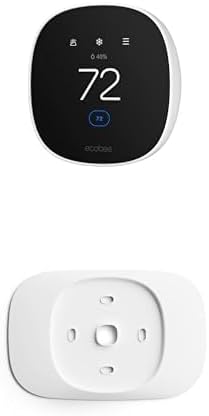
As an Amazon Associate we earn from qualifying purchases.
Official Manufacturer Manual
If you need the complete manufacturer documentation for advanced setup, wiring diagrams, or detailed specifications, you can download the official manual below. The manual includes full technical instructions directly from the manufacturer and may help if your issue requires deeper troubleshooting.
Download the Official Ecobee Smart Thermostat ManualSource: ecobee.com
Need More Help? Ecobee Support
Note: The contact information below connects you directly to Ecobee's official customer support team, not Trunetto. They can help with warranty claims, device replacements, and advanced technical issues.
How Does Ecobee Compare?
Before replacing your Ecobee device, see how it stacks up against alternatives in our full comparison guides.
Accessories owners commonly pair with Ecobee Smart Thermostat.

Ring Rechargeable Quick Release Battery Pack
Ring Chime Pro

SwitchBot Hub Mini Smart Remote - IR Universal Remote, Wi...
As an Amazon Associate we earn from qualifying purchases.


