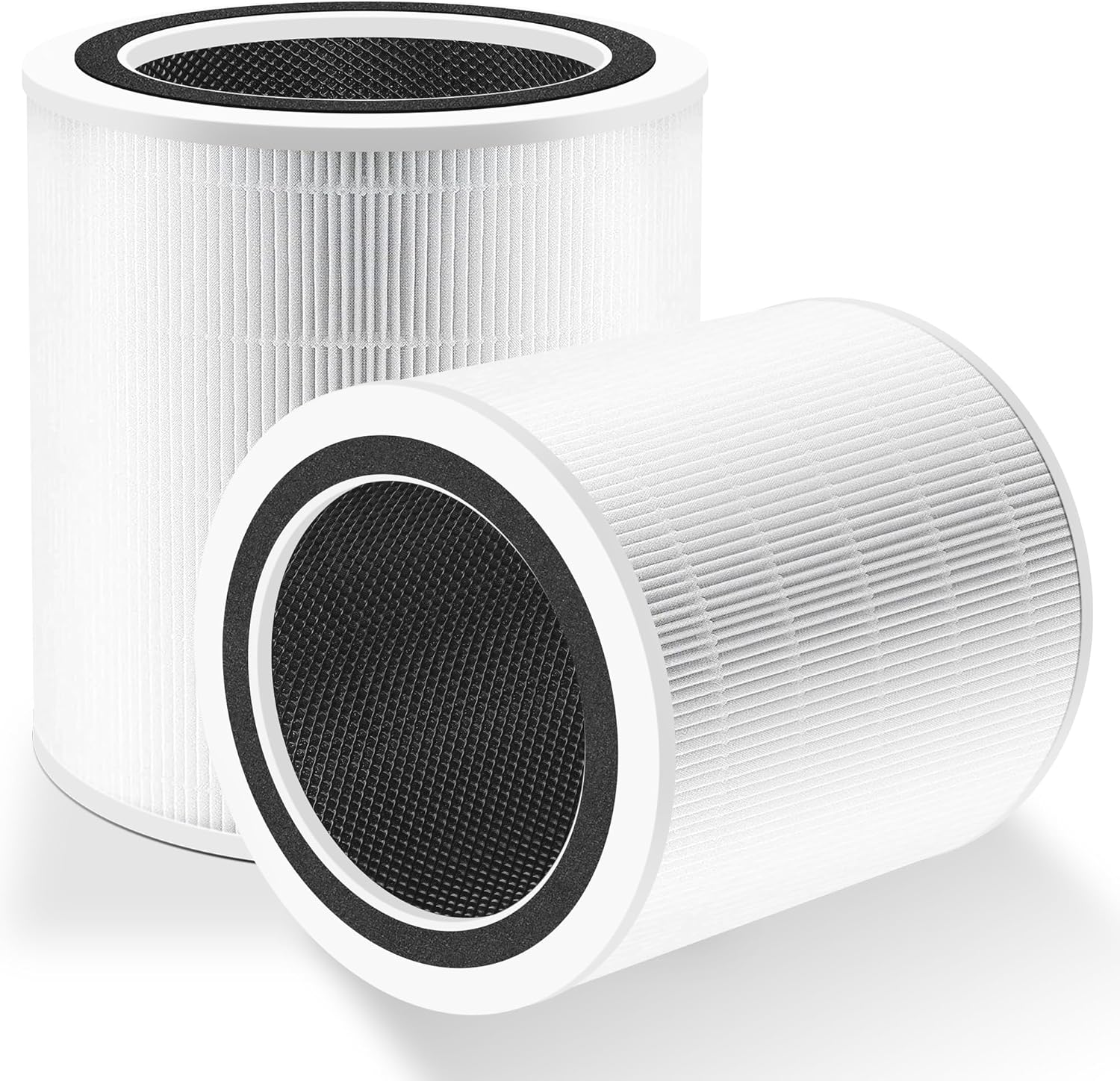
How to Replace the Levoit Core 400S Filter and Reset the Indicator
- Packaging/plastic wrap left on the new filter
- Filter installed upside down (arrow not up)
- Non-genuine filter restricting airflow
Problem Description
Replace the Levoit Core 400S HEPA filter and reset the filter life indicator so Auto mode behaves accurately and filter lifespan tracking remains reliable across future replacements.
Why This Happens in Real Homes
Replacing the Core 400S filter is simple, but the step people forget is resetting the indicator - Levoit purifiers track filter life by runtime, not by sensing the filter, so a fresh filter alone won't clear the reminder. After swapping the filter you have to hold the reset button (about five seconds, while the unit is powered on) until the indicator light clears. Miss that and the purifier keeps nagging even though the filter is brand new.
Two mechanical details make the difference between a clean swap and a follow-up problem. First, remove every scrap of plastic wrap from the new filter - a filter left in its bag chokes airflow, can cause noise, and makes the unit run hard for nothing. Second, orient it correctly (arrow up) and seat it fully so the door latches; a filter that isn't seated can leave the reminder on or cause rattling. Use a genuine Levoit filter so the fit and airflow are right, wipe out the compartment while it's open, and if you manage filter life in the VeSync app, refresh the app afterward so its counter matches the device.
Symptoms
- Filter indicator light is on
- Purifier is a Core 400S model
- Genuine replacement filter available
- VeSync app installed and signed in
- Filter area accessible from the bottom
- Unit unplugged before opening
- Ready to reset the filter timer
- Auto mode should behave accurately after the swap
Recognize these? Here's what usually causes it.
Common Causes
- Packaging/plastic wrap left on the new filter
- Filter installed upside down (arrow not up)
- Non-genuine filter restricting airflow
- Indicator reset missed after install
- Old dust disturbed during the swap
- App not synced after the hardware change
- Reset button not held long enough
- Filter not fully seated in the compartment
Most fixes happen in the first 3 steps.
Do not wash the Core 400S HEPA filter. Water damages HEPA fibers permanently and reduces particle capture efficiency even after drying.
Tools & Requirements
These tools will help you complete this fix.
As an Amazon Associate we earn from qualifying purchases.
Step-by-Step Solution
Power Down
Turn the Core 400S off and unplug from the wall. Working on an unpowered unit prevents fan startup when the filter door is opened. Move the purifier to a clean surface with good lighting so you can confirm proper filter orientation during install.
Remove Old Filter
Twist the base cover counter-clockwise to release it. Lift out the old filter carefully to avoid releasing trapped dust. If heavily loaded, take it outdoors before opening. Wipe the filter compartment with a soft dry cloth to remove loose debris.

Needed for this step
WHOOSH! Pro 16.9 fl oz Refillable TV Screen Cle...
This helps complete the fix you are currently reading.
$19.99Unwrap and Install
Remove all plastic wrap from the replacement filter before install. Align the arrow marking upward as shown on the housing. Seat the filter fully so the base cover closes without forcing. A restricted seal causes fan warnings and reduces purification efficiency.
Reset Indicator
Plug the unit back in and power it on. Press and hold the Check Filter button until the indicator light turns off. This step is required for accurate filter life tracking. Without a reset, the device keeps counting hours from the previous filter install.
Verify Auto Mode
Open VeSync, refresh device status, and run Auto mode for 15 minutes. Confirm the fan responds appropriately to air quality changes. If the indicator remains on after reset, power cycle for 60 seconds and repeat the button hold sequence.
Quick Solutions
Still having issues? This is usually the deeper cause below.
If this comes back after following these steps, check whether a recent app or firmware update reset a default setting — the fix works, but the setting gets reverted silently.
Buy replacement filters during sales and store sealed. Keeping a spare in the closet means you never have to run on a degraded filter.
This issue almost always looks more complex than it is — the majority of cases trace back to a single setting, a stale credential, or a default that shipped wrong.
- Packaging/plastic wrap left on the new filter
- Filter installed upside down (arrow not up)
- Non-genuine filter restricting airflow
- Indicator reset missed after install
- Old dust disturbed during the swap
Before you go — try one of these (they fix most cases).
Most popular upgrades chosen by Levoit Core 400S Smart Air Purifier owners.

LEVOIT 6000S Smart Whole House Humidifiers, 6 Gal, 72-Hou...

LEVOIT Smart Humidifier (Dual 200S) and Air Purifier (Cor...

Levoit Dual200S Smart Humidifier and Humidifier Filters
As an Amazon Associate we earn from qualifying purchases.
Official Manufacturer Manual
Levoit provides official product documentation through their online manual rather than downloadable PDF. Access setup guides, troubleshooting steps, and product specifications for your Levoit Core 400S Smart Air Purifier.
Source: levoit.com
Need More Help? Levoit Support
Note: The contact information below connects you directly to Levoit's official customer support team, not Trunetto. They can help with warranty claims, device replacements, and advanced technical issues.
Accessories owners commonly pair with Levoit Core 400S Smart Air Purifier.

LEVOIT Evaporative Humidifiers for Bedroom Baby, Dual Air...

LEVOIT Smart Cool Mist Top Fill Humidifiers for Bedroom w...

LEVOIT Classic300S Ultrasonic Smart Top Fill Humidifier, ...
As an Amazon Associate we earn from qualifying purchases.