

How to Fix Levoit Vital 200S Auto Mode Not Adjusting Fan Speed
- Dust on the air-quality sensor
- Sensor blocked by a wall
- Auto mode disabled in the app
Problem Description
Auto mode should increase fan speed when air quality changes. This guide cleans the sensor, checks settings, and recalibrates auto mode in the VeSync app.
Why This Happens in Real Homes
Auto mode should increase fan speed when air quality changes. This guide cleans the sensor, checks settings, and recalibrates auto mode in the VeSync app. In day-to-day use, this usually looks like Auto mode stays on low speed; Air quality shows poor but fan does not change; Filter recently replaced.
Most cases trace back to Dust on air quality sensor; Sensor blocked by wall; Auto mode disabled in app. The fix works best when you go step by step instead of changing multiple settings at once.
A practical order for this issue is: Clean the Sensor -> Check Placement -> Verify Auto Mode -> Reseat the Filter. After each step, test the exact behavior that was failing so you can confirm what actually solved it.
Symptoms
- Auto mode stays on low speed
- Air quality shows poor but the fan doesn't change
- Filter recently replaced
- Unit powered on
- VeSync app available
- Room has odors or dust
- Sensor doesn't respond to a test puff
- Started after moving the unit
Recognize these? Here's what usually causes it.
Common Causes
- Dust on the air-quality sensor
- Sensor blocked by a wall
- Auto mode disabled in the app
- Filter not seated
- Firmware outdated
- Fan locked in sleep mode
- Auto sensitivity set too insensitive
- Sensor in a calibration lock after long runtime
Most fixes happen in the first 3 steps.
Do not run the purifier without the filter installed. It can damage the fan and sensors.
Tools & Requirements
These tools will help you complete this fix.
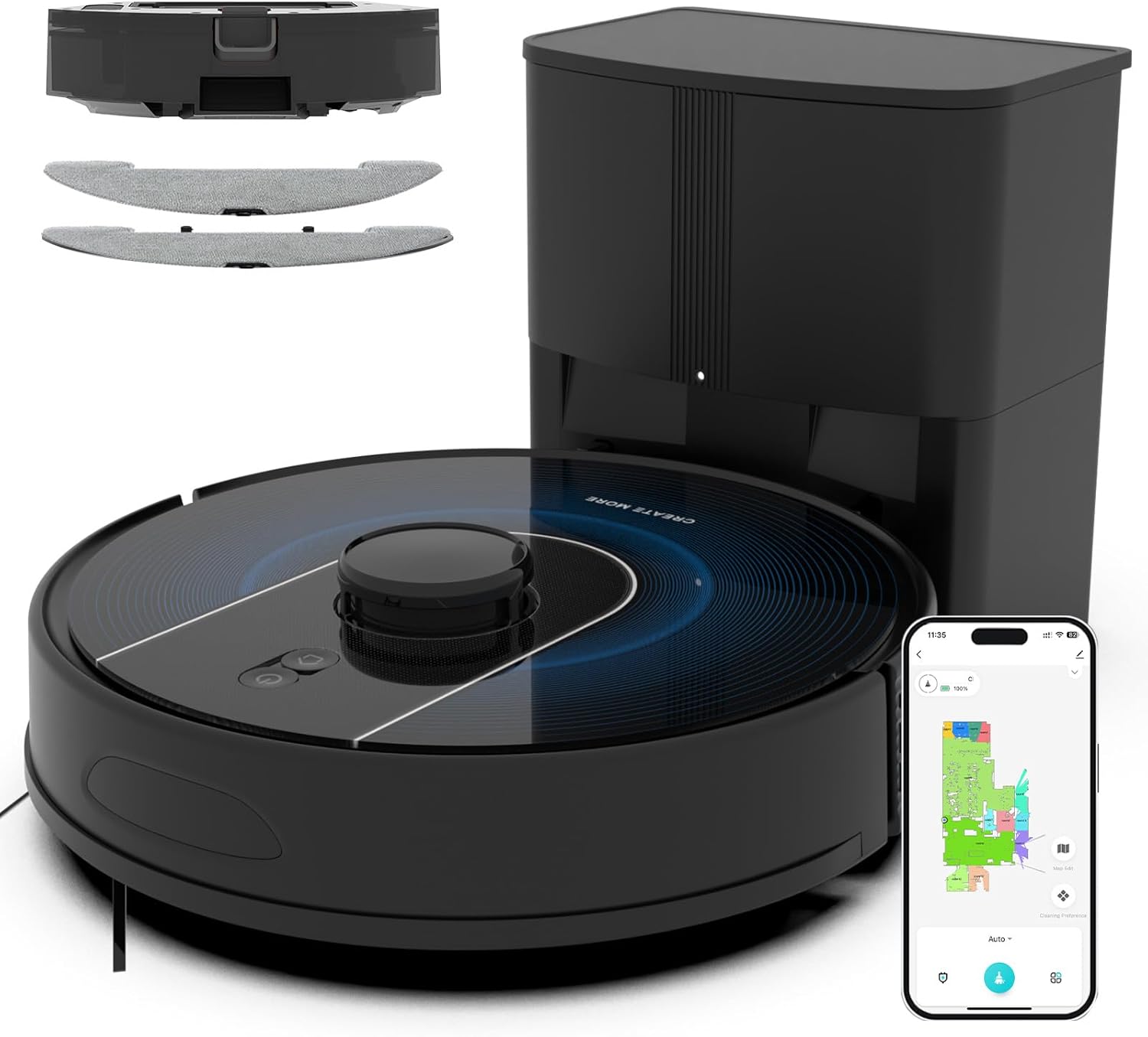
Vacuum
Bagotte Robot Vacuum and Mop, Robot Vacuum Self Empt...

soft brush
Antistatic Brush, 2 PCS Mainboard Cleaning Tools ESD...
As an Amazon Associate we earn from qualifying purchases.
Step-by-Step Solution
Clean the Sensor
Use a soft brush or compressed air to clear dust from the air quality sensor inlet — a small rectangular slot on the back panel of the purifier, near the bottom. Dust buildup in this inlet prevents accurate PM2.5 readings and stops Auto mode from adjusting fan speed.
Needed for this step
Antistatic Brush, 2 PCS Mainboard Cleaning Tool...
This helps complete the fix you are currently reading.
$8.50Check Placement
Place the purifier at least 12 inches from walls or furniture. Blocked airflow reduces sensor accuracy.
Verify Auto Mode
Open the VeSync app and confirm auto mode is enabled. Turn off sleep or quiet mode.
Reseat the Filter
Remove and reinsert the filter, ensuring it is fully seated and the cover is closed.
Test Response
Create a small puff of dust or cooking odor and verify the fan speed increases within a minute.
Quick Solutions
Still having issues? This is usually the deeper cause below.
If this comes back after following these steps, check whether a recent app or firmware update reset a default setting — the fix works, but the setting gets reverted silently.
Vacuum the sensor area monthly to keep auto mode responsive and accurate.
This issue almost always looks more complex than it is — the majority of cases trace back to a single setting, a stale credential, or a default that shipped wrong.
- Dust on the air-quality sensor
- Sensor blocked by a wall
- Auto mode disabled in the app
- Filter not seated
- Firmware outdated
Before you go — try one of these (they fix most cases).
Most popular upgrades chosen by Levoit Vital 200S owners.

LEVOIT 6000S Smart Whole House Humidifiers, 6 Gal, 72-Hou...

LEVOIT Smart Humidifier (Dual 200S) and Air Purifier (Cor...

Levoit Dual200S Smart Humidifier and Humidifier Filters
As an Amazon Associate we earn from qualifying purchases.
Official Manufacturer Manual
Levoit provides official product documentation through their online manual rather than downloadable PDF. Access setup guides, troubleshooting steps, and product specifications for your Levoit Vital 200S.
Source: levoit.com
Need More Help? Levoit Support
Note: The contact information below connects you directly to Levoit's official customer support team, not Trunetto. They can help with warranty claims, device replacements, and advanced technical issues.
Accessories owners commonly pair with Levoit Vital 200S.

LEVOIT Evaporative Humidifiers for Bedroom Baby, Dual Air...

LEVOIT Smart Cool Mist Top Fill Humidifiers for Bedroom w...

LEVOIT Classic300S Ultrasonic Smart Top Fill Humidifier, ...
As an Amazon Associate we earn from qualifying purchases.

