

Night Owl Error Video Loss: What It Means & How to Fix
- BNC connector is loose or damaged
- Camera power adapter is weak
- Cable run is too long without boost
Problem Description
Video Loss means a channel is not receiving usable camera signal. It usually points to cable path issues, connector faults, channel disable settings, or camera power instability. Fixing the signal chain restores live feed and recording for affected channels.
Why This Happens in Real Homes
Why this happens in real homes usually comes down to environment and timing, not instant hardware failure. Video Loss means a channel is not receiving usable camera signal. It usually points to cable path issues, connector faults, channel disable settings, or camera power instability. Fixing the signal chain restores live feed and recording for.. The pattern people actually report is One or more channels show Video Loss, Black screen appears on affected channel, and Night vision does not activate on bad camera
The most common real-world triggers are BNC connector is loose or damaged, Camera power adapter is weak, and Cable run is too long without boost. The fix is most reliable when the sequence is followed exactly: Identify whether issue is channel or camera, then Reseat and inspect BNC connectors, then Validate camera power delivery. After the repair, run multiple command and automation checks so the issue does not reappear later in the day.
Symptoms
- One or more channels show Video Loss
- Black screen appears on affected channel
- Night vision does not activate on bad camera
- Intermittent picture before full signal drop
- Only long cable runs are affected
- Playback has gaps for that channel
Recognize these? Here's what usually causes it.
Common Causes
- BNC connector is loose or damaged
- Camera power adapter is weak
- Cable run is too long without boost
- Channel disabled after settings change
- Moisture entered exterior junction
- Camera hardware failed after surge
Most fixes happen in the first 3 steps.
Do not force BNC connections with power on. Shorting center pins can damage camera output stages.
Tools & Requirements
These tools will help you complete this fix.
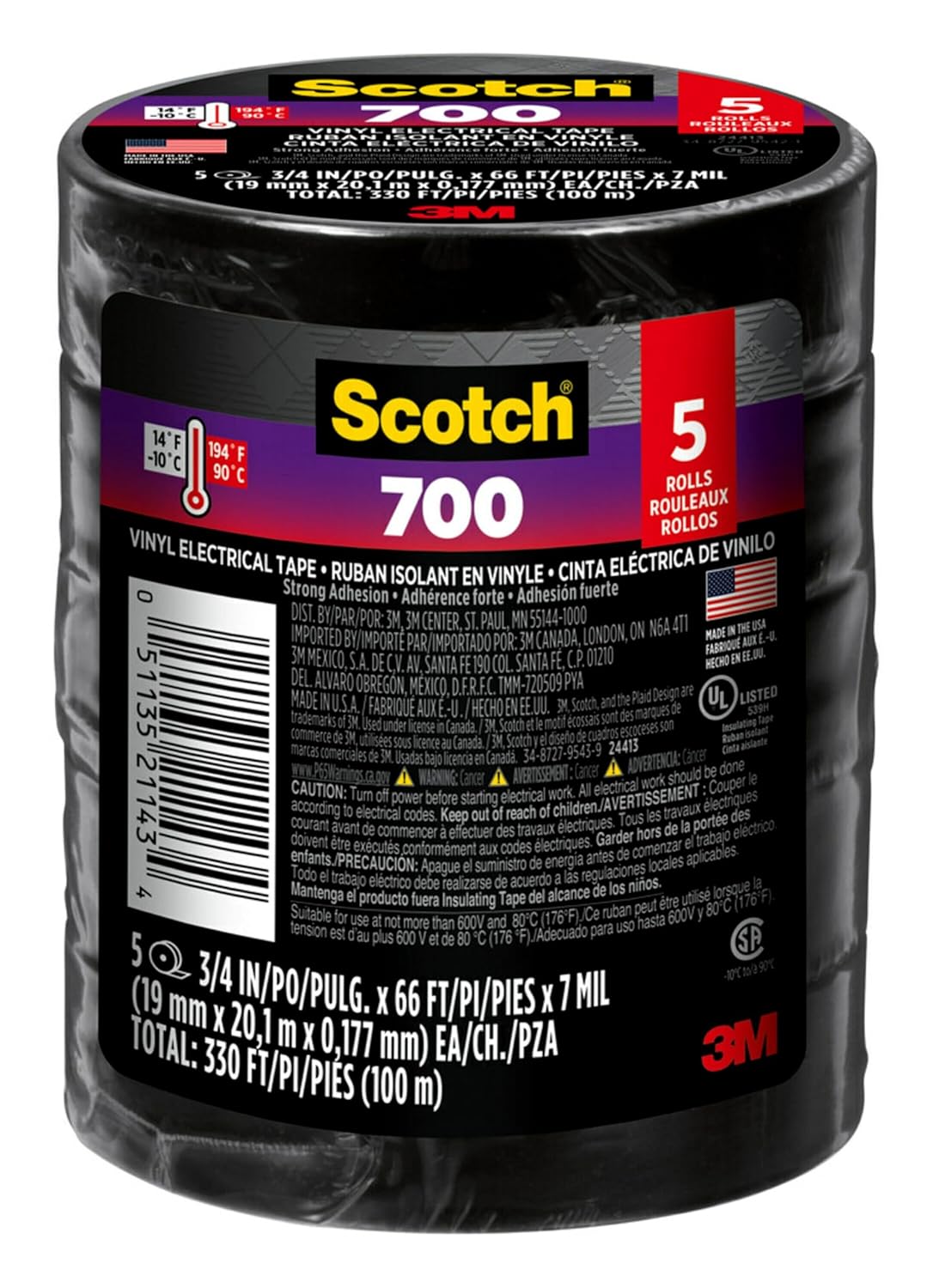
As an Amazon Associate we earn from qualifying purchases.
Step-by-Step Solution
Identify whether issue is channel or camera
Move the suspected camera feed to a known good DVR channel input. If the problem follows the camera, the source path is at fault. If the issue stays on the original channel, inspect recorder input and software channel state first.
Reseat and inspect BNC connectors
Disconnect and reconnect BNC fittings at camera and recorder. Ensure full twist lock engagement. Check center pin alignment and corrosion. Replace any crushed connector or visibly frayed cable segment before retesting live view.
Validate camera power delivery
Measure or swap the camera power adapter with a known good unit of matching voltage and current. Undervoltage causes weak or unstable signal that appears as flicker then Video Loss. Confirm connector fit is tight and not heat damaged.
Review recorder channel configuration
Open camera channel settings and confirm the channel is enabled and mapped correctly. Firmware updates can reset channel modes. Save settings, reboot recorder, and check whether signal returns after full initialization.
Run final signal path test
Use a short temporary cable from camera to recorder to isolate long-run wiring problems. If short run works, upgrade or replace the permanent run and weatherproof all exterior points. Verify live feed and event recording before closing the job.
Quick Solutions
Still having issues? This is usually the deeper cause below.
Camera issues that start suddenly almost always trace back to an upload bandwidth drop — run a speed test before assuming hardware failure.
Label every camera cable at the recorder so future fault isolation is faster and cleaner.
Battery-related failures are almost always flagged too late — the device degrades silently for days before the app catches up to what's actually happening.
- BNC connector is loose or damaged
- Camera power adapter is weak
- Cable run is too long without boost
- Channel disabled after settings change
- Moisture entered exterior junction
Before you go — try one of these (they fix most cases).
Official Manufacturer Manual
Night Owl Security provides official product documentation through their online manual rather than downloadable PDF. Access setup guides, troubleshooting steps, and product specifications for your Night Owl Wired Camera System.
Source: nightowlsp.com
Need More Help? Night Owl Security Support
Note: The contact information below connects you directly to Night Owl Security's official customer support team, not Trunetto. They can help with warranty claims, device replacements, and advanced technical issues.

