

Why Won't My Ring Floodlight Cam Connect to WiFi or Stay Online?
- WiFi signal too weak at the outdoor mounting location
- Camera too far from the router with exterior walls blocking signal
- Router broadcasting on 5 GHz only but camera needs 2.4 GHz for setup
Problem Description
Your Ring Floodlight Cam will not connect to WiFi during setup or keeps going offline after being set up. During setup the camera may get stuck on connecting to WiFi or fail with a setup error. After being set up the camera may randomly go offline, show as unavailable in the Ring app, or produce delayed notifications. The Ring Floodlight Cam is mounted outside your home typically on the side of the house or above a garage which is often far from the WiFi router inside. The distance, exterior walls, and the metal junction box the camera mounts to all weaken the WiFi signal making the floodlight cam one of the most WiFi-challenged Ring devices.
Why This Happens in Real Homes
An outdoor Floodlight Cam that won't connect or stays offline is almost always signal: mounted high and far outside, it sits at the edge of home WiFi, and a signal fine indoors is often too weak there. Band-steering to 5GHz makes it worse, since 5GHz penetrates walls poorly.
Start by checking the signal at the mounting location in the app and improving it — reposition the router, add a mesh point or the Ring Chime Pro extender near that wall, and prefer 2.4GHz for range. A power cycle and re-adding to WiFi handle the rest.
Symptoms
- Ring Floodlight Cam fails during WiFi setup step
- Camera shows offline in Ring app frequently
- Live view takes a long time to load or fails
- Motion notifications arrive minutes late
- Camera connects then disconnects repeatedly
- RSSI signal in device health shows poor or very poor
Recognize these? Here's what usually causes it.
Common Causes
- WiFi signal too weak at the outdoor mounting location
- Camera too far from the router with exterior walls blocking signal
- Router broadcasting on 5 GHz only but camera needs 2.4 GHz for setup
- WiFi password has special characters that the camera cannot process during setup
- Power supply issue causing camera to reboot and lose connection
- Router has too many connected devices exhausting its capacity
Most fixes happen in the first 3 steps.
The Ring Floodlight Cam installation involves 120V household wiring. Always turn off the circuit breaker before inspecting or adjusting the wiring. If you are not comfortable working with household electrical wiring hire a licensed electrician. Do not attempt to troubleshoot power issues with the breaker on.
Tools & Requirements
These tools will help you complete this fix.

Ring Chime Pro optional
Ring Battery Doorbell with Ring Chime

WiFi extender or mesh node
2026 WiFi Extender Signal Booster, New Gen Internet ...
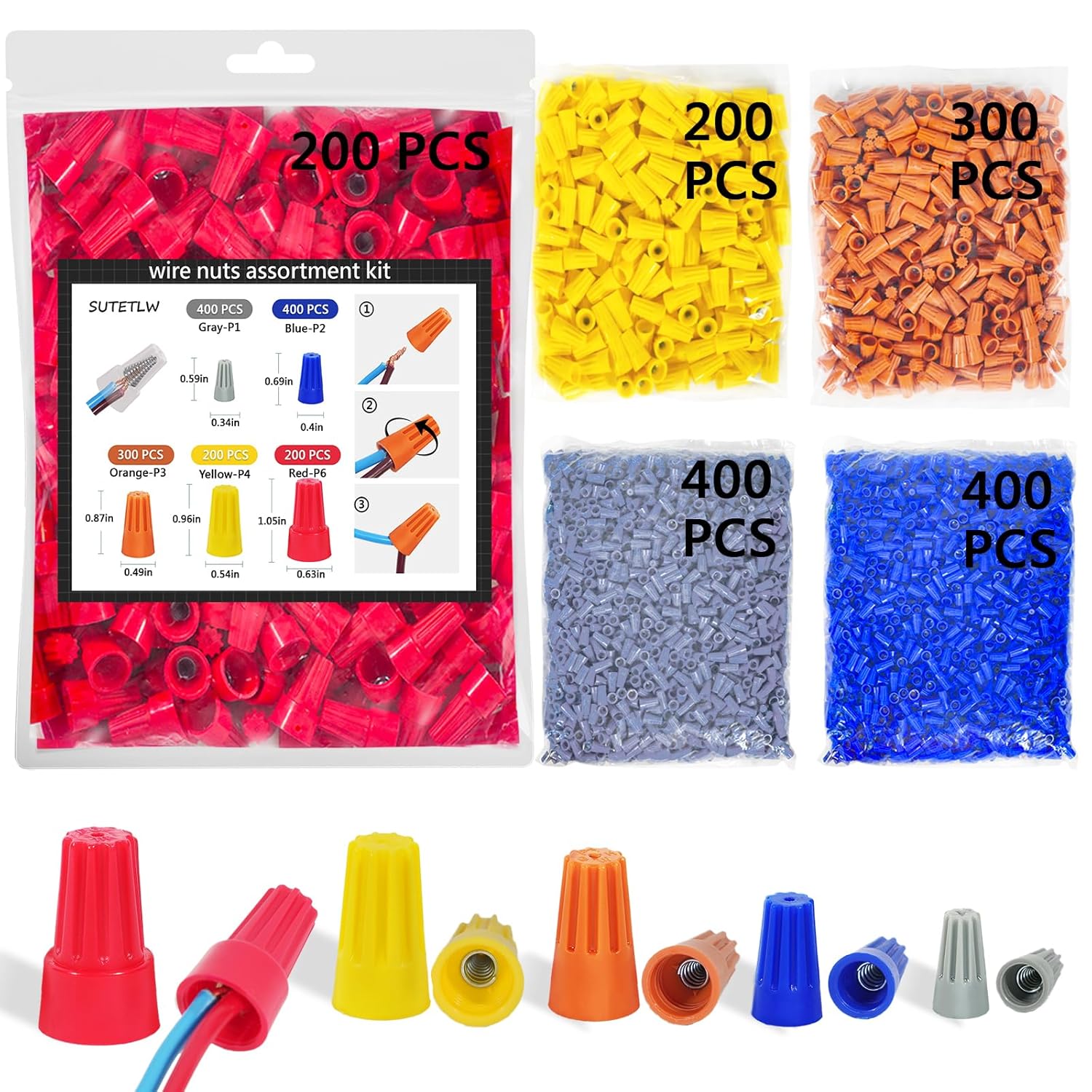
Wire nuts for electrical connections
Wire Nuts Assortment Kit 1500 PCS Insulating Insert ...
As an Amazon Associate we earn from qualifying purchases.
Step-by-Step Solution
Check RSSI Signal Strength
In the Ring app tap the Floodlight Cam then tap Device Health. Look at the Signal Strength RSSI value. RSSI of -40 to -50 is excellent. -50 to -60 is good. -60 to -70 is acceptable but marginal. Below -70 the camera will have frequent disconnections and slow live view. The Ring Floodlight Cam is typically mounted outside on the far side of an exterior wall from the router which easily pushes RSSI below -70. If your RSSI is worse than -65 you need to improve the WiFi signal at that location.
Needed for this step
Ring Battery Doorbell with Ring Chime
This helps complete the fix you are currently reading.
Add a WiFi Extender Near the Camera
The most reliable fix for Ring Floodlight Cam WiFi issues is adding a WiFi extender or mesh satellite node on the interior wall closest to where the camera is mounted outside. Place the extender in the room directly behind or adjacent to the camera. This cuts the WiFi distance dramatically. A mesh system like Eero, Google Wifi, or Orbi works better than a basic range extender because it maintains a single network name. Make sure the extender broadcasts 2.4 GHz as the Ring Floodlight Cam uses 2.4 GHz for its primary connection.
Needed for this step
2026 WiFi Extender Signal Booster, New Gen Inte...
This helps complete the fix you are currently reading.
$69.90Separate 2.4 GHz and 5 GHz During Setup
Many modern routers combine 2.4 GHz and 5 GHz into a single network name using band steering. The Ring Floodlight Cam needs to connect to 2.4 GHz during initial setup. If band steering sends it to 5 GHz the setup fails. Temporarily create a separate 2.4 GHz SSID on your router for the setup process. Connect the camera to this 2.4 GHz network. After setup you can merge the SSIDs back if you prefer a single network name. The camera will remain on 2.4 GHz.
Verify Electrical Power
The Ring Floodlight Cam is hardwired to your home electrical system. If the electrical connection is loose or the wire gauge is insufficient the camera may not get enough power to maintain the WiFi radio and lights simultaneously. Turn off the breaker for the floodlight circuit. Remove the camera and check all wire connections. Make sure the wires are firmly connected with wire nuts and there are no loose or corroded connections. The Floodlight Cam requires a dedicated 20-amp circuit. A shared circuit with other high-draw devices can cause voltage drops.
Needed for this step
Wire Nuts Assortment Kit 1500 PCS Insulating In...
This helps complete the fix you are currently reading.
$29.99Restart Camera and Router
Turn off the breaker for the Floodlight Cam for 30 seconds then turn it back on. Also restart your WiFi router by unplugging it for 30 seconds. Let the router fully boot first then wait for the Floodlight Cam to power up and reconnect. This clears any stuck network states on both devices. After both are back online check the Ring app for connection status. If the camera connects but goes offline again within hours the WiFi signal or power issue needs to be addressed permanently.
Quick Solutions
Still having issues? This is usually the deeper cause below.
This usually happens right after a router reboot or ISP change — the device rejoins the network but drops its cloud session silently.
Ring sells a Chime Pro device that doubles as a WiFi extender specifically for Ring devices. If you have multiple Ring cameras and doorbells a Chime Pro placed midway between your router and the outdoor cameras can improve connectivity for all Ring devices. It extends only the 2.4 GHz band which is what Ring cameras need.
Most WiFi drop-offs happen right after a router reboot or ISP swap — the device reconnects to the network but silently loses its cloud registration.
- WiFi signal too weak at the outdoor mounting location
- Camera too far from the router with exterior walls
- Router broadcasting on 5 GHz only but camera needs
- WiFi password has special characters
- Power supply issue causing camera to reboot and lose
Before you go — try one of these (they fix most cases).
Official Manufacturer Manual
Ring provides official product documentation through their online manual rather than downloadable PDF. Access setup guides, troubleshooting steps, and product specifications for your Ring Floodlight Cam.
Source: ring.com
Need More Help? Ring Support
Note: The contact information below connects you directly to Ring's official customer support team, not Trunetto. They can help with warranty claims, device replacements, and advanced technical issues.
How Does Ring Compare?
Before replacing your Ring device, see how it stacks up against alternatives in our full comparison guides.
Accessories owners commonly pair with Ring Floodlight Cam.

SANDISK 64GB Extreme microSDXC UHS-I Memory Card with Ada...

SANDISK 128GB Ultra microSDXC UHS-I Memory Card with Adap...

SANDISK 64GB Ultra microSDXC UHS-I Memory Card with Adapt...
As an Amazon Associate we earn from qualifying purchases.


