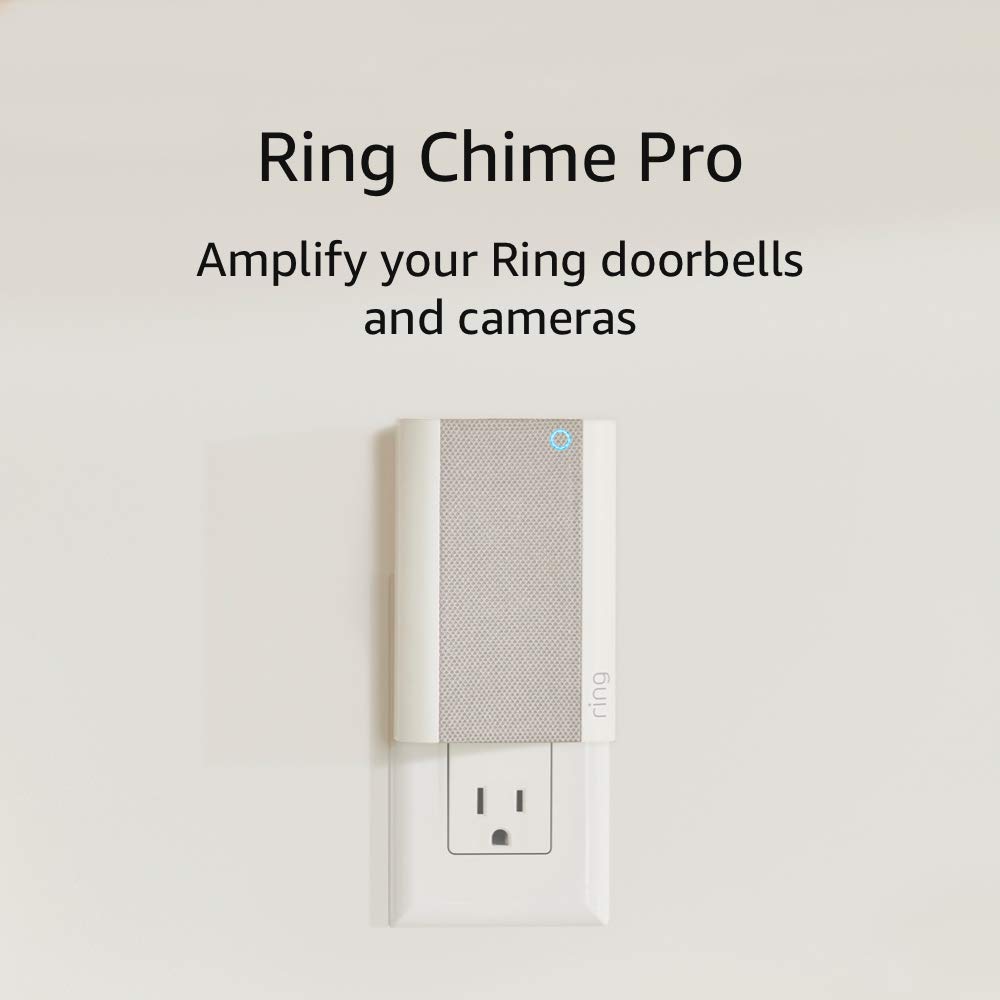
Why Won't My Ring Chime Pro WiFi Extender Work?
- WiFi connection unstable or device too far from router
- Device firmware or app needs updating
- Device not properly set up during initial pairing
Problem Description
Your Ring Chime Pro WiFi extender is not extending WiFi to your Ring doorbell or cameras. The Chime Pro must be placed between your router and the Ring devices it's extending signal to — not next to the router or next to the device. Best placement is halfway between the router and the farthest Ring device. This guide covers placement and configuration.
Why This Happens in Real Homes
The Chime Pro has two jobs — ring when someone presses the doorbell, and extend WiFi to your Ring devices. Most problems are with the WiFi extender part. The Chime Pro creates a secondary WiFi network that your Ring doorbell connects to, but it only extends 2.4 GHz. If it is too far from your router, it gets a weak source signal and just extends that weak signal to the doorbell. Placement matters — it should be roughly halfway between your router and your doorbell for best results. Plugging it in right next to the router wastes its range.
Symptoms
- Device shows as offline in the app
- Device does not respond to commands
- App cannot connect to device
- Features not working as expected
- Device disconnects frequently
- Automations fail to trigger
- Voice commands not recognized
Recognize these? Here's what usually causes it.
Common Causes
- WiFi connection unstable or device too far from router
- Device firmware or app needs updating
- Device not properly set up during initial pairing
- Power supply issue or loose connection
- Account not linked correctly
- Too many devices causing network congestion
- Interference from other wireless devices
Most fixes happen in the first 3 steps.
Hardwired installation involves working with electrical wiring. Turn off the breaker before touching any wires. If you are not comfortable with basic wiring hire a licensed electrician. Some older homes may need a transformer upgrade from 10V to the 16-24V required by modern video doorbells.
Tools & Requirements
Step-by-Step Solution
Place Chime Pro between router and Ring devices
Install the extender where it can receive strong router signal while still close enough to weak Ring endpoints. Poor placement limits extension benefit.
Complete setup and extender network assignment
Use Ring app to onboard Chime Pro and assign supported devices to the extended network. Devices stay weak if still attached to original poor path.
Check RSSI improvements on target devices
Compare before/after RSSI values in Device Health for each camera or doorbell. Quantified signal improvement confirms extender placement is effective.
Reduce channel congestion near extender
Avoid plugging into crowded or noisy RF zones and adjust router channel if needed. Interference can negate extender gains.
Reposition and retest if latency remains high
Move extender incrementally and retest live view/event upload performance. Iterative placement tuning gives the most stable results.
Quick Solutions
Still having issues? This is usually the deeper cause below.
This usually happens right after a router reboot or ISP change — the device rejoins the network but drops its cloud session silently.
Set up motion scheduling or snooze alerts during times when regular activity is expected like when kids come home from school. Use pre-recorded quick replies so the doorbell can respond to visitors automatically when you cannot answer.
Most WiFi drop-offs happen right after a router reboot or ISP swap — the device reconnects to the network but silently loses its cloud registration.
- WiFi connection unstable or device too far from router
- Device firmware or app needs updating
- Device not properly set up during initial pairing
- Power supply issue or loose connection
- Account not linked correctly
Before you go — try one of these (they fix most cases).
Official Manufacturer Manual
If you need the complete manufacturer documentation for advanced setup, wiring diagrams, or detailed specifications, you can download the official manual below. The manual includes full technical instructions directly from the manufacturer and may help if your issue requires deeper troubleshooting.
Download the Official Ring Chime Pro ManualSource: ring.com
Need More Help? Ring Support
Note: The contact information below connects you directly to Ring's official customer support team, not Trunetto. They can help with warranty claims, device replacements, and advanced technical issues.
How Does Ring Compare?
Before replacing your Ring device, see how it stacks up against alternatives in our full comparison guides.
Accessories owners commonly pair with Ring Chime Pro.
Ring Alarm 14-Piece Kit – Wireless Smart Home Security Sy...

Ring Alarm 5-Piece Kit – Wireless Smart Home Security Sys...

Ring Alarm 10-Piece Kit – Wireless Smart Home Security Sy...
As an Amazon Associate we earn from qualifying purchases.