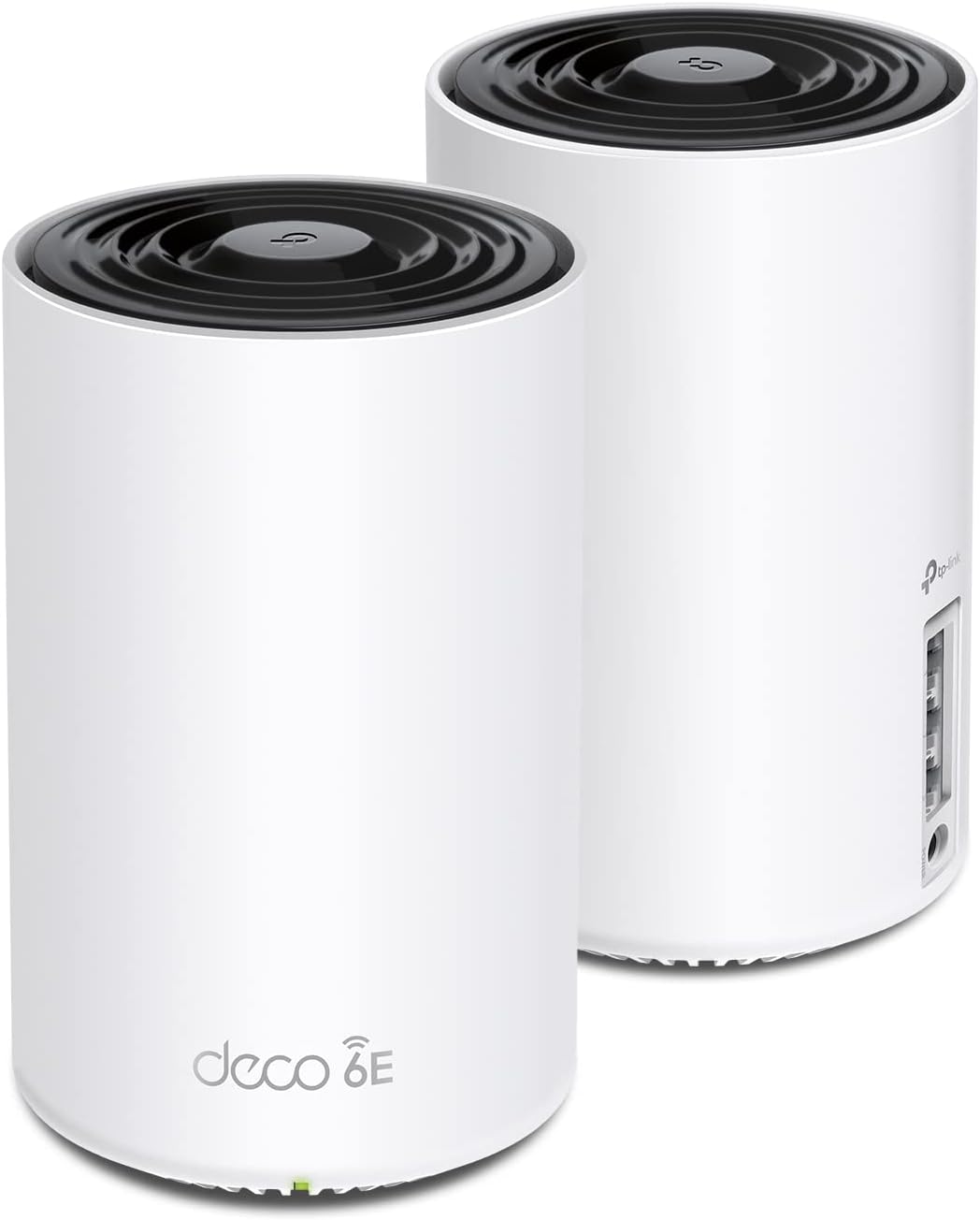
WiFi 6E Router Breaking Matter Device Connections
- 6GHz band interference with Thread
- WiFi 6E aggressive band steering
- IoT device compatibility issues
Problem Description
Your WiFi 6E router is causing Matter-enabled smart home devices to lose connection, fail commissioning, or show as unresponsive in your smart home app. WiFi 6E routers introduce 6GHz band capabilities and updated security protocols that can conflict with Matter devices, which primarily communicate over 2.4GHz or 5GHz and are sensitive to router security settings like WPA3 and 802.11ax features.
Why This Happens in Real Homes
WiFi 6E routers can disrupt Matter/Thread devices because the 6GHz band and aggressive WiFi 6E features (and band steering) interfere with or confuse Thread border routers and 2.4GHz Matter devices, causing dropouts.
Start by separating bands — give 2.4GHz IoT/Matter devices a dedicated SSID and disable aggressive band steering — and make sure your Thread border router is on a stable connection. Some 6E routers need firmware updates for smart-home coexistence; pinning IoT to 2.4GHz and calming the steering usually restores Matter connections.
Symptoms
- Matter devices offline after router upgrade
- Thread network unstable with WiFi 6E
- Frequent device disconnections
- Poor smart home performance on 6E
- Border router connectivity issues
- IoT devices can't connect to 6E network
Recognize these? Here's what usually causes it.
Common Causes
- 6GHz band interference with Thread
- WiFi 6E aggressive band steering
- IoT device compatibility issues
- Network isolation settings
- Power management conflicts
- Channel overlap problems
Most fixes happen in the first 3 steps.
Completely disabling 6GHz removes the main benefit of WiFi 6E routers. Use dedicated networks rather than disabling bands when possible.
Tools & Requirements
Step-by-Step Solution
Create Dedicated IoT Network
Access router settings and create a separate 2.4GHz network specifically for smart home devices. Name it something like HomeIoT and disable band steering for this network. Connect all Matter and Thread devices to this dedicated network.
Temporarily Disable 6GHz Band
In router WiFi settings turn off the 6GHz radio temporarily to test if this resolves Matter device issues. Many WiFi 6E routers have aggressive 6GHz optimization that interferes with Thread networking.
Adjust Band Steering Settings
Disable or reduce band steering aggressiveness in router settings. Band steering can force devices between 2.4GHz and 5GHz inappropriately affecting Thread border router stability and Matter device connectivity.
Update Router Firmware
Check for and install the latest router firmware as early WiFi 6E implementations had IoT compatibility issues. Many manufacturers have released updates specifically addressing smart home device connectivity.
Use Wired Connection for Hubs
Connect your primary smart home hub (Apple TV SmartThings Hub etc) via ethernet instead of WiFi. This provides stable backbone connectivity for Thread border router functions avoiding WiFi 6E interference.
Quick Solutions
Still having issues? This is usually the deeper cause below.
This usually happens right after a router reboot or ISP change — the device rejoins the network but drops its cloud session silently.
WiFi 6E is still new technology and IoT compatibility improves with firmware updates. Monitor manufacturer support pages for smart home optimizations.
Most WiFi drop-offs happen right after a router reboot or ISP swap — the device reconnects to the network but silently loses its cloud registration.
- 6GHz band interference with Thread
- WiFi 6E aggressive band steering
- IoT device compatibility issues
- Network isolation settings
- Power management conflicts
Before you go — try one of these (they fix most cases).
Most popular upgrades chosen by WiFi 6E Router owners.

Home Assistant Connect ZWA-2 | Connect Z-Wave devices to ...

Zooz 800 Series Z-Wave Long Range GPIO Module ZAC93 LR (U...

Home Assistant Connect ZBT-2 | Connect Zigbee, Thread, or...
As an Amazon Associate we earn from qualifying purchases.
Official Manufacturer Manual
Home Assistant provides official product documentation through their online manual rather than downloadable PDF. Access setup guides, troubleshooting steps, and product specifications for your WiFi 6E Router.
Source: home-assistant.io
Need More Help? Home Assistant Support
Note: The contact information below connects you directly to Home Assistant's official customer support team, not Trunetto. They can help with warranty claims, device replacements, and advanced technical issues.