

Why Do All My Hue Lights Show No Response in Apple Home After Bridge Pro Update?
- Firmware 2071209010 broke Matter connection to Apple Home
- Apple Home Hub conflicts with Bridge Pro Matter handshake
- mDNS discovery fails when Home Hub intercepts traffic
Problem Description
After a firmware update in early 2026, all of your Philips Hue lights and accessories show No Response in Apple Home. The devices work perfectly in the Hue app but are completely uncontrollable through HomeKit, Siri, or Apple Home automations. This affects Hue Bridge Pro units running firmware 2071209010 when connected to Apple Home via Matter. The issue occurs specifically when an Apple TV or HomePod is acting as a Home Hub on the same network.
Why This Happens in Real Homes
This hit the Apple Home + Hue crowd hard in early 2026. People woke up one morning and every single light in their house showed No Response in Apple Home. The weird part is the Hue app worked perfectly fine — you could turn lights on and off all day through the Hue app. It was specifically the Matter bridge between Hue and Apple Home that broke. The trigger was a Hue Bridge Pro firmware update that shipped around February 2026. Philips acknowledged it and pushed a fix in April, but the fix alone does not always resolve it because the corrupted Matter session gets cached in the Apple TV or HomePod Home Hub. You often need to nuke the Apple Home connection and rebuild it from scratch. If you are a technician walking into a home with this issue, the giveaway is that everything works in the Hue app but Apple Home is completely dead.
Symptoms
- Every Hue device in Apple Home shows No Response
- Siri says she cannot control your lights right now
- Apple Home automations involving Hue stop executing
- Hue app controls lights normally with no issues
- Removing Apple TV or HomePod from Home Hub fixes it
- Problem appeared after Hue Bridge Pro firmware update
Recognize these? Here's what usually causes it.
Common Causes
- Firmware 2071209010 broke Matter connection to Apple Home
- Apple Home Hub conflicts with Bridge Pro Matter handshake
- mDNS discovery fails when Home Hub intercepts traffic
- Thread border router on Apple TV conflicts with Bridge Pro
- Matter fabric credentials corrupted during firmware update
- IPv6 routing table conflict between Bridge Pro and Home Hub
Most fixes happen in the first 3 steps.
Factory resetting the Bridge Pro erases every light pairing, room, scene, and automation. Screenshot your setup in the Hue app first so you can rebuild it.
Tools & Requirements
Step-by-Step Solution
Check your Bridge Pro firmware
Open the Hue app, go to Settings > Software update. If your Bridge Pro is on firmware 2071209010, that is the problem version. Philips pushed a fix in firmware 2071294010 on April 9, 2026. If the update is available, install it now and wait 5 minutes for the bridge to restart. Check Apple Home — if the hubs come back, you are done. If the update installed but Apple Home still shows No Response, continue to step 2.
Restart your Apple Home Hub
The corrupted Matter session often persists in the Home Hub cache even after the bridge firmware is fixed. Unplug your Apple TV or HomePod that is acting as Home Hub. Wait 60 seconds. Plug it back in and give it 2 to 3 minutes to fully boot. Open Apple Home on your phone and check if your Hue devices are responding. If you have multiple Home Hubs, restart all of them — one stale cache can poison the whole setup.
Remove and re-add via Matter
If restarting did not fix it, you need to break and rebuild the Matter connection. In the Hue app go to Settings > Smart home > Apple Home and remove the connection. Then in Apple Home, delete any remaining Hue accessories that show No Response. Now go back to the Hue app, Settings > Smart home > Apple Home and set it up again. This creates a fresh Matter fabric between the Bridge Pro and Apple Home. Your room assignments will be lost and need to be reconfigured.
Check for network conflicts
The Bridge Pro uses both Zigbee for lights and Matter over Thread or WiFi for Apple Home. If your Apple TV 4K is also acting as a Thread border router, the two can conflict. In the Apple TV settings go to AirPlay and HomeKit > Thread Networking and check if it is active. You do not need to disable it, but make sure both devices are on the same subnet. If you are running a VLAN or guest network setup with IoT isolation, Matter will not work across VLANs — the bridge and Home Hub must be on the same broadcast domain.
Factory reset Bridge Pro if nothing works
Flip the Bridge Pro over and hold the small reset button with a paperclip for 10 seconds until the LED ring flashes. This wipes all settings. You will need to re-pair every single Hue bulb and accessory, rebuild your rooms, and recreate all automations — so only do this if nothing else worked. After reset, update firmware first before connecting to Apple Home. Set up the Hue app fully, get all your lights working there, then add Apple Home via Matter as the last step.
Quick Solutions
Still having issues? This is usually the deeper cause below.
If flickering only happens on dimming, the issue is almost always the dimmer's minimum-load setting, not the bulb — it's drawing less current than the dimmer expects.
Before factory resetting, try removing and re-adding just the Apple Home connection in the Hue app — this preserves all your light assignments and scenes.
Hub disconnections that cycle repeatedly are almost always IP conflicts — two devices fighting over the same DHCP lease after a router restart.
- Firmware 2071209010 broke Matter connection to Apple Home
- Apple Home Hub conflicts with Bridge Pro Matter handshake
- mDNS discovery fails when Home Hub intercepts traffic
- Thread border router on Apple TV conflicts with Bridge
- Matter fabric credentials corrupted during firmware update
Before you go — try one of these (they fix most cases).
Most popular upgrades chosen by Philips Hue Bridge Pro owners.

Philips Hue Starter Kit: Bridge Pro + 3 A19 E26 Smart Bul...
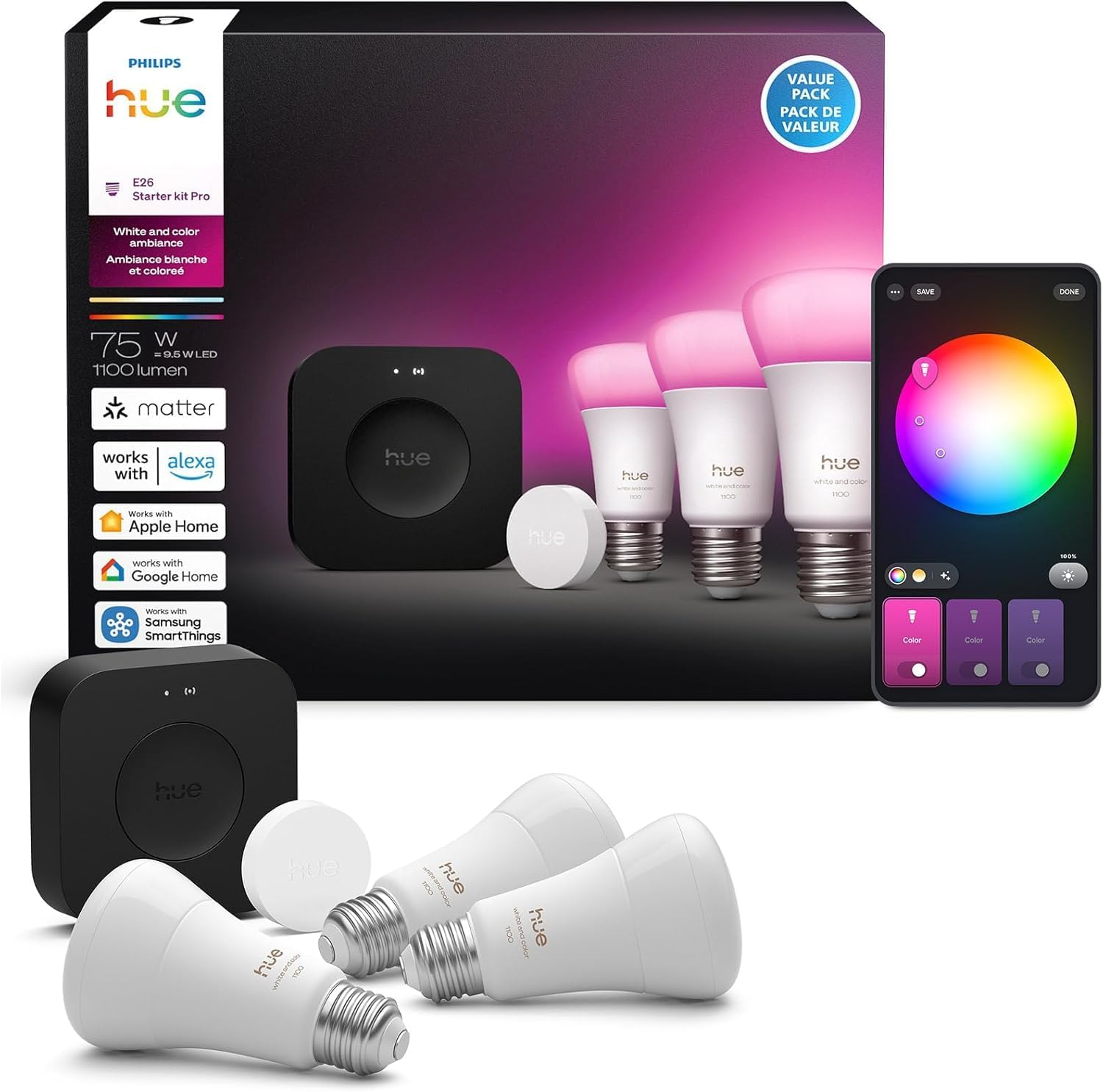
Philips Hue Starter Kit: Bridge Pro + 3 A19 E26
As an Amazon Associate we earn from qualifying purchases.
Official Manufacturer Manual
If you need the complete manufacturer documentation for advanced setup, wiring diagrams, or detailed specifications, you can download the official manual below. The manual includes full technical instructions directly from the manufacturer and may help if your issue requires deeper troubleshooting.
Download the Official Philips Hue Bridge Pro ManualSource: philips-hue.com
Need More Help? Philips Hue Support
Note: The contact information below connects you directly to Philips Hue's official customer support team, not Trunetto. They can help with warranty claims, device replacements, and advanced technical issues.
How Does Philips Hue Compare?
Before replacing your Philips Hue device, see how it stacks up against alternatives in our full comparison guides.





