

Why Are Some of My Philips Hue Lights Missing After Migrating to a New Bridge
- Migration did not transfer all light data
- Lights were unreachable during migration
- Third-generation lights need re-pairing
Problem Description
You upgraded to a new Philips Hue Bridge and migrated your setup, but some lights are missing from the app. Rooms may be incomplete, scenes are broken, and certain bulbs that worked on your old bridge do not appear. The migration process said it completed successfully, but your setup is not the same as before.
Why This Happens in Real Homes
After migrating to a new Bridge, missing lights usually weren't transferred cleanly — either they were unreachable (powered off, out of range) during the migration, or the transfer didn't carry every device. Migration copies the device table, and anything offline at the time can be left behind.
Start by making sure all lights are powered and in range, then re-run the migration or manually add the missing ones to the new Bridge. Lights that were off during the move are the usual stragglers; power them up and re-add them.
Symptoms
- Some lights missing after migration
- Rooms incomplete or have wrong lights
- Scenes show errors or missing bulbs
- Automations reference non-existent lights
- Third-party integrations broken
- Old bridge still shows missing lights
Recognize these? Here's what usually causes it.
Common Causes
- Migration did not transfer all light data
- Lights were unreachable during migration
- Third-generation lights need re-pairing
- Zigbee network not fully rebuilt
- Some lights still paired to old bridge
- Migration timeout before completion
Most fixes happen in the first 3 steps.
Do not keep both old and new bridges powered on simultaneously after migration. This causes Zigbee network conflicts and lights may jump between bridges unpredictably.
Tools & Requirements
These tools will help you complete this fix.
As an Amazon Associate we earn from qualifying purchases.
Step-by-Step Solution
Check Old Bridge for Missing Lights
If your old bridge is still powered on, some lights may still be paired to it instead of migrating. Open the Hue app with the old bridge selected and check which lights appear there. Those lights need to be deleted from the old bridge and added fresh to the new one.
Factory Reset Missing Bulbs
For lights that appear on neither bridge, factory reset them. Turn the bulb off, then on-off-on-off-on five times quickly, leaving it on after the last cycle. The bulb should blink to confirm reset. Then add it as new to the new bridge.
Power Cycle All Lights
Turn off power to all your Hue lights at the switch or breaker for 15 seconds, then restore power. This forces lights to rejoin the Zigbee network and can help stragglers reconnect to the new bridge.
Add Lights Manually via Serial Number
If a light will not appear in search, you can add it manually. Find the serial number on the bulb itself (small print, often needs magnification). In the app, choose to add light and enter the serial number manually. This bypasses Zigbee discovery issues.
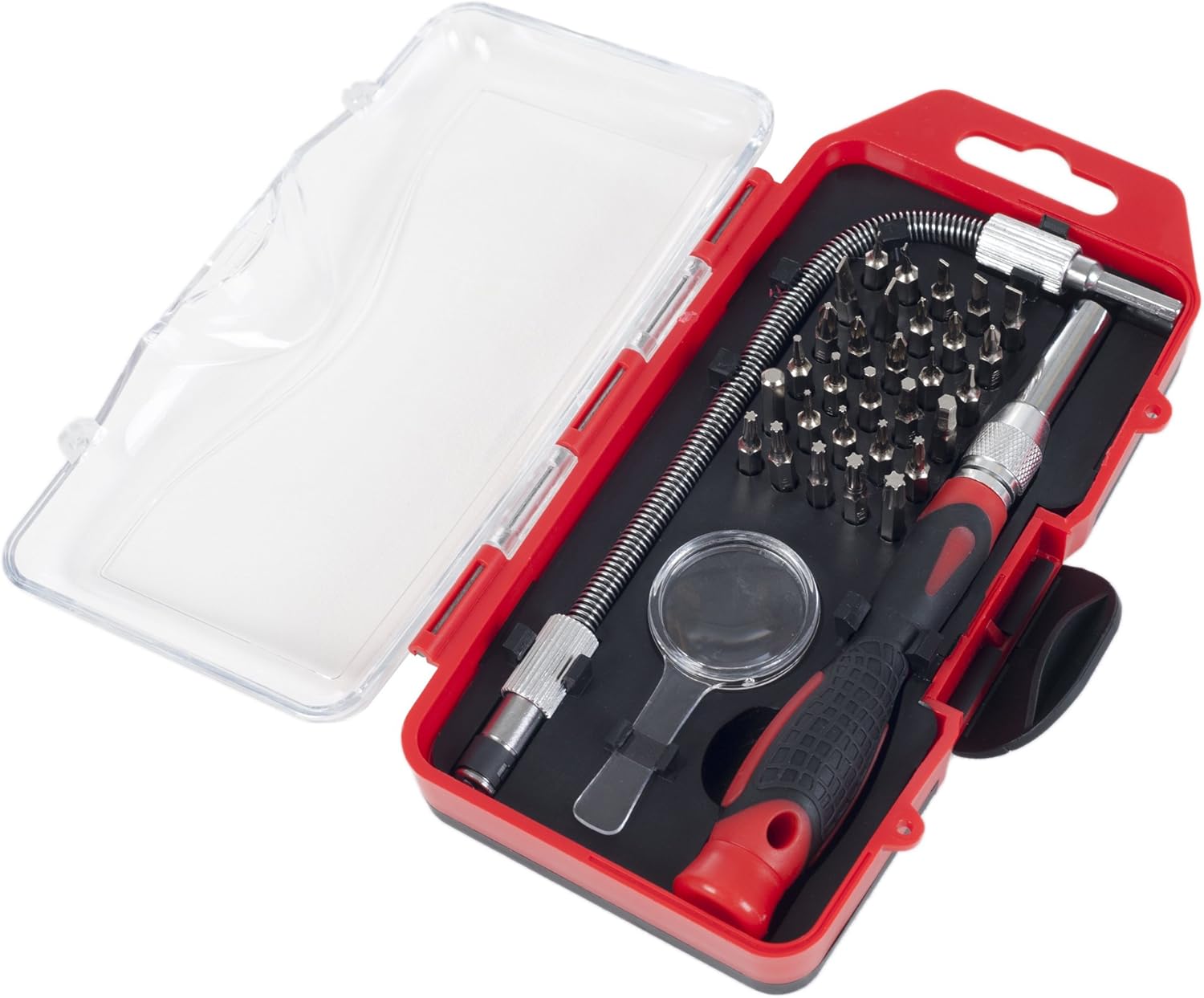
Needed for this step
30-Piece Precision Screwdriver Set – Includes R...
This helps complete the fix you are currently reading.
$8.64Rebuild Rooms and Scenes
After all lights are on the new bridge, you may need to rebuild rooms and scenes manually. The migration often preserves structure but sometimes room assignments are lost. Recreating scenes is tedious but ensures they work correctly.
Re-Link Third-Party Services
Google Home, Alexa, HomeKit, and other integrations need to be re-linked after bridge migration. Remove the old Hue integration from each platform and add it fresh with the new bridge. This clears stale device references.
Quick Solutions
Still having issues? This is usually the deeper cause below.
If flickering only happens on dimming, the issue is almost always the dimmer's minimum-load setting, not the bulb — it's drawing less current than the dimmer expects.
Before migrating, take screenshots of all your rooms, scenes, and automations. This documentation makes manual rebuilding much faster if migration is incomplete.
Hub disconnections that cycle repeatedly are almost always IP conflicts — two devices fighting over the same DHCP lease after a router restart.
- Migration did not transfer all light data
- Lights were unreachable during migration
- Third-generation lights need re-pairing
- Zigbee network not fully rebuilt
- Some lights still paired to old bridge
Before you go — try one of these (they fix most cases).
Most popular upgrades chosen by Philips Hue Bridge owners.

Philips Hue (1) White Tap Dial Switch with (1) Smart Slim...

Philips Hue (1) Black Tap Dial Switch with (1) Smart Slim...

Philips Hue Secure Smart Contact Sensor, Black - 1 Pack, ...
As an Amazon Associate we earn from qualifying purchases.
Official Manufacturer Manual
If you need the complete manufacturer documentation for advanced setup, wiring diagrams, or detailed specifications, you can download the official manual below. The manual includes full technical instructions directly from the manufacturer and may help if your issue requires deeper troubleshooting.
Download the Official Philips Hue Bridge ManualSource: philips-hue.com
Need More Help? Philips Hue Support
Note: The contact information below connects you directly to Philips Hue's official customer support team, not Trunetto. They can help with warranty claims, device replacements, and advanced technical issues.
How Does Philips Hue Compare?
Before replacing your Philips Hue device, see how it stacks up against alternatives in our full comparison guides.





