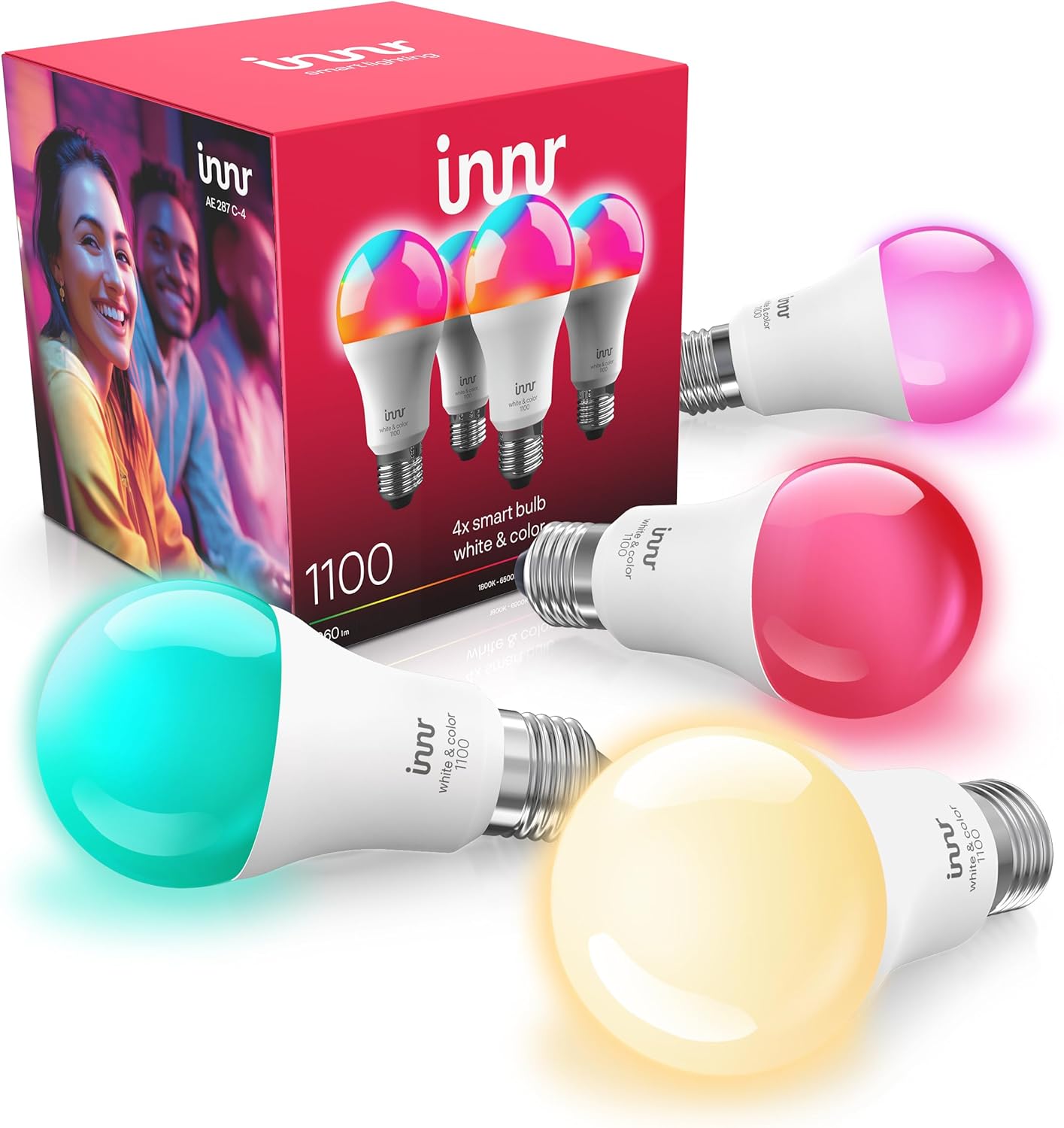
How Do I Pair My Innr Smart Bulb via Zigbee?
- Bulb not reset into pairing mode
- Bulb still joined to a previous Zigbee network
- Bulb too far from the hub for the initial join
Problem Description
Your Innr smart bulb will not pair with your Zigbee hub. Innr bulbs are Zigbee-only lights with no WiFi, so they join a Zigbee coordinator such as a Philips Hue Bridge, SmartThings, an Echo with a built-in Zigbee hub, or a deCONZ/Hubitat setup. Pairing fails when the bulb is not reset into pairing mode, sits too far from the hub, is still bound to another network, or is wired to a dimmer.
Why This Happens in Real Homes
Innr bulbs are Zigbee, so they need a Zigbee hub (a Hue Bridge, SmartThings, an Echo with Zigbee, deCONZ, or Hubitat) and they never touch WiFi. The single most important step is the reset: toggle the bulb's power off and on six times, about a second each, ending on, until it flashes three times to confirm it is in pairing mode. A bulb fresh from another hub, or one that was added and removed, holds its old network binding and will not join anything new until it is reset this way. Pair it close to the hub, within a few feet, because the first join is weak, then move it to its fixture where the mesh from your other mains-powered Innr devices carries it. Two Innr specifics matter: never wire an Innr bulb to a wall dimmer, which causes flicker and disrupts Zigbee control, and if pairing is flaky, shifting the hub's Zigbee channel off a crowded 2.4GHz WiFi channel steadies it.
Symptoms
- Hub search does not find the Innr bulb
- Bulb never flashes to confirm pairing mode
- Bulb pairs then quickly shows unreachable
- Only pairs when right next to the hub
- Some bulbs join but this one will not
- Bulb was on another hub and will not join
- Add-device search times out
- Bulb flickers instead of pairing
Recognize these? Here's what usually causes it.
Common Causes
- Bulb not reset into pairing mode
- Bulb still joined to a previous Zigbee network
- Bulb too far from the hub for the initial join
- Hub at its Zigbee device limit
- Bulb wired to a wall dimmer, disrupting Zigbee
- Weak mesh with no nearby mains-powered repeater
- Zigbee channel congested by 2.4GHz WiFi
- Bulb firmware out of date
Most fixes happen in the first 3 steps.
Do not attempt to open or modify the light hardware. Smart lights contain electronic components that can be damaged by moisture or physical tampering. Always power off at the wall switch before removing or repositioning a smart light.
Tools & Requirements
These tools will help you complete this fix.
As an Amazon Associate we earn from qualifying purchases.
Step-by-Step Solution
Reset the bulb to pairing mode
New Innr bulbs ship in pairing mode, but if the bulb was powered on previously, it may have timed out. Factory reset: toggle power off and on 6 times quickly (about 1 second per toggle), ending on. The bulb flashes 3 times to confirm it is in pairing mode. The timing needs to be consistent — too fast or too slow and the bulb misses the reset sequence.
Put your hub in Zigbee pairing mode
Hue bridge: go to Settings, Light Setup, Add Light. SmartThings: go to Add Device, scan nearby. Hubitat: go to Devices, Add Device, Zigbee. Home Assistant with ZHA: go to Settings, Devices, Add Integration, search Zigbee. Start the hub search immediately after resetting the bulb — the pairing window lasts about 3 minutes.

Needed for this step
Zigbee 1 Channel 10A Smart WiFi Temperature and...
This helps complete the fix you are currently reading.
$18.99Keep the bulb close to the hub during pairing
Zigbee pairing uses a low-power handshake for security. The bulb must be within 10-15 feet of the hub or a nearby Zigbee router device during initial pairing. After pairing, the Zigbee mesh routes signals through other devices, so the bulb can work much farther from the hub. Use a portable lamp near the hub for pairing, then move the bulb to its final fixture.
Check that the hub supports Zigbee 3.0
Innr bulbs use Zigbee 3.0. They are backward compatible with Zigbee HA 1.2 hubs, but some very old hubs may not recognize them. If your hub is more than 5 years old and has not had firmware updates, the Innr bulb may not pair. Update your hub firmware first. Most current hubs (Hue V2, SmartThings V3, Hubitat C-7+) support Zigbee 3.0 natively.
Verify the bulb shows correct capabilities after pairing
After pairing, check that the hub recognized the bulb type correctly. A color bulb should show a color wheel, a tunable white should show a temperature slider, and a basic white should show just a dimmer. If the hub shows fewer controls than the bulb supports, remove and re-pair. Incorrect device type detection is the most common Zigbee pairing issue with third-party bulbs.
Quick Solutions
Still having issues? This is usually the deeper cause below.
If pairing fails after multiple attempts, the device may still be registered to a previous account — factory-reset it before trying to add it to a new one.
Group your smart lights by room in the app and assign clear names like Kitchen Ceiling and Bedroom Lamp. This makes voice commands more reliable and lets you create scenes that control multiple lights at once with a single command.
Pairing failures almost always come down to distance during the initial handshake — manufacturers seriously understate how close you actually need to be.
- Bulb not reset into pairing mode
- Bulb still joined to a previous Zigbee network
- Bulb too far from the hub for the initial
- Hub at its Zigbee device limit
- Bulb wired to a wall dimmer, disrupting Zigbee
Before you go — try one of these (they fix most cases).
Most popular upgrades chosen by Innr Smart Bulb owners.

innr Zigbee A19 Smart Bulb, Works with Hue*, Alexa, Smart...
innr Zigbee A19 Smart Bulb, Works with Hue*, Alexa, Smart...

innr Zigbee A19 Smart Bulb, Works with Hue*, Alexa, Smart...
As an Amazon Associate we earn from qualifying purchases.
Official Manufacturer Manual
Innr provides official product documentation through their online manual rather than downloadable PDF. Access setup guides, troubleshooting steps, and product specifications for your Innr Smart Bulb.
Source: innr.com
Need More Help? Innr Support
Note: The contact information below connects you directly to Innr's official customer support team, not Trunetto. They can help with warranty claims, device replacements, and advanced technical issues.
Accessories owners commonly pair with Innr Smart Bulb.

Amazon Smart Plug, Works with Alexa, Simple Setup, Endles...

Ring Rechargeable Quick Release Battery Pack

Kasa Smart Plug HS103P2, Smart Home Wi-Fi Outlet Works wi...
As an Amazon Associate we earn from qualifying purchases.