

How to Set Up LIFX A19 Smart Bulb Without a Hub
- Install the Bulb
- Power On the Bulb
- Connect via LIFX App
- Name and Group Your Bulb
- Connect Voice Assistants
Most users complete this in under 10 minutes
Overview
You purchased a LIFX A19 smart bulb and want to install it and connect it directly to your WiFi network without any hub or bridge. LIFX bulbs connect directly to your home WiFi router making setup simple. This guide covers screwing in the bulb, connecting to your WiFi, and controlling it through the LIFX app or voice assistants.
What's Included
- LIFX A19 bulb with standard E26 screw base
- Built-in WiFi radio for direct router connection
- Full RGBWW color with 800 or 1100 lumen output
- No hub bridge or gateway required
- Quick start card with LIFX app download QR code
- Compatible with Alexa Google Home Apple HomeKit
Got your materials ready? Here's what to check first.
Before You Start
- LIFX connects to 2.4GHz WiFi only not 5GHz bands
- Turn off the light switch before screwing in the bulb
- Download the LIFX app before powering on for first time
- Do not use with traditional dimmer switches
- Router must be within WiFi range of the bulb location
- Each bulb connects individually to your WiFi network
Don't skip this step — it breaks everything if you do
LIFX bulbs draw more power than traditional LEDs due to the built-in WiFi radio. Do not install more LIFX bulbs in a single fixture than the fixture wattage rating allows. Check the fixture label for maximum wattage.
Tools & Requirements
Installation Steps
Install the Bulb
Turn off the light switch for your fixture. If replacing an existing bulb wait for it to cool then unscrew it. Take the LIFX A19 bulb and screw it into the E26 socket clockwise by hand until snug. Do not overtighten. The LIFX A19 fits standard table lamps floor lamps and ceiling fixtures with E26 sockets. For ceiling fixtures use a step ladder for safe access.
Power On the Bulb
Turn the light switch on. The LIFX bulb will cycle through a brief color animation then settle on a white glow indicating it is powered and in pairing mode. If the bulb has been previously paired it will go straight to its last saved color. For a brand new bulb the color cycling means it is broadcasting its WiFi setup signal and ready to be discovered by the LIFX app on your phone.
Connect via LIFX App
Open the LIFX app on your phone and create an account or sign in. Tap the plus icon to add a new light. The app will search for nearby LIFX bulbs. When your bulb appears tap it to begin setup. The app will ask you to select your 2.4GHz WiFi network and enter the password. The bulb will connect directly to your router. Once connected the bulb disappears from the setup list and appears in your main light list.
Name and Group Your Bulb
Tap the newly added bulb in the LIFX app to open its settings. Give it a descriptive name like Bedroom Lamp or Office Desk. Create or select a group to organize bulbs by room. Groups let you control multiple bulbs simultaneously with one tap or voice command. Adjust the default power-on color and brightness to your preference in the bulb settings screen.
Connect Voice Assistants
To use Alexa open the Alexa app and enable the LIFX skill then discover devices. For Google Home open the Google Home app and link your LIFX account under Works with Google. For Apple HomeKit open the LIFX app go to settings and enable HomeKit integration then follow the prompts. Once linked you can say Hey Google turn on the bedroom light or Alexa set office to blue.
Installation Tips
Still stuck? This is usually the deeper cause below.
If your LIFX bulb loses WiFi connection and becomes unresponsive power cycle it five times in a row with three second intervals. This factory resets the WiFi module and puts the bulb back into pairing mode for fresh setup.
Before you go — these LIFX guides fix most remaining issues.
Most popular upgrades chosen by LIFX A19 Color Smart Bulb owners.
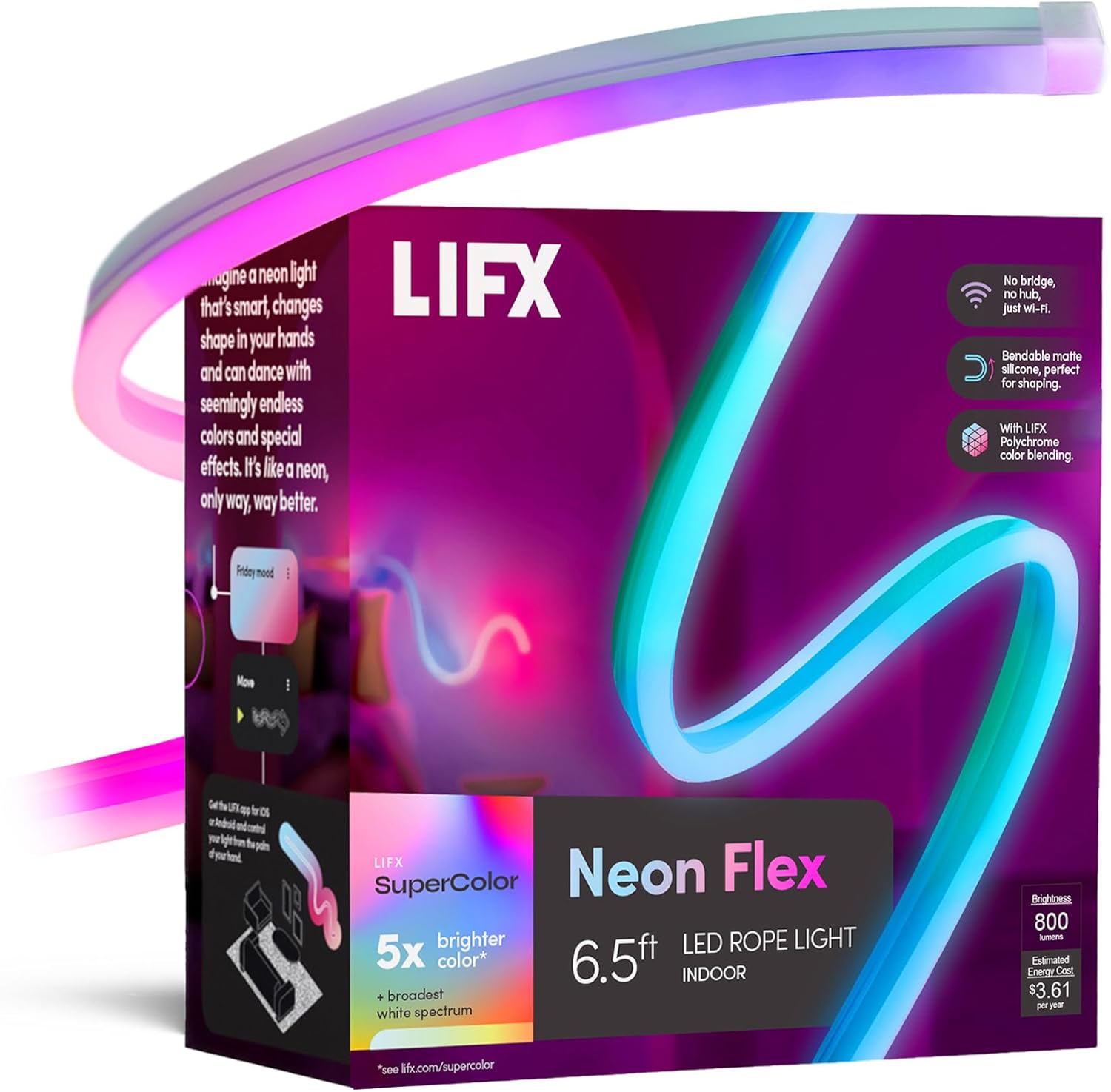
LIFX Neon Flex SuperColor LED Strip Light, 6.5ft Bendable...

LIFX Bedroom Bundle – with 2 Color 800 Lumen Smart Bulb a...

LIFX Supercolor Neon Flex Light Strip, 16ft Bendable RGBW...
As an Amazon Associate we earn from qualifying purchases.
Official Manufacturer Manual
LIFX provides official product documentation through their online manual rather than downloadable PDF. Access setup guides, troubleshooting steps, and product specifications for your LIFX A19 Color Smart Bulb.
Source: support.lifx.com
Need More Help? LIFX Support
Note: The contact information below connects you directly to LIFX's official customer support team, not Trunetto. They can help with warranty claims, device replacements, and advanced technical issues.
Accessories owners commonly pair with LIFX A19 Color Smart Bulb.

Amazon Smart Plug, Works with Alexa, Simple Setup, Endles...

Ring Rechargeable Quick Release Battery Pack

Kasa Smart Plug HS103P2, Smart Home Wi-Fi Outlet Works wi...
As an Amazon Associate we earn from qualifying purchases.


