How Do I Factory Reset Philips Hue Bulbs Without the Bridge?
- Bulb still has Zigbee pairing data from the previous bridge stored internally
- Bridge that originally paired the bulb is no longer available
- Bulb was removed from the app but not factory reset clearing only the software reference
Problem Description
You need to factory reset a Philips Hue bulb but do not have access to the Hue Bridge it was originally paired with. The bridge may have been replaced, sold, broken, or you bought used bulbs that were paired to someone else bridge. Without a factory reset the bulb remains bound to the old bridge and cannot be paired to a new one. There are several methods to reset Hue bulbs without a bridge including the power cycle method, using a Hue Dimmer Switch, or using a third-party Zigbee controller.
Why This Happens in Real Homes
This comes up constantly when people buy secondhand Hue bulbs that are still paired to someone else's bridge. The old power cycle method — on 5 seconds, off 5 seconds, repeat 5 times — was removed in newer firmware and no longer works. The Hue dimmer switch can reset bulbs by holding the power and setup buttons simultaneously near the bulb, but it is finicky about distance. The Lutron Connected Bulb Remote works great but is discontinued and sells for $40+ on eBay. The most reliable method is Touchlink via a Zigbee coordinator like a ConBee II or HUSBZB-1 dongle.
Symptoms
- Hue bulb will not pair to a new bridge because it is bound to an old one
- Bridge searches for new lights but does not find the bulb
- Bulb was purchased used and is paired to the previous owner bridge
- Original bridge is broken or sold and bulbs need to be re-paired
- Bulb was removed from the Hue app but never properly reset
- Moving Hue bulbs from one bridge to another and they will not pair
Recognize these? Here's what usually causes it.
Common Causes
- Bulb still has Zigbee pairing data from the previous bridge stored internally
- Bridge that originally paired the bulb is no longer available
- Bulb was removed from the app but not factory reset clearing only the software reference
- Purchased used Hue bulbs from someone who did not reset them first
- Upgrading to a new Hue Bridge and old bulbs will not pair to it
- Zigbee pairing data persists in the bulb even after removing from the app
Most fixes happen in the first 3 steps.
The power cycle reset timing must be precise. If the intervals are too fast or too slow the bulb may not enter reset mode. Count 8 seconds on and 2 seconds off consistently. Using a smart plug with a timer to automate the toggling can help with precision if manual toggling is not working.
Tools & Requirements
These tools will help you complete this fix.
As an Amazon Associate we earn from qualifying purchases.
Step-by-Step Solution
Power Cycle Reset Method
This works on newer Hue bulbs manufactured after 2019. Screw the bulb into a lamp connected to a wall switch or power strip you can toggle. Turn the power on for 8 seconds then off for 2 seconds. Repeat this on-off cycle exactly 5 times. On the fifth power-on the bulb will blink or flash briefly confirming the factory reset. The bulb is now unpaired and ready to join a new bridge. Immediately search for it in the Hue app within 3 minutes of the reset.

Needed for this step
Itramax USB On Off Switch Cable,USB Extension C...
This helps complete the fix you are currently reading.
$8.99Hue Dimmer Switch Touchlink Reset
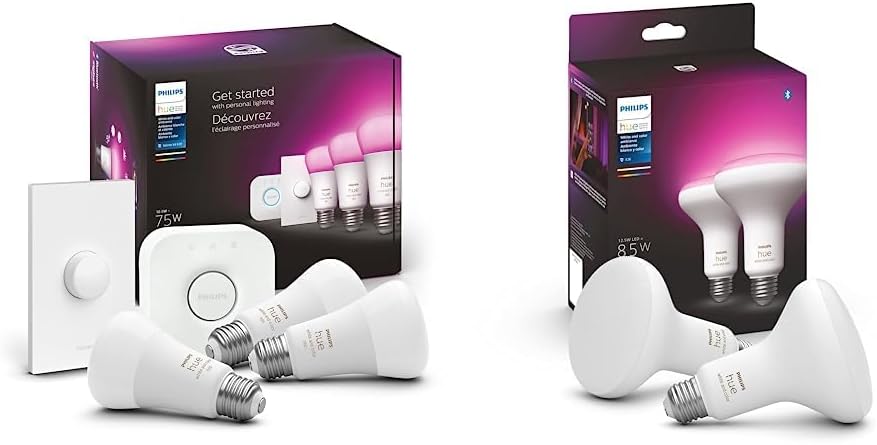
Hold a Hue Dimmer Switch within 2 inches of the bulb you want to reset. The bulb must be powered on. On the dimmer switch press and hold both the ON button top and the OFF button bottom simultaneously for 10 seconds. The bulb will blink confirming the factory reset. This uses the Zigbee touchlink feature which works regardless of which bridge the bulb was originally paired to. This method works on all Hue bulb generations.
Bluetooth Reset for Newer Bulbs
Hue bulbs with Bluetooth marked on the box with a Bluetooth icon can be reset using the Hue Bluetooth app. Download the Philips Hue Bluetooth app. Power on the bulb and open the app. It will search for Bluetooth Hue devices nearby. If it finds the bulb you can control it via Bluetooth and perform a factory reset from the app settings. This only works if the bulb supports Bluetooth which includes models from 2019 onward.
Third-Party Zigbee Controller Reset
If the power cycle and dimmer methods fail you can use a third-party Zigbee coordinator like the ConBee II, Sonoff Zigbee 3.0 Dongle, or HUSBZB-1 with software like deCONZ or Zigbee2MQTT. These tools can send a touchlink factory reset command to any Zigbee device within range. This is the most reliable method and works on all Hue bulb generations including older bulbs that do not support the power cycle reset.
Add Reset Bulb to New Bridge
After resetting the bulb immediately open the Hue app connected to your new bridge. Go to Settings then Lights then Search. The bridge will discover the freshly reset bulb within 30 seconds. If the bulb is not found it may not have successfully reset. Try the reset procedure again. Once found assign the bulb to a room and configure your scenes. The bulb retains no data from its previous bridge.
Quick Solutions
Still having issues? This is usually the deeper cause below.
If flickering only happens on dimming, the issue is almost always the dimmer's minimum-load setting, not the bulb — it's drawing less current than the dimmer expects.
When selling or giving away Hue bulbs always factory reset them first using the bridge before removing them. In the Hue app go to Settings then Lights then select the bulb then Delete. This performs a proper Zigbee reset making the bulb immediately ready for the new owner bridge.
Hub disconnections that cycle repeatedly are almost always IP conflicts — two devices fighting over the same DHCP lease after a router restart.
- Bulb still has Zigbee pairing data from the previous
- Bridge that originally paired the bulb is no longer
- Bulb was removed from the app but not factory
- Purchased used Hue bulbs from someone who did not
- Upgrading to a new Hue Bridge and old bulbs
Before you go — try one of these (they fix most cases).
Most popular upgrades chosen by Philips Hue Smart Bulb owners.

Philips Hue White Ambiance 2-Pack A19 LED Smart Bulb & Wh...

Philips Hue Premium Smart Bulbs, 16 Million Colors, for M...

Philips Hue White & Color Ambiance BR30 LED Smart Bulbs, ...
As an Amazon Associate we earn from qualifying purchases.
Official Manufacturer Manual
Philips Hue provides official product documentation through their online manual rather than downloadable PDF. Access setup guides, troubleshooting steps, and product specifications for your Philips Hue Smart Bulb.
Source: philips-hue.com
Need More Help? Philips Hue Support
Note: The contact information below connects you directly to Philips Hue's official customer support team, not Trunetto. They can help with warranty claims, device replacements, and advanced technical issues.
How Does Philips Hue Compare?
Before replacing your Philips Hue device, see how it stacks up against alternatives in our full comparison guides.
Accessories owners commonly pair with Philips Hue Smart Bulb.

Philips Hue Smart Wireless Dimmer Switch V2 (Installation...

Philips Hue Smart Dimmer Switch with Remote, White - 1 Pa...

Philips Hue Play HDMI Sync Box - Requires Hue Bridge - Su...
As an Amazon Associate we earn from qualifying purchases.