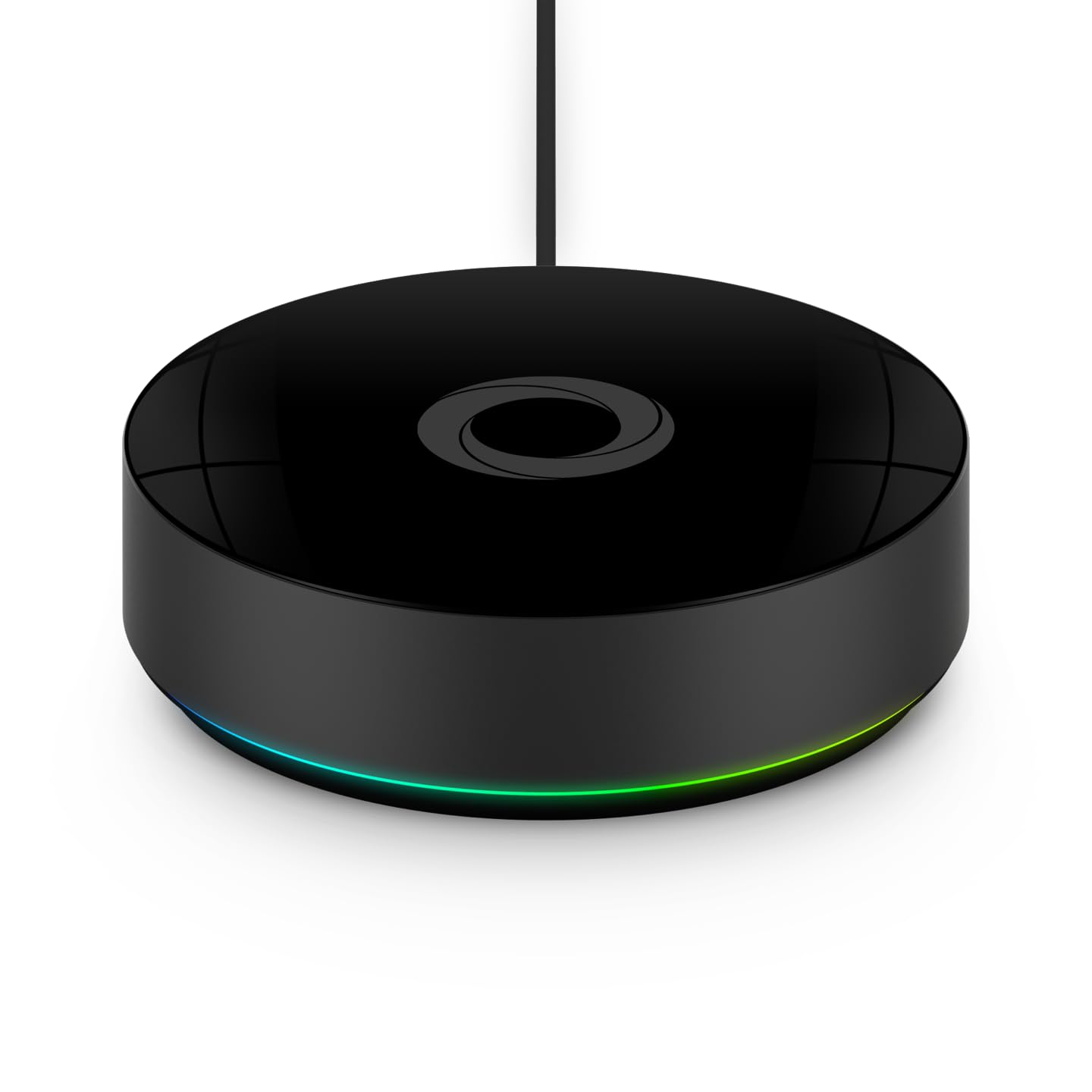
How to Install Philips Hue Bridge
- Network Connection Setup
- Hue App Installation
- Bridge Registration
- Zigbee Network Creation
- Smart Home Integration
- System Testing
Most users complete this in under 20 minutes
Overview
Philips Hue Philips Hue Bridge setup takes under 15 minutes for most users — if you're stuck, the steps below target the specific points where installs stall.
This guide covers the installation of the Philips Hue Bridge, the central hub required for most Hue smart lighting features including automations, geofencing, remote access, and Alexa or Google Home integration. The Hue Bridge connects via Ethernet to your router and requires the Hue app for initial setup and device pairing.
Why This Happens in Real Homes
The Hue Bridge is the hub every Zigbee Hue device connects through, and the one thing people miss is that it's wired-only — it connects to your router by Ethernet, not WiFi, so you need a free LAN port. Plug it in, power it, and wait for its row of lights to go solid.
Then let the app find it on your network and press the round link button to authorize. If the app can't see it, the usual cause is your phone being on a guest network or a different VLAN than the Bridge — put both on the same LAN and it appears.
What's Included
- Unsure how to connect the Bridge
- Bridge will not power on
- App cannot find the Bridge
- No free LAN port on the router
- Bridge lights not solid
- Link button step unclear
- Bridge offline after setup
- Adding first bulbs question
Got your materials ready? Here's what to check first.
Before You Start
- Ethernet not connected (Bridge has no WiFi)
- No free LAN port on the router
- Bridge not powered
- Phone on a different network/VLAN than the Bridge
- Router not handing the Bridge an IP
- Link button not pressed to authorize
- Bridge firmware update pending
- AP isolation blocking discovery
Don't skip this step — it breaks everything if you do
Ethernet connection required for Bridge. Position centrally for best Zigbee range. One Bridge supports entire home lighting system.
Tools & Requirements
These tools will help you complete this fix.

Drill optional
DEWALT 20V MAX Cordless Drill and Impact Driver, Pow...

Level
9 Inch Torpedo Level Magnetic, Shock-Proof Small Lev...

Screwdriver
STREBITO 155 in 1 Electric Screwdriver Set, Small El...
As an Amazon Associate we earn from qualifying purchases.
Installation Steps
Network Connection Setup
Connect Hue Bridge to router using included Ethernet cable and plug into power outlet. Bridge requires wired internet connection for initial setup and remote access.
Hue App Installation
Download official Philips Hue app and create account. Press button on Bridge when prompted during setup to establish secure connection.
Bridge Registration
Register Bridge through app to enable remote access and cloud features. This allows control of lights from anywhere and integration with other services.
Zigbee Network Creation
Bridge automatically creates Zigbee mesh network for Hue lights. Network can support up to 50 lights and accessories with mesh extending range.
Smart Home Integration
Configure Bridge with smart home platforms like Apple HomeKit, Google Assistant, Amazon Alexa, or Samsung SmartThings for voice control.
System Testing
Test Bridge connectivity, app control, and network stability. Verify Bridge can discover and control Hue lights throughout installation area.
Installation Tips
Still stuck? This is usually the deeper cause below.
Hue Bridge creates Zigbee network supporting up to 50 devices. Required for advanced features and remote access to Hue lighting system.
Before you go — these Philips Hue guides fix most remaining issues.
Most popular upgrades chosen by Philips Hue Bridge owners.

Philips Hue (1) White Tap Dial Switch with (1) Smart Slim...

Philips Hue (1) Black Tap Dial Switch with (1) Smart Slim...

Philips Hue White & Color Ambiance Play Light Bar 2 Pack,...
As an Amazon Associate we earn from qualifying purchases.
Official Manufacturer Manual
If you need the complete manufacturer documentation for advanced setup, wiring diagrams, or detailed specifications, you can download the official manual below. The manual includes full technical instructions directly from the manufacturer and may help if your issue requires deeper troubleshooting.
Download the Official Philips Hue Bridge ManualSource: philips-hue.com
Need More Help? Philips Hue Support
Note: The contact information below connects you directly to Philips Hue's official customer support team, not Trunetto. They can help with warranty claims, device replacements, and advanced technical issues.
How Does Philips Hue Compare?
Before replacing your Philips Hue device, see how it stacks up against alternatives in our full comparison guides.