

How Do I Set Up the Hue Festavia String Lights?
- Connected to 5GHz WiFi instead of required 2.4GHz network
- Light not properly reset before pairing attempt
- Weak WiFi signal at the light location
Problem Description
Your Philips Hue Hue Festavia is not adjusting brightness, color, or lighting settings correctly. Lighting issues with the Hue Festavia can include flickering, wrong colors, dimming failures, or lights turning on and off unexpectedly. Specifically, the issue involves string lights. The steps below walk you through diagnosing the root cause and applying proven fixes so your Hue Festavia works reliably again.
Why This Happens in Real Homes
Festavia string lights pair to the bridge like any other Hue Zigbee light, but they have individually addressable LED zones that enable multi-color gradient effects. If they show up as a single flat-color light instead of multi-zone, the bulb firmware needs updating — check in Hue app under Software Update. The outdoor Festavia version needs to be within Zigbee range of the bridge or a nearby Hue bulb acting as a repeater. Running them on a porch 50 feet from any other Hue device will give you constant unreachable errors. Add an outdoor Hue fixture nearby as a mesh extender.
Symptoms
- Light shows as offline in the app
- Light does not respond to on/off commands
- Colors appear incorrect or washed out
- Brightness controls not working
- Light flickers or turns off unexpectedly
- Voice commands through Alexa or Google fail
- Scheduled automations do not trigger
Recognize these? Here's what usually causes it.
Common Causes
- Connected to 5GHz WiFi instead of required 2.4GHz network
- Light not properly reset before pairing attempt
- Weak WiFi signal at the light location
- Hub or bridge disconnected from router
- App needs updating to latest version
- Light firmware is outdated
- Too many devices on the same network causing congestion
Most fixes happen in the first 3 steps.
Do not attempt to open or modify the light hardware. Smart lights contain electronic components that can be damaged by moisture or physical tampering. Always power off at the wall switch before removing or repositioning a smart light.
Step-by-Step Solution
Connect the string to the power supply unit correctly
The Festavia string lights connect to a dedicated 30W power supply unit (PSU) via a low-voltage cable. Plug the string cable into the port on the PSU, then plug the PSU into a GFCI-protected outlet. The free end of the string should be at the top of the tree or display, with the PSU at the bottom. Do not exceed the PSU wattage limit — each 100-LED string draws about 7W, so a single 30W PSU supports up to 4 strings (28W total). Connecting 5 strings (35W) will overload the PSU.
Check indoor vs outdoor rating by production year
Festavia string lights produced in 2023 or later are rated for both indoor and outdoor use and can connect to the low-voltage outdoor system. Strings produced in 2022 are indoor-only — using them outdoors voids the warranty and risks water damage. Check the production date on the product label near the power connector. For outdoor use, connect the PSU to a GFCI outlet and make sure all cable connections are weatherproof.
Pair with the Hue bridge
Power on the Festavia lights, then open the Hue app, go to Settings, Lights, and tap Add Light. The string appears as a single Zigbee light with gradient color zone support. If not found, bring the PSU end of the string (which contains the Zigbee radio) closer to the Hue bridge during pairing. After pairing, the lights work at any distance within the Zigbee mesh range.
Set up multi-color gradient effects
The Festavia supports up to 5 simultaneous color zones along its length — each section of the string can show a different color. In the Hue app, select the Festavia light and use the gradient palette picker. Drag color points to create custom multi-color effects. Pre-built Festavia scenes are available in the Hue app Scenes gallery, designed specifically for holiday and decorative displays with coordinated color combinations.
Fix sections not lighting up
If part of the string is dark while the rest works, the LED segment may have a loose internal connection. Gently straighten any kinked sections of wire near the dark area. If an entire string in a daisy-chain is dark, check the inter-string connector — unplug and replug it firmly. If a single LED is out, the rest of the string should still work since Festavia uses parallel wiring. A completely dead string with the PSU working indicates a cable fault — try a different string on the same PSU to confirm.
Quick Solutions
Still having issues? This is usually the deeper cause below.
If flickering only happens on dimming, the issue is almost always the dimmer's minimum-load setting, not the bulb — it's drawing less current than the dimmer expects.
Group your smart lights by room in the app and assign clear names like Kitchen Ceiling and Bedroom Lamp. This makes voice commands more reliable and lets you create scenes that control multiple lights at once with a single command.
This issue almost always looks more complex than it is — the majority of cases trace back to a single setting, a stale credential, or a default that shipped wrong.
- Connected to 5GHz WiFi instead of required 2.4GHz network
- Light not properly reset before pairing attempt
- Weak WiFi signal at the light location
- Hub or bridge disconnected from router
- App needs updating to latest version
Before you go — try one of these (they fix most cases).
Most popular upgrades chosen by Hue Festavia owners.

Philips Hue Festavia Globe Outdoor String Lights, White &...
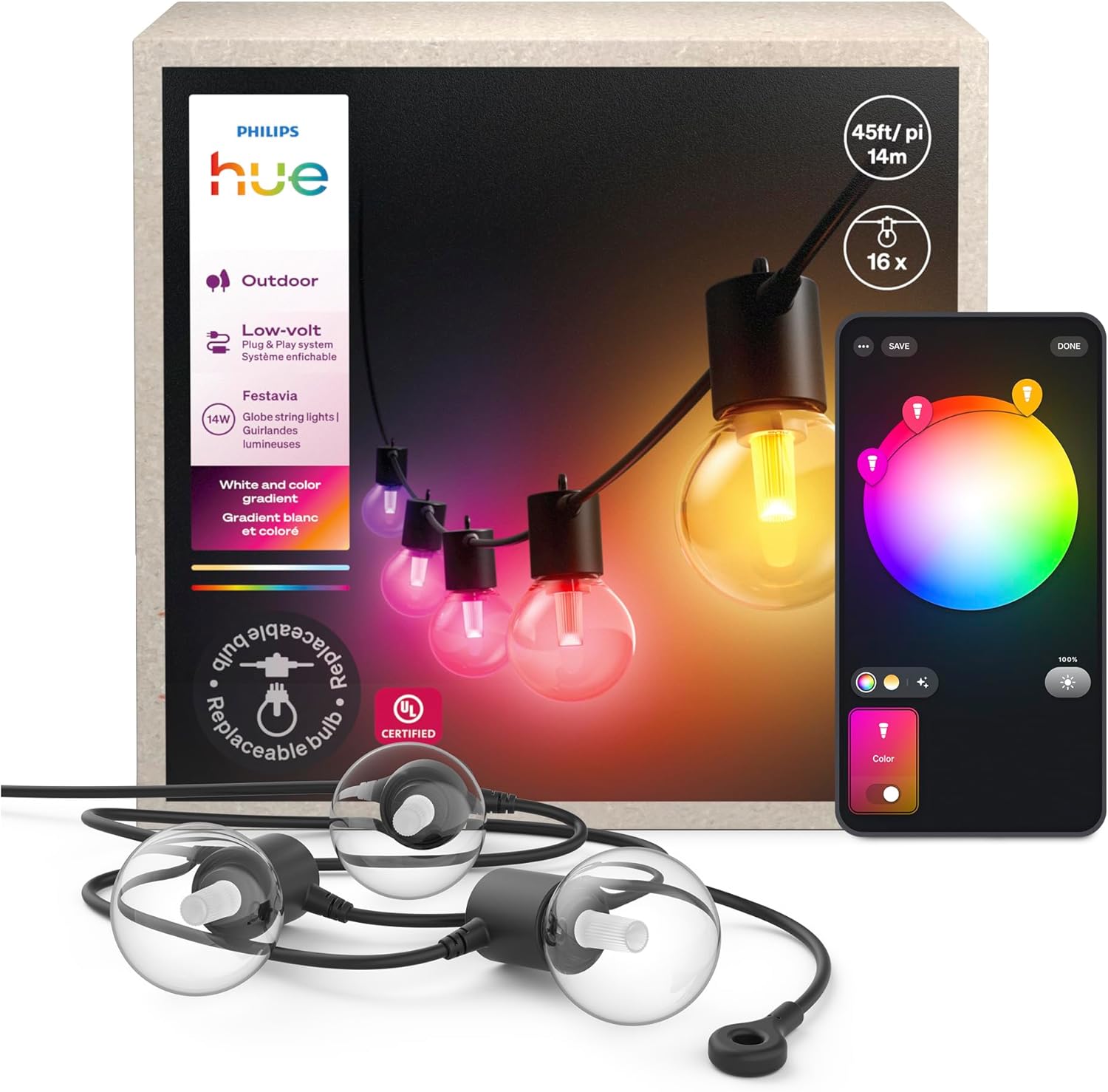
Philips Hue Festavia Globe Outdoor String Lights, White &...
As an Amazon Associate we earn from qualifying purchases.
Official Manufacturer Manual
Philips Hue provides official product documentation through their online manual rather than downloadable PDF. Access setup guides, troubleshooting steps, and product specifications for your Hue Festavia.
Source: philips-hue.com
Need More Help? Philips Hue Support
Note: The contact information below connects you directly to Philips Hue's official customer support team, not Trunetto. They can help with warranty claims, device replacements, and advanced technical issues.
How Does Philips Hue Compare?
Before replacing your Philips Hue device, see how it stacks up against alternatives in our full comparison guides.
Accessories owners commonly pair with Hue Festavia.

Philips Hue Smart Wireless Dimmer Switch V2 (Installation...

Philips Hue Smart Dimmer Switch with Remote, White - 1 Pa...

Philips Hue Play HDMI Sync Box - Requires Hue Bridge - Su...
As an Amazon Associate we earn from qualifying purchases.


