How Do I Set Up the Hue Twilight Lamp?
- Power adapter not fully connected
- Lamp not added in the Hue app
- Out of Bluetooth/Zigbee range during setup
Problem Description
Your Philips Hue Hue Twilight is having trouble during initial setup, installation, or configuration. Getting the Hue Twilight properly connected and configured is essential before it can be controlled through the Philips Hue app or integrated with your smart home system. Specifically, the issue involves lamp setup. The steps below walk you through diagnosing the root cause and applying proven fixes so your Hue Twilight works reliably again.
Why This Happens in Real Homes
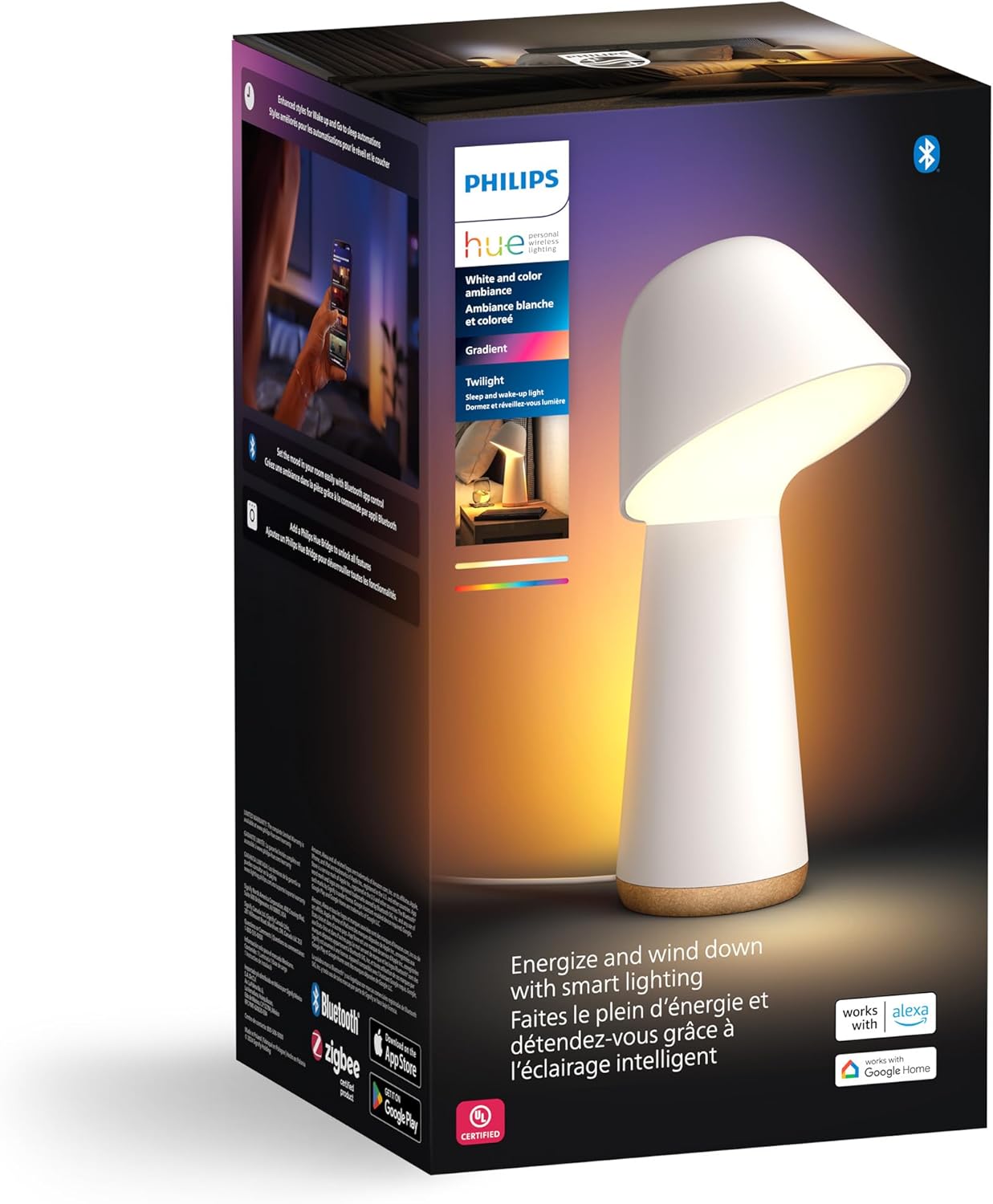
The Hue Twilight is a bedside lamp built around sleep and wake routines with two separately controllable light zones, so setup is really two jobs: getting it paired, then configuring the go-to-sleep and wake-up automations that are the whole point of it. Pairing follows normal Hue rules — add it in the app, ideally with the Bridge for full routine support.
Start by powering the lamp and adding it in the Hue app near the Bridge, letting any firmware finish. Then build the wake-up (gradual sunrise) and go-to-sleep (gradual dim) routines and assign them to the lamp, so it actually drives your mornings and evenings.
Symptoms
- Unsure how to set up the Twilight
- Lamp will not power on
- Will not pair with the app
- Wake-up/sleep routine not working
- Two light zones confusing
- Firmware update at setup
- Lamp offline after adding
- Buttons on the lamp unclear
Recognize these? Here's what usually causes it.
Common Causes
- Power adapter not fully connected
- Lamp not added in the Hue app
- Out of Bluetooth/Zigbee range during setup
- Wake-up and go-to-sleep routines not configured
- Firmware update pending
- Bridge vs Bluetooth setup confusion
- Reset needed before pairing
- Routines not assigned to the lamp
Most fixes happen in the first 3 steps.
Do not attempt to open or modify the light hardware. Smart lights contain electronic components that can be damaged by moisture or physical tampering. Always power off at the wall switch before removing or repositioning a smart light.
Step-by-Step Solution
Connect power and scan the QR code
Connect the power adapter cable to the base of the Twilight lamp and plug the adapter into a wall outlet. The lamp has no physical power switch — it is always powered when plugged in. To add it to your Hue system, scan the QR code on the bottom of the lamp or on the packaging using the Hue app. The Twilight supports both Bluetooth (limited features) and Hue Bridge connection (full features including automations and remote control).
Learn the two top buttons
The Twilight has two buttons on top. The Dot button turns the lamp on with a single press. Subsequent presses cycle through six preset scenes designed to mimic natural sunlight throughout the day — from energizing cool white to warm candlelight. The Hue button activates the built-in Go to Sleep automation: the light gradually transitions from warm light to deep red tones over 30 minutes, then dims to off. Press and hold either button for 2 seconds to turn the lamp off into standby.
Configure the Go to Sleep and Wake Up automations
In the Hue app, select the Twilight lamp and customize the sleep and wake-up routines. The Go to Sleep automation is triggered by the Hue button and defaults to a 30-minute sunset-style fade. You can change the duration (10, 20, 30, or 60 minutes) and the starting color. The Wake Up automation gradually brightens the lamp before your alarm time, simulating sunrise. Set your wake-up time in the Hue app under Automations.
Customize the button scenes
With a Hue Bridge connection, both buttons on the Twilight are fully programmable like any Hue smart button. In the Hue app, go to Settings, Accessories, select the Twilight, and assign different scenes or automations to each button press. You can override the default 6-scene cycle with your own custom scenes, or assign the buttons to control other Hue lights in the bedroom.
Fix the Twilight not responding to button presses
If the buttons do not respond, unplug the lamp for 30 seconds and plug it back in. If the lamp is paired via Bluetooth only, your phone must be within Bluetooth range for app control — pair with a Hue Bridge for always-on control. If the buttons work but the lamp shows the wrong colors, update the lamp firmware in the Hue app under Settings, Software Update. Early firmware versions had a bug where the sunset fade used incorrect color values.
Quick Solutions
Still having issues? This is usually the deeper cause below.
If flickering only happens on dimming, the issue is almost always the dimmer's minimum-load setting, not the bulb — it's drawing less current than the dimmer expects.
Group your smart lights by room in the app and assign clear names like Kitchen Ceiling and Bedroom Lamp. This makes voice commands more reliable and lets you create scenes that control multiple lights at once with a single command.
Battery-related failures are almost always flagged too late — the device degrades silently for days before the app catches up to what's actually happening.
- Power adapter not fully connected
- Lamp not added in the Hue app
- Out of Bluetooth/Zigbee range during setup
- Wake-up and go-to-sleep routines not configured
- Firmware update pending
Before you go — try one of these (they fix most cases).
Most popular upgrades chosen by Hue Twilight owners.

Philips Hue White and Color Ambiance Centris Smart LED Ce...

Philips Hue White & Color Ambiance Play Light Bar 2 Pack,...

Philips Hue Smart 60W A19 LED Bulb - Soft Warm White Ligh...
As an Amazon Associate we earn from qualifying purchases.
Official Manufacturer Manual
Philips Hue provides official product documentation through their online manual rather than downloadable PDF. Access setup guides, troubleshooting steps, and product specifications for your Hue Twilight.
Source: philips-hue.com
Need More Help? Philips Hue Support
Note: The contact information below connects you directly to Philips Hue's official customer support team, not Trunetto. They can help with warranty claims, device replacements, and advanced technical issues.
How Does Philips Hue Compare?
Before replacing your Philips Hue device, see how it stacks up against alternatives in our full comparison guides.
Accessories owners commonly pair with Hue Twilight.

Philips Hue Smart Wireless Dimmer Switch V2 (Installation...

Philips Hue Smart Dimmer Switch with Remote, White - 1 Pa...

Philips Hue Play HDMI Sync Box - Requires Hue Bridge - Su...
As an Amazon Associate we earn from qualifying purchases.