

Why Does My Philips Hue Bridge Keep Going Unreachable
- Router DHCP renamed Bridge IP
- Ethernet cable loose or damaged
- Bridge stuck after partial firmware update
Problem Description
When the Hue Bridge shows unreachable, bulbs stop responding through the app even though they may still respond to physical switches. This guide covers power, network, firmware, and local API checks to restore a reliable connection.
Why This Happens in Real Homes
When the Hue Bridge shows unreachable, bulbs stop responding through the app even though they may still respond to physical switches. This guide covers power, network, firmware, and local API checks to restore a reliable connection. In day-to-day use, this usually looks like Hue app reports Bridge unreachable; Bulbs respond to wall switch but not app; All four LEDs on Bridge not lit.
Most cases trace back to Router DHCP renamed Bridge IP; Ethernet cable loose or damaged; Bridge stuck after partial firmware update. The fix works best when you go step by step instead of changing multiple settings at once.
A practical order for this issue is: Check LEDs and Cables -> Power Cycle Cleanly -> Reserve Static IP -> Check Multicast. After each step, test the exact behavior that was failing so you can confirm what actually solved it.
Symptoms
- Hue app reports Bridge unreachable
- Bulbs respond to wall switch but not app
- All four LEDs on Bridge not lit
- Issue appears after router reboot
- Firmware update was recent
- No change to Zigbee devices
Recognize these? Here's what usually causes it.
Common Causes
- Router DHCP renamed Bridge IP
- Ethernet cable loose or damaged
- Bridge stuck after partial firmware update
- Router blocks multicast discovery
- Multiple Hue accounts signed in
- Mesh network routes Bridge over wireless
Most fixes happen in the first 3 steps.
Do not place the Bridge inside a metal box. Metal can interfere with both Zigbee and Ethernet stability in rare cases.
Tools & Requirements
These tools will help you complete this fix.

Ethernet cable
Jadaol Cat 6 Ethernet Cable 25 ft, 10Gbps Support Ca...
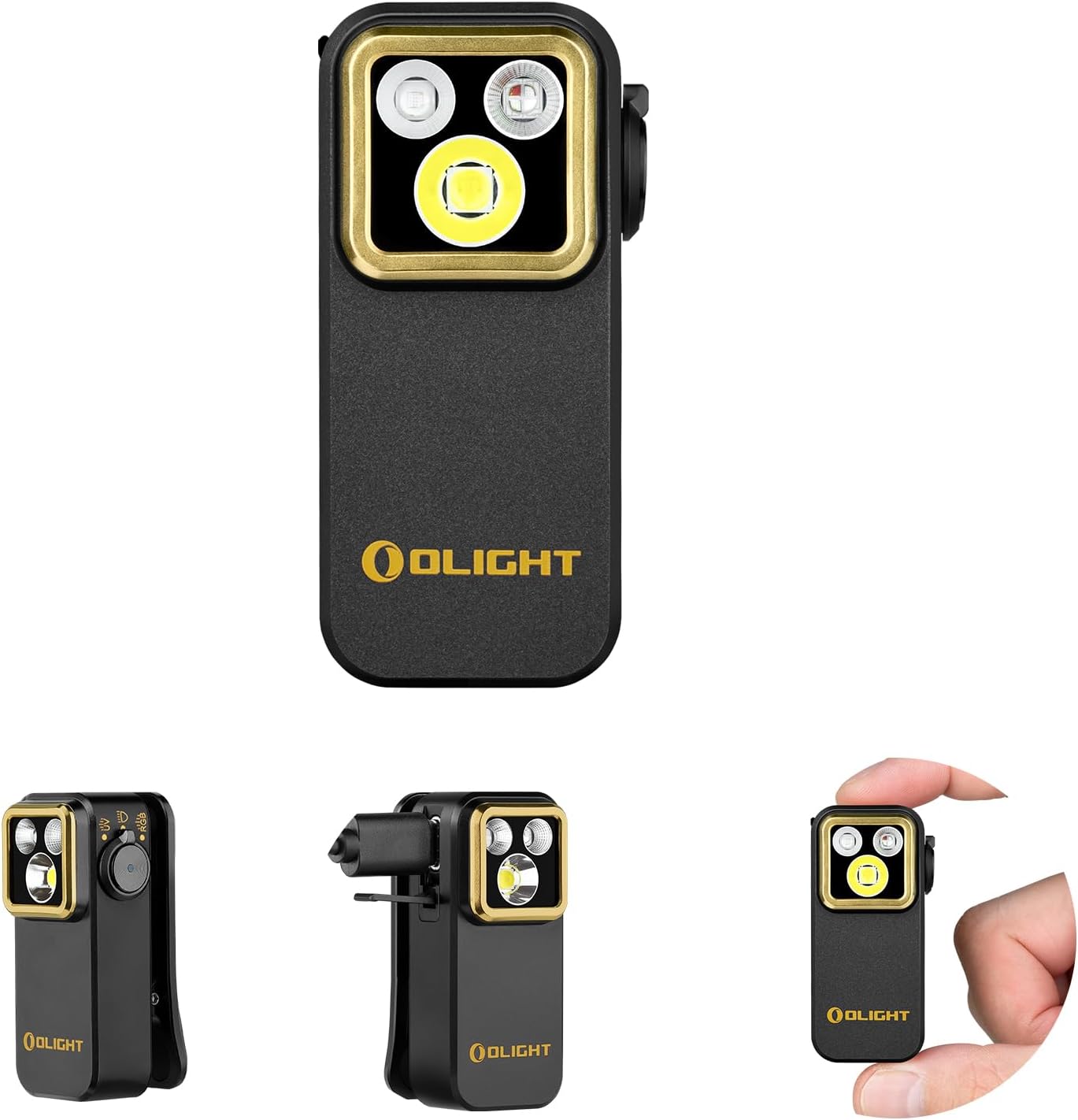
Flashlight
OLIGHT Oclip Pro S EDC Flashlight Clip-on Light, 600...
As an Amazon Associate we earn from qualifying purchases.
Step-by-Step Solution
Check LEDs and Cables
Walk to the Bridge and inspect the four LEDs. All should be solid. Reseat the Ethernet cable and try a different port on the router. A known-good cable rules out simple physical causes that look exactly like firmware issues at first glance.
Needed for this step
Jadaol Cat 6 Ethernet Cable 25 ft, 10Gbps Suppo...
This helps complete the fix you are currently reading.
$9.99Power Cycle Cleanly
Unplug the Bridge and router. Wait 30 seconds. Plug the router in first, wait until it is fully online, then plug the Bridge back in. A clean power-up order lets the Bridge acquire its IP and reach Hue cloud services cleanly without race conditions.
Reserve Static IP
Log into the router and assign a DHCP reservation for the Bridge based on its MAC address. Reservation prevents future IP changes that cause unreachable errors. Restart the Bridge after setting the reservation and verify the new IP appears in router clients.
Check Multicast
Some routers block multicast passthrough between bands or SSIDs. Move your phone to the same WiFi band as the Bridge and confirm the app finds it. If it works only on the same band, enable multicast on the router so any client can reach the Bridge.
Reset or Swap Bridge
If all else fails, use the Hue app to factory reset the Bridge and re-add it. You may need to re-pair bulbs. If an old Bridge 1.0 is on your network and can no longer reach cloud services, replace it with a current Bridge 2.1 to regain updates.
Quick Solutions
Still having issues? This is usually the deeper cause below.
If the hub reconnects then drops every few minutes, check for an IP conflict — two devices sharing the same DHCP address fight each other continuously.
Keep the Hue Bridge MAC address on a sticky note inside your router. The MAC speeds up DHCP reservations after future router upgrades.
Hub disconnections that cycle repeatedly are almost always IP conflicts — two devices fighting over the same DHCP lease after a router restart.
- Router DHCP renamed Bridge IP
- Ethernet cable loose or damaged
- Bridge stuck after partial firmware update
- Router blocks multicast discovery
- Multiple Hue accounts signed in
Before you go — try one of these (they fix most cases).
Most popular upgrades chosen by Philips Hue Bridge owners.

Philips Hue (1) White Tap Dial Switch with (1) Smart Slim...

Philips Hue (1) Black Tap Dial Switch with (1) Smart Slim...

Philips Hue White & Color Ambiance Play Light Bar 2 Pack,...
As an Amazon Associate we earn from qualifying purchases.
Official Manufacturer Manual
If you need the complete manufacturer documentation for advanced setup, wiring diagrams, or detailed specifications, you can download the official manual below. The manual includes full technical instructions directly from the manufacturer and may help if your issue requires deeper troubleshooting.
Download the Official Philips Hue Bridge ManualSource: philips-hue.com
Need More Help? Philips Hue Support
Note: The contact information below connects you directly to Philips Hue's official customer support team, not Trunetto. They can help with warranty claims, device replacements, and advanced technical issues.
How Does Philips Hue Compare?
Before replacing your Philips Hue device, see how it stacks up against alternatives in our full comparison guides.





