

Philips Hue Bridge Pro Migration Stuck or Failing (Moving From Bridge v2)
- Bridges on different accounts/Homes or out of date
- Running it as a guest, not the admin/owner
- Old Bridge button not pressed to authorize
Problem Description
Moving your lights, rooms, scenes, and accessories from an old Hue Bridge v2 to the new Bridge Pro runs through a migration wizard in the Hue app, and it stalls or fails when an account, software, or timing requirement is not met. The transfer also takes real time to run, so many stuck reports are just the process working through a large system.
Why This Happens in Real Homes
Migration moves your lights, rooms, scenes, and accessories from an old Bridge v2 to the Bridge Pro through a wizard, and it stalls when an account, software, or timing requirement is not met, but many stuck reports are just the transfer running. In real homes the misses are running it as a shared member instead of the owner, not pressing the old bridge button, and letting the phone sleep.
Match the account and software, run it as admin, press the button, and keep the app awake for the full run. The bridge IP changes, so re-link integrations afterward.
Symptoms
- Migration wizard stalls or fails
- The migrate option is greyed out
- Wizard hangs at the authorization step
- Migration looks frozen partway through
- Devices split between the two bridges
- Cannot migrate as an invited member
- Fails after a router or software mismatch
- Third-party integrations broken after migrating
Recognize these? Here's what usually causes it.
Common Causes
- Bridges on different accounts/Homes or out of date
- Running it as a guest, not the admin/owner
- Old Bridge button not pressed to authorize
- Phone slept or the app was backgrounded mid-migration
- A bridge unplugged during the transfer
- A large system taking the full 30-60 minutes
- Bridge Pro software not current
- Integrations still pointed at the old bridge
Most fixes happen in the first 3 steps.
These tools will help you complete this fix.

As an Amazon Associate we earn from qualifying purchases.
Step-by-Step Solution
Put both bridges on the same account, Home, and latest software
Migration only works when the Bridge Pro and the v2 you are moving from are on the same Hue account and Home and both are fully updated. In the Hue app open Settings, then each Bridge, and install any pending software update before you begin. A mismatched account or an out-of-date bridge is the most common reason the migrate option is greyed out or throws an error partway through.
Run the migration as the admin, not a guest
Only the account admin, the owner of the Home, can run the transfer. If you were invited to the Home as a member or guest, the migrate option will not be available to you at all. Sign in with the owner account, or have the owner start the migration, then re-share the Home with other users afterward once the Bridge Pro is live.
Start the wizard and press the button on the old Bridge
Open Settings, select your Bridge Pro, and choose Migrate from existing Bridge. When the app prompts you, press the round physical button on top of your old Hue Bridge v2 to authorize the transfer. This is the same link-button press used when pairing a bridge, and if you skip it the wizard sits stuck at the authorization step waiting for that confirmation.
Keep the app open and the phone awake for the full run
The transfer moves your lights, rooms and zones, scenes, automations, and accessories such as remotes and switches, and it takes roughly 30 to 60 minutes per bridge. Keep the Hue app in the foreground, stop the phone from auto-locking, and plug it into a charger if the battery is low. If you switch to another app or the phone sleeps, the migration pauses and can look frozen when it is only waiting on the phone.
Do not unplug either bridge mid-migration
Leave both the Bridge Pro and the v2 powered on and connected to the network until the app confirms the transfer is complete. Pulling power or the Ethernet cable on either one partway through can leave your devices split between the two bridges. Only if it truly hangs with no progress for a long stretch should you restart the app and resume, rather than factory resetting a bridge, which creates more cleanup.
Finish, check everything, and repoint integrations
The Bridge Pro holds up to 150 lights and 50 accessories, well beyond the v2 limits, so a large system that would not fit before now will. After migration, walk through your rooms in the app to confirm every light, scene, and accessory came across, then re-test your automations. Because the bridge IP and identifier changed, reconnect third-party integrations like Alexa, Google Home, and Home Assistant to the new Bridge Pro. To move a second bridge later, use Migrate to this Bridge on the Bridge Pro.
Quick Solutions
Still having issues? This is usually the deeper cause below.
If the hub reconnects then drops every few minutes, check for an IP conflict — two devices sharing the same DHCP address fight each other continuously.
Migration transfers your setup but the Bridge Pro is a new device on the network, so any hardcoded bridge IP, HomeKit code, or API app key tied to the old v2 has to be re-linked afterward. Philips outlines the upgrade at https://www.philips-hue.com/en-us/support/article/how-to-upgrade-to-the-hue-bridge-pro/000010. Do not factory reset the old v2 until you have confirmed every light and automation is working on the Bridge Pro.
Hub disconnections that cycle repeatedly are almost always IP conflicts — two devices fighting over the same DHCP lease after a router restart.
- Bridges on different accounts/Homes or out of date
- Running it as a guest, not the admin/owner
- Old Bridge button not pressed to authorize
- Phone slept or the app was backgrounded mid-migration
- A bridge unplugged during the transfer
Before you go — try one of these (they fix most cases).
Most popular upgrades chosen by Philips Hue Bridge Pro owners.

Philips Hue Starter Kit: Bridge Pro + 4 A19 E26 Smart Bul...

Philips Hue Starter Kit: Bridge Pro + 3 A19 E26 Smart Bul...
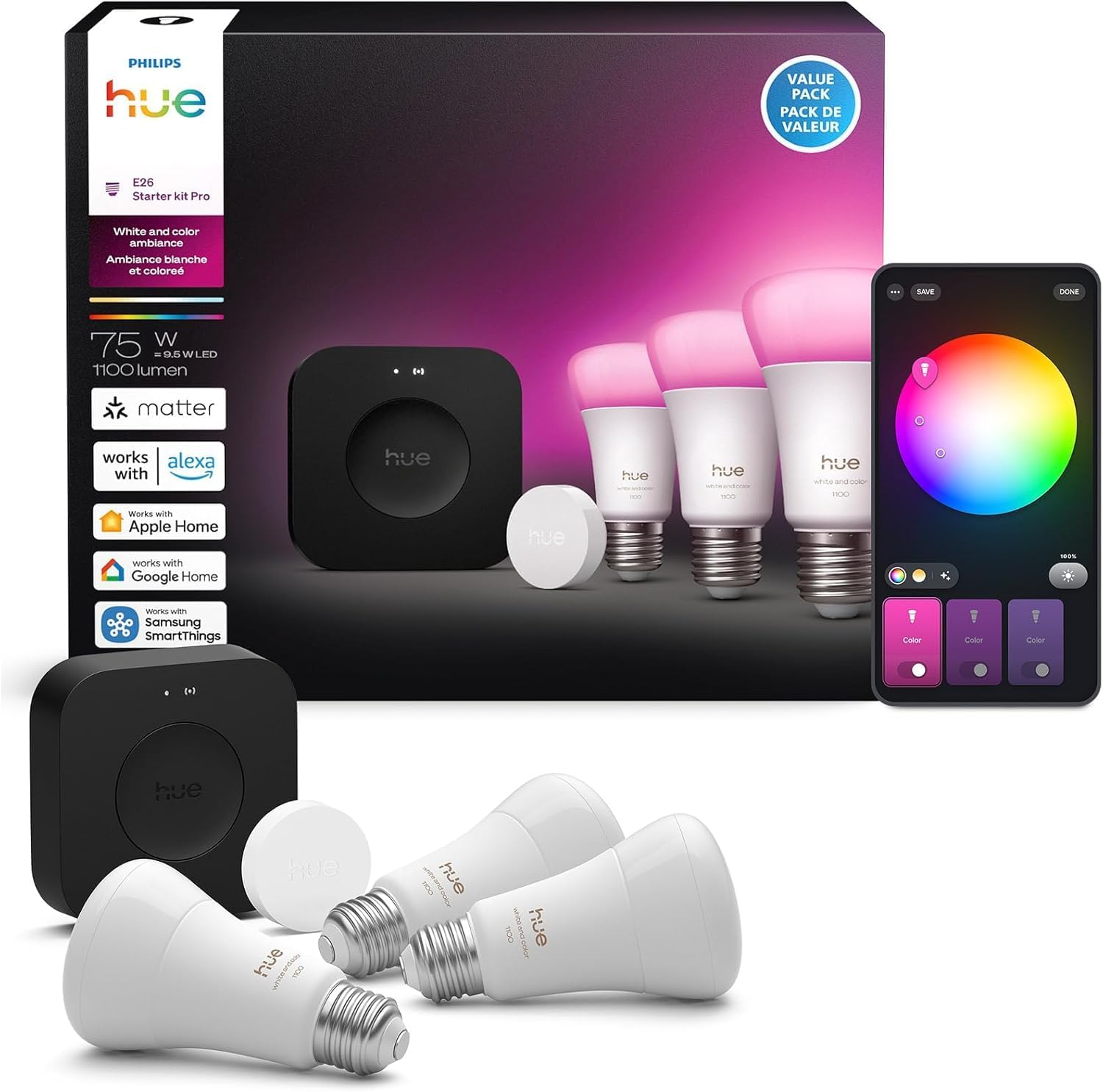
Philips Hue Starter Kit: Bridge Pro + 3 A19 E26
As an Amazon Associate we earn from qualifying purchases.
Official Manufacturer Manual
If you need the complete manufacturer documentation for advanced setup, wiring diagrams, or detailed specifications, you can download the official manual below. The manual includes full technical instructions directly from the manufacturer and may help if your issue requires deeper troubleshooting.
Download the Official Philips Hue Bridge Pro ManualSource: philips-hue.com
Need More Help? Philips Hue Support
Note: The contact information below connects you directly to Philips Hue's official customer support team, not Trunetto. They can help with warranty claims, device replacements, and advanced technical issues.
How Does Philips Hue Compare?
Before replacing your Philips Hue device, see how it stacks up against alternatives in our full comparison guides.





