

Why Is My Philips Hue Dimmer Switch So Slow and Delayed Before Lights Respond
- Zigbee signal path between switch and bridge is too long
- Switch battery low causing weak Zigbee transmission
- Too few Zigbee repeater devices between switch and bridge
Problem Description
When you press a button on your Philips Hue Dimmer Switch there is a noticeable delay of 2 to 5 seconds before the lights respond. The delay makes the switch feel unresponsive and defeats the purpose of having an instant wall switch.
Why This Happens in Real Homes
Lag between pressing the dimmer and the lights reacting is a Zigbee path problem: if the switch is far from both the Bridge and any mains bulb, its signal takes a long, weak route. A low switch battery weakens transmission and adds to it.
Start by shortening the path — a mains Hue bulb near the switch gives it a strong first hop into the mesh — and replace the switch's battery if it's old. Reducing 2.4GHz WiFi interference on the Zigbee channel also tightens response.
Symptoms
- Lights turn on 2 to 5 seconds after pressing the switch
- Dimming up or down has a laggy delayed response
- First press after idle period has longest delay
- Multiple quick presses cause lights to respond erratically
- Delay is worse at certain times of day
- Other Hue controls like app respond instantly but switch is slow
Recognize these? Here's what usually causes it.
Common Causes
- Zigbee signal path between switch and bridge is too long
- Switch battery low causing weak Zigbee transmission
- Too few Zigbee repeater devices between switch and bridge
- Hue Bridge overloaded with too many automation rules
- Switch firmware outdated and needs update through bridge
- Zigbee channel interference from WiFi or other 2.4GHz devices
Most fixes happen in the first 3 steps.
Do not change the Zigbee channel frequently. Each channel change forces all devices to re-pair and can temporarily disrupt your entire Hue system for several minutes while devices rejoin the network.
Tools & Requirements
These tools will help you complete this fix.
As an Amazon Associate we earn from qualifying purchases.
Step-by-Step Solution
Replace the Battery
Pull the dimmer switch out of its wall plate. Open the battery compartment on the back and replace the CR2450 coin cell battery. A low battery causes the switch to transmit a weaker Zigbee signal which takes longer for the bridge to receive and process. A fresh battery restores full signal strength and can eliminate the delay entirely. Batteries last about 2 to 3 years.

Needed for this step
YFCN CR2450 Battery 3V Lithium Battery 5 Count ...
This helps complete the fix you are currently reading.
$6.19Improve Zigbee Mesh
Hue bulbs act as Zigbee signal repeaters. If there are no Hue bulbs between the dimmer switch and the Hue Bridge the signal has to travel directly which may be too far. Add or make sure at least one Hue bulb is powered on in a fixture between the switch location and the bridge. This creates a relay hop that strengthens and speeds up communication.
Change Zigbee Channel
Open the Hue app and go to Settings then Hue Bridge then then Zigbee Channel Change. The default channel may overlap with your WiFi router 2.4GHz channel causing interference. Channels 15 20 and 25 typically have the least WiFi overlap. After changing the channel all devices will rejoin automatically but it takes a few minutes. Test the switch response time after the change.
Move Bridge Away From Router
If the Hue Bridge is sitting next to or on top of your WiFi router the Zigbee radio interference is maximized. Move the bridge at least 3 feet away from the router. Both use 2.4GHz frequencies and close proximity causes signal collision that delays message processing. A simple physical separation of 3 to 5 feet can reduce response delay significantly.
Update Firmware
Open the Hue app and go to Settings then Software Update. If the dimmer switch has a pending update install it. Firmware updates often include Zigbee communication optimizations that reduce latency. The update is sent from the bridge to the switch over Zigbee and may take a few minutes. Keep the switch within range of the bridge during the update process.
Quick Solutions
Still having issues? This is usually the deeper cause below.
If flickering only happens on dimming, the issue is almost always the dimmer's minimum-load setting, not the bulb — it's drawing less current than the dimmer expects.
Place the Hue Bridge centrally in your home rather than in a corner. A central location minimizes the maximum distance any switch or bulb needs to communicate reducing latency across the entire system.
Notification delays over 2 minutes are almost never the device's fault — background app restrictions quietly re-enable themselves after every OS update.
- Zigbee signal path between switch and bridge is too
- Switch battery low causing weak Zigbee transmission
- Too few Zigbee repeater devices between switch and bridge
- Hue Bridge overloaded with too many automation rules
- Switch firmware outdated and needs update through bridge
Before you go — try one of these (they fix most cases).
Most popular upgrades chosen by Philips Hue Dimmer Switch owners.

Philips Hue Gradient Signe Floor Lamp, Compatible with Al...

Philips Hue Smart Dimmer Switch with Remote + Philips Hue...
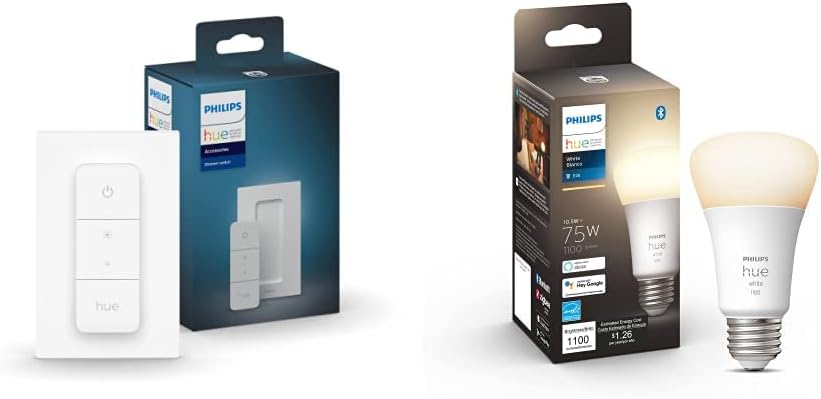
Philips Hue Smart Dimmer Switch with Remote + Philips Hue...
As an Amazon Associate we earn from qualifying purchases.
Official Manufacturer Manual
If you need the complete manufacturer documentation for advanced setup, wiring diagrams, or detailed specifications, you can download the official manual below. The manual includes full technical instructions directly from the manufacturer and may help if your issue requires deeper troubleshooting.
Download the Official Philips Hue Dimmer Switch ManualSource: philips.com
Need More Help? Philips Hue Support
Note: The contact information below connects you directly to Philips Hue's official customer support team, not Trunetto. They can help with warranty claims, device replacements, and advanced technical issues.
How Does Philips Hue Compare?
Before replacing your Philips Hue device, see how it stacks up against alternatives in our full comparison guides.
Accessories owners commonly pair with Philips Hue Dimmer Switch.

Philips Hue Smart 60W A19 LED Bulb - Soft Warm White Ligh...

Philips Hue Smart 60W A19 LED Bulb - Soft Warm White Ligh...

Philips Hue A19 LED Smart Light Bulb - White and Color Am...
As an Amazon Associate we earn from qualifying purchases.

