

Why Does My Philips Hue Dimmer Switch Lose Its Button Programming After Changing the Battery?
- Battery removed for too long triggering dimmer factory reset on power-up
- Dimmer registered as a new Zigbee device after extended power loss
- Hue app programming stored against old device ID which no longer matches
Problem Description
After replacing the battery in your Philips Hue Dimmer Switch the button assignments, scenes, and rooms it controls have been reset to factory defaults or cleared entirely. The buttons no longer activate the scenes or control the lights they were programmed to control before the battery swap. Hue Dimmer programming is stored in the Hue Bridge not in the dimmer itself, but certain battery removal scenarios cause the dimmer to re-register as a new device and lose its existing Bridge configuration.
Why This Happens in Real Homes
If the Hue dimmer forgets its setup after a battery change, it's usually because the battery was out long enough (or reinserted awkwardly) to trigger a reset on power-up, or it briefly entered pairing mode. The switch's assignments live with the Bridge, so it often just needs re-linking rather than full reprogramming.
Start by re-adding/re-pairing the switch in the Hue app; its room and scene assignments can be reapplied there. To avoid it next time, swap the CR2032 quickly and make sure it's seated correctly so the switch doesn't power-cycle into a reset state.
Symptoms
- All four dimmer buttons control default on/off after battery replacement
- Dimmer no longer activates the scenes that were programmed to each button
- Hue app shows dimmer as an unconfigured new device after battery change
- Specific buttons do nothing after battery swap while others work
- Dimmer controls a different room than before after battery replacement
- Dimmer reset itself and appeared as a new accessory in the Hue app
Recognize these? Here's what usually causes it.
Common Causes
- Battery removed for too long triggering dimmer factory reset on power-up
- Dimmer registered as a new Zigbee device after extended power loss
- Hue app programming stored against old device ID which no longer matches
- Dimmer button was held during battery insertion accidentally triggering reset
- Battery polarity reversed briefly on insertion corrupting device memory
- Dimmer pair bond to Bridge expired during extended battery outage
Most fixes happen in the first 3 steps.
Do not insert the CR2450 battery with reversed polarity. The dimmer does not have reverse polarity protection and even a brief reversed insertion can corrupt the Zigbee module memory causing permanent pairing failure that requires a full factory reset.
Tools & Requirements
These tools will help you complete this fix.
As an Amazon Associate we earn from qualifying purchases.
Step-by-Step Solution
Re-Program Buttons in the Hue App
Open the Philips Hue app and go to Settings then Accessories. Find the dimmer switch in the list. If it shows the correct name and is paired tap it to open its button configuration. For each of the four buttons tap the button number and select what it should do: turn on a specific scene, turn off lights, or adjust brightness. Assign the same scenes it had before the battery change. If you noted your configuration before replacing the battery this step takes 2 minutes. If you did not note it recreate your preferred assignments.

Needed for this step
YFCN CR2450 Battery 3V Lithium Battery 5 Count ...
This helps complete the fix you are currently reading.
$6.19Re-Pair the Dimmer If It Shows as New
If the dimmer appears as a new unregistered accessory in the Hue app it registered with a new Zigbee device ID after the battery swap. Go to Settings then Accessories then Add Accessory. Hold the reset button on the back of the dimmer with a pin for 5 seconds until the LED flashes. Then follow the pairing wizard in the app. After pairing the dimmer has a fresh device ID linked to your Bridge and you can assign button programming to it fresh.
Replace Battery Quickly to Prevent Reset
When changing the Philips Hue Dimmer battery work quickly. Have the new battery ready before removing the cover. The dimmer retains its Zigbee pairing and button programming in non-volatile memory for up to 30 seconds without power. If the battery is out for more than 30 seconds the dimmer may execute a startup routine that clears its pairing state and registers as a new device on the Bridge. Practice removing and inserting the CR2450 battery in one smooth motion and have it fully seated within 10 seconds.
Delete the Orphaned Old Device
After the dimmer re-registers as a new device its old device entry remains in the Hue app with no physical device behind it. Go to Settings then Accessories and look for a duplicate dimmer entry. Delete the old entry that shows as unreachable or offline. Then configure the new entry with your button assignments. Having two entries for the same physical dimmer does not cause functional problems but creates confusion about which entry is active.
Document Programming Before Battery Change
Before replacing the battery on any Hue dimmer take a screenshot of its button assignments in the Hue app. Go to Settings then Accessories then the dimmer and photograph the four button configurations. This takes 30 seconds and means that if programming is lost you can restore it in 2 minutes without trying to remember which scene was on which button. Create a dedicated album in your phone for smart home configurations to store these screenshots.
Quick Solutions
Still having issues? This is usually the deeper cause below.
If drain continues after replacing batteries, check the event history — a stuck-open sensor or rapid polling loop burns through batteries in days.
The Hue Dimmer Switch uses a CR2450 battery that typically lasts 2 years. Set a calendar reminder when you replace it so you know when to check it proactively rather than discovering a dead battery mid-scene.
App battery indicators run 15–20% behind actual charge levels — by the time the low warning appears, the device has been struggling for days.
- Battery removed for too long triggering dimmer factory reset
- Dimmer registered as a new Zigbee device
- Hue app programming stored against old device ID
- Dimmer button was held during battery insertion accidentally triggering
- Battery polarity reversed briefly on insertion corrupting device memory
Before you go — try one of these (they fix most cases).
Most popular upgrades chosen by Philips Hue Dimmer Switch owners.

Philips Hue Gradient Signe Floor Lamp, Compatible with Al...

Philips Hue Smart Dimmer Switch with Remote + Philips Hue...
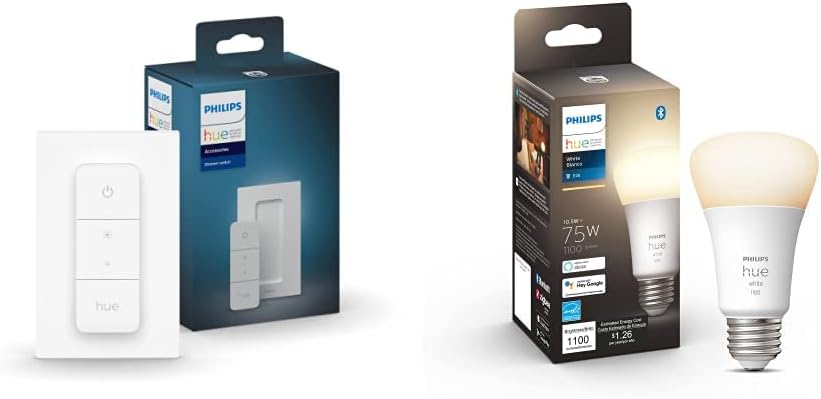
Philips Hue Smart Dimmer Switch with Remote + Philips Hue...
As an Amazon Associate we earn from qualifying purchases.
Official Manufacturer Manual
If you need the complete manufacturer documentation for advanced setup, wiring diagrams, or detailed specifications, you can download the official manual below. The manual includes full technical instructions directly from the manufacturer and may help if your issue requires deeper troubleshooting.
Download the Official Philips Hue Dimmer Switch ManualSource: philips.com
Need More Help? Philips Hue Support
Note: The contact information below connects you directly to Philips Hue's official customer support team, not Trunetto. They can help with warranty claims, device replacements, and advanced technical issues.
How Does Philips Hue Compare?
Before replacing your Philips Hue device, see how it stacks up against alternatives in our full comparison guides.
Accessories owners commonly pair with Philips Hue Dimmer Switch.

Philips Hue Smart 60W A19 LED Bulb - Soft Warm White Ligh...

Philips Hue Smart 60W A19 LED Bulb - Soft Warm White Ligh...

Philips Hue A19 LED Smart Light Bulb - White and Color Am...
As an Amazon Associate we earn from qualifying purchases.

