

Why Won't My Philips Hue Dimmer Switch Control My Lights?
- Dimmer switch battery depleted below operating threshold
- Switch lost pairing with Hue Bridge after update
- Switch assigned to wrong room or light group in app
Problem Description
Your Philips Hue dimmer switch is not controlling your Hue lights when you press the buttons. The switch may have worked previously but now pressing on off or dim buttons produces no response from the lights. The lights may still work fine through the Hue app or voice assistants but the physical dimmer switch does nothing. This is typically caused by a lost pairing between the switch and the Hue Bridge or depleted switch batteries.
Why This Happens in Real Homes
If your Philips Hue dimmer switch is not controlling lights, the most common causes are low battery, lost pairing, or a room assignment mismatch in the Hue app. In real use, this usually looks like button presses doing nothing, the switch LED flashing red, or lights still working in the app but not from the dimmer.
Most cases trace back to depleted switch batteries, pairing loss after an update, incorrect room or zone assignment, or bridge communication issues. Make one change at a time so you can confirm exactly what fixed it.
A practical order for this issue is: replace the battery, confirm the Hue Bridge is online, re-pair the dimmer switch, check room assignment, then update switch firmware if needed. After each step, test the same button actions that were failing before.
Symptoms
- Pressing dimmer switch buttons produces no light response
- Switch LED flashes red when buttons are pressed
- Some buttons work but others do not respond
- Switch controls wrong room or wrong group of lights
- Lights respond to app control but not dimmer switch
- Switch stopped working after Hue Bridge firmware update
Recognize these? Here's what usually causes it.
Common Causes
- Dimmer switch battery depleted below operating threshold
- Switch lost pairing with Hue Bridge after update
- Switch assigned to wrong room or light group in app
- Hue Bridge too far from switch for Zigbee communication
- Hue Bridge offline or disconnected from network
- Switch firmware outdated and incompatible with bridge
Most fixes happen in the first 3 steps.
When re-pairing the dimmer switch any automations or scenes tied to the old switch configuration will be deleted. You will need to reconfigure button actions and scenes in the Hue app after re-pairing.
Tools & Requirements
These tools will help you complete this fix.

As an Amazon Associate we earn from qualifying purchases.
Step-by-Step Solution
Check if the dimmer is paired to the correct room or lights
Open the Hue app and go to Settings > Accessories > your dimmer switch. Check which room or lights it controls. If the dimmer was recently set up or the lights were reorganized into different rooms, the dimmer may be pointing at the wrong group. Tap the dimmer in Accessories and reassign it to the correct room. The top button turns the room on, the bottom turns it off, and the middle buttons adjust brightness for all lights in that assigned room.
Replace the battery
Hue dimmer switches use a single CR2450 coin cell battery. When the battery is low, the switch sends intermittent or weak Zigbee signals that the bridge may not receive. Pop off the front plate of the dimmer (it is magnetic on the V2, or slides out of the mounting plate on the V1). Replace the CR2450 battery. After inserting the new battery, press any button — the LED on the front should flash green. If it flashes orange or red, the switch needs to be re-paired to the bridge.
Re-pair the dimmer to the Hue Bridge
If the dimmer LED flashes orange when you press a button, it has lost its connection to the bridge. In the Hue app, go to Settings > Accessories > Add Accessory. Hold the dimmer within 6 inches of the bridge. Press and hold all 4 buttons on the dimmer simultaneously for 10 seconds until the LED blinks. Release — the app should detect the dimmer. Once paired, assign it to a room. If the dimmer was previously paired, the old entry may still exist in the app — delete it first before re-pairing.
Check for Zigbee range issues
The Hue dimmer switch communicates with the Hue Bridge via Zigbee, which has a range of about 30-50 feet indoors. Every powered Hue bulb (not the switch itself) acts as a Zigbee repeater. If the dimmer is far from the bridge and there are no Hue bulbs between them, the signal may not reach. Add a Hue bulb in a fixture between the dimmer and the bridge to extend the mesh. If the dimmer works when you stand next to the bridge but not from across the house, range is the issue.
Update bridge and dimmer firmware
In the Hue app, go to Settings > Software Update and install any available updates for the bridge and accessories. Dimmer switch firmware updates improve responsiveness and fix pairing bugs. The update is pushed over Zigbee and takes a few minutes. After updating, test all 4 buttons: on, off, brightness up, and brightness down. If the dimmer controls brightness but not on/off (or vice versa), the button mapping may be customized — check the dimmer settings in the Hue app and reset to default if needed.
Quick Solutions
Still having issues? This is usually the deeper cause below.
If flickering only happens on dimming, the issue is almost always the dimmer's minimum-load setting, not the bulb — it's drawing less current than the dimmer expects.
Buy CR2450 batteries in bulk packs. The Hue Dimmer Switch battery type is less common than AA or AAA so having spares on hand prevents downtime when the battery eventually dies.
Battery-related failures are almost always flagged too late — the device degrades silently for days before the app catches up to what's actually happening.
- Dimmer switch battery depleted below operating threshold
- Switch lost pairing with Hue Bridge after update
- Switch assigned to wrong room or light group in
- Hue Bridge too far from switch for Zigbee communication
- Hue Bridge offline or disconnected from network
Before you go — try one of these (they fix most cases).
Most popular upgrades chosen by Philips Hue Dimmer Switch owners.

Philips Hue Gradient Signe Floor Lamp, Compatible with Al...

Philips Hue Smart Dimmer Switch with Remote + Philips Hue...
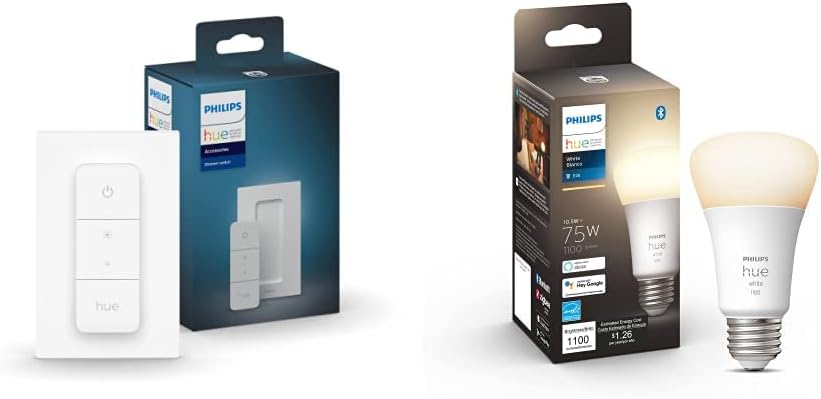
Philips Hue Smart Dimmer Switch with Remote + Philips Hue...
As an Amazon Associate we earn from qualifying purchases.
Official Manufacturer Manual
If you need the complete manufacturer documentation for advanced setup, wiring diagrams, or detailed specifications, you can download the official manual below. The manual includes full technical instructions directly from the manufacturer and may help if your issue requires deeper troubleshooting.
Download the Official Philips Hue Dimmer Switch ManualSource: philips.com
Need More Help? Philips Hue Support
Note: The contact information below connects you directly to Philips Hue's official customer support team, not Trunetto. They can help with warranty claims, device replacements, and advanced technical issues.
How Does Philips Hue Compare?
Before replacing your Philips Hue device, see how it stacks up against alternatives in our full comparison guides.
Accessories owners commonly pair with Philips Hue Dimmer Switch.

Philips Hue Smart 60W A19 LED Bulb - Soft Warm White Ligh...

Philips Hue Smart 60W A19 LED Bulb - Soft Warm White Ligh...

Philips Hue A19 LED Smart Light Bulb - White and Color Am...
As an Amazon Associate we earn from qualifying purchases.

