

Why Are My Philips Hue Lights Unreachable After Changing Routers?
- Hue Bridge ethernet cable not connected to new router
- New router on different IP subnet than previous router
- Router firewall blocking mDNS or UPnP discovery
Problem Description
Your Philips Hue lights are showing as unreachable in the Hue app after you changed your WiFi router replaced your router or changed network settings. The Hue Bridge connects to your router via ethernet but it communicates with the Hue app over your local network. When network settings change the app can no longer discover or communicate with the Bridge leaving all your lights uncontrollable.
Symptoms
- All Hue lights show unreachable in the Hue app
- Hue Bridge LED shows internet light off or blinking
- Physical light switch still turns Hue bulbs on and off
- Hue app cannot find Bridge during connection attempt
- Voice assistants report Hue devices are not responding
- Hue automations and schedules stop running entirely
Recognize these? Here's what usually causes it.
Common Causes
- Hue Bridge ethernet cable not connected to new router
- New router on different IP subnet than previous router
- Router firewall blocking mDNS or UPnP discovery
- Hue Bridge received new IP that app cannot discover
- Ethernet port on router disabled or not working
- Bridge needs to be re-linked in Hue app after network change
Most fixes happen in the first 3 steps.
Factory resetting the Hue Bridge erases all light configurations rooms scenes schedules and automation rules. Only factory reset as an absolute last resort and be prepared to reconfigure everything.
Tools & Requirements
These tools will help you complete this fix.

As an Amazon Associate we earn from qualifying purchases.
Step-by-Step Solution
Verify Hue Bridge has active network link
Check Bridge LAN LED status and confirm it received a valid DHCP lease on the new router. No network lease makes all bulbs appear unreachable.
Reconnect app on same local subnet
Ensure your phone is on the same LAN as the Bridge and not on guest isolation. Router changes often split devices across isolated segments.
Reboot router then Hue Bridge
Restart network gateway first, then Bridge, to rebuild discovery and cloud sessions. This clears stale routing and ARP states after migration.
Update integrations with new Bridge IP
If third-party systems use fixed Bridge IP, update those references or set DHCP reservation. Hardcoded old IPs can break app and automation control.
Re-pair unreachable bulbs only if needed
If specific bulbs stay offline, power-cycle and re-add only affected devices. Full system reset is usually unnecessary after a router swap.
Quick Solutions
Still having issues? This is usually the deeper cause below.
If flickering only happens on dimming, the issue is almost always the dimmer's minimum-load setting, not the bulb — it's drawing less current than the dimmer expects.
After changing routers always check that your Hue Bridge has a network connection before troubleshooting individual bulbs. If the Bridge is offline all bulbs will appear unreachable regardless of their individual status.
This issue almost always looks more complex than it is — the majority of cases trace back to a single setting, a stale credential, or a default that shipped wrong.
- Hue Bridge ethernet cable not connected to new router
- New router on different IP subnet than previous router
- Router firewall blocking mDNS or UPnP discovery
- Hue Bridge received new IP that app cannot discover
- Ethernet port on router disabled or not working
Before you go — try one of these (they fix most cases).
Most popular upgrades chosen by Philips Hue Bridge owners.
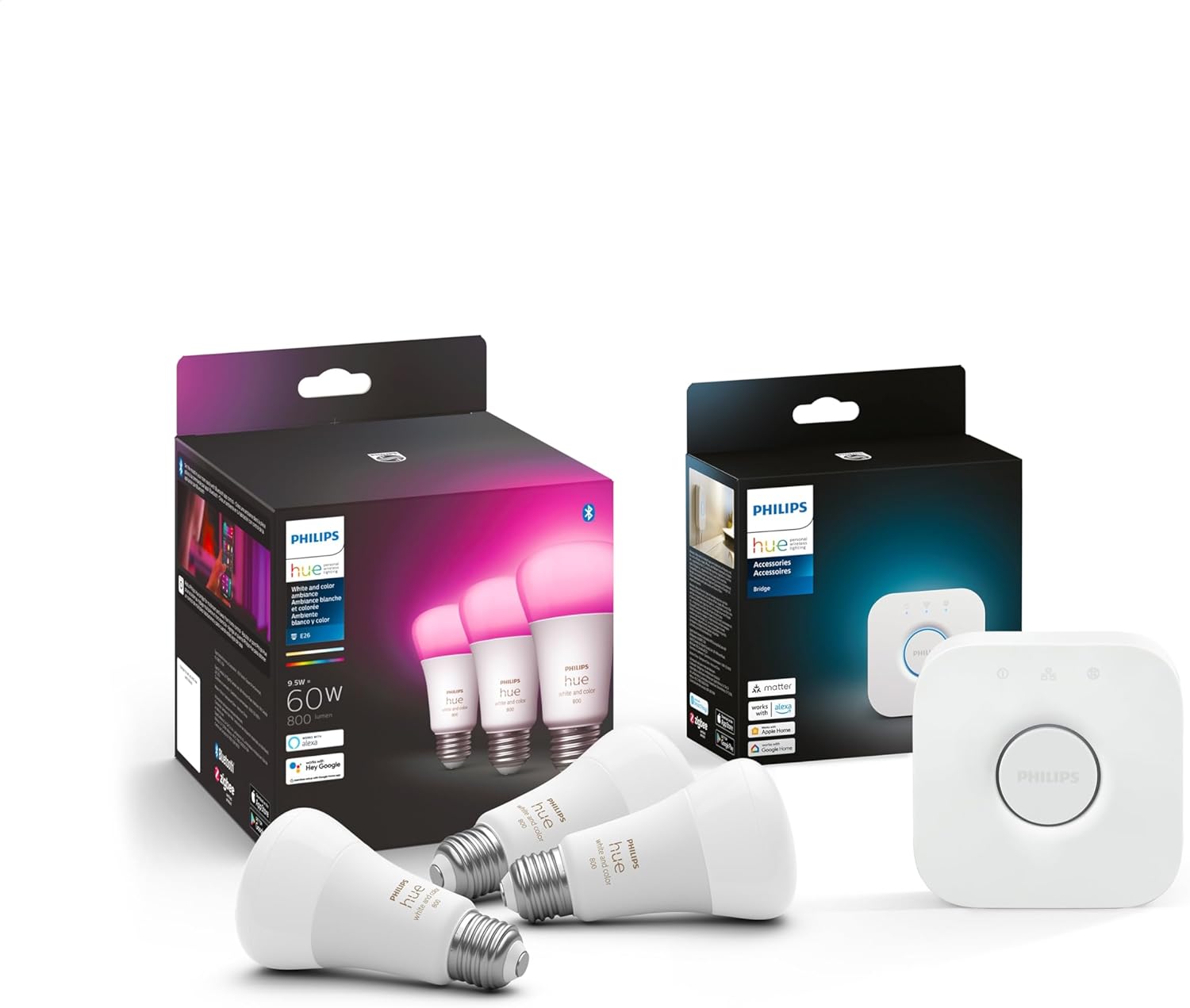
Philips Hue Smart Lighting Bundle: 3-Pack A19 LED Smart L...

Philips Hue Bridge, Unlock The Full Potential of Hue Brid...

Philips Hue Bridge Pro, Smart Light Hub, Wireless, Advanc...
As an Amazon Associate we earn from qualifying purchases.
Official Manufacturer Manual
Philips Hue provides official product documentation through their online manual rather than downloadable PDF. Access setup guides, troubleshooting steps, and product specifications for your Philips Hue Bridge.
Source: philips-hue.com
Need More Help? Philips Hue Support
Note: The contact information below connects you directly to Philips Hue's official customer support team, not Trunetto. They can help with warranty claims, device replacements, and advanced technical issues.
How Does Philips Hue Compare?
Before replacing your Philips Hue device, see how it stacks up against alternatives in our full comparison guides.





