

Why Are My Philips Hue Lights Unreachable or Not Responding?
- Zigbee channel interference from WiFi router on same frequency
- Hue Bridge lost network connection to router
- Bulb too far from bridge or nearest Zigbee repeater
Problem Description
Your Philips Hue lights show as unreachable in the Hue app or do not respond to commands from the app Alexa or Google Home. Individual bulbs or groups may show a yellow warning triangle. This is one of the most common Hue issues caused by Zigbee mesh interference bridge connectivity problems or bulbs losing their bridge pairing.
Why This Happens in Real Homes
This usually appears after power switch toggles, router channel changes, or Zigbee congestion from nearby 2.4 GHz traffic. Bulbs may still have power, but mesh routing to the bridge breaks, so the app shows unreachable even though some rooms still respond.
Start by ensuring bulbs are continuously powered and then stabilize bridge + Zigbee channel conditions. In most homes, mesh recovery resolves unreachable clusters without deleting the whole setup.
Symptoms
- Hue app shows yellow triangle unreachable warning on bulbs
- Voice commands to Alexa or Google fail for Hue lights
- Some lights respond while others in same room do not
- Lights were working fine then suddenly became unreachable
- New bulbs show as unreachable after adding to bridge
- Lights flicker or respond with long delay
Recognize these? Here's what usually causes it.
Common Causes
- Zigbee channel interference from WiFi router on same frequency
- Hue Bridge lost network connection to router
- Bulb too far from bridge or nearest Zigbee repeater
- Physical light switch turned off cutting power to bulb
- Too many bulbs added exceeding bridge capacity of 50
- Bulb firmware needs update but cannot update while unreachable
Most fixes happen in the first 3 steps.
The Hue Bridge supports a maximum of 50 lights and 12 accessories. Exceeding this limit causes devices to become unreachable. Check total device count in bridge settings.
Tools & Requirements
These tools will help you complete this fix.

As an Amazon Associate we earn from qualifying purchases.
Step-by-Step Solution
Confirm Bridge connectivity and app control
Check Bridge power/network LEDs and verify local app can control at least one known bulb. If Bridge is offline, all downstream lights will appear unreachable.
Power-cycle unreachable bulbs at switch
Turn affected bulbs off and on once to force Zigbee rejoin attempts. Devices that missed mesh updates often recover after a clean power cycle.
Strengthen Zigbee mesh with powered repeaters
Maintain enough always-powered bulbs/plugs to bridge distance from Hub to far fixtures. Sparse mesh topology is the primary cause of recurring unreachable states.
Check room assignments and duplicate entries
In Hue app, confirm each physical bulb maps to a single correct accessory entry. Duplicate or stale entries can make the wrong endpoint appear unreachable.
Update firmware then selectively re-add failures
Apply Bridge/bulb firmware updates and retest before deleting devices. If specific bulbs remain unreachable, remove and re-add only those units to avoid full network disruption.
Quick Solutions
Still having issues? This is usually the deeper cause below.
If flickering only happens on dimming, the issue is almost always the dimmer's minimum-load setting, not the bulb — it's drawing less current than the dimmer expects.
Keep the Hue Bridge at least 3 feet away from your WiFi router to reduce 2.4GHz interference between WiFi and Zigbee.
This issue almost always looks more complex than it is — the majority of cases trace back to a single setting, a stale credential, or a default that shipped wrong.
- Zigbee channel interference from WiFi router on same frequency
- Hue Bridge lost network connection to router
- Bulb too far from bridge or nearest Zigbee repeater
- Physical light switch turned off cutting power to bulb
- Too many bulbs added exceeding bridge capacity of 50
Before you go — try one of these (they fix most cases).
Most popular upgrades chosen by Philips Hue Smart Light owners.
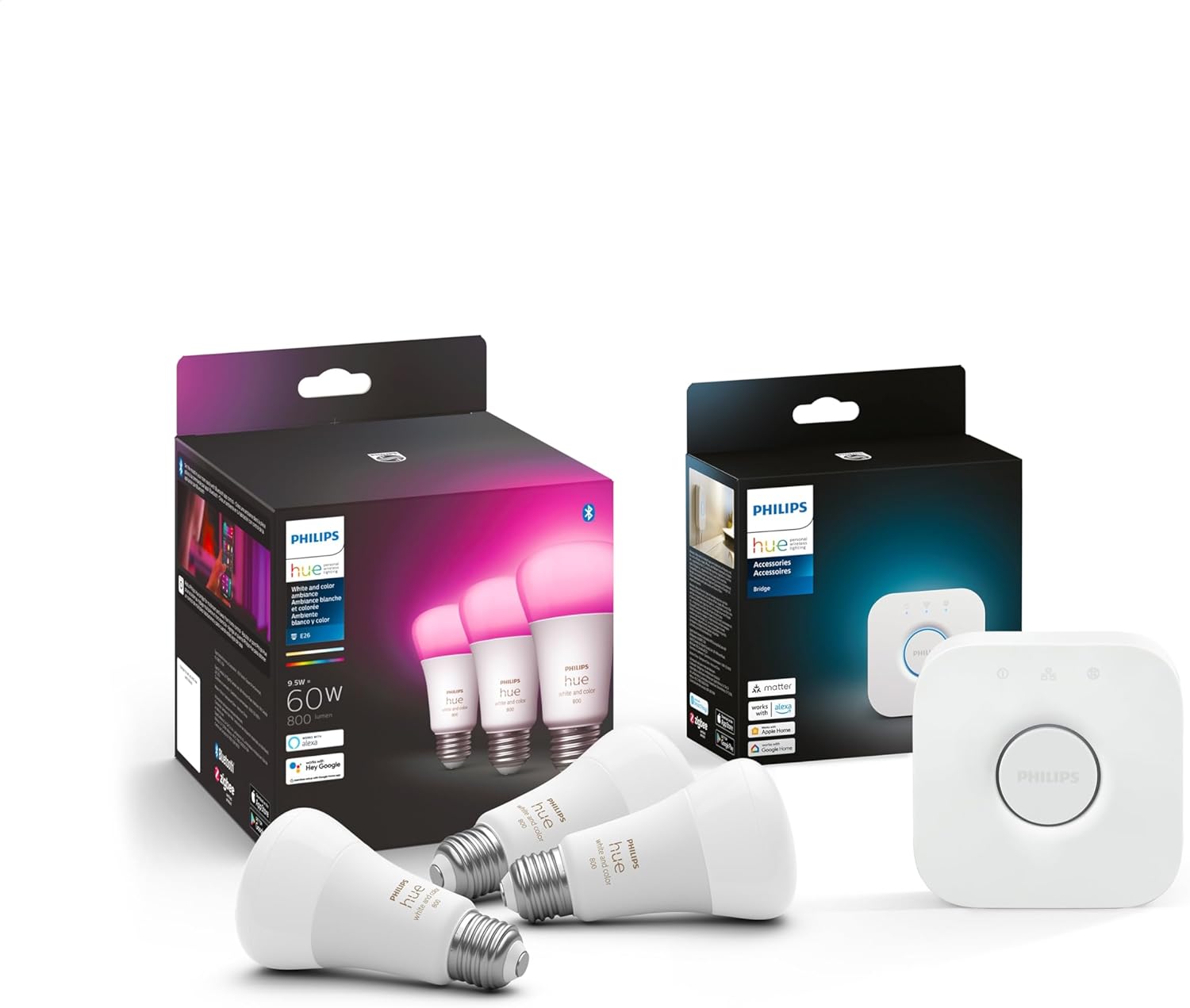
Philips Hue Smart Lighting Bundle: 3-Pack A19 LED Smart L...

T-Connector Compatible with Philips Hue Outdoor Low Volta...

Philips Hue A19 LED Smart Light Bulb - White and Color Am...
As an Amazon Associate we earn from qualifying purchases.
Official Manufacturer Manual
Philips Hue provides official product documentation through their online manual rather than downloadable PDF. Access setup guides, troubleshooting steps, and product specifications for your Philips Hue Smart Light.
Source: philips-hue.com
Need More Help? Philips Hue Support
Note: The contact information below connects you directly to Philips Hue's official customer support team, not Trunetto. They can help with warranty claims, device replacements, and advanced technical issues.
How Does Philips Hue Compare?
Before replacing your Philips Hue device, see how it stacks up against alternatives in our full comparison guides.
Accessories owners commonly pair with Philips Hue Smart Light.

Amazon Smart Plug, Works with Alexa, Simple Setup, Endles...

Ring Rechargeable Quick Release Battery Pack

Kasa Smart Plug HS103P2, Smart Home Wi-Fi Outlet Works wi...
As an Amazon Associate we earn from qualifying purchases.


