

Why Is My Philips Hue Sync Box Not Detecting HDMI Inputs?
- Faulty HDMI cable
- Incorrect HDMI port selection
- HDCP compatibility issues
Problem Description
Your Philips Hue Sync Box is failing to detect HDMI input signals from your connected media devices (e.g., gaming console, streaming stick), preventing it from synchronizing your Hue lights with your TV content. This can be due to connection issues, settings, or compatibility.
Symptoms
- Sync Box shows 'No Signal'
- Lights don't react to TV content
- Hue Sync app shows no active input
- HDMI device is powered on and working
- Other HDMI ports on TV work
- Happens after new device connection
Recognize these? Here's what usually causes it.
Common Causes
- Faulty HDMI cable
- Incorrect HDMI port selection
- HDCP compatibility issues
- Outdated firmware
- Power issues with Sync Box or source device
- Input resolution/refresh rate incompatibility
Most fixes happen in the first 3 steps.
Avoid using HDMI splitters or switches between your source device and the Hue Sync Box, as these can introduce additional HDCP issues and signal problems.
Tools & Requirements
These tools will help you complete this fix.
As an Amazon Associate we earn from qualifying purchases.
Step-by-Step Solution
Check HDMI Cables and Connections
Ensure all HDMI cables are securely connected to both the source device (e.g., PlayStation, Apple TV), the Hue Sync Box, and your TV. Try disconnecting and reconnecting each cable. If possible, swap out the HDMI cables with known working, high-speed HDMI 2.0 or 2.1 cables to rule out faulty cabling.

Needed for this step
Snowkids 8K 2.1 50 FT Long Fiber Optic HDMI Cab...
$34.94Select Correct HDMI Input on Sync Box
Open the Hue Sync app and ensure you have selected the correct HDMI input on the Sync Box that corresponds to your active media device. The app allows you to switch between HDMI 1, 2, 3, and 4. Make sure the input you're trying to use is powered on and actively sending a signal.
Troubleshoot HDCP Compatibility Issues
High-bandwidth Digital Content Protection (HDCP) can sometimes cause signal issues. Try connecting the source device directly to your TV to confirm it works. If it does, the Sync Box might be having an HDCP handshake issue. Ensure all devices are HDCP 2.2 compatible for 4K content. Some older devices may struggle.
Update Firmware
Ensure your Philips Hue Sync Box and Hue Bridge have the latest firmware. Firmware updates are often pushed automatically through the Hue app and can include compatibility improvements for various HDMI devices and resolutions. If an update is pending, ensure devices have stable connections to allow them to complete.
Power Cycle All Devices
Unplug your Hue Sync Box, the connected HDMI source device, and your TV from power for 30 seconds, then plug them back in. Allow all devices to fully restart and reconnect. This can resolve temporary communication glitches between the devices.
Quick Solutions
Still having issues? This is usually the deeper cause below.
If pairing fails after multiple attempts, the device may still be registered to a previous account — factory-reset it before trying to add it to a new one.
For the best experience, use the shortest possible high-quality HDMI cables between your source devices, Hue Sync Box, and TV to minimize signal degradation.
Pairing failures almost always come down to distance during the initial handshake — manufacturers seriously understate how close you actually need to be.
- Faulty HDMI cable
- Incorrect HDMI port selection
- HDCP compatibility issues
- Outdated firmware
- Power issues with Sync Box or source device
Before you go — try one of these (they fix most cases).
Most popular upgrades chosen by Philips Hue Sync Box owners.
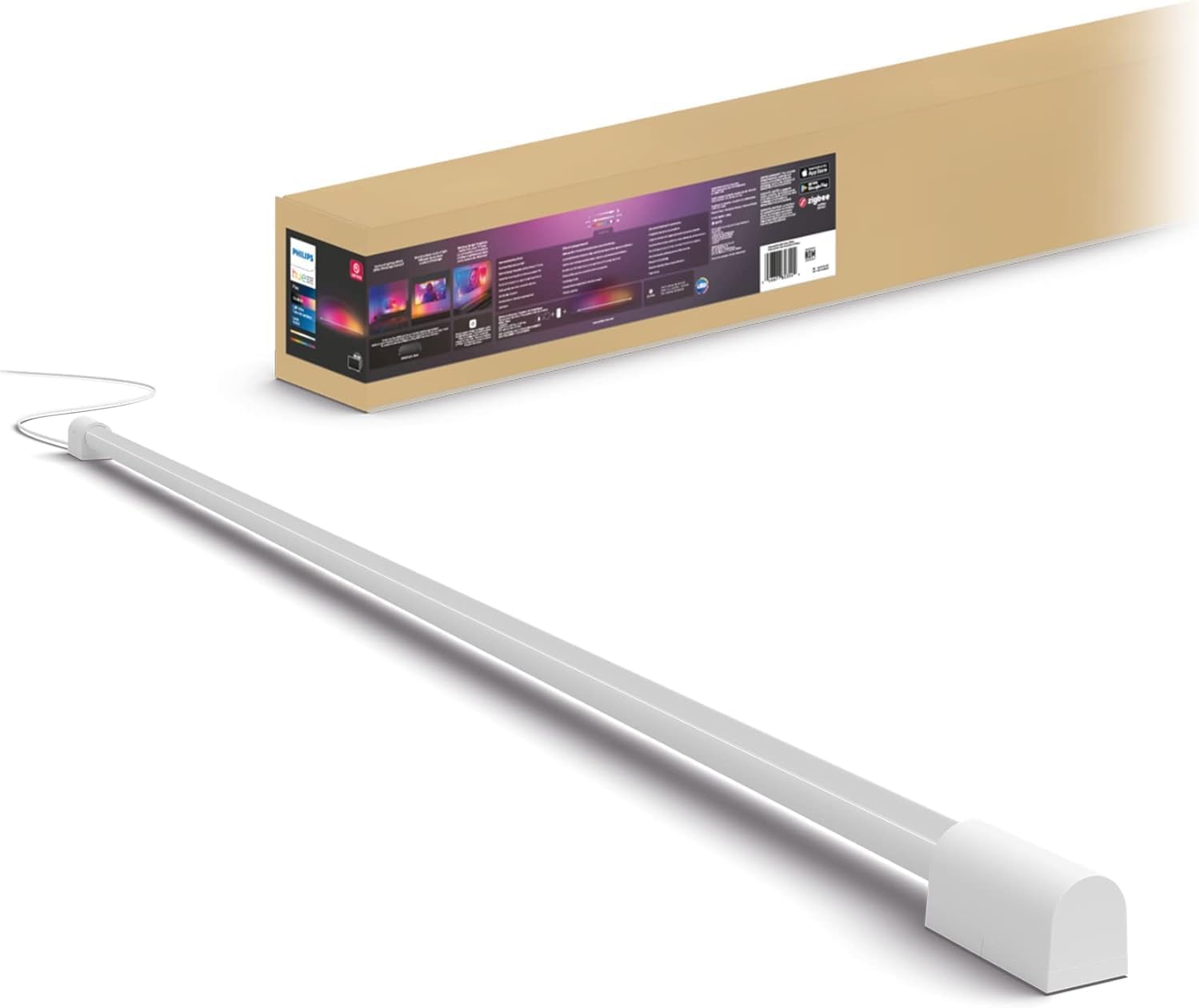
Philips Hue Large Smart Light Tube, White - White and Col...

Philips Hue Compact Smart Light Tube, Black - White and C...

Philips Hue Large Smart Light Tube, Black - White and Col...
As an Amazon Associate we earn from qualifying purchases.
Official Manufacturer Manual
Philips Hue provides official product documentation through their online manual rather than downloadable PDF. Access setup guides, troubleshooting steps, and product specifications for your Philips Hue Sync Box.
Source: philips-hue.com
Need More Help? Philips Hue Support
Note: The contact information below connects you directly to Philips Hue's official customer support team, not Trunetto. They can help with warranty claims, device replacements, and advanced technical issues.
How Does Philips Hue Compare?
Before replacing your Philips Hue device, see how it stacks up against alternatives in our full comparison guides.


