

Why Won't My Philips Hue Lights Sync With Spotify or Games?
- Entertainment area not configured with correct light positions
- Spotify account not properly linked to Philips Hue account
- Sync Box HDMI passthrough losing signal or showing black screen
Problem Description
Your Philips Hue lights are not syncing to music from Spotify or responding to game colors even though you have set up an Entertainment area in the Hue app. The lights may flash once then stop or the sync interface shows Getting Ready indefinitely without starting.
Why This Happens in Real Homes
Sync not working for Spotify or gaming usually traces to the entertainment area not being set up for that source, an account/connection issue (Spotify link), or the game source not routed through the Sync Box. Music sync and HDMI sync are different paths.
Start by confirming the entertainment area is configured with correct light positions, then for Spotify re-link the account in the Hue Sync app, and for gaming make sure the console feeds through the Sync Box (or PC screen sync is set up). Each source has its own setup — a working movie sync doesn't guarantee music or game sync.
Symptoms
- Lights not changing colors with Spotify music playback
- Hue Sync app says Getting Ready but sync never starts
- Entertainment area not syncing to games on PC or console
- Sync Box shows no signal or black screen on passthrough
- Lights flash once when sync starts then stop responding
- Music sync has noticeable delay or is out of rhythm with the beat
Recognize these? Here's what usually causes it.
Common Causes
- Entertainment area not configured with correct light positions
- Spotify account not properly linked to Philips Hue account
- Sync Box HDMI passthrough losing signal or showing black screen
- Wrong audio input source selected for Hue music sync feature
- Hue Bridge firmware outdated causing sync protocol failures
- Too many lights in Entertainment area causing processing lag
Most fixes happen in the first 3 steps.
Philips Hue Sync with Spotify requires a Spotify Premium subscription. Free Spotify accounts cannot use the full music sync feature due to Spotify API limitations.
Tools & Requirements
These tools will help you complete this fix.

Hue Bridge with color-capable lights
Philips Hue White & Color Ambiance Play Light Bar 2 ...

Hue Sync Box for gaming sync
Philips Hue Play HDMI Sync Box 8K, Syncs up to 10 Hu...
As an Amazon Associate we earn from qualifying purchases.
Step-by-Step Solution
Verify Spotify Account Link
Open Philips Hue app and go to Settings. Tap Voice and Music then tap Spotify. Check if your Spotify account shows as connected. If not connected tap Link Account and sign into Spotify. You need Spotify Premium for full music sync features. Free Spotify accounts have limited sync features.
Needed for this step
Philips Hue Play HDMI Sync Box 8K, Syncs up to ...
This helps complete the fix you are currently reading.
$299.99Configure Entertainment Area Correctly
Go to Settings then Entertainment Areas in Hue app. Create a new Entertainment area if one does not exist. Add only color-capable lights to the Entertainment area. Position each light on the virtual room diagram matching real positions. Keep the Entertainment area to 10 or fewer lights for best performance. Gradient light strips count as multiple light points.
Needed for this step
Philips Hue White & Color Ambiance Play Light B...
This helps complete the fix you are currently reading.
$149.99Fix Spotify Music Sync
Open Spotify app and start playing a song first. Then open Hue app and go to the Sync tab. Select your Entertainment area from the list. Tap the large sync button to begin synchronization. The app analyzes the audio stream to generate light patterns. If Getting Ready persists close both apps and retry.
Fix Gaming Sync with Sync Box
Connect game console HDMI cable to Sync Box HDMI Input port. Connect Sync Box HDMI Output to your TV HDMI port. Make sure TV is set to the correct HDMI input showing the Sync Box. In Hue Sync app select the Entertainment area for the Sync Box. Enable HDMI CEC in your TV settings for proper signal passthrough. If no signal appears try a different HDMI cable rated for 4K.
Quick Solutions
Still having issues? This is usually the deeper cause below.
If pairing fails after multiple attempts, the device may still be registered to a previous account — factory-reset it before trying to add it to a new one.
For PC gaming install the Hue Sync desktop app instead of using mobile app. It captures screen colors directly with lower latency than the Sync Box for PC games.
Pairing failures almost always come down to distance during the initial handshake — manufacturers seriously understate how close you actually need to be.
- Entertainment area not configured with correct light positions
- Spotify account not properly linked to Philips Hue account
- Sync Box HDMI passthrough losing signal or showing black
- Wrong audio input source selected for Hue music sync
- Hue Bridge firmware outdated causing sync protocol failures
Before you go — try one of these (they fix most cases).
Most popular upgrades chosen by Philips Hue Sync Box owners.
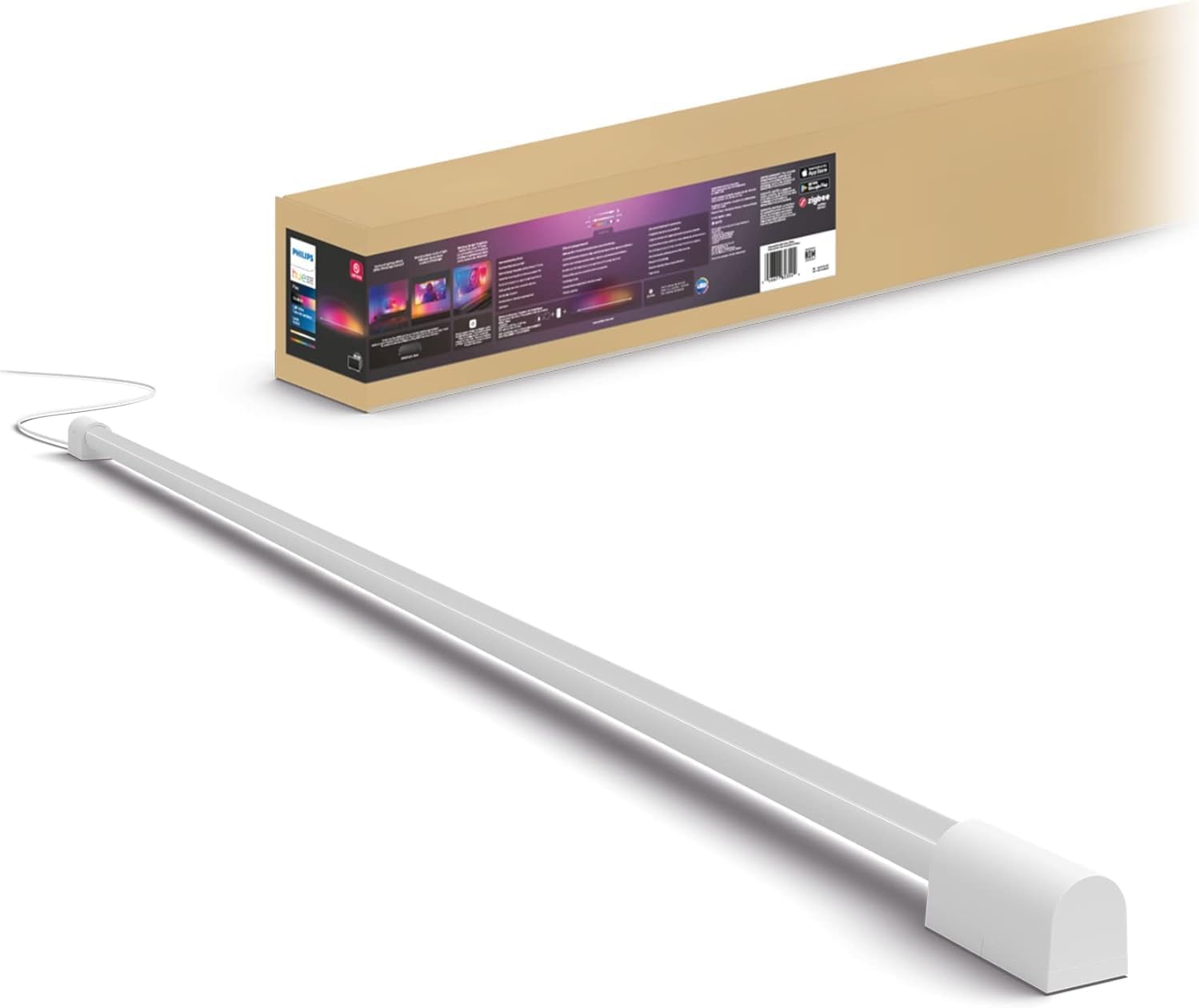
Philips Hue Large Smart Light Tube, White - White and Col...

Philips Hue Compact Smart Light Tube, Black - White and C...

Philips Hue Large Smart Light Tube, Black - White and Col...
As an Amazon Associate we earn from qualifying purchases.
Official Manufacturer Manual
Philips Hue provides official product documentation through their online manual rather than downloadable PDF. Access setup guides, troubleshooting steps, and product specifications for your Philips Hue Sync Box.
Source: philips-hue.com
Need More Help? Philips Hue Support
Note: The contact information below connects you directly to Philips Hue's official customer support team, not Trunetto. They can help with warranty claims, device replacements, and advanced technical issues.
How Does Philips Hue Compare?
Before replacing your Philips Hue device, see how it stacks up against alternatives in our full comparison guides.
Accessories owners commonly pair with Philips Hue Sync Box.

Amazon Smart Plug, Works with Alexa, Simple Setup, Endles...

Ring Rechargeable Quick Release Battery Pack

Kasa Smart Plug HS103P2, Smart Home Wi-Fi Outlet Works wi...
As an Amazon Associate we earn from qualifying purchases.


