

Why Can't My Sengled Hub Find Bulbs?
- Bulb not reset into pairing mode first
- Bulb out of range of the hub
- Trying to add several bulbs at once (hub does one at a time)
Problem Description
Your Sengled hub is not discovering bulbs during the pairing process. Bulbs must be in pairing mode and within range of the hub. To enter pairing mode, power cycle the bulb on and off 10 times in quick succession until it blinks. The hub can only discover one bulb at a time. This guide covers resetting bulbs and completing the pairing process.
Why This Happens in Real Homes
When a Sengled hub finds no bulbs, the fix almost always starts at the bulb, not the hub. Each bulb must be reset into pairing mode first - toggle its power on and off about 10 times until it blinks - and the hub discovers only one bulb at a time, so trying to add several at once fails. Reset one bulb, add it, then move to the next. Range is the other basic factor: pair bulbs within Zigbee range of the hub, and position the hub centrally so it can reach bulbs throughout the home.
The recurring blockers are prior pairing and interference. A bulb still associated with a previous hub blinks but won't be discovered until it's factory reset (the same 10-toggle sequence). And because Zigbee shares 2.4GHz with WiFi, a Zigbee channel overlapping your router's channel causes discovery failures that shifting the channel resolves. As your setup grows, remember that mains-powered Zigbee bulbs act as repeaters that extend the mesh to distant fixtures, and the hub has a maximum bulb count - if you're near it, that's why new bulbs won't join. Updating the hub firmware clears cases where a properly blinking, in-range bulb still isn't found.
Symptoms
- Hub discovery finds no bulbs
- Bulb blinks but isn't discovered
- Only one bulb pairs at a time
- Distant bulbs never appear
- Bulb paired before but not now
- Discovery times out
- Some bulbs found, others not
- Hub search runs but returns nothing
Recognize these? Here's what usually causes it.
Common Causes
- Bulb not reset into pairing mode first
- Bulb out of range of the hub
- Trying to add several bulbs at once (hub does one at a time)
- Bulb still joined to a previous hub
- Zigbee channel interference from WiFi
- Hub at or near its device limit
- Weak Zigbee mesh (few mains-powered repeaters)
- Hub firmware out of date
Most fixes happen in the first 3 steps.
Consider SmartThings or Hubitat for larger Sengled installations.
These tools will help you complete this fix.

As an Amazon Associate we earn from qualifying purchases.
Step-by-Step Solution
Reset bulbs to pairing mode correctly
Cycle power using Sengled reset sequence until bulb indicates pairing readiness. Bulbs not fully reset will remain invisible to hub scans.
Pair near hub to make sure strong signal
Bring bulb close to hub during initial onboarding to avoid weak-link join failures. Distance and walls can block first-time Zigbee pairing.
Check hub firmware and account binding
Update hub firmware and confirm hub is linked to the correct app account/home. Misbound hubs can scan but not register new bulbs.
Reduce Zigbee channel interference
Avoid congested overlapping channels with nearby 2.4GHz WiFi networks. Heavy interference degrades discovery reliability.
Add bulbs one at a time
Onboard bulbs sequentially rather than in bulk to isolate failures and avoid join collisions. Sequential pairing improves success rate.
Quick Solutions
Still having issues? This is usually the deeper cause below.
If flickering only happens on dimming, the issue is almost always the dimmer's minimum-load setting, not the bulb — it's drawing less current than the dimmer expects.
Group your smart lights by room in the app and assign clear names like Kitchen Ceiling and Bedroom Lamp. This makes voice commands more reliable and lets you create scenes that control multiple lights at once with a single command.
Hub disconnections that cycle repeatedly are almost always IP conflicts — two devices fighting over the same DHCP lease after a router restart.
- Bulb not reset into pairing mode first
- Bulb out of range of the hub
- Trying to add several bulbs at once (hub does
- Bulb still joined to a previous hub
- Zigbee channel interference from WiFi
Before you go — try one of these (they fix most cases).
Most popular upgrades chosen by Sengled Smart Hub owners.
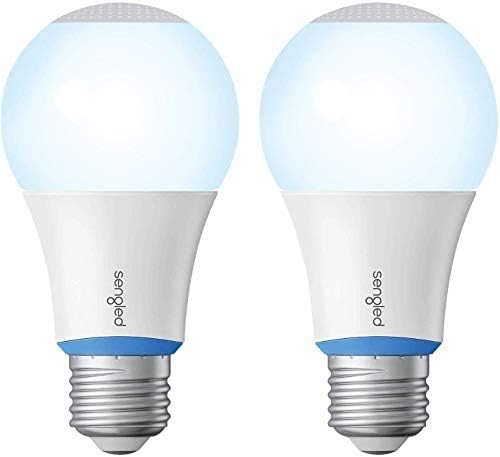
As an Amazon Associate we earn from qualifying purchases.
Official Manufacturer Manual
Sengled provides official product documentation through their online manual rather than downloadable PDF. Access setup guides, troubleshooting steps, and product specifications for your Sengled Smart Hub.
Source: support.sengled.com
Need More Help? Sengled Support
Note: The contact information below connects you directly to Sengled's official customer support team, not Trunetto. They can help with warranty claims, device replacements, and advanced technical issues.


