How to Install August Smart Lock 3rd Gen
- Check compatibility and prepare the door
- Install the mounting plate and lock body
- Insert batteries and set up in the August app
- Understand the Bluetooth-only limitation
- Add the August Connect bridge for remote access (optional)
- Set up DoorSense and configure auto-lock
Most users complete this in under 45 minutes
Overview
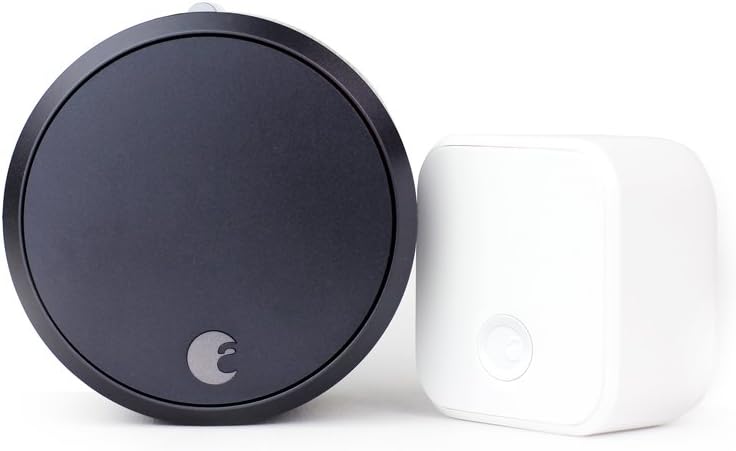
You are installing the August Smart Lock 3rd Generation — the original round model with Bluetooth connectivity. This is the most basic August lock: it connects to your phone via Bluetooth only and does not have built-in WiFi or Z-Wave. For remote access, you need a separate August Connect WiFi Bridge (sold separately). The 3rd Gen has a distinctive round shape and works with the August app for locking, unlocking, creating guest access codes, and auto-lock/auto-unlock features. It replaces only the interior side of your existing deadbolt.
Why This Happens in Real Homes
The August Smart Lock 3rd Gen is the budget entry point to August smart locks. Its Bluetooth-only connectivity is the biggest limitation — users coming from other smart home devices expect WiFi out of the box. The 3rd Gen is best for users who primarily want auto-unlock and auto-lock features without remote monitoring. For users who want remote access and smart home integration, the WiFi Smart Lock (4th Gen) is a better choice since it includes WiFi without needing a separate bridge.
What's Included
- Bluetooth smart lock
- 3rd generation technology
- Smartphone control
- Retrofit deadbolt upgrade
Got your materials ready? Here's what to check first.
Before You Start
- Basic smart lock upgrade
- Bluetooth door control
- Smartphone keyless entry
- Simple retrofit installation
Don't skip this step — it breaks everything if you do
Bluetooth range limited to proximity unlock. Battery operated with 6+ month life. Maintains traditional key backup access.
Tools & Requirements
These tools will help you complete this fix.

Drill optional
DEWALT 20V MAX Cordless Drill and Impact Driver, Pow...

Level
9 Inch Torpedo Level Magnetic, Shock-Proof Small Lev...

Screwdriver
STREBITO 155 in 1 Electric Screwdriver Set, Small El...
As an Amazon Associate we earn from qualifying purchases.
Installation Steps
Check compatibility and prepare the door
The August Smart Lock 3rd Gen fits standard single-cylinder deadbolts on doors 1-3/8 to 2-1/4 inches thick. Remove the two screws on the interior thumb turn plate and pull the plate and thumb turn off the door. Keep the exterior deadbolt in place — the August lock replaces only the interior side. Note the tailpiece shape (the metal bar through the door) as you will need to select the matching adapter from the included set.
Install the mounting plate and lock body
Select the tailpiece adapter that matches your deadbolt and attach it to the August mounting plate. Secure the plate to the door using the included screws. Test that the tailpiece turns smoothly. Slide the August lock body onto the mounting plate until it clicks. The 3rd Gen is the most compact August lock — it sits close to the door surface. Test locking and unlocking from both the August thumb turn and the exterior key to verify smooth operation.
Insert batteries and set up in the August app
The 3rd Gen uses 2 CR123 batteries. Insert them into the battery compartment (twist the back cover to access). Download the August app, create an account, and tap Set Up a Device. Select August Smart Lock (3rd Gen). The app connects via Bluetooth — stand within 5 feet of the lock. Run the calibration wizard to teach the lock your deadbolt rotation range. After calibration, test locking and unlocking from the app while standing near the door.
Understand the Bluetooth-only limitation
The 3rd Gen does not have WiFi or Z-Wave. This means: you can only control the lock when your phone is within Bluetooth range (about 30 feet). You will not receive lock/unlock notifications when away from home. Remote access features like checking lock status from work are not available without the optional August Connect bridge. Auto-Unlock works via Bluetooth and your phone GPS — when you approach the door, the lock detects your phone nearby and unlocks. Auto-Lock works on a timer regardless of Bluetooth connection since it runs on the lock itself.
Needed for this step
DEWALT 20V MAX Cordless Drill and Impact Driver...
This helps complete the fix you are currently reading.
$139.00Add the August Connect bridge for remote access (optional)
If you want remote control, purchase the August Connect WiFi Bridge separately. Plug it into an outlet within 15 feet of the lock. In the August app, go to Lock Settings and set up the bridge. The bridge connects to your lock via Bluetooth and to your home WiFi, enabling remote lock/unlock, notifications, and voice assistant integration (Alexa, Google Assistant). Without the bridge, you can still use the lock — it just works locally via Bluetooth only.
Set up DoorSense and configure auto-lock
Attach the DoorSense magnet to the door frame, aligned with the sensor on the mounting plate. DoorSense tells the lock whether the door is open or closed — this enables auto-lock after closing. In the August app, go to Lock Settings and enable Auto-Lock. Set the timer (1-5 minutes after the door closes). You can also enable Auto-Unlock which unlocks when you approach the door with your phone. Grant guest access by inviting people through the August app — they can lock and unlock with their phone during the time window you set.
Installation Tips
Still stuck? This is usually the deeper cause below.
Smart Lock 3rd Gen provides essential smart locking with Bluetooth connectivity. Retrofit installation maintains existing key access.
Before you go — these August Home guides fix most remaining issues.
Most popular upgrades chosen by August Smart Lock 3rd Gen owners.
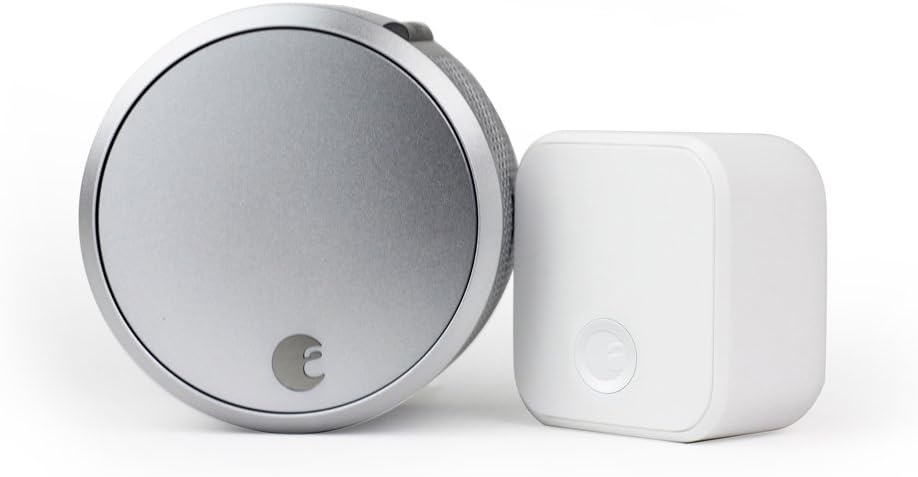
August Home Smart Lock Pro + Connect Hub - Wi-Fi Smart Lo...

August Home Smart Lock + Connect, Silver

August Home Connect Wi-Fi Bridge, Remote Access, Alexa In...
As an Amazon Associate we earn from qualifying purchases.
Official Manufacturer Manual
If you need the complete manufacturer documentation for advanced setup, wiring diagrams, or detailed specifications, you can download the official manual below. The manual includes full technical instructions directly from the manufacturer and may help if your issue requires deeper troubleshooting.
Download the Official August Smart Lock 3rd Gen ManualSource: august.com
Need More Help? August Home Support
Note: The contact information below connects you directly to August Home's official customer support team, not Trunetto. They can help with warranty claims, device replacements, and advanced technical issues.
How Does August Home Compare?
Before replacing your August Home device, see how it stacks up against alternatives in our full comparison guides.
Guide Improvements
- Updated June 18, 2026
Rewrote with 3rd Gen-specific installation covering Bluetooth-only setup and optional Connect WiFi Bridge
Source: SEO cannibalization fix