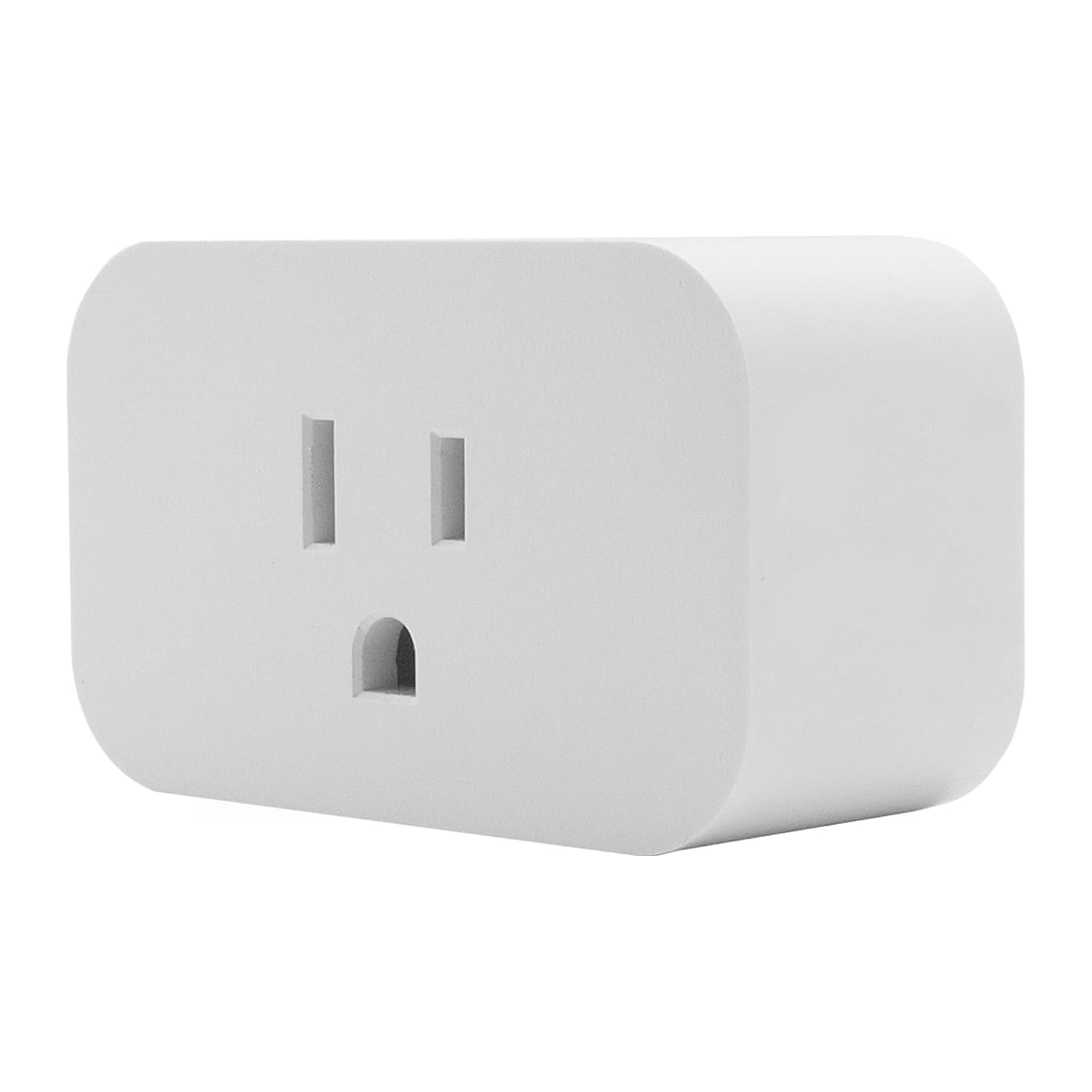
Matter Smart Plug Not Showing Up After Pairing
- Plug not in commissioning mode — previous pairing blocks new commissioning
- AP isolation on router blocking plug-to-hub communication
- Phone on 5GHz WiFi while plug only supports 2.4GHz
Problem Description
Your Matter-certified smart plug is plugged in and in commissioning mode but does not appear in Apple Home, Google Home, or Amazon Alexa after scanning the QR code or entering the setup code. The commissioning flow may appear to succeed but the plug is absent from the device list. Matter smart plugs connect over WiFi and are among the simplest Matter devices to commission — failures are almost always caused by the plug not being in a fresh commissioning state or router network settings blocking local communication.
Symptoms
- Controller app cannot find the plug during Bluetooth discovery
- QR code scans but plug never appears in device list
- Plug appears briefly after commissioning then disappears
- Controller app says commissioning succeeded but device is missing
- Plug works in manufacturer app but Matter commissioning fails consistently
Recognize these? Here's what usually causes it.
Common Causes
- Plug not in commissioning mode — previous pairing blocks new commissioning
- AP isolation on router blocking plug-to-hub communication
- Phone on 5GHz WiFi while plug only supports 2.4GHz
- Manufacturer app already claimed plug on a different fabric
- Plug firmware needs updating before Matter is supported
Most fixes happen in the first 3 steps.
Ensure the outlet is on a circuit not switched off by a wall switch. Plugs that lose power during commissioning abort the process and require a full restart.
Tools & Requirements
Step-by-Step Solution
Factory Reset the Plug to Enter Commissioning Mode
Matter smart plugs do not enter commissioning mode automatically if previously paired to any platform. Press and hold the physical button on the plug body for 5 to 10 seconds until the LED blinks rapidly, indicating a factory reset is in progress. After reset the LED blinks slowly indicating active commissioning mode. The exact reset sequence varies by brand — check your plug manual. After reset, immediately open the controller app and scan the Matter QR code from the label without delay.
Connect Your Phone to 2.4GHz WiFi Before Commissioning
Matter smart plugs use 2.4GHz WiFi for their home network connection. During commissioning, your phone transfers WiFi credentials to the plug. If your phone is on 5GHz with a different SSID, it transfers unusable 5GHz credentials. Connect your phone specifically to the 2.4GHz network name before starting commissioning. If your router uses the same SSID for both bands (band steering), commission while standing very close to the router where 2.4GHz is strongest.
Disable AP Isolation in Your Router
AP isolation prevents WiFi devices on the same network from communicating with each other, which directly blocks Matter communication between the plug and the controller hub after commissioning. Log into your router admin panel and disable AP isolation on the WiFi network the plug is using. After disabling, restart the router and re-attempt commissioning. AP isolation is found under WiFi, security, or advanced settings depending on your router brand.
Update Plug Firmware Via Manufacturer App First
Some Matter-branded plugs ship requiring a firmware update before the Matter stack is active. Add the plug to the manufacturer native app via standard WiFi setup, check for a firmware update in device settings, and allow it to install. After the update, factory reset the plug to remove the manufacturer pairing and open a fresh Matter commissioning window. Now scan the Matter QR code in your preferred controller app.
Complete the Add Device Flow Without Interruption
Matter commissioning sessions have time limits at each stage. Once the QR code is scanned, complete the entire flow within 3 to 5 minutes before the session expires. Keep the controller app in the foreground from QR scan through the final confirmation screen. Do not switch to another app, respond to notifications, or let the phone screen lock during commissioning. If the session expires, factory reset the plug and start again from the beginning.
Quick Solutions
Still having issues? This is usually the deeper cause below.
If pairing fails after multiple attempts, the device may still be registered to a previous account — factory-reset it before trying to add it to a new one.
Once commissioned, use the primary controller app multi-admin share option to add the plug to a second platform — do not re-scan the QR code.
Pairing failures almost always come down to distance during the initial handshake — manufacturers seriously understate how close you actually need to be.
- Plug not in commissioning mode — previous pairing blocks
- AP isolation on router blocking plug-to-hub communication
- Phone on 5GHz WiFi while plug only supports 2.4GHz
- Manufacturer app already claimed plug on a different fabric
- Plug firmware needs updating before Matter is supported
Before you go — try one of these (they fix most cases).
Most popular upgrades chosen by Smart Plug owners.

As an Amazon Associate we earn from qualifying purchases.