Smart Pet Feeder Not Dispensing Food on Schedule
- Food hopper empty or jammed
- WiFi connectivity issues during feeding
- Timezone settings incorrect
Problem Description
Your smart pet feeder fails to dispense food at scheduled times or dispenses incorrect amounts. The feeder may be connected to WiFi and respond to manual commands but automated schedules don't work reliably.
Why This Happens in Real Homes
A pet feeder skipping scheduled meals usually has a jam or empty hopper, or lost its connection so the schedule didn't sync — the mechanism can clog with certain kibble, and a WiFi drop means a cloud-scheduled feed never fires.
Start by checking the hopper for a jam or low food and clearing the dispensing auger, then confirm the feeder is online and the schedule is saved to it. For reliability, some feeders run schedules locally once synced; a jam or an offline feeder at feeding time are the two usual causes of a missed meal.
Symptoms
- Scheduled feedings not happening
- Wrong food portions dispensed
- Feeder skips programmed meal times
- Manual feeding works but schedule fails
- App shows feeder offline during meal times
- Food stuck in dispenser mechanism
Recognize these? Here's what usually causes it.
Common Causes
- Food hopper empty or jammed
- WiFi connectivity issues during feeding
- Timezone settings incorrect
- App schedule configuration wrong
- Mechanical dispenser problems
- Power interruptions affecting schedule
Most fixes happen in the first 3 steps.
Never force jammed mechanisms as this can damage motors. Always unplug feeder before cleaning or disassembly.
Step-by-Step Solution
Check Food Hopper and Mechanism
Remove the food hopper and inspect for blockages or moisture that could jam the dispensing mechanism. Make sure kibble size matches feeder specifications and hopper is properly seated and locked in place.
Verify Timezone and Schedule Settings
Open the pet feeder app and confirm timezone matches your location. Check all scheduled feeding times and portions. Delete and recreate schedules if times appear correct but feeder not activating.
Test Manual Dispensing
Use the app manual feed button to test if mechanical parts work correctly. Listen for motor sounds and watch food drop. If manual feeding fails the issue is mechanical not schedule-related.
Clean Food Pathway
Disassemble feeder according to manual and clean all food contact surfaces. Remove oils and moisture that can cause kibble to stick. Pay special attention to the dispensing chute and rotating mechanism.
Reset Feeder and Rebuild Schedule
Factory reset the feeder using the reset button or app option. Reconnect to WiFi and create fresh feeding schedules. This clears any corrupted scheduling data that prevents proper operation.
Quick Solutions
Still having issues? This is usually the deeper cause below.
Schedules that skip randomly are usually a daylight-saving holdover — delete and recreate the schedule to clear the corrupted entry.
Use high-quality dry kibble without oils or coatings that can cause jamming. Store food in cool dry place to prevent clumping.
Thermostat issues that keep returning are often caused by stale backup-battery memory holding old settings across power cycles without the user realising.
- Food hopper empty or jammed
- WiFi connectivity issues during feeding
- Timezone settings incorrect
- App schedule configuration wrong
- Mechanical dispenser problems
Before you go — try one of these (they fix most cases).
Official Manufacturer Manual
Home Assistant provides official product documentation through their online manual rather than downloadable PDF. Access setup guides, troubleshooting steps, and product specifications for your Smart Pet Feeder.
Source: home-assistant.io
Need More Help? Home Assistant Support
Note: The contact information below connects you directly to Home Assistant's official customer support team, not Trunetto. They can help with warranty claims, device replacements, and advanced technical issues.
Accessories owners commonly pair with Smart Pet Feeder.

Blink Mini - Compact indoor plug-in smart security camera...
Blink Mini - Compact indoor plug-in smart security camera...
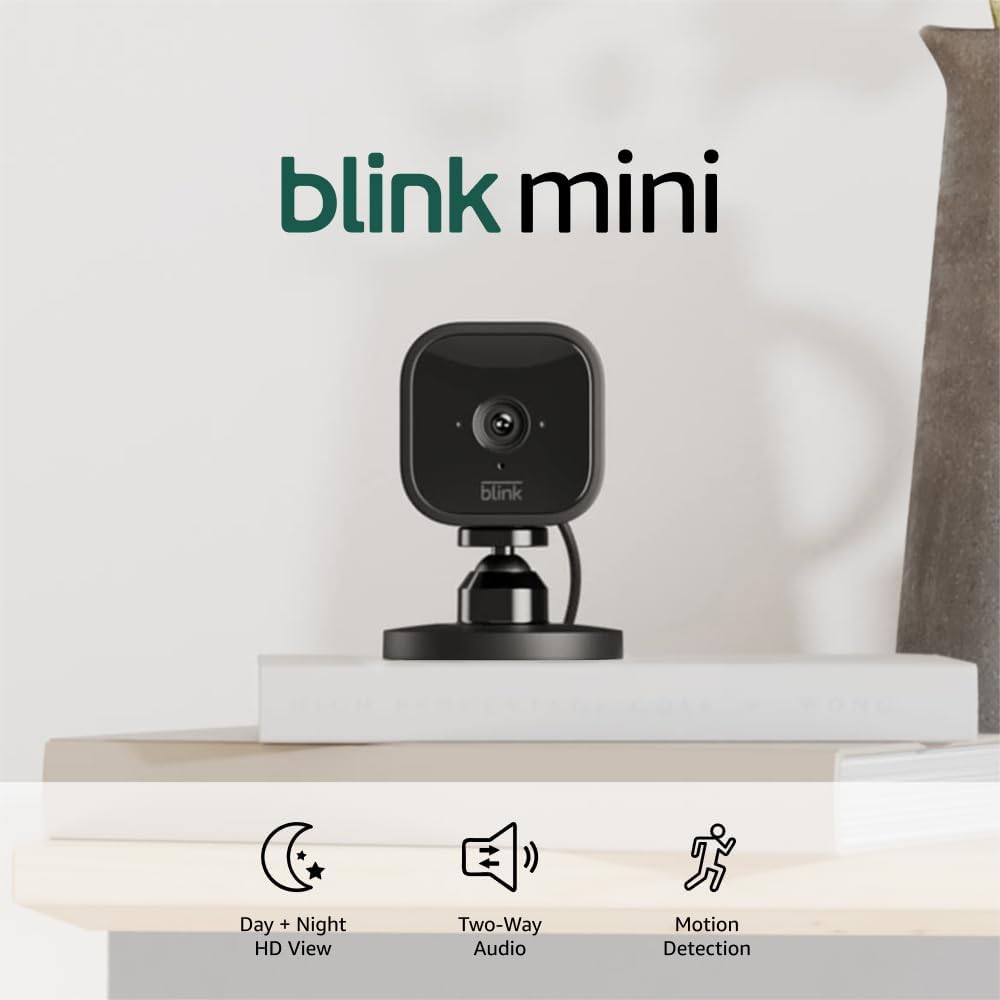
Blink Mini - Compact indoor plug-in smart security camera...
As an Amazon Associate we earn from qualifying purchases.