

Tesla Powerwall Not Syncing with Smart Panel During Outages
- Communication network down during outage
- Smart panel firmware incompatible
- Backup communication path not configured
Problem Description
Your Tesla Powerwall battery system fails to properly communicate with your smart electrical panel during power outages leaving critical smart home devices without backup power despite having sufficient battery charge.
Why This Happens in Real Homes
A Powerwall not syncing with a smart panel during an outage is a communication problem — when the grid drops and the system goes to backup, the data link between the Powerwall Gateway and the smart panel can lag or break, so the panel's view goes stale mid-outage.
Start by confirming the Gateway and the smart panel are communicating on the same network and that the network itself stays powered during an outage (put the router/hub on backup). The actual backup power transfer is separate from the reporting; a monitoring gap during an outage usually means the data path, not the battery, dropped.
Symptoms
- Smart panel shows offline during outages
- Critical devices not getting backup power
- Powerwall has charge but not supplying panel
- Communication lost between systems during outage
- Smart home automation fails during backup
- Panel priority settings ignored by Powerwall
Recognize these? Here's what usually causes it.
Common Causes
- Communication network down during outage
- Smart panel firmware incompatible
- Backup communication path not configured
- Power priority settings misconfigured
- Powerwall gateway connectivity issues
- Grid isolation affecting internal communication
Most fixes happen in the first 3 steps.
Never attempt electrical work on Powerwall or smart panel systems. High voltage systems require certified technicians for safety.
Tools & Requirements
These tools will help you complete this fix.

Clean cloth
WHOOSH! Pro 16.9 fl oz Refillable TV Screen Cleaner ...

Replacement batteries
Duracell Coppertop Double AA Batteries with Power Bo...

Screwdriver
STREBITO 155 in 1 Electric Screwdriver Set, Small El...
As an Amazon Associate we earn from qualifying purchases.
Step-by-Step Solution
Configure Backup Communication Network
Make sure Powerwall Gateway has cellular or ethernet backup connectivity that works during grid outages. Smart panel communication requires network connectivity even when grid power is down.
Update Smart Panel Integration Firmware
Check for firmware updates on both Tesla Powerwall system and smart electrical panel. Newer versions include improved communication protocols for backup power coordination.
Set Critical Load Priorities Properly
In Tesla app configure which smart panel circuits get priority during backup power. Make sure critical smart home devices are marked as essential loads in both Tesla and smart panel apps.
Test Communication During Simulated Outage
Use Tesla app Storm Watch mode or manual grid disconnect to test communication between Powerwall and smart panel during backup operation. Verify all systems communicate properly.
Configure Cellular Backup for Both Systems
Make sure both Powerwall Gateway and smart panel have cellular connectivity options enabled. This maintains communication when home internet goes down with grid power.
Quick Solutions
Still having issues? This is usually the deeper cause below.
If pairing fails after multiple attempts, the device may still be registered to a previous account — factory-reset it before trying to add it to a new one.
Tesla Powerwall and smart panel integration requires professional installation and configuration. Consult certified installers for complex communication issues.
Pairing failures almost always come down to distance during the initial handshake — manufacturers seriously understate how close you actually need to be.
- Communication network down during outage
- Smart panel firmware incompatible
- Backup communication path not configured
- Power priority settings misconfigured
- Powerwall gateway connectivity issues
Before you go — try one of these (they fix most cases).
Official Manufacturer Manual
Home Assistant provides official product documentation through their online manual rather than downloadable PDF. Access setup guides, troubleshooting steps, and product specifications for your Tesla Powerwall.
Source: home-assistant.io
Need More Help? Home Assistant Support
Note: The contact information below connects you directly to Home Assistant's official customer support team, not Trunetto. They can help with warranty claims, device replacements, and advanced technical issues.
Accessories owners commonly pair with Tesla Powerwall.

Blink Mini - Compact indoor plug-in smart security camera...
Blink Mini - Compact indoor plug-in smart security camera...
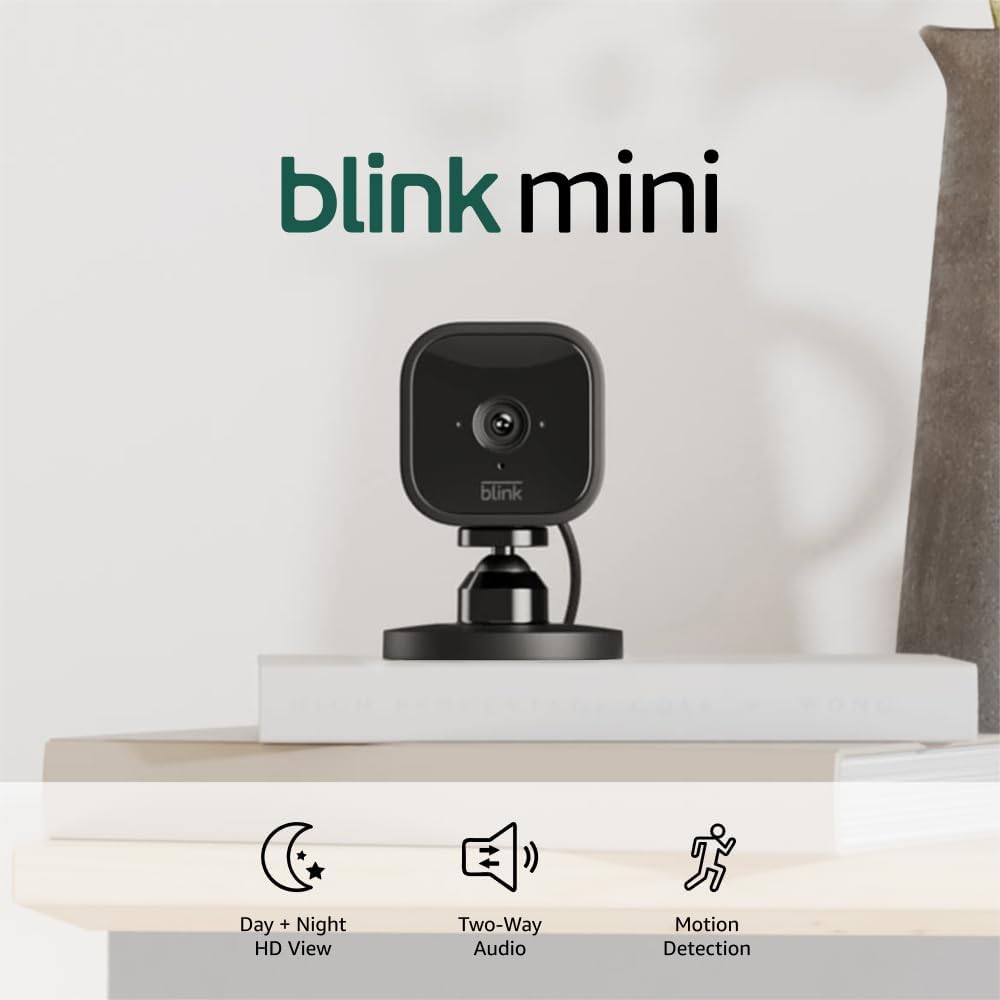
Blink Mini - Compact indoor plug-in smart security camera...
As an Amazon Associate we earn from qualifying purchases.


