

Philips Hue Dimmer Switch 3-Second Delay
- Zigbee network congestion
- Hub processing overload
- Switch firmware issues
Problem Description
Your Philips Hue lights take 2 to 3 seconds to respond after pressing a Hue Dimmer switch or tapping the app. The lights do eventually respond, but the delay makes them feel sluggish. This latency comes from Zigbee signal routing, Bridge processing time, or the dimmer switch sending redundant repeat commands that queue up.
Why This Happens in Real Homes
A multi-second delay after pressing the Hue dimmer usually points to a congested or stretched Zigbee network — the command hops through the mesh to the Bridge and back, and a long path, network congestion, or a busy Bridge adds lag.
Start by improving the Zigbee mesh: add or reposition mains-powered Hue lights between the switch and Bridge so commands take a shorter path, and reduce heavy polling from other integrations. A switch firmware update and a fresh battery help; consistent multi-second delays almost always trace to mesh distance or congestion.
Symptoms
- 3-5 second delay after button press
- Lights take forever to respond
- Switch worked instantly before
- Multiple button presses needed
- Delay worse during evening hours
- Some lights respond others delayed
Recognize these? Here's what usually causes it.
Common Causes
- Zigbee network congestion
- Hub processing overload
- Switch firmware issues
- Too many devices on network
- Interference from new devices
- Hub memory low
Most fixes happen in the first 3 steps.
Do not reset multiple Hue devices simultaneously as this can overwhelm the bridge during re-pairing process causing further delays.
Step-by-Step Solution
Restart Hue Bridge
Unplug Hue Bridge for 30 seconds then plug back in. Wait 3-5 minutes for full restart and network reformation. Test dimmer switch response time after bridge fully comes back online.
Update Dimmer Switch Firmware
Open Hue app go to Settings > Software Update and check for dimmer switch updates. Install any available firmware which often includes Zigbee performance improvements and response time optimization.
Optimize Zigbee Channel
In Hue app go to Settings > Hue Bridges > Network Settings and change Zigbee channel to less congested option. Try channels 11 15 20 or 25 to avoid interference from WiFi and other 2.4GHz devices.
Remove Unused Hue Devices
Delete any old bulbs switches or sensors that are no longer in use. Too many devices on Zigbee network can cause message delays and poor response times especially during peak usage.
Reset Switch and Re-pair
Remove dimmer switch from Hue app then re-add using Add device function. Hold all 4 switch buttons simultaneously for 10 seconds to reset then follow pairing instructions for fresh connection.
Quick Solutions
Still having issues? This is usually the deeper cause below.
If flickering only happens on dimming, the issue is almost always the dimmer's minimum-load setting, not the bulb — it's drawing less current than the dimmer expects.
Zigbee networks can become congested in dense smart home installations. Keep critical devices like switches close to hub for best response times.
Notification delays over 2 minutes are almost never the device's fault — background app restrictions quietly re-enable themselves after every OS update.
- Zigbee network congestion
- Hub processing overload
- Switch firmware issues
- Too many devices on network
- Interference from new devices
Before you go — try one of these (they fix most cases).
Most popular upgrades chosen by Philips Hue Dimmer Switch owners.

Philips Hue Gradient Signe Floor Lamp, Compatible with Al...

Philips Hue Smart Dimmer Switch with Remote + Philips Hue...
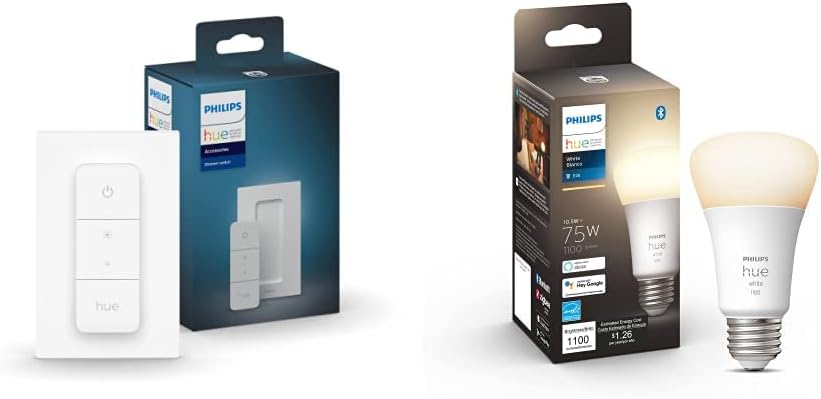
Philips Hue Smart Dimmer Switch with Remote + Philips Hue...
As an Amazon Associate we earn from qualifying purchases.
Official Manufacturer Manual
If you need the complete manufacturer documentation for advanced setup, wiring diagrams, or detailed specifications, you can download the official manual below. The manual includes full technical instructions directly from the manufacturer and may help if your issue requires deeper troubleshooting.
Download the Official Philips Hue Dimmer Switch ManualSource: philips.com
Need More Help? Philips Hue Support
Note: The contact information below connects you directly to Philips Hue's official customer support team, not Trunetto. They can help with warranty claims, device replacements, and advanced technical issues.
How Does Philips Hue Compare?
Before replacing your Philips Hue device, see how it stacks up against alternatives in our full comparison guides.
Accessories owners commonly pair with Philips Hue Dimmer Switch.

Philips Hue Smart 60W A19 LED Bulb - Soft Warm White Ligh...

Philips Hue Smart 60W A19 LED Bulb - Soft Warm White Ligh...

Philips Hue A19 LED Smart Light Bulb - White and Color Am...
As an Amazon Associate we earn from qualifying purchases.

