

Ring Error Code P1-73: Why Is My Chime Pro WiFi Extender Not Working?
- Lost internet connection
- Router settings blocking extender
- Too far from router
Problem Description
Ring error P1-73 indicates Chime Pro WiFi extender stopped working. Chime may make sounds but no longer extends WiFi to Ring devices.
Why This Happens in Real Homes
P1-73 on the Chime Pro specifically means the WiFi extender function stopped working even though the doorbell chime function still works. The Chime Pro has two separate radios — one for its own WiFi connection and one for the extended network it broadcasts. The extension radio can fail independently. First try unplugging the Chime Pro for 30 seconds. If that does not fix it, remove the Chime Pro from the Ring app and set it up again from scratch. During setup, the app will ask whether you want to use the WiFi extender feature — make sure you enable it. After setup, check your doorbell's Device Health to confirm it connected to the Chime Pro's extended network.
Symptoms
- P1-73 error
- Ring devices show weak signal despite Chime Pro
- Sounds work but WiFi extension does not
- Other Ring devices offline
- Poor RSSI on doorbell
- Chime Pro network not visible
Recognize these? Here's what usually causes it.
Common Causes
- Lost internet connection
- Router settings blocking extender
- Too far from router
- Interference from devices
- Firmware needs update
- Hardware issue
Most fixes happen in the first 3 steps.
Factory reset disconnects Ring devices using extended network. Reconnect those devices afterward.
These tools will help you complete this fix.
As an Amazon Associate we earn from qualifying purchases.
Step-by-Step Solution
Power Cycle
Unplug Chime Pro 60 seconds. Plug in and wait 3-4 minutes for full restart including WiFi extender.

Needed for this step
Amazon eero 6+ mesh wifi system with 1 month fr...
This helps complete the fix you are currently reading.
$239.99Check Placement
Chime Pro should be halfway between router and Ring devices. 15-30 feet from router best.
Verify Router Settings
Disable AP Isolation in router. Enable client-to-client communication. Enable UPnP.
Update Firmware
In Ring app, check Chime Pro settings for updates. Install and wait for restart.
Factory Reset
Hold button 20 seconds until rapid flash. Set up as new, relink Ring devices to Chime Pro network.
Quick Solutions
Still having issues? This is usually the deeper cause below.
This usually happens right after a router reboot or ISP change — the device rejoins the network but drops its cloud session silently.
After setup, go to Ring doorbell Device Health and Change WiFi Network to select Chime Pro network.
Most WiFi drop-offs happen right after a router reboot or ISP swap — the device reconnects to the network but silently loses its cloud registration.
- Lost internet connection
- Router settings blocking extender
- Too far from router
- Interference from devices
- Firmware needs update
Before you go — try one of these (they fix most cases).
Most popular upgrades chosen by Ring Chime Pro owners.

4 Channel 360° Dash Cam Front Rear Inside & Left Right,4K...

Ring Alarm 5-Piece Kit with Ring Indoor Cam 2nd Gen
As an Amazon Associate we earn from qualifying purchases.
Official Manufacturer Manual
If you need the complete manufacturer documentation for advanced setup, wiring diagrams, or detailed specifications, you can download the official manual below. The manual includes full technical instructions directly from the manufacturer and may help if your issue requires deeper troubleshooting.
Download the Official Ring Chime Pro ManualSource: ring.com
Need More Help? Ring Support
Note: The contact information below connects you directly to Ring's official customer support team, not Trunetto. They can help with warranty claims, device replacements, and advanced technical issues.
How Does Ring Compare?
Before replacing your Ring device, see how it stacks up against alternatives in our full comparison guides.
Accessories owners commonly pair with Ring Chime Pro.

Ring Rechargeable Quick Release Battery Pack
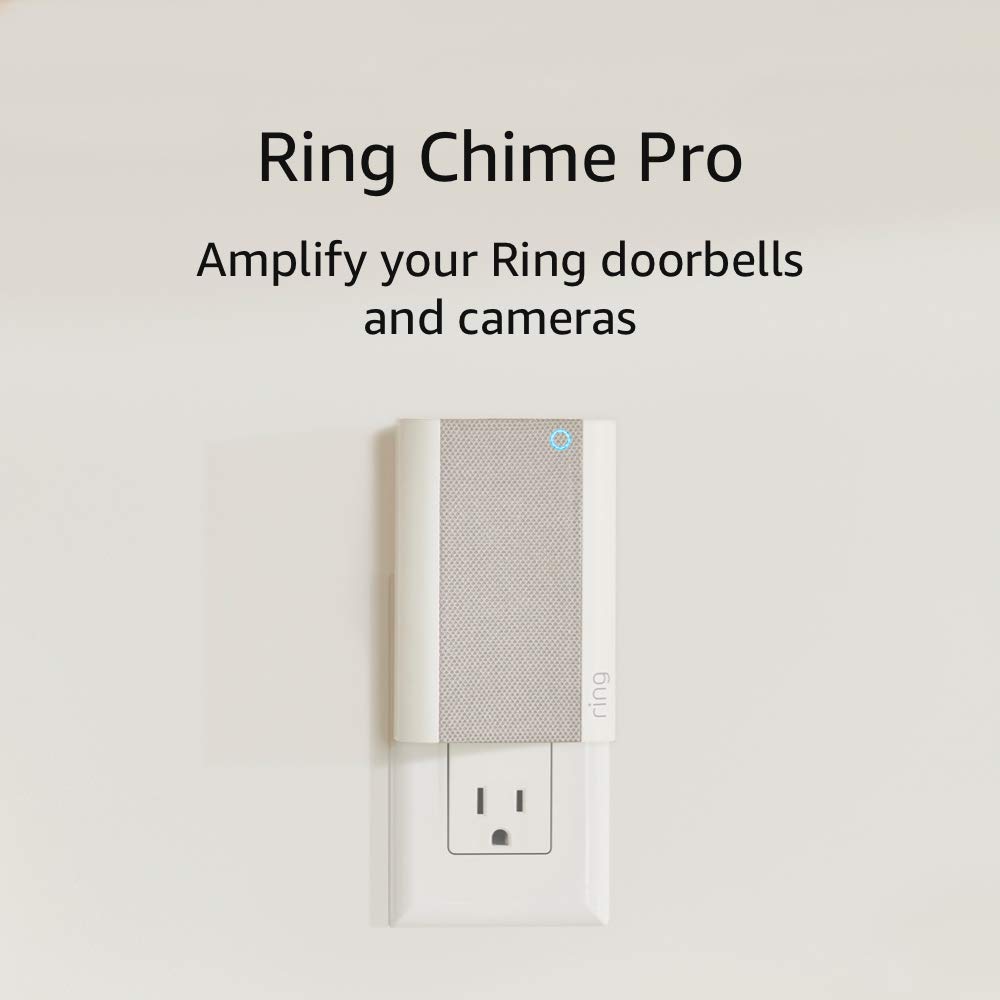
Ring Chime Pro

Ring Floodlight Cam Plus with Plug-In Mount - Plug-in pow...
As an Amazon Associate we earn from qualifying purchases.


