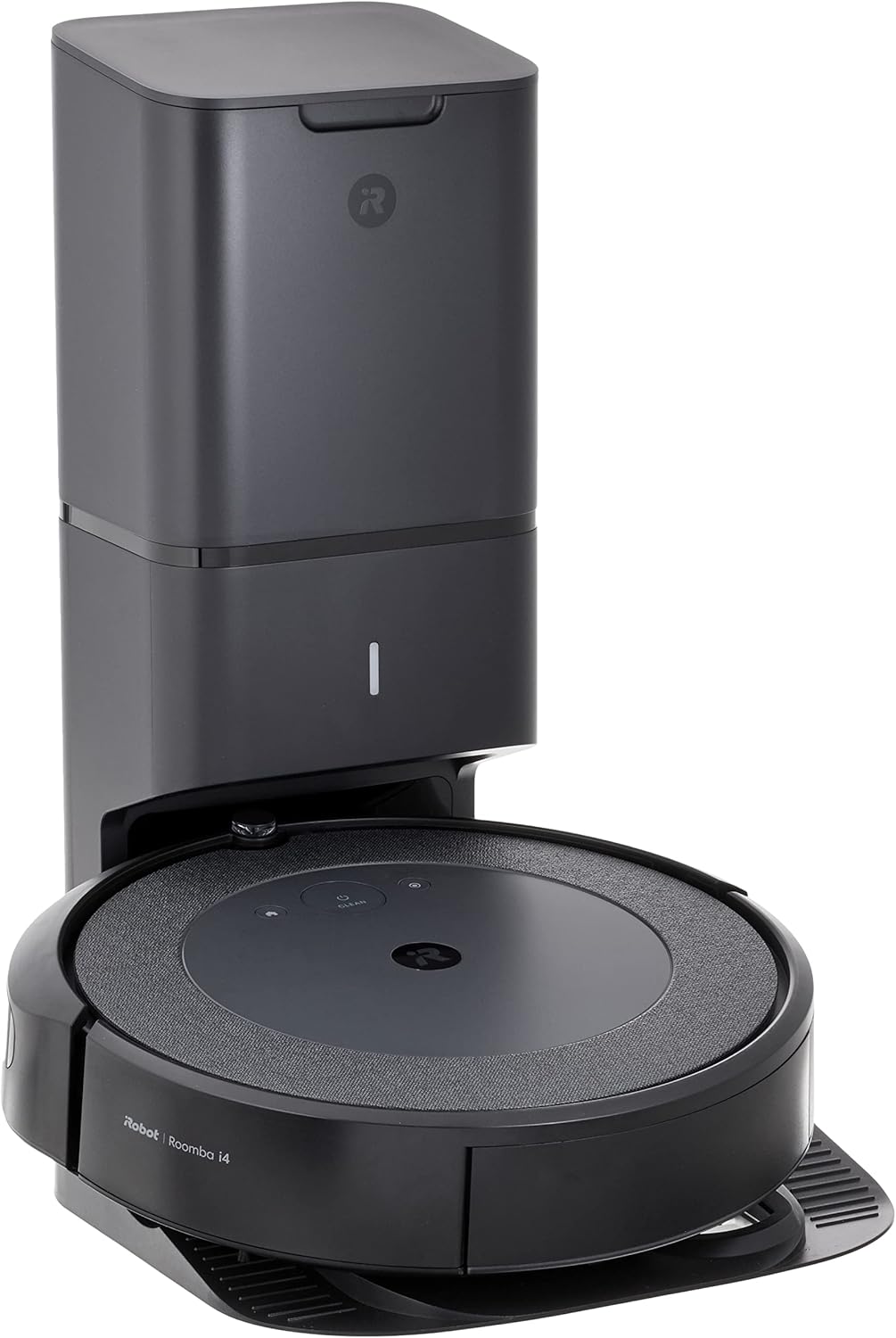
Why Is My iRobot Not Working?
- Battery or charging contact contamination
- Brush wheel or sensor obstruction
- Firmware crash
Problem Description
If your iRobot is not working, the root issue may be power, hardware drag, sensor faults, or app and map sync corruption. This guide uses a strict order to separate physical failures from software issues before you consider a full reset.
Symptoms
- Robot does not start cleaning
- Robot stops with repeated errors
- App commands fail
- Charging or docking problems
Recognize these? Here's what usually causes it.
Common Causes
- Battery or charging contact contamination
- Brush wheel or sensor obstruction
- Firmware crash
- Stale map or cloud session mismatch
Most fixes happen in the first 3 steps.
Do not factory reset as the first step. You can lose maps, no-go zones, and schedules. Capture error details first.
Tools & Requirements
These tools will help you complete this fix.

microfiber cloth
BELLEMOND「Samurai Cloth」Japanese Microfiber Cleaning...

Small cleaning brush
6 Pack Small Cleaning Brush Set Anti Static Small Cl...
As an Amazon Associate we earn from qualifying purchases.
Step-by-Step Solution
Verify charging and power baseline
Dock the robot and confirm charging indicator. Clean dock contacts and robot contact pads with a dry cloth. Charge at least 60 minutes if battery is critically low.
Needed for this step
BELLEMOND「Samurai Cloth」Japanese Microfiber Cle...
$18.99Check for physical obstructions
Remove bin and inspect filter, side brush, main brush, and wheel wells. Clean cliff and floor sensors. Mechanical drag is a common cause of immediate stop behavior.
Needed for this step
6 Pack Small Cleaning Brush Set Anti Static Sma...
$6.59Read diagnostics in iRobot Home app
Open iRobot Home app > robot card > Product Settings > Help or Troubleshooting. Capture the exact error code and battery/network status before changing maps or Wi-Fi.
Reboot robot before deeper resets
Use app Reboot option if available. If not, hold CLEAN button for about 20 seconds until reboot tone or light cycle begins, then wait for full startup.
Run local clean test then app test
Press CLEAN on the robot to test local function first. If local works and app fails, refresh app login and cloud session, then send a simple room job.
Use factory reset only for unresolved faults
If errors persist after cleaning and reboot, back up map data if possible, run model-specific factory reset, then re-pair and remap carefully.
Quick Solutions
Still having issues? This is usually the deeper cause below.
If the robot returns to the dock mid-clean, moved furniture may have invalidated its map — a fresh floor scan resolves the majority of navigation failures.
Most iRobot not-working cases are solved by cleaning contacts, brushes, and sensors before any full reset.
Battery-related failures are almost always flagged too late — the device degrades silently for days before the app catches up to what's actually happening.
- Battery or charging contact contamination
- Brush wheel or sensor obstruction
- Firmware crash
- Stale map or cloud session mismatch
Before you go — try one of these (they fix most cases).
Most popular upgrades chosen by iRobot Robot Vacuum owners.
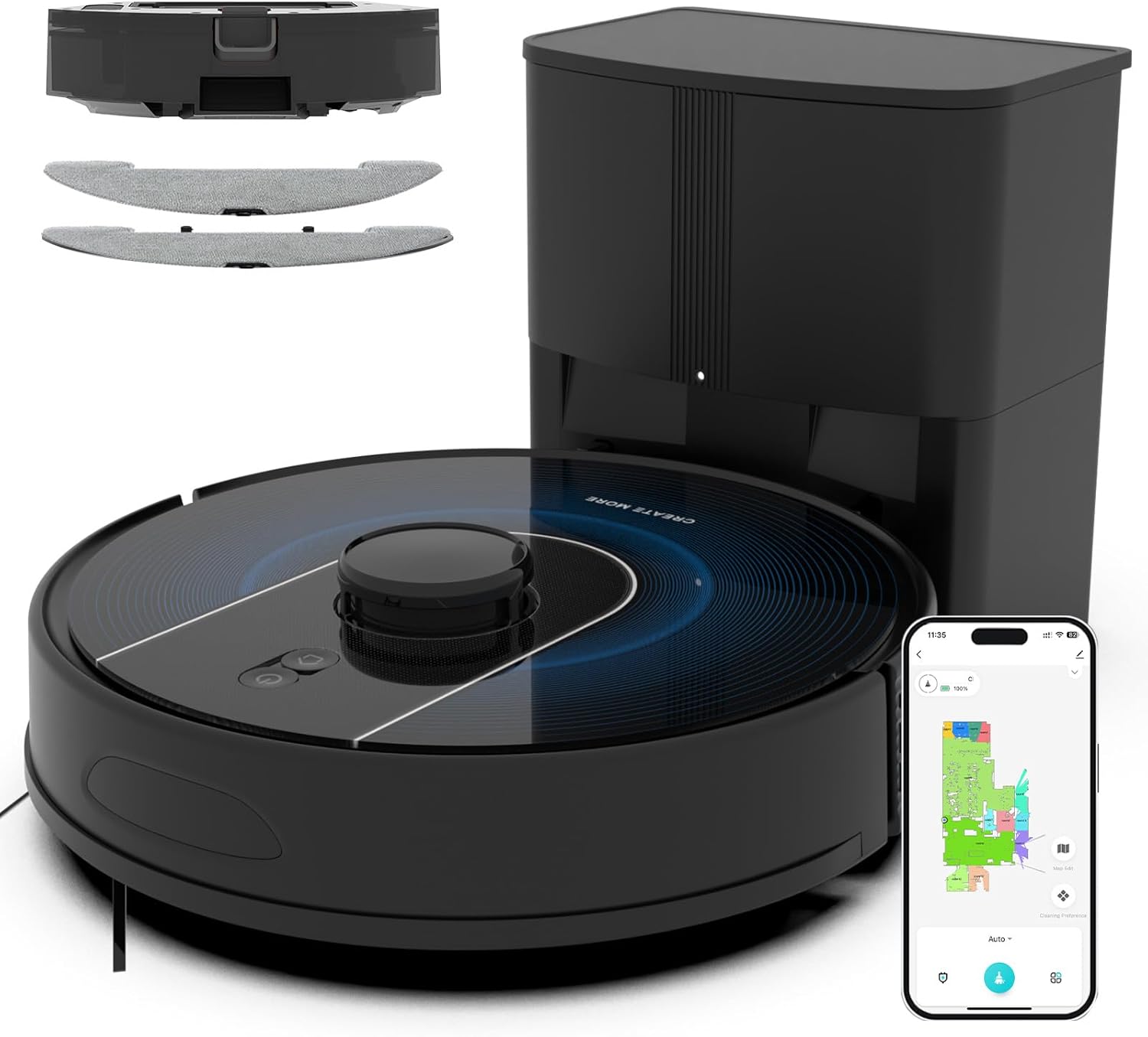
Bagotte Robot Vacuum and Mop, Robot Vacuum Self Emptying,...
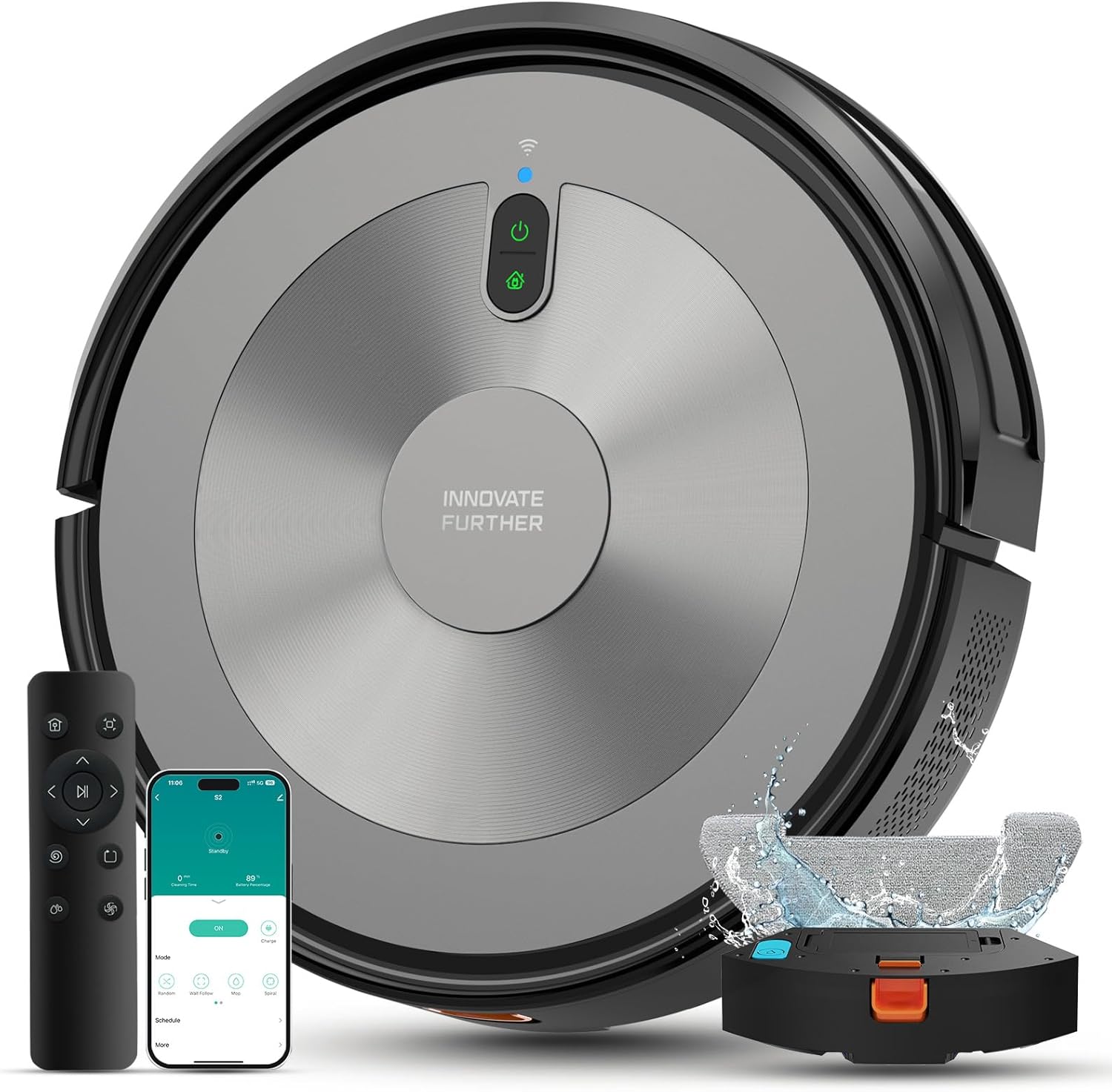
Robot Vacuum and Mop Combo, 5000Pa 3-in-1 Robotic Vacuum ...

Robot Vacuum and Mop with LiDAR Navigation, 6000Pa Roboti...
As an Amazon Associate we earn from qualifying purchases.
Official Manufacturer Manual
iRobot provides official product documentation through their online manual rather than downloadable PDF. Access setup guides, troubleshooting steps, and product specifications for your iRobot Robot Vacuum.
Source: homesupport.irobot.com
Need More Help? iRobot Support
Note: The contact information below connects you directly to iRobot's official customer support team, not Trunetto. They can help with warranty claims, device replacements, and advanced technical issues.
How Does iRobot Compare?
Before replacing your iRobot device, see how it stacks up against alternatives in our full comparison guides.