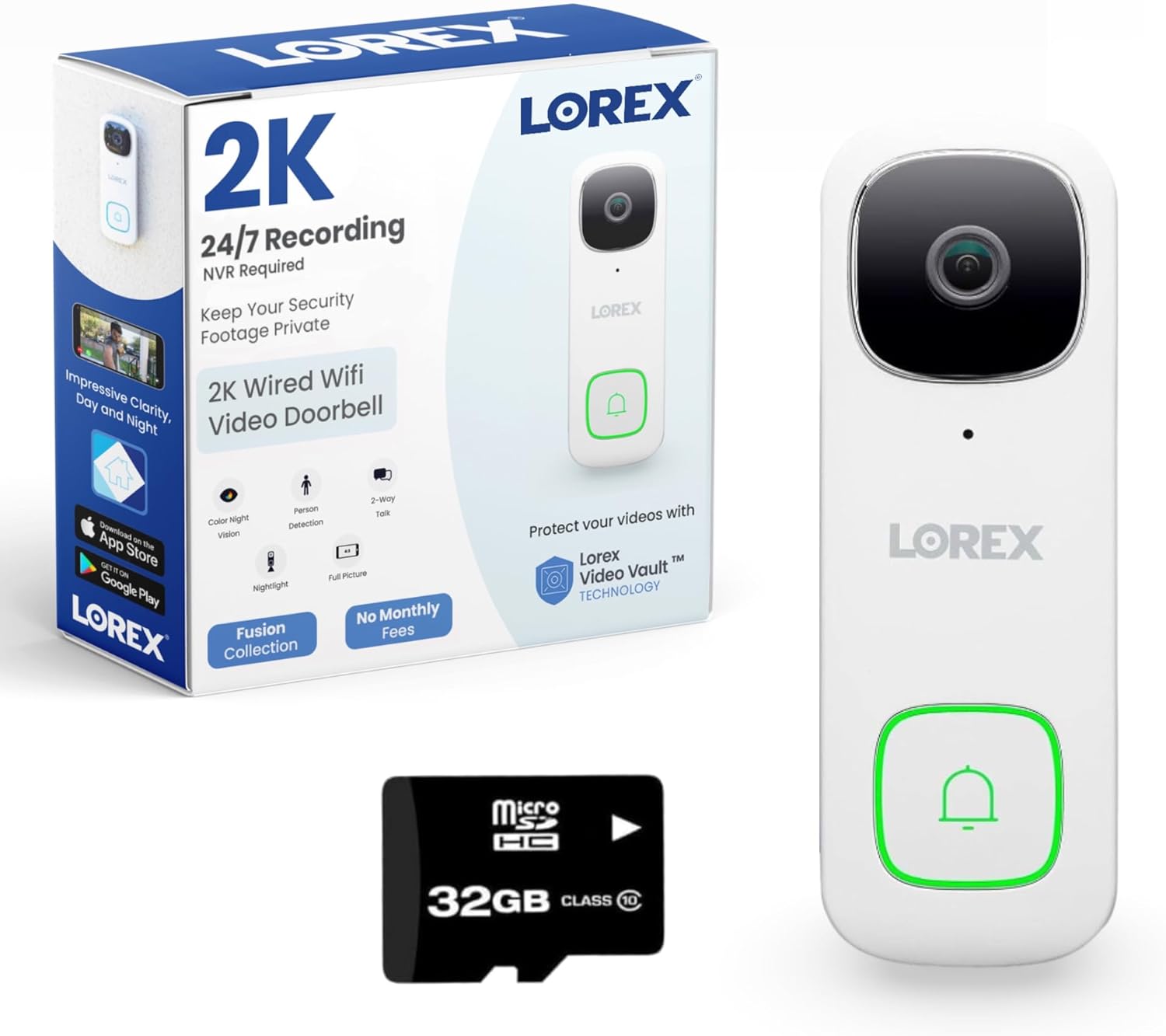
Why Is My Lorex Camera Showing No Video on the NVR?
- Ethernet cable loose, damaged, or too long
- PoE port not delivering power / power budget exceeded
- Camera and NVR on incompatible network settings
Problem Description
Your Lorex camera shows no video on the NVR - a black screen or 'No Signal' on that channel even though the camera is connected. On a PoE system the camera gets both power and data through one Ethernet cable to the NVR's PoE port, so no video usually means a cable, PoE port, power-budget, or IP issue. This guide covers isolating the cable/port, confirming power, and resolving IP conflicts so the channel comes back.
Why This Happens in Real Homes
On a Lorex PoE system, each camera runs a single Ethernet cable back to a PoE port on the NVR, carrying both power and video. So when a channel shows no video, the problem lives on that cable run in almost every case: a loose or damaged cable, a PoE port that isn't powering the camera, or an IP conflict. The most efficient diagnostic is to move the camera to a port and cable you know are good - if it displays there, you've isolated the fault to the original port or cable; if it stays black everywhere, the camera is the issue.
A few NVR-specific causes are worth knowing. Each PoE NVR has a total power budget, and loading it with too many or too high-draw cameras can leave the last one under-powered and blank. IP conflicts - two cameras trying to use the same address - cause channels to drop in and out, and are resolved by letting the NVR reassign addresses or manually setting unique ones. A camera added through an external PoE switch (rather than the NVR's built-in ports) often has to be added manually by IP rather than auto-detected. And a firmware mismatch between camera and NVR, or a non-Lorex camera speaking a different protocol, can prevent a clean connection - updating both to current firmware resolves compatibility gaps.
Symptoms
- Channel shows a black screen or 'No Signal'
- Camera connected but nothing displays on the NVR
- Camera works on one port but not another
- New camera isn't recognized
- Camera shows briefly then goes black
- IP conflict message on the NVR
- Some cameras display, one doesn't
- Channel lost after adding more cameras
Recognize these? Here's what usually causes it.
Common Causes
- Ethernet cable loose, damaged, or too long
- PoE port not delivering power / power budget exceeded
- Camera and NVR on incompatible network settings
- IP address conflict between cameras
- Camera not activated / needs manual add
- Camera or NVR firmware mismatch
- Non-Lorex or wrong-protocol camera
- Water ingress at the RJ45 connector
Most fixes happen in the first 3 steps.
Check NVR hard drive health if recordings are missing.
Tools & Requirements
These tools will help you complete this fix.

Clean microfiber cloth
MR.SIGA Microfiber Cleaning Cloth,Pack of 12,Size:12...

Ethernet cable
Jadaol Cat 6 Ethernet Cable 25 ft, 10Gbps Support Ca...

Level
9 Inch Torpedo Level Magnetic, Shock-Proof Small Lev...

Power adapter
JcBlaon Outlet Extender Surge Protector - 6 Outlet S...

Replacement batteries
Duracell Coppertop Double AA Batteries with Power Bo...
As an Amazon Associate we earn from qualifying purchases.
Step-by-Step Solution
Check the Ethernet cable connection
On the back of the NVR, check that the Ethernet cable from the camera is firmly plugged into a PoE port. The NVR PoE ports have LED indicators — a lit LED means the port detects a connected camera. If the LED is off, try a different PoE port. If still no LED, try a different Ethernet cable. PoE delivers both power and data — if the cable is faulty, the camera gets no power and no video.
Needed for this step
Jadaol Cat 6 Ethernet Cable 25 ft, 10Gbps Suppo...
This helps complete the fix you are currently reading.
$9.99Check if the camera is powered on
Look at the camera physically — most Lorex IP cameras have a small LED or the IR LEDs emit a faint red glow in the dark when powered. If the camera shows no signs of power: check the cable (try swapping with a known working camera), try a different NVR PoE port, and check if the NVR PoE budget is exceeded (each NVR has a total PoE wattage limit — typically 100-200W for 8-16 cameras). If all ports are populated, the NVR may not have enough power for all cameras simultaneously.
Needed for this step
JcBlaon Outlet Extender Surge Protector - 6 Out...
This helps complete the fix you are currently reading.
$9.99Re-register the camera on the NVR
On the NVR, right-click > Camera Registration or Camera > Camera List. Check if the camera appears in the detected list. If it appears but is not assigned to a channel, click Add. If it does not appear, the camera may have a different IP address range than the NVR PoE network. Go to NVR > Network > PoE and check the IP range. The camera must be in the same subnet as the NVR PoE ports (typically 10.1.1.x).
Reset the camera to factory defaults
If the camera does not appear after checking cables and ports: factory reset the camera. Find the reset button (small pinhole on the camera body or base). Press and hold with a paperclip for 10-15 seconds. The camera reboots and resets to default network settings. After reset, it should appear in the NVR camera registration list. Re-add it to a channel.
Check NVR channel capacity and firmware
Each Lorex NVR supports a specific number of channels (8, 16, or 32). If all channels are assigned (even to cameras no longer connected), new cameras cannot be added. Go to Camera List on the NVR and remove channels assigned to disconnected cameras. Also check for NVR firmware updates — compatibility issues between newer cameras and older NVR firmware can prevent video display.
Quick Solutions
Still having issues? This is usually the deeper cause below.
Camera issues that start suddenly almost always trace back to an upload bandwidth drop — run a speed test before assuming hardware failure.
Set up activity zones to monitor only the areas that matter like your front porch and driveway and exclude the street. This dramatically reduces false alerts while ensuring you never miss an actual event at your property.
Live view problems that start suddenly usually trace back to an upload speed drop — the camera itself is fine, the bandwidth path to the cloud isn't.
- Ethernet cable loose, damaged, or too long
- PoE port not delivering power / power budget exceeded
- Camera and NVR on incompatible network settings
- IP address conflict between cameras
- Camera not activated / needs manual add
Before you go — try one of these (they fix most cases).
Most popular upgrades chosen by Lorex Security Camera owners.

Lorex Indoor/Outdoor 4K Ultra HD Smart Deterrence CVI Wir...

Lorex Outdoor 4K IP Add-On Metal Bullet Security Camera |...

Lorex Outdoor 4K IP Add-On Metal Dome Security Camera | N...
As an Amazon Associate we earn from qualifying purchases.
Official Manufacturer Manual
Lorex provides official product documentation through their online manual rather than downloadable PDF. Access setup guides, troubleshooting steps, and product specifications for your Lorex Security Camera.
Source: lorex.com
Need More Help? Lorex Support
Note: The contact information below connects you directly to Lorex's official customer support team, not Trunetto. They can help with warranty claims, device replacements, and advanced technical issues.