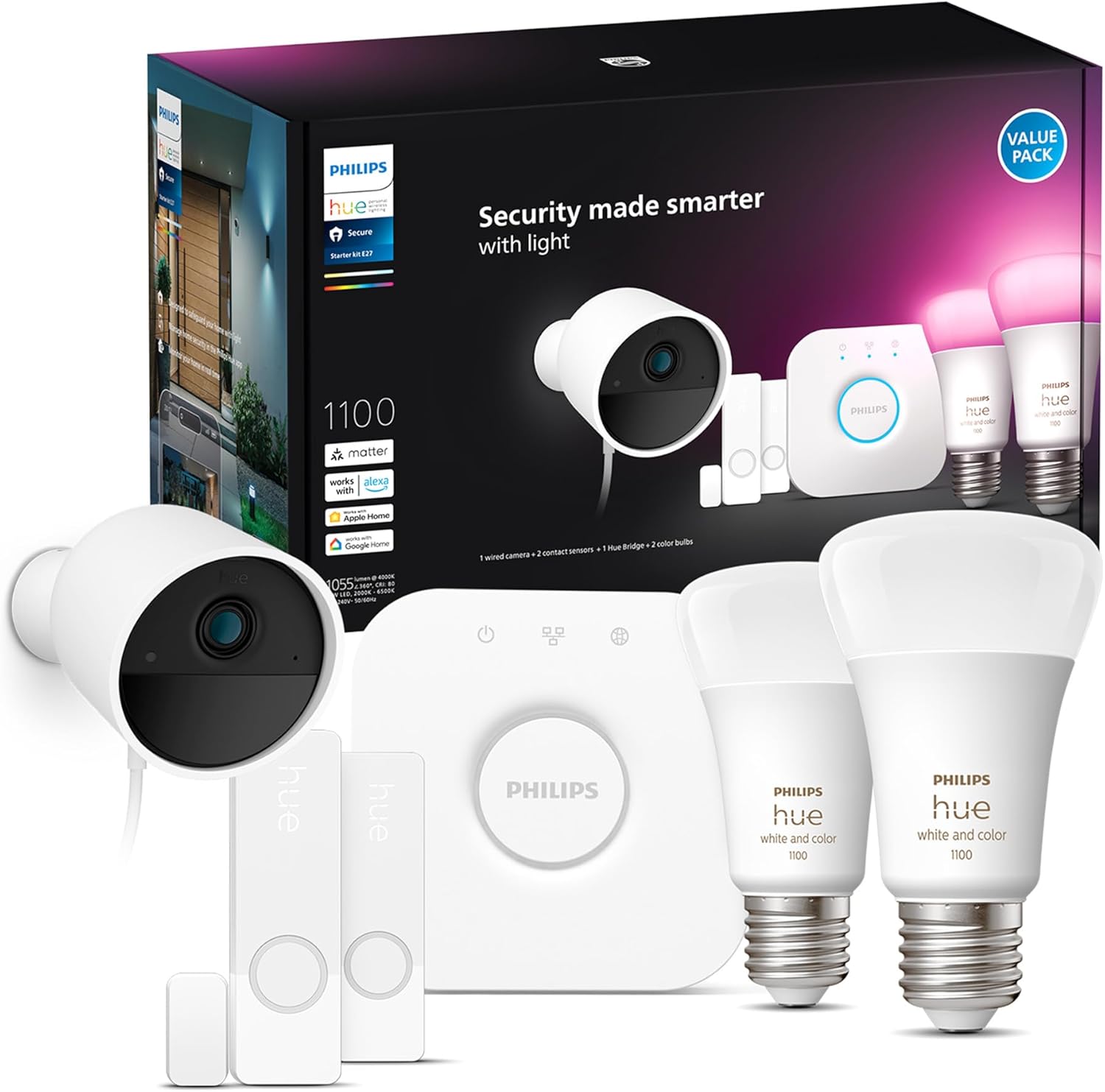
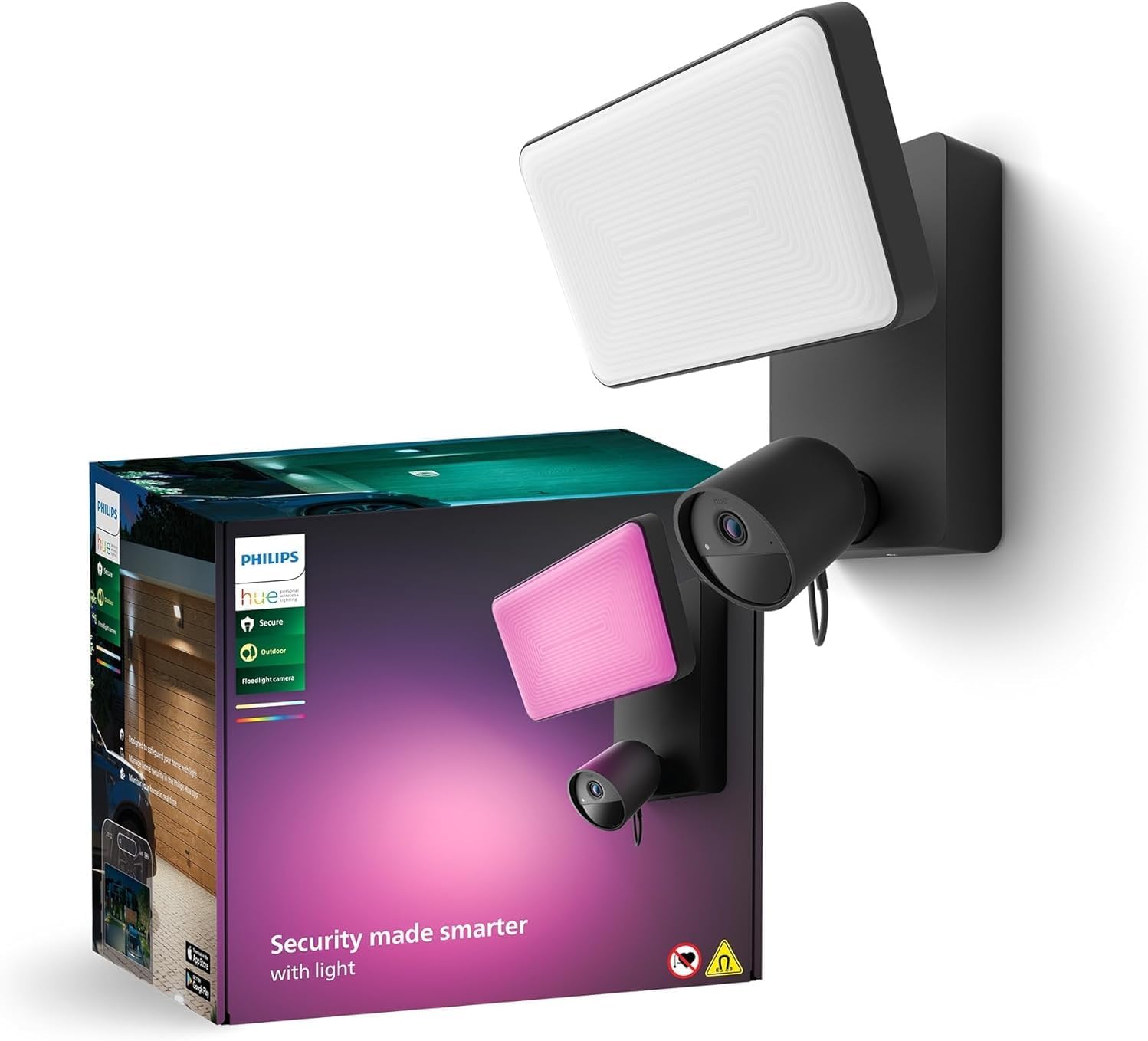
Why Does My Philips Hue Secure Camera Keep Going Offline?
- WiFi signal at camera location below minimum for stable stream
- Router DHCP lease renewal interrupting camera connection
- Camera connecting to 5GHz band causing intermittent drops
Problem Description
Your Philips Hue Secure camera repeatedly shows as offline in the Philips Hue app or the Home app even though it appears powered and positioned near a WiFi source. The camera may reconnect briefly after a power cycle then drop again. Hue Secure cameras connect via WiFi independent of the Hue Bridge Zigbee mesh and are therefore susceptible to standard WiFi disconnection causes including weak signal, DHCP lease issues, and router band compatibility.
Why This Happens in Real Homes
A Hue Secure camera dropping offline is a WiFi problem — it streams over WiFi, so a signal below the minimum at its mounting spot, or a router reassigning its IP, causes repeated drops.
Start by checking the camera's WiFi signal and improving it (move the router, add a mesh point, or relocate the camera), then reserve a fixed IP for it to stop DHCP-renewal disconnects. Keeping its firmware current clears the rest.
Symptoms
- Hue Secure camera shows offline in Philips Hue app repeatedly
- Camera reconnects after power cycle but drops offline again
- Live view fails to load with unable to connect error
- Camera offline events happen at similar times each day
- Camera connected to WiFi but Hue app shows it as unreachable
- Camera was working then went offline after router firmware update
Recognize these? Here's what usually causes it.
Common Causes
- WiFi signal at camera location below minimum for stable stream
- Router DHCP lease renewal interrupting camera connection
- Camera connecting to 5GHz band causing intermittent drops
- Router firmware update changed WiFi settings incompatibly
- Hue Secure camera firmware needs update for WiFi stability
- Power supply to camera interrupted causing repeated cold starts
Most fixes happen in the first 3 steps.
Do not place the Hue Secure camera lens facing direct sunlight. Overexposed images reduce motion detection accuracy and prolonged UV exposure degrades the camera enclosure over time.
Tools & Requirements
Step-by-Step Solution
Check WiFi Signal at Camera Location
The Philips Hue Secure camera requires a strong WiFi signal for HD video streaming. Stand at the camera location with your phone and check the 2.4GHz signal strength. The camera needs minus 65 dBm or better. If signal is weaker add a WiFi extender or mesh node close to the camera installation point. Unlike Hue lights the Secure camera connects via WiFi not Zigbee so it cannot use the Zigbee mesh for range extension.
Assign Static IP in Router
Log into your router admin panel and go to DHCP Reservations. Find the Hue Secure camera by MAC address from the Hue app device settings. Assign it a fixed IP address outside the dynamic DHCP range. DHCP lease renewals interrupt the camera connection briefly which the Hue app registers as an offline event. A static IP reservation eliminates these scheduled interruptions without requiring any changes to the camera itself.
Confirm 2.4GHz Connection
During camera setup the Philips Hue app connects the camera to your WiFi network. If your router uses the same SSID for 2.4GHz and 5GHz the camera may connect to 5GHz which provides less stable range and can cause intermittent drops. Log into your router and check which band the Hue Secure camera MAC is connected to. If on 5GHz create a separate 2.4GHz SSID and reconnect the camera through the Hue app using the 2.4GHz network exclusively.
Update Camera Firmware
Open the Philips Hue app and go to the Secure camera device settings. Check the firmware version and install any pending update. Hue Secure camera firmware updates often include WiFi driver stability improvements. After updating the camera will reboot and reconnect. Monitor the offline event frequency for 48 hours after the update before concluding whether the firmware resolved the disconnection cause.
Factory Reset and Re-Add Camera
Press and hold the reset button on the Hue Secure camera for 10 seconds until the LED flashes. After reset open the Philips Hue app and go to Add Light or Add Device. Scan for the camera and re-add it to your Hue system. Stand near your 2.4GHz router during the re-setup process. A fresh setup clears any corrupted WiFi configuration in the camera and often resolves persistent offline issues that survive firmware updates and power cycles.
Quick Solutions
Still having issues? This is usually the deeper cause below.
This usually happens right after a router reboot or ISP change — the device rejoins the network but drops its cloud session silently.
Install the Hue Secure camera with its power cable routed through a wall or conduit to prevent accidental disconnections that cause repeated cold-start offline events.
Most WiFi drop-offs happen right after a router reboot or ISP swap — the device reconnects to the network but silently loses its cloud registration.
- WiFi signal at camera location below minimum for stable
- Router DHCP lease renewal interrupting camera connection
- Camera connecting to 5GHz band causing intermittent drops
- Router firmware update changed WiFi settings incompatibly
- Hue Secure camera firmware needs update for WiFi stability
Before you go — try one of these (they fix most cases).
Official Manufacturer Manual
Philips Hue provides official product documentation through their online manual rather than downloadable PDF. Access setup guides, troubleshooting steps, and product specifications for your Philips Hue Secure Camera.
Source: philips-hue.com
Need More Help? Philips Hue Support
Note: The contact information below connects you directly to Philips Hue's official customer support team, not Trunetto. They can help with warranty claims, device replacements, and advanced technical issues.
How Does Philips Hue Compare?
Before replacing your Philips Hue device, see how it stacks up against alternatives in our full comparison guides.
Accessories owners commonly pair with Philips Hue Secure Camera.

SANDISK 64GB Extreme microSDXC UHS-I Memory Card with Ada...

SANDISK 128GB Ultra microSDXC UHS-I Memory Card with Adap...

SANDISK 64GB Ultra microSDXC UHS-I Memory Card with Adapt...
As an Amazon Associate we earn from qualifying purchases.