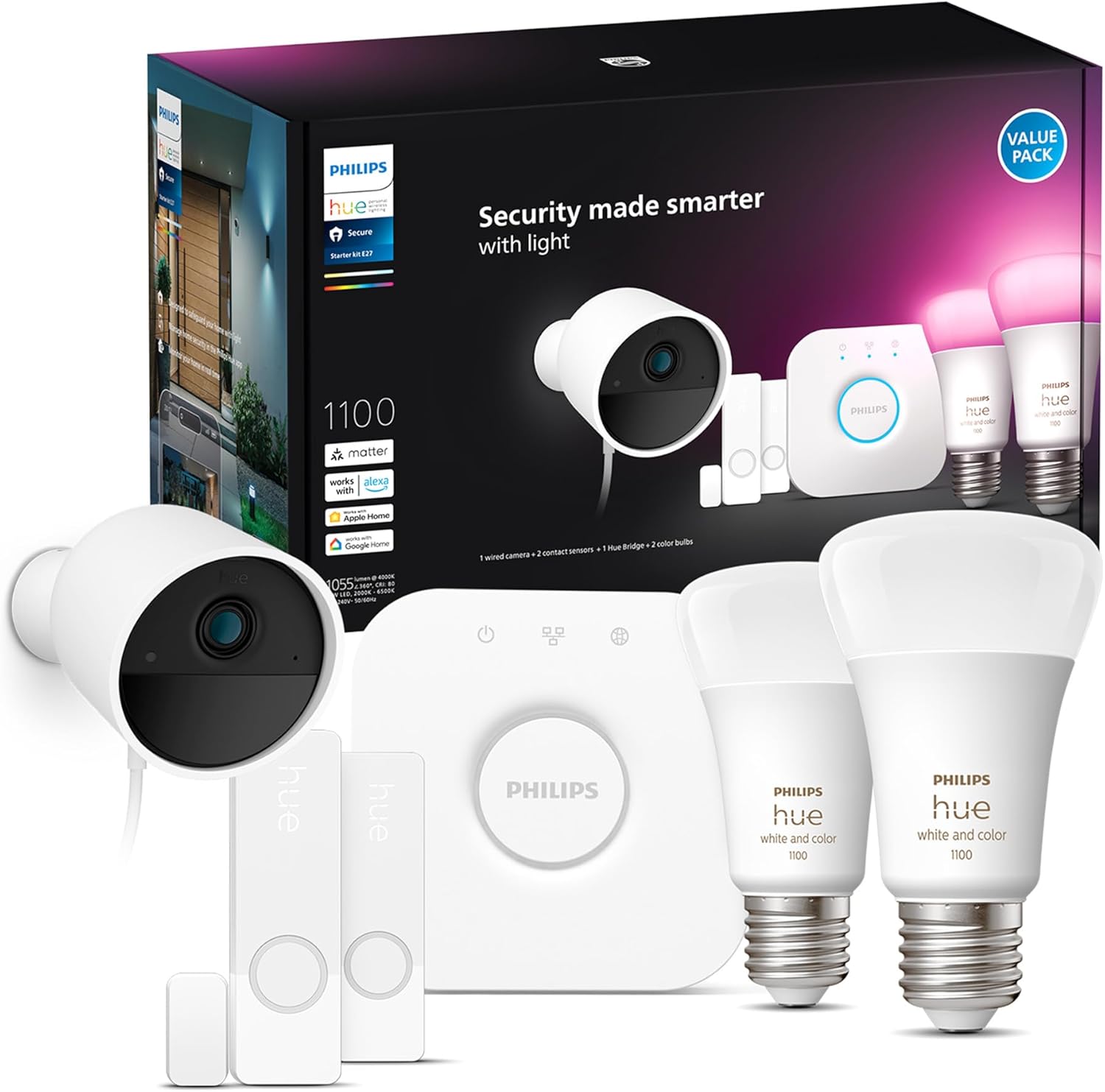
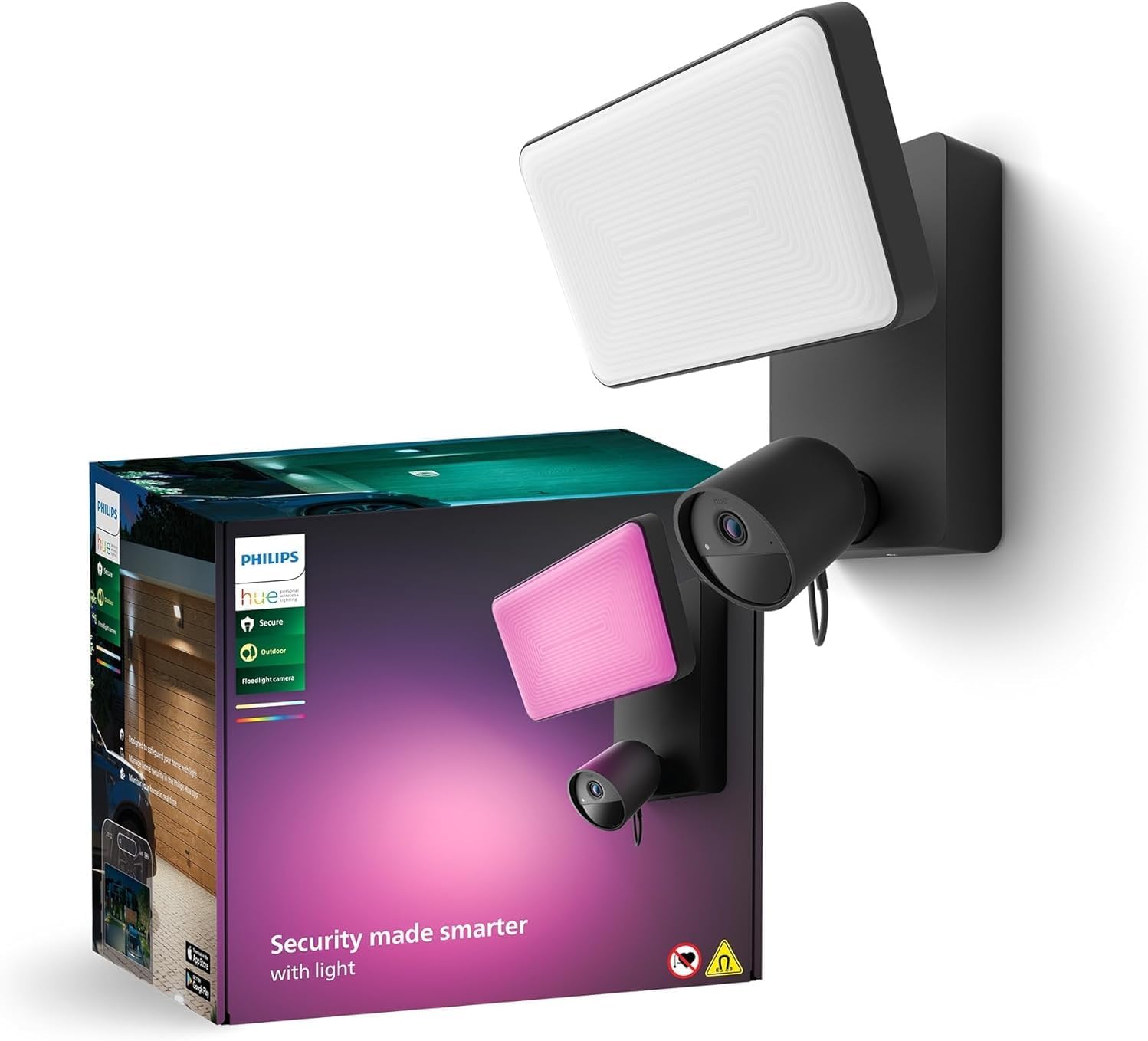
Why Won't My Philips Hue Secure Camera Detect Motion or Record?
- Motion detection toggled off in camera settings
- Activity zones excluding area with motion
- Sensitivity set too low for environment
Problem Description
Your Philips Hue Secure camera does not detect motion or record events. People walk in front of it but you get no notifications and no recordings. The camera live view works but motion detection seems completely broken. You expected the camera to alert you when someone approaches.
Why This Happens in Real Homes
When a Secure camera misses motion, the usual causes are motion detection toggled off, activity zones that exclude where movement happens, or sensitivity set too low.
Start by confirming motion detection is on for the camera, then check the activity zones actually cover the area you care about and raise sensitivity if needed. A camera aimed so people appear small or distant also detects poorly — framing matters as much as the settings.
Symptoms
- No motion notifications even when people walk by
- Camera live view works but no recordings
- Motion detection enabled but nothing detected
- Activity log shows no events for days
- Camera worked initially then stopped detecting
- Some cameras detect motion but this one does not
Recognize these? Here's what usually causes it.
Common Causes
- Motion detection toggled off in camera settings
- Activity zones excluding area with motion
- Sensitivity set too low for environment
- Camera not subscribed to Hue Secure plan
- Camera connected to Hue Bridge without internet
- Camera lens dirty blocking motion sensor
Most fixes happen in the first 3 steps.
Cloud recording requires internet connection to your Hue Bridge. If internet is down recordings are stored locally with limited capacity.
Tools & Requirements
These tools will help you complete this fix.
As an Amazon Associate we earn from qualifying purchases.
Step-by-Step Solution
Verify Motion Detection Enabled
Open the Hue Secure app and tap your camera. Go to Settings then Motion Detection. Make sure the motion detection toggle is on. Some modes like Home or Sleep may have motion detection disabled. Check your current mode and its detection settings.
Check Activity Zones
In camera settings tap Activity Zones. If zones are defined the camera only detects motion inside those zones. If your zones miss the areas where people walk you will get no detections. Adjust zones to cover entry points and walkways or disable zones to detect motion anywhere.
Increase Sensitivity
Motion sensitivity determines how much movement triggers detection. Low sensitivity may miss slow walking or small movements. In camera settings find Motion Sensitivity and increase it. Test by walking through frame at various speeds to verify detection works.
Verify Hue Secure Subscription
Without a Hue Secure subscription you may not get motion recordings or notifications. Check your subscription status in the Hue Secure app under Settings then Subscription. The free tier has limited features. Full motion recording requires paid subscription.
Clean Camera Lens
Dust and smudges on the camera lens can block the motion sensor which is separate from the video lens. Use a soft dry cloth to gently clean the entire front face of the camera. The PIR motion sensor has a small window that must be clear for detection.

Needed for this step
WHOOSH! Pro 16.9 fl oz Refillable TV Screen Cle...
This helps complete the fix you are currently reading.
$19.99Quick Solutions
Still having issues? This is usually the deeper cause below.
If the sensor still misses events after repositioning, check whether a scheduled 'home' or 'away' mode is overriding the sensitivity setting silently.
Philips Hue Secure cameras can trigger Hue lights when motion is detected. This creates a spotlight effect without needing a separate motion sensor.
Live view problems that start suddenly usually trace back to an upload speed drop — the camera itself is fine, the bandwidth path to the cloud isn't.
- Motion detection toggled off in camera settings
- Activity zones excluding area with motion
- Sensitivity set too low for environment
- Camera not subscribed to Hue Secure plan
- Camera connected to Hue Bridge without internet
Before you go — try one of these (they fix most cases).
Official Manufacturer Manual
Philips Hue provides official product documentation through their online manual rather than downloadable PDF. Access setup guides, troubleshooting steps, and product specifications for your Philips Hue Secure Camera.
Source: philips-hue.com
Need More Help? Philips Hue Support
Note: The contact information below connects you directly to Philips Hue's official customer support team, not Trunetto. They can help with warranty claims, device replacements, and advanced technical issues.
How Does Philips Hue Compare?
Before replacing your Philips Hue device, see how it stacks up against alternatives in our full comparison guides.
Accessories owners commonly pair with Philips Hue Secure Camera.

Philips Hue Outdoor Motion Sensor, 1 Pack, Automatic Dusk...

Philips Hue Discover Outdoor Smart Flood Light Fixture, B...

Philips Hue Discover Outdoor Smart Flood Light Fixture, B...
As an Amazon Associate we earn from qualifying purchases.