How Do I Set Up the Philips Hue Secure Camera?
- Camera or phone on 5GHz (needs 2.4GHz for setup)
- Weak WiFi at the camera location
- Pairing step not completed
Problem Description
Your Philips Hue Hue Secure Camera is having trouble during initial setup, installation, or configuration. Getting the Hue Secure Camera properly connected and configured is essential before it can be controlled through the Philips Hue app or integrated with your smart home system. Specifically, the issue involves setup. The steps below walk you through diagnosing the root cause and applying proven fixes so your Hue Secure Camera works reliably again.
Why This Happens in Real Homes
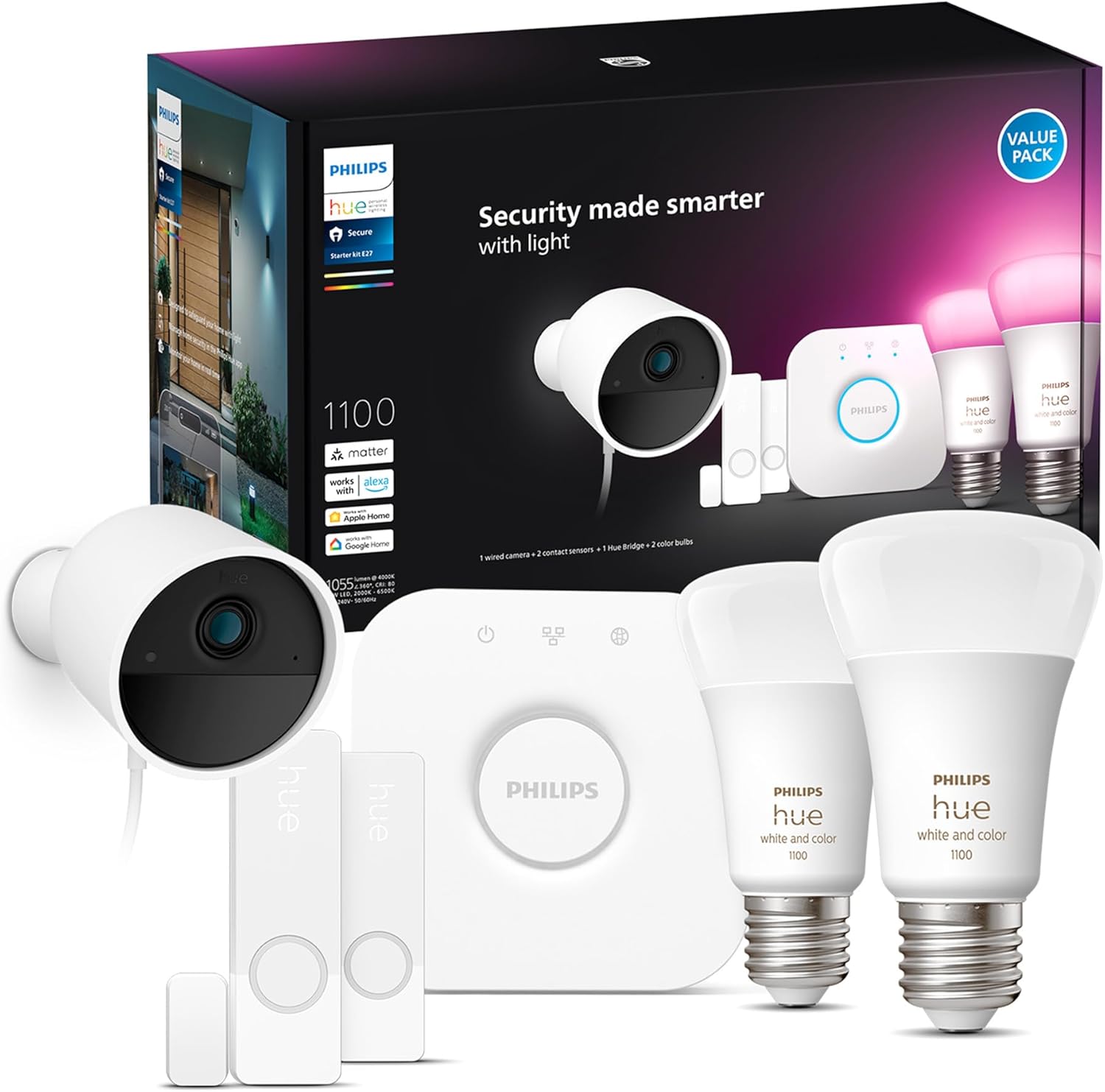
Unlike Hue's Zigbee bulbs, the Hue Secure cameras are WiFi devices, so their setup follows camera rules: 2.4GHz for pairing and a solid signal at the mounting spot. They come in indoor and outdoor versions, and while the camera streams over WiFi, the Bridge ties Secure into the wider Hue system for automations and alarms.
Start by pairing with your phone on 2.4GHz near the router, confirm the signal reaches the camera's location, and complete the in-app pairing fully. Set up the Hue Bridge if you want the camera to work with Hue's security features rather than just live view.
Symptoms
- Camera will not complete setup
- App cannot find the camera
- Indoor vs outdoor setup questions
- Camera offline after setup
- Will not connect to WiFi
- No video after adding
- Needs a Bridge or not question
- Firmware update stalls at setup
Recognize these? Here's what usually causes it.
Common Causes
- Camera or phone on 5GHz (needs 2.4GHz for setup)
- Weak WiFi at the camera location
- Pairing step not completed
- Camera not added in the Hue app correctly
- Bridge not set up (needed for full Hue Secure features)
- Outdoor camera power or cabling issue
- Firmware update pending
- Router AP isolation blocking the camera
Most fixes happen in the first 3 steps.
Security cameras should be installed at least 8 feet high to prevent tampering. Check local laws regarding recording audio and video. Never aim cameras at neighboring private property. Outdoor cameras should be rated IP65 or higher for weather resistance.
Tools & Requirements
These tools will help you complete this fix.

Clean microfiber cloth
MR.SIGA Microfiber Cleaning Cloth,Pack of 12,Size:12...

Ethernet cable
Jadaol Cat 6 Ethernet Cable 25 ft, 10Gbps Support Ca...

Level
9 Inch Torpedo Level Magnetic, Shock-Proof Small Lev...

Power adapter
JcBlaon Outlet Extender Surge Protector - 6 Outlet S...

Replacement batteries
Duracell Coppertop Double AA Batteries with Power Bo...
As an Amazon Associate we earn from qualifying purchases.
Step-by-Step Solution
Mount the Hue Secure camera
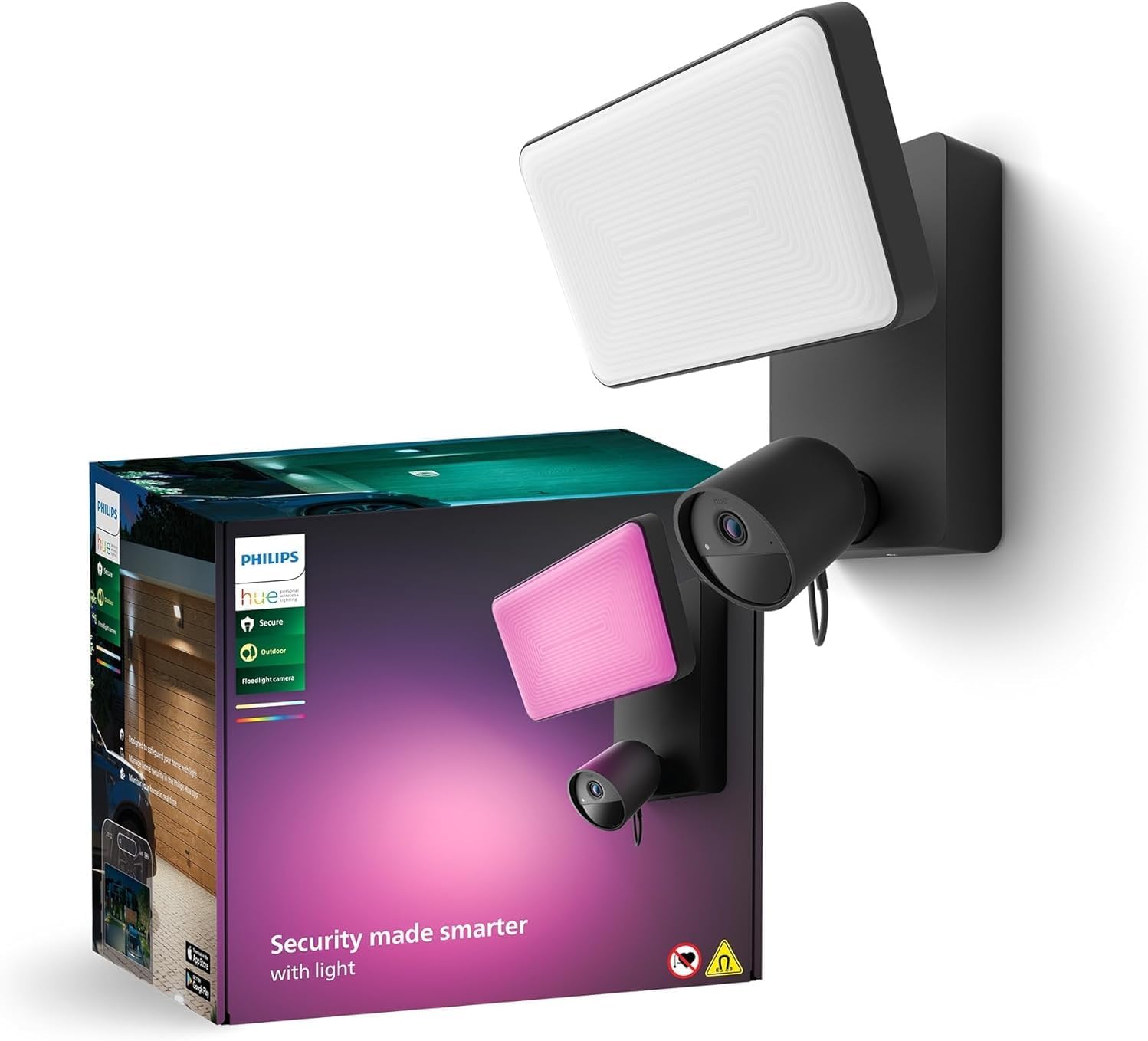
The Philips Hue Secure camera is available in indoor and outdoor versions. The indoor model is battery-powered or USB-powered. The outdoor model is wired (IP65 weatherproof). Mount at the desired location — the camera has a magnetic mount for easy positioning. The field of view is approximately 150 degrees. Position to cover entry points, driveways, or living areas. Connect USB power (indoor) or wired power (outdoor) for continuous operation.
Needed for this step
JcBlaon Outlet Extender Surge Protector - 6 Out...
This helps complete the fix you are currently reading.
$9.99Add to the Hue Bridge
In the Hue app, go to Settings > Accessories > Add Accessory > Hue Secure Camera. Scan the setup code on the camera. The camera connects to the Hue Bridge via WiFi (not Zigbee — cameras use WiFi for video bandwidth). Connect to your 2.4GHz or 5GHz WiFi. After connecting, the camera appears in the Hue app with live view, motion detection, and recording options.
Configure motion detection and alerts
In the Hue app, go to the camera > Detection. Enable motion detection. Set detection zones to monitor specific areas and ignore others (exclude sidewalks, streets). Set sensitivity level. Enable push notifications for motion events. The camera can distinguish between people and other motion (person detection available with Hue Secure subscription). Notifications include a snapshot from the event.
Needed for this step
9 Inch Torpedo Level Magnetic, Shock-Proof Smal...
This helps complete the fix you are currently reading.
$6.99Set up recording and storage
The Hue Secure camera supports local recording (to a microSD card in the Hue Bridge if supported, or on-device) and cloud recording (with a Hue Secure subscription at $3.99/month per camera or $9.99/month for all cameras). Cloud recording stores motion-triggered clips for 30 days. Without a subscription, you get live view and notifications but no recorded playback. Video is end-to-end encrypted.
Integrate with Hue lights for security automation
In the Hue app, create automations that link the camera to your Hue lights. Example: when the camera detects motion after dark, flash the porch lights to deter intruders. When the camera detects a person at the front door, turn on the hallway lights. These automations work through the Hue Bridge locally — they function even during internet outages. The camera integrates into the existing Hue ecosystem without needing a separate security app.
Quick Solutions
Still having issues? This is usually the deeper cause below.
Camera issues that start suddenly almost always trace back to an upload bandwidth drop — run a speed test before assuming hardware failure.
Set up activity zones to monitor only the areas that matter like your front porch and driveway and exclude the street. This dramatically reduces false alerts while ensuring you never miss an actual event at your property.
Live view problems that start suddenly usually trace back to an upload speed drop — the camera itself is fine, the bandwidth path to the cloud isn't.
- Camera or phone on 5GHz (needs 2.4GHz for setup)
- Weak WiFi at the camera location
- Pairing step not completed
- Camera not added in the Hue app correctly
- Bridge not set up (needed for full Hue Secure
Before you go — try one of these (they fix most cases).
Official Manufacturer Manual
Philips Hue provides official product documentation through their online manual rather than downloadable PDF. Access setup guides, troubleshooting steps, and product specifications for your Hue Secure Camera.
Source: philips-hue.com
Need More Help? Philips Hue Support
Note: The contact information below connects you directly to Philips Hue's official customer support team, not Trunetto. They can help with warranty claims, device replacements, and advanced technical issues.
How Does Philips Hue Compare?
Before replacing your Philips Hue device, see how it stacks up against alternatives in our full comparison guides.
Accessories owners commonly pair with Hue Secure Camera.

Philips Hue Outdoor Motion Sensor, 1 Pack, Automatic Dusk...

Philips Hue Discover Outdoor Smart Flood Light Fixture, B...

Philips Hue Discover Outdoor Smart Flood Light Fixture, B...
As an Amazon Associate we earn from qualifying purchases.