Ring Error Code P1-73 During Setup or Reconnection
- Setup token expired during provisioning
- Router changed security profile mid-setup
- Device pairing state became stale after interrupted attempt
Problem Description
Ring error code P1-73 appears during setup or reconnection when the device cannot complete pairing and Wi-Fi handoff. This is a code-specific failure state, not a generic weak-signal warning.
Symptoms
- Ring app shows P1-73 during setup
- Setup fails before completion
- Reconnection loops repeatedly
- Device remains offline after retry
- Doorbell or camera cannot finish Wi-Fi join
- Device appears in app but cannot finalize activation
Recognize these? Here's what usually causes it.
Common Causes
- Setup token expired during provisioning
- Router changed security profile mid-setup
- Device pairing state became stale after interrupted attempt
- 2.4GHz onboarding path unstable
- Old setup session still cached in Ring app
- Reconnection started before previous state was fully cleared
Most fixes happen in the first 3 steps.
Do not keep retrying setup without clearing stale device state first, because repeated partial enrollments can make recovery harder.
Tools & Requirements
Step-by-Step Solution
Confirm code-specific failure pattern
Validate that the app explicitly shows P1-73 during setup or reconnection. This confirms a provisioning-state failure path and avoids treating it as a generic Wi-Fi quality issue.
Clear stale setup state first
In Ring app, remove any partially created device record for the same unit. If needed, reset the Ring device setup mode cleanly before starting again so old session fragments do not block registration.
Stabilize onboarding network path
Use a stable 2.4GHz SSID with consistent security settings during setup. Avoid band-steering changes and avoid moving between access points mid-onboarding.
Re-run setup in one uninterrupted pass
Complete setup without switching apps or changing network settings. If setup pauses, restart from the beginning after a short power cycle on both router and Ring device.
Validate reconnect completion and alerts
After setup succeeds, confirm live view, event delivery, and push alerts. This verifies P1-73 recovery is complete and the device is not left in a half-provisioned state.
Quick Solutions
Still having issues? This is usually the deeper cause below.
If the keypad rejects valid codes, a lockout timer may be running — five failed entries locks most keypads silently for 5–10 minutes.
If P1-73 returns repeatedly after clean setup, capture exact setup stage and escalate with device model + app build for faster triage.
This issue almost always looks more complex than it is — the majority of cases trace back to a single setting, a stale credential, or a default that shipped wrong.
- Setup token expired during provisioning
- Router changed security profile mid-setup
- Device pairing state became stale after interrupted attempt
- 2.4GHz onboarding path unstable
- Old setup session still cached in Ring app
Before you go — try one of these (they fix most cases).
Most popular upgrades chosen by Ring Camera owners.

4 Channel 360° Dash Cam Front Rear Inside & Left Right,4K...
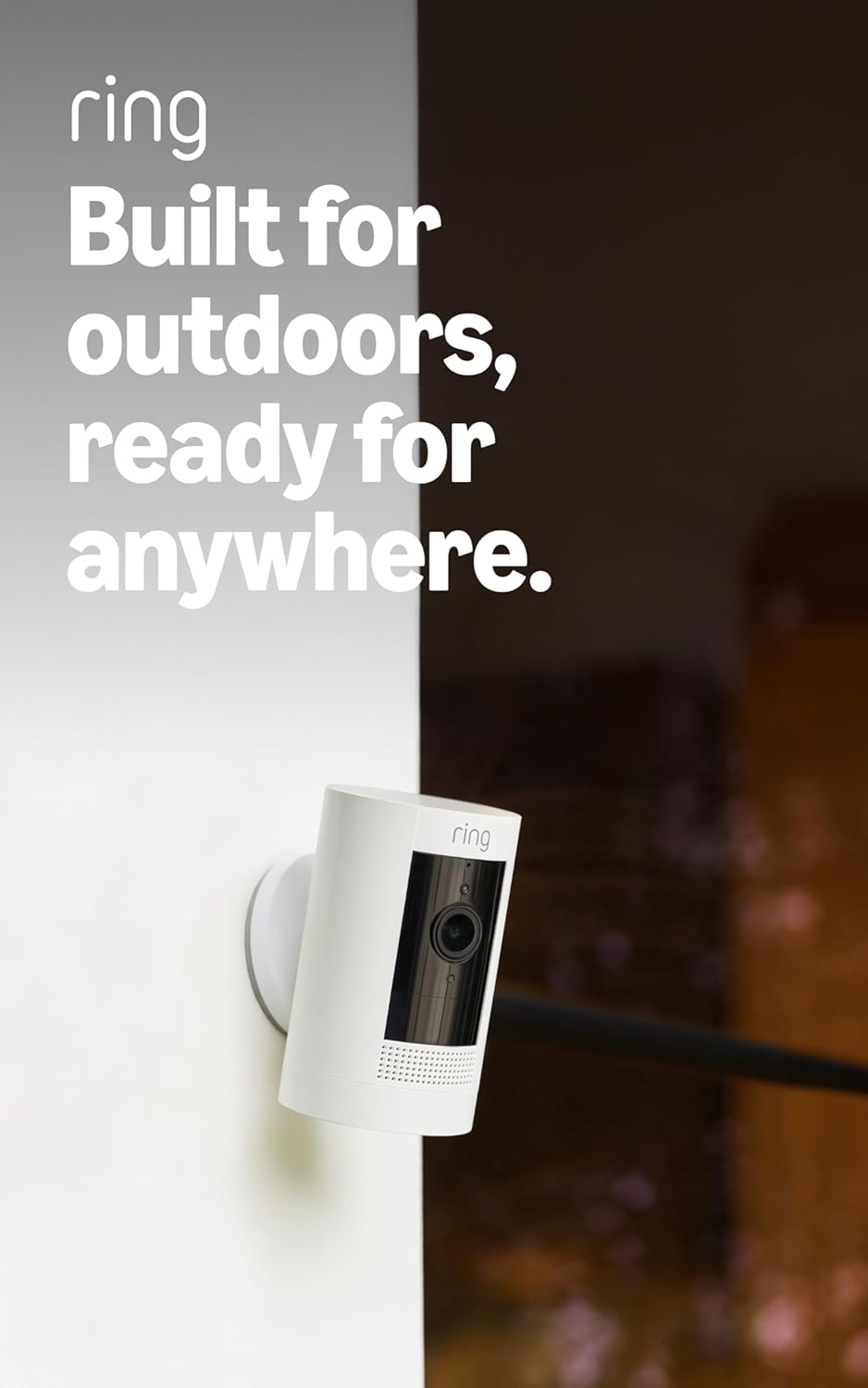
Ring Outdoor Cam (Stick Up Cam), Weather-resistant home o...
Ring Outdoor Cam (Stick Up Cam) | Weather-Resistant Outdo...
As an Amazon Associate we earn from qualifying purchases.
Official Manufacturer Manual
If you need the complete manufacturer documentation for advanced setup, wiring diagrams, or detailed specifications, you can download the official manual below. The manual includes full technical instructions directly from the manufacturer and may help if your issue requires deeper troubleshooting.
Download the Official Ring Camera ManualSource: ring.com
Need More Help? Ring Support
Note: The contact information below connects you directly to Ring's official customer support team, not Trunetto. They can help with warranty claims, device replacements, and advanced technical issues.
How Does Ring Compare?
Before replacing your Ring device, see how it stacks up against alternatives in our full comparison guides.