Why Does My Ring Camera Live View Show a Black Screen?
- Camera WiFi signal too weak for live video streaming
- Router upload bandwidth insufficient for HD streaming
- Ring app needs update or cache is corrupted
Problem Description
Your Ring camera Live View shows a black screen a spinning wheel or an error message when you try to view the real-time feed. Recorded events may play back fine but the live stream will not connect. This prevents you from checking on your home in real time which is critical during security events. The issue is usually caused by WiFi bandwidth problems Ring server delays or the camera being in a low-power sleep state.
Why This Happens in Real Homes
A black screen on live view while recorded events play fine means the camera hardware is working — the issue is with the real-time streaming connection. Live view requires a persistent two-way data connection between your phone, Ring's servers, and the camera. If any link in that chain is slow or blocked, you get a black screen. The number one cause is your phone being on a network that blocks WebRTC or certain ports Ring uses for streaming. Try switching from WiFi to cellular on your phone. If live view works on cellular but not WiFi, your router is blocking the stream.
Symptoms
- Live View shows black screen with spinning indicator
- App says activating device but never connects
- Live View works sometimes but fails at other times
- Recorded events play fine but live stream will not load
- Takes 30 or more seconds before live feed appears
- Live View fails on cellular data but works on WiFi
Recognize these? Here's what usually causes it.
Common Causes
- Camera WiFi signal too weak for live video streaming
- Router upload bandwidth insufficient for HD streaming
- Ring app needs update or cache is corrupted
- Camera in deep sleep mode taking too long to wake
- VPN or firewall blocking Ring streaming ports
- Ring servers experiencing high load or regional outage
Most fixes happen in the first 3 steps.
Repeatedly tapping the Live View button when it fails to load can trigger a rate limit on Ring servers causing even longer delays. Wait at least 30 seconds between attempts.
Tools & Requirements
These tools will help you complete this fix.

Power adapter
JcBlaon Outlet Extender Surge Protector - 6 Outlet S...

Replacement batteries
Duracell Coppertop Double AA Batteries with Power Bo...
As an Amazon Associate we earn from qualifying purchases.
Step-by-Step Solution
Check WiFi Signal Strength
Open the Ring app tap the camera then Device Health. Check the WiFi signal strength shown as RSSI. A value of negative 40 to negative 50 is excellent. Negative 60 to negative 65 is acceptable. Anything worse than negative 65 will cause Live View failures. If signal is weak move your router closer install a WiFi extender or use a Ring Chime Pro as a WiFi extender for Ring devices.
Power Cycle the Camera
For wired cameras unplug the power adapter for 10 seconds then replug. For battery cameras remove the battery wait 10 seconds and reinsert. This forces a full reboot and clears any stuck processes that prevent the live stream from initializing. After power cycle wait 60 seconds for the camera to reconnect before trying Live View.
Needed for this step
JcBlaon Outlet Extender Surge Protector - 6 Out...
This helps complete the fix you are currently reading.
$9.99Update and Clear App Cache
Update the Ring app to the latest version from your app store. Then force close the app completely and reopen it. On Android you can also clear the app cache in Settings then Apps then Ring then Storage then Clear Cache. Outdated app versions and corrupted cache data are common causes of Live View streaming failures.
Reduce Video Quality Setting
In the Ring app go to camera settings then Video Settings and reduce the quality from 1080p to 720p. Lower resolution requires less bandwidth and connects faster. If Live View works at 720p but fails at 1080p your WiFi upload speed is the bottleneck. Consider upgrading your internet plan or optimizing router settings for the camera.
Check Network and Firewall
Disable any VPN on your phone before opening Live View as VPNs add latency that causes timeouts. If you are on a corporate or restricted WiFi network it may block the ports Ring uses for streaming. Try switching to cellular data to test. Also check your router firewall settings and make sure no outbound traffic blocking rules affect the Ring camera IP address.
Quick Solutions
Still having issues? This is usually the deeper cause below.
Camera issues that start suddenly almost always trace back to an upload bandwidth drop — run a speed test before assuming hardware failure.
Enable Snapshot Capture in camera settings. This takes photos every few minutes so you can see recent activity even when Live View is slow to connect giving you immediate visual context.
A black screen after connecting is almost always the IR cut filter stuck mid-position — a power cycle resets the mechanical component in under a minute.
- Camera WiFi signal too weak for live video streaming
- Router upload bandwidth insufficient for HD streaming
- Ring app needs update or cache is corrupted
- Camera in deep sleep mode taking too long to
- VPN or firewall blocking Ring streaming ports
Before you go — try one of these (they fix most cases).
Most popular upgrades chosen by Ring Camera owners.

4 Channel 360° Dash Cam Front Rear Inside & Left Right,4K...
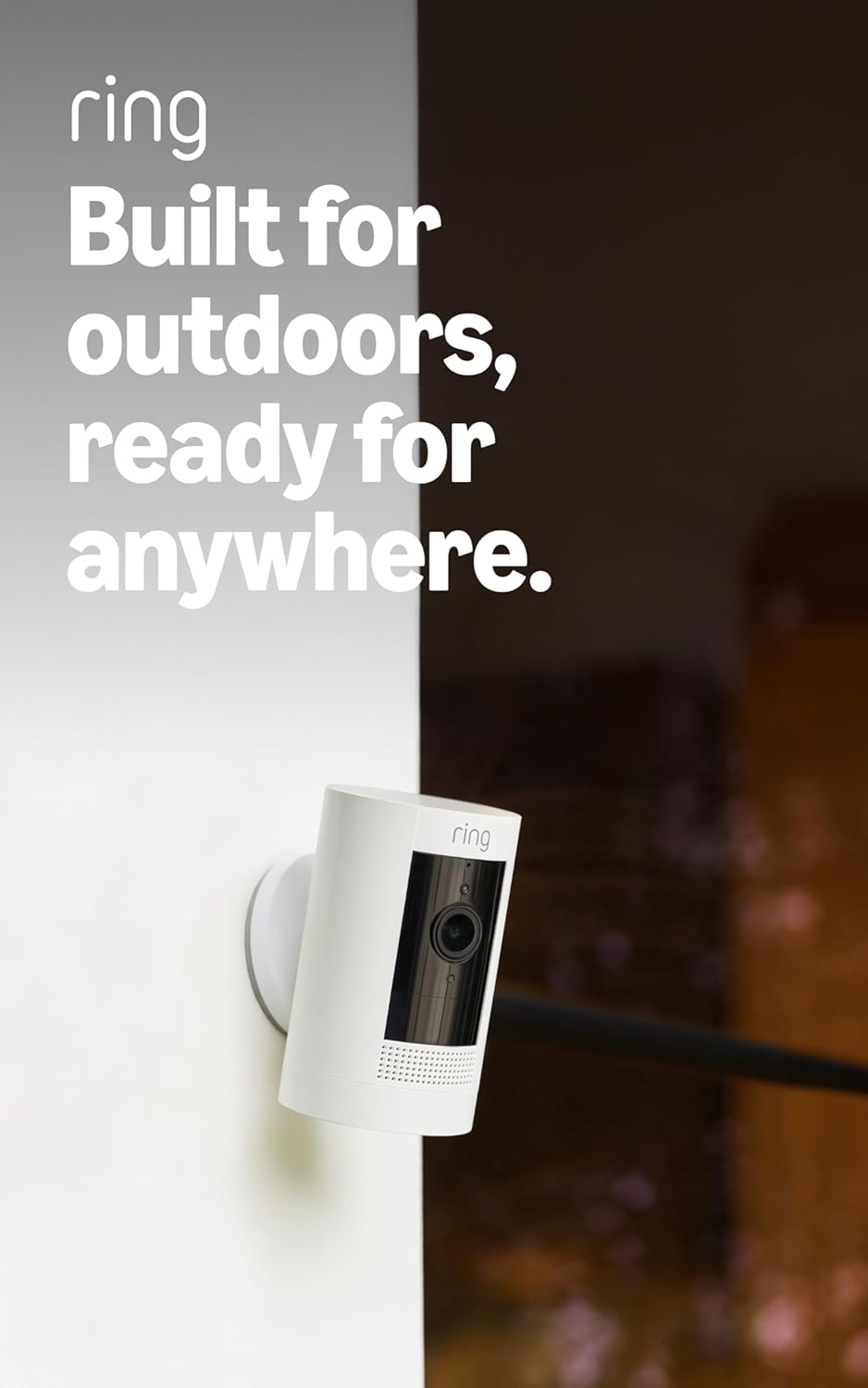
Ring Outdoor Cam (Stick Up Cam) | Weather-Resistant Outdo...
Ring Outdoor Cam (Stick Up Cam), Weather-resistant home o...
As an Amazon Associate we earn from qualifying purchases.
Official Manufacturer Manual
If you need the complete manufacturer documentation for advanced setup, wiring diagrams, or detailed specifications, you can download the official manual below. The manual includes full technical instructions directly from the manufacturer and may help if your issue requires deeper troubleshooting.
Download the Official Ring Camera ManualSource: ring.com
Need More Help? Ring Support
Note: The contact information below connects you directly to Ring's official customer support team, not Trunetto. They can help with warranty claims, device replacements, and advanced technical issues.
How Does Ring Compare?
Before replacing your Ring device, see how it stacks up against alternatives in our full comparison guides.