

Why Won't My Nest WiFi Pro Satellite Connect to the Main Point?
- Satellite placed too far from primary point during initial pairing
- 6GHz backhaul requires line-of-sight between mesh points
- Previous network configuration in satellite memory blocking pairing
Problem Description
Your Nest WiFi Pro satellite mesh point will not connect to the primary Nest WiFi Pro router during setup or after a power outage. The Google Home app shows the satellite as offline or cannot find it during the Add Device wizard. Nest WiFi Pro uses the 6GHz band for its backhaul link and satellite setup requires the new point to be placed within 4.5 metres of the primary router during initial pairing before being moved to its final location.
Why This Happens in Real Homes
A Nest WiFi Pro satellite that won't join the main point is nearly always a backhaul-distance or setup-order problem. The Pro uses a fast wireless backhaul (including 6GHz), which is quick but short-range and easily blocked, so a satellite placed too far or behind a couple of walls simply can't hear the primary well enough to pair.
Start by moving the satellite much closer to the main point to complete pairing, then relocate it gradually to find the farthest spot that still holds a strong link. Power-cycling the primary first, then the satellite, and confirming both are on current firmware clears most stubborn cases.
Symptoms
- Google Home app cannot find Nest WiFi Pro satellite during setup
- Satellite shows offline in Google Home after a power outage
- Setup wizard finds satellite but cannot complete mesh connection
- Satellite connects briefly then shows as offline repeatedly
- Mesh point shows as unreachable despite being near the primary
- Other mesh points work but this specific satellite stays offline
Recognize these? Here's what usually causes it.
Common Causes
- Satellite placed too far from primary point during initial pairing
- 6GHz backhaul requires line-of-sight between mesh points
- Previous network configuration in satellite memory blocking pairing
- Google Home app account not matching the primary router account
- Satellite firmware not updated before attempting mesh connection
- Thick concrete or brick walls blocking 6GHz backhaul signal
Most fixes happen in the first 3 steps.
Do not place the satellite directly behind a microwave or near a 6GHz cordless phone base station as these devices operate on frequencies that interfere with the Nest WiFi Pro backhaul link.
Tools & Requirements
Step-by-Step Solution
Place Satellite Near Primary During Setup
During initial setup the Nest WiFi Pro satellite must be within 4.5 metres of the primary router with a clear line of sight between them. The 6GHz mesh backhaul has limited wall penetration. Plug in the satellite, wait 60 seconds for it to boot, then open Google Home and tap Add then Set up device then New device. The app will scan for the satellite. Keep the satellite at this close distance until the app confirms successful mesh connection before moving it to its intended room.
Factory Reset the Satellite
Hold the reset button on the bottom of the Nest WiFi Pro satellite for 10 seconds until the LED indicator changes. A factory reset clears any previous network configuration or failed pairing data stored in the device. After the reset light stabilises wait 2 minutes for the device to complete its startup sequence then retry the Add Device wizard in Google Home from the beginning with the satellite still near the primary router.
Verify Google Account Consistency
All Nest WiFi Pro mesh points must be added to the same Google account and the same Home in the Google Home app. If you have multiple Google accounts on your phone confirm the active account in Google Home matches the account that owns the primary router. Tap the profile icon in Google Home and verify the account. Mismatched accounts prevent satellite discovery even when both devices are physically close and on the same network.
Check Backhaul Path for Obstructions
After initial pairing move the satellite to its intended final location. If it shows offline after moving the 6GHz backhaul signal is blocked by walls or metal objects. Concrete walls reduce 6GHz range by 60 percent compared to open air. Try positions in adjacent rooms or hallways where the line to the primary is less obstructed. Nest WiFi Pro indicates signal quality during setup so use the app feedback to find the best final placement position.
Update Google Home App and Retry
Open the App Store or Google Play and update Google Home to the latest version. Some Google Home versions have known bugs where satellite devices fail to complete mesh setup even when physically close to the primary. After updating the app force close it and reopen before starting the satellite setup wizard. If the satellite still will not connect after a firmware-updated factory reset contact Google support with the device serial number for advanced mesh diagnostics.
Quick Solutions
Still having issues? This is usually the deeper cause below.
This usually happens right after a router reboot or ISP change — the device rejoins the network but drops its cloud session silently.
Position Nest WiFi Pro satellites in open spaces like hallways or living rooms rather than inside closets or behind entertainment centres where wall and metal obstructions reduce 6GHz backhaul performance.
Most WiFi drop-offs happen right after a router reboot or ISP swap — the device reconnects to the network but silently loses its cloud registration.
- Satellite placed too far from primary point during initial
- 6GHz backhaul requires line-of-sight between mesh points
- Previous network configuration in satellite memory blocking pairing
- Google Home app account not matching the primary router
- Satellite firmware not updated before attempting mesh connection
Before you go — try one of these (they fix most cases).
Most popular upgrades chosen by Nest WiFi Pro owners.
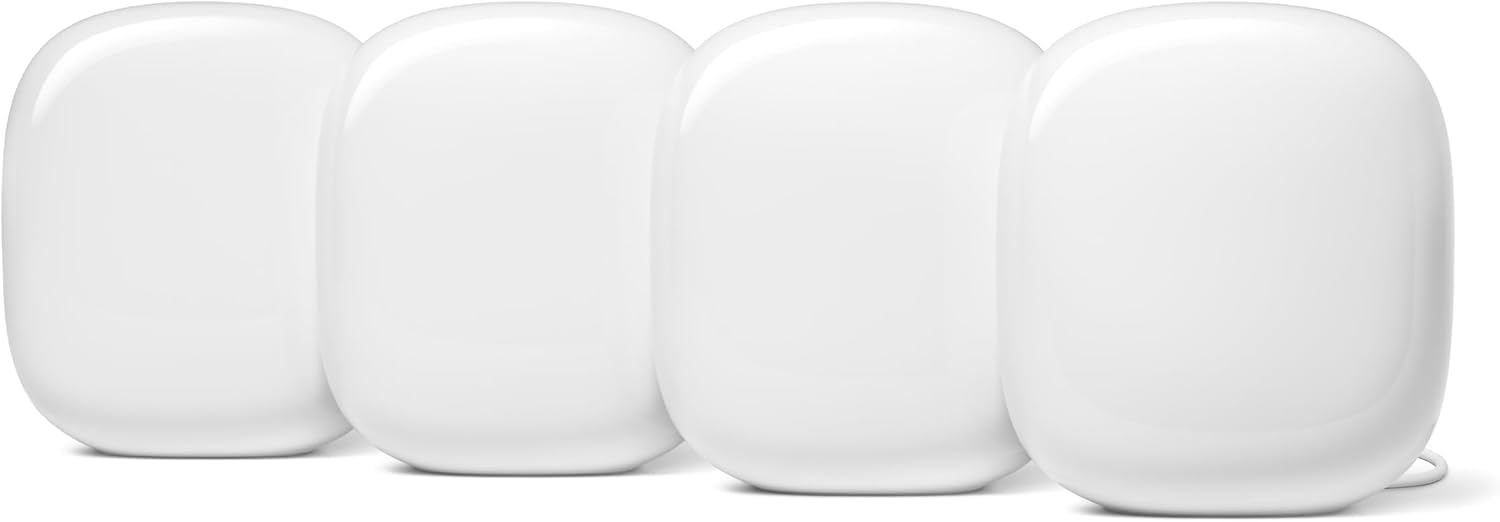
Google Nest WiFi Pro - Wi-Fi 6E - Reliable Home Wi-Fi Sys...

Google Nest WiFi Pro - Wi-Fi 6E - Reliable Home Wi-Fi Sys...

Google Nest WiFi Pro - Wi-Fi 6E - Reliable Home Wi-Fi Sys...
As an Amazon Associate we earn from qualifying purchases.
Official Manufacturer Manual
Google Nest provides official product documentation through their online manual rather than downloadable PDF. Access setup guides, troubleshooting steps, and product specifications for your Nest WiFi Pro.
Source: support.google.com
Need More Help? Google Nest Support
Note: The contact information below connects you directly to Google Nest's official customer support team, not Trunetto. They can help with warranty claims, device replacements, and advanced technical issues.
How Does Google Nest Compare?
Before replacing your Google Nest device, see how it stacks up against alternatives in our full comparison guides.


