

Why Does My Google Nest Thermostat Keep Disconnecting From WiFi?
- Weak WiFi signal at the thermostat location inside the wall
- Router configured to drop idle connections after a timeout period
- Thermostat not receiving enough power from HVAC wiring to maintain WiFi
Problem Description
Your Nest thermostat keeps disconnecting from WiFi every few days or weeks and you have to manually reconnect it each time. The most common cause is low battery voltage — without a C-wire, the thermostat charges from HVAC power cycles and may not maintain enough voltage (needs 3.6V+) to keep the WiFi radio active. Check the voltage under Settings > Technical Info on the thermostat.
Why This Happens in Real Homes
About 40 percent of Nest WiFi disconnection issues are caused by insufficient power (no C-wire) draining the battery and causing the WiFi module to shut down to conserve energy. Another 30 percent are weak WiFi signal at the thermostat location. Band-steering on dual-band routers causes about 20 percent. Users who install a C-wire and a WiFi extender report near-zero disconnections. The Nest Learning Thermostat 3rd gen has better WiFi performance than older models but is still limited to 2.4GHz.
Symptoms
- Nest thermostat shows offline in Google Home app intermittently
- WiFi icon on thermostat shows disconnected then reconnects
- Thermostat works locally but cannot be controlled from phone
- Connection drops at night and reconnects in the morning
- Thermostat loses WiFi after power cycling the router
- Energy history has gaps from periods when thermostat was offline
Recognize these? Here's what usually causes it.
Common Causes
- Weak WiFi signal at the thermostat location inside the wall
- Router configured to drop idle connections after a timeout period
- Thermostat not receiving enough power from HVAC wiring to maintain WiFi
- Router firmware update changed WiFi settings or band configuration
- 2.4 GHz channel congestion from neighboring WiFi networks
- DHCP lease expiration causing IP address conflicts
Most fixes happen in the first 3 steps.
Do not do a full factory reset (Reset > All) just to fix WiFi issues. A full reset erases all learning data, schedules, and equipment settings. Use Reset > Network instead, which only clears WiFi credentials. If your Nest frequently shows low battery alongside WiFi disconnections, address the power supply issue (C-wire) before troubleshooting WiFi — the disconnections are a symptom of insufficient power, not a WiFi problem.
Tools & Requirements
Step-by-Step Solution
Check the WiFi signal strength on the Nest
On the Nest thermostat, go to Settings > Network. Look at the signal strength indicator. If it shows weak signal (1-2 bars), the thermostat is too far from the router or there are too many walls between them. The Nest has a small WiFi antenna inside a metal backplate — it gets weaker signal than your phone at the same location. Check your phone WiFi signal at the thermostat position as a baseline.
Add a WiFi extender near the thermostat
Thermostats are installed based on HVAC wiring, not WiFi coverage. If the signal is weak, add a WiFi extender or mesh node in the hallway near the thermostat. A mesh system (Eero, Google WiFi, Orbi) is ideal because it provides smooth coverage. A basic WiFi extender plugged into a hallway outlet works too. Make sure the extender broadcasts on 2.4GHz — the Nest connects to 2.4GHz only.
Fix the 2.4GHz vs 5GHz issue
The Nest only connects to 2.4GHz WiFi. If your router uses a combined SSID with band-steering, the router may keep trying to move the Nest to 5GHz, causing disconnections. Create a separate 2.4GHz SSID on your router specifically for the Nest and other IoT devices. This is the single most common fix for Nest WiFi disconnection issues with modern routers.
Check for the Nest C-wire power issue
The Nest steals power from the HVAC system wires if there is no C-wire. This power-stealing can be unreliable, causing the Nest battery to drain, which makes the WiFi module disconnect to conserve power. Go to Settings > Equipment > Wiring and check if a C wire is connected. If not, install a Nest Power Connector or run a C wire from the furnace. This provides consistent power and eliminates WiFi drops from low battery.
Set a DHCP reservation on your router
Some routers aggressively recycle IP addresses, causing the Nest to briefly disconnect during DHCP renewal. Log into your router admin panel, find the Nest in the connected devices list, and create a DHCP reservation so it always gets the same IP. This eliminates disconnections caused by IP lease expiration.
Update the Nest firmware
Go to Settings > Software on the Nest and check the firmware version. The Nest updates automatically when connected to WiFi, but if it keeps disconnecting, it may miss updates. Keep the thermostat connected (fix signal strength first) and it will update within 24 hours. Firmware updates have improved WiFi reconnection behavior on the Nest Learning Thermostat and Nest Thermostat E.
Factory reset the Nest WiFi settings
If disconnections persist, reset the Nest network settings. Go to Settings > Reset > Network. This clears all saved WiFi credentials without affecting schedules or learning data. Reconnect to your WiFi network (use the dedicated 2.4GHz SSID). If the problem continues after a network reset with good signal and a C-wire, the Nest WiFi hardware may be failing — contact Google Nest support.
Quick Solutions
Still having issues? This is usually the deeper cause below.
This usually happens right after a router reboot or ISP change — the device rejoins the network but drops its cloud session silently.
The combination of no C-wire plus weak WiFi signal causes the worst disconnection problems. The Nest drains its battery because it cannot get enough power from the HVAC system, then shuts off WiFi to conserve the remaining charge, then reconnects when it gets enough power — creating a disconnect/reconnect cycle. Installing a C-wire or Nest Power Connector fixes the power side, and a WiFi extender fixes the signal side. Fix both for the most reliable connection.
Most WiFi drop-offs happen right after a router reboot or ISP swap — the device reconnects to the network but silently loses its cloud registration.
- Weak WiFi signal at the thermostat location inside the
- Router configured to drop idle connections
- Thermostat not receiving enough power from HVAC wiring to
- Router firmware update changed WiFi settings or band configuration
- 2.4 GHz channel congestion from neighboring WiFi networks
Before you go — try one of these (they fix most cases).
Most popular upgrades chosen by Google Nest Thermostat owners.

Google Nest Thermostat Trim Kit - Made for the Nest Therm...

Google Nest Thermostat Trim Kit - Made for the Nest Therm...

Google Nest Thermostat - Smart Thermostat for Home - Prog...
As an Amazon Associate we earn from qualifying purchases.
Official Manufacturer Manual
Google Nest provides official product documentation through their online manual rather than downloadable PDF. Access setup guides, troubleshooting steps, and product specifications for your Google Nest Thermostat.
Source: google.com
Need More Help? Google Nest Support
Note: The contact information below connects you directly to Google Nest's official customer support team, not Trunetto. They can help with warranty claims, device replacements, and advanced technical issues.
How Does Google Nest Compare?
Before replacing your Google Nest device, see how it stacks up against alternatives in our full comparison guides.
Accessories owners commonly pair with Google Nest Thermostat.

Ring Rechargeable Quick Release Battery Pack
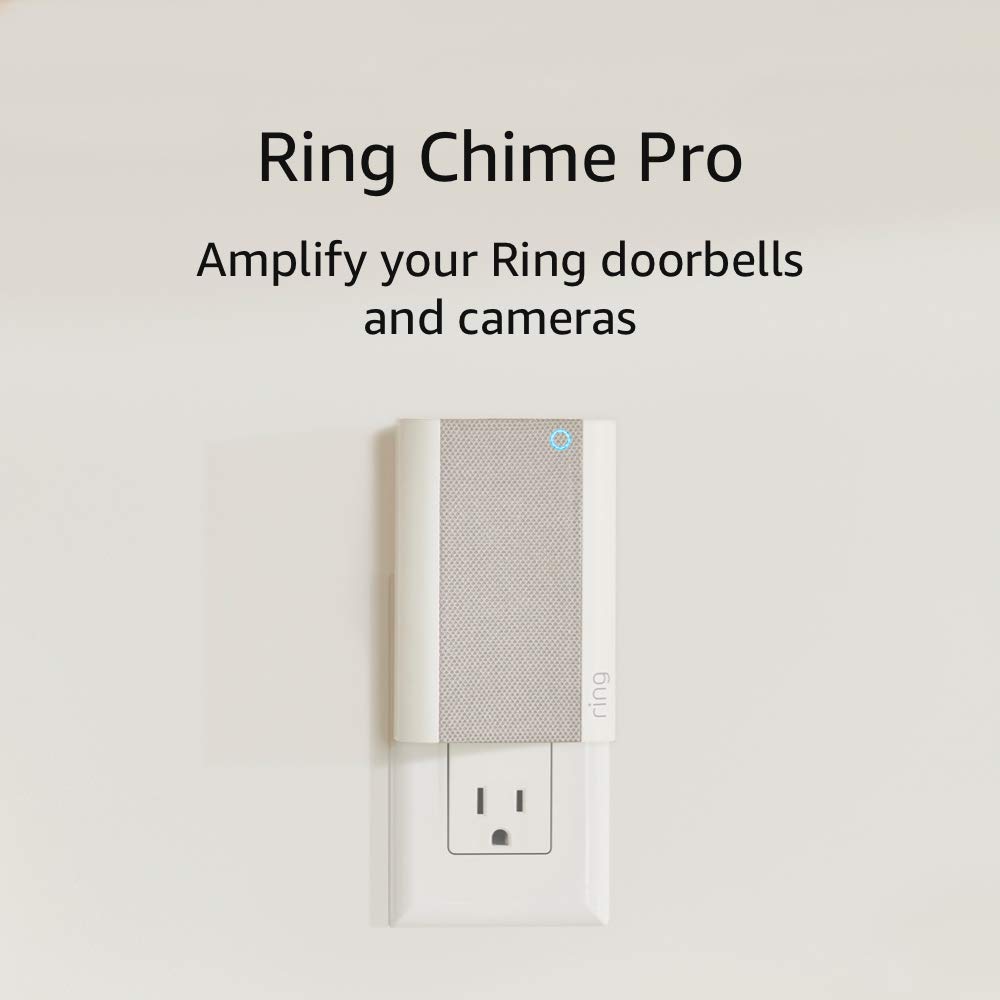
Ring Chime Pro

SwitchBot Hub Mini Smart Remote - IR Universal Remote, Wi...
As an Amazon Associate we earn from qualifying purchases.
Guide Improvements
- Updated June 16, 2026
Added C-wire power issue as root cause, WiFi signal diagnostics, 2.4GHz band-steering fix, and DHCP reservation setup.
What changed:- Added C-wire power issue as root cause of WiFi drops
- Added WiFi signal diagnostics at thermostat location
- Added 2.4GHz dedicated SSID to fix band-steering
- Added DHCP reservation to prevent IP renewal drops
- Added real-world context: 40% caused by no C-wire
Source: Trunetto editorial update


