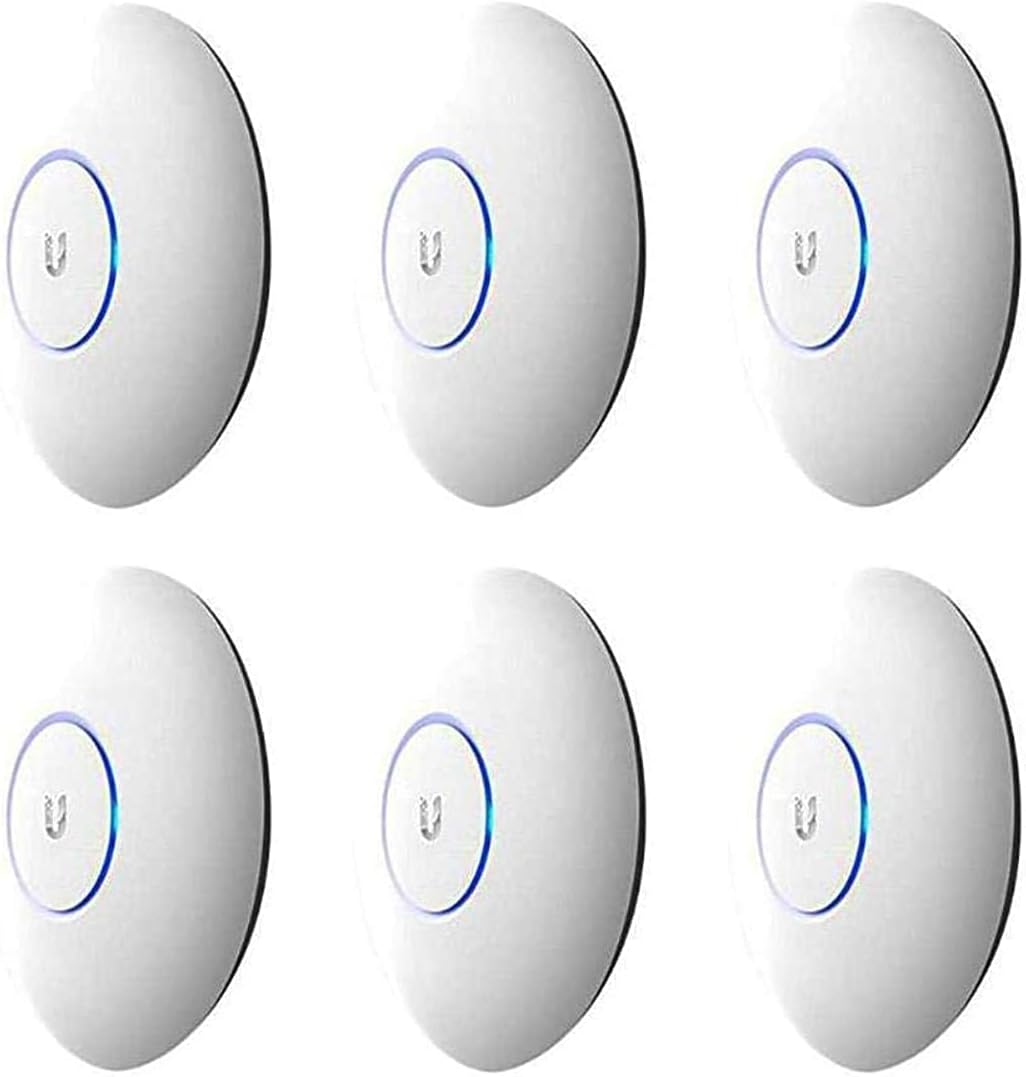
Why Are My UniFi Access Points Not Adopting or Showing Disconnected
- AP and controller on different VLANs or subnets
- AP has stale inform URL from previous controller
- Controller firewall blocking inform port 8080
Problem Description
Your UniFi access point will not adopt into the UniFi Network controller or keeps showing as disconnected after adoption. The LED is white or flashing but the controller cannot manage it. This is common when setting up new APs or after a controller migration. The AP and controller must be able to discover each other on the network and many network configurations block this.
Symptoms
- AP shows pending adoption but adoption fails
- AP LED is steady white but not in controller
- AP was adopted but now shows disconnected
- Factory reset AP still will not adopt
- AP shows in devices but status is offline
- Multiple APs disconnected after controller update
Recognize these? Here's what usually causes it.
Common Causes
- AP and controller on different VLANs or subnets
- AP has stale inform URL from previous controller
- Controller firewall blocking inform port 8080
- AP IP address not reachable from controller
- DHCP not providing correct inform URL via option 43
- Controller URL changed after migration
Most fixes happen in the first 3 steps.
Do not factory reset an AP that is actively serving clients unless you have a maintenance window. All clients connected to that AP will disconnect and not reconnect until the AP is re-adopted and configured.
Tools & Requirements
Step-by-Step Solution
Check AP IP and Connectivity
Check your DHCP server or router to find the AP IP address. Ping it from the controller machine. If ping fails the AP is not on the same network or VLAN as the controller. For adoption to work the AP must be able to reach the controller on port 8080. Make sure they are on the same subnet or configure routing between subnets.
Set Inform URL via SSH
SSH into the AP using username ubnt and password ubnt for factory-fresh APs. Run the command set-inform http://CONTROLLER-IP:8080/inform replacing CONTROLLER-IP with your actual controller IP. The AP will attempt to contact the controller and appear for adoption. Click Adopt in the controller. You may need to run set-inform twice.
Factory Reset the AP
If the AP was previously managed by another controller it retains the old inform URL. Hold the reset button on the AP for 10 seconds until the LED flashes. The AP reboots to factory defaults and enters adoption mode. It will look for a controller via DHCP option 43 or layer 2 discovery.
Check Controller Port
The controller must have port 8080 open for AP communication and port 8443 for the management interface. If running the controller on a server or cloud check firewall rules. On UniFi OS consoles like Dream Machine this is handled automatically. On self-hosted controllers verify no firewall blocks these ports.
Update AP Firmware
If the AP firmware is very old it may be incompatible with a newer controller. SSH into the AP and run upgrade with the firmware URL from the UniFi downloads page. After the AP updates and reboots try adoption again. Firmware mismatch is a common cause of failed adoptions after controller upgrades.
Quick Solutions
Still having issues? This is usually the deeper cause below.
If this comes back after following these steps, check whether a recent app or firmware update reset a default setting — the fix works, but the setting gets reverted silently.
For large deployments configure DHCP option 43 to automatically provide the controller URL to all APs. This eliminates the need to SSH into each AP individually for adoption.
This issue almost always looks more complex than it is — the majority of cases trace back to a single setting, a stale credential, or a default that shipped wrong.
- AP and controller on different VLANs or subnets
- AP has stale inform URL from previous controller
- Controller firewall blocking inform port 8080
- AP IP address not reachable from controller
- DHCP not providing correct inform URL via option 43
Before you go — try one of these (they fix most cases).
Official Manufacturer Manual
Ubiquiti UniFi provides official product documentation through their online manual rather than downloadable PDF. Access setup guides, troubleshooting steps, and product specifications for your UniFi Access Point.
Source: help.ui.com
Need More Help? Ubiquiti UniFi Support
Note: The contact information below connects you directly to Ubiquiti UniFi's official customer support team, not Trunetto. They can help with warranty claims, device replacements, and advanced technical issues.
Accessories owners commonly pair with UniFi Access Point.

As an Amazon Associate we earn from qualifying purchases.