

Why Won't My Tapo Camera Connect to WiFi During Setup?
- Phone connected to 5GHz while the camera needs 2.4GHz
- WiFi password has special characters the camera cannot handle
- Router using WPA3 security the camera does not support
Problem Description
You are trying to set up a new Tapo camera and it will not connect to your WiFi. The camera powers on, the LED flashes, the Tapo app finds the camera, but when you enter your WiFi password the connection fails. You might see errors like Connection Failed, Unable to Connect, or the app just spins forever and times out. You have triple checked your password, restarted everything, tried multiple times, but it will not work. New Tapo camera owners hit this wall constantly and it is almost always a simple WiFi compatibility issue that is easy to fix once you know what to change.
Why This Happens in Real Homes
You are trying to set up a new Tapo camera and it will not connect to your WiFi. The camera powers on, the LED flashes, the Tapo app finds the camera, but when you enter your WiFi password the connection fails. You might see errors like Connection Failed, Unab.. In real usage this appears as Tapo app shows connection failed after entering WiFi password, Camera LED keeps blinking red and never goes solid, and Setup process spins forever then times out with error
The pattern in this case points to Phone connected to 5GHz WiFi while camera needs 2.4GHz, WiFi password has special characters camera cannot handle, and Router using WPA3 security that camera does not support. The repair usually holds when done in order: Force Your Phone to 2.4GHz WiFi, then Simplify Your WiFi Password Temporarily, then Switch Router Security to WPA2. After applying the fix, validate behavior with repeated command tests and at least one full automation cycle to confirm stability.
Symptoms
- Tapo app shows connection failed after entering the WiFi password
- Camera LED keeps blinking red and never goes solid
- Setup spins forever then times out with an error
- Camera found by the app but fails at the WiFi connection step
- Worked on the old router but will not connect after an upgrade
- Factory-reset the camera and still cannot complete setup
- App cannot scan or the camera cannot read the pairing QR code
- Setup fails only on the new mesh system
Recognize these? Here's what usually causes it.
Common Causes
- Phone connected to 5GHz while the camera needs 2.4GHz
- WiFi password has special characters the camera cannot handle
- Router using WPA3 security the camera does not support
- Router band-steering forcing devices onto 5GHz
- AP isolation enabled, blocking app-to-camera communication
- WiFi SSID is hidden, requiring manual network entry
- Mesh system placing the camera on a 5GHz-preferred band
- QR code not scanning due to low screen brightness or distance
Most fixes happen in the first 3 steps.
Do not factory reset the camera repeatedly hoping it will fix the connection. If WiFi settings on your router are wrong, no amount of camera resets will help. Fix the router settings first.
Tools & Requirements
Step-by-Step Solution
Force Your Phone to 2.4GHz WiFi
Tapo cameras only connect to 2.4GHz WiFi but your phone probably prefers 5GHz. During setup the camera gets WiFi credentials from your phone so your phone must be on 2.4GHz. If your router broadcasts separate 2.4GHz and 5GHz networks connect your phone to the 2.4GHz one before opening the Tapo app. If your router uses one name for both bands you need to temporarily disable 5GHz in router settings or disable band steering so devices can choose their band.
Simplify Your WiFi Password Temporarily
Tapo cameras can fail to parse WiFi passwords with certain special characters like quotes, ampersands, backslashes, or non-ASCII characters. Log into your router and temporarily change your WiFi password to something simple using only letters and numbers. Try setup again with the simple password. After the camera connects successfully you can change your password back and update the camera through the Tapo app settings.
Switch Router Security to WPA2
Many new routers default to WPA3 security which some Tapo cameras do not fully support. Log into your router admin panel and find wireless security settings. Change the security mode from WPA3 to WPA2-PSK or WPA2 Personal. Save and wait for the router to restart. Try camera setup again. After the camera connects you may be able to switch back to WPA3 but some cameras will disconnect so test carefully.
Disable Band Steering and AP Isolation
Band steering forces devices to 5GHz which Tapo cameras cannot use. AP isolation prevents WiFi devices from seeing each other which blocks the app from configuring the camera. Log into your router and look for band steering, smart connect, AP isolation, or client isolation settings. Disable all of them. On mesh systems like Google WiFi check if there is a way to disable band steering in advanced settings. Save changes and try setup again.
Position Camera Near Router During Setup
WiFi signal needs to be strong during initial setup. Place the camera within 10 feet of your router with clear line of sight. Plug it in and wait for the LED to start blinking indicating setup mode. If the LED is solid red the camera is not in setup mode and you need to factory reset it by holding the reset button for 5+ seconds. After setup completes you can move the camera to its permanent location.
Quick Solutions
Still having issues? This is usually the deeper cause below.
This usually happens right after a router reboot or ISP change — the device rejoins the network but drops its cloud session silently.
If you have a dual-band router with one SSID, try temporarily renaming your 5GHz network to something different. This forces your phone to connect to 2.4GHz when you select the original network name during camera setup.
Most WiFi drop-offs happen right after a router reboot or ISP swap — the device reconnects to the network but silently loses its cloud registration.
- Phone connected to 5GHz while the camera needs 2.4GHz
- WiFi password has special characters the camera cannot handle
- Router using WPA3 security the camera does not support
- Router band-steering forcing devices onto 5GHz
- AP isolation enabled, blocking app-to-camera communication
Before you go — try one of these (they fix most cases).
Most popular upgrades chosen by Tapo Camera owners.
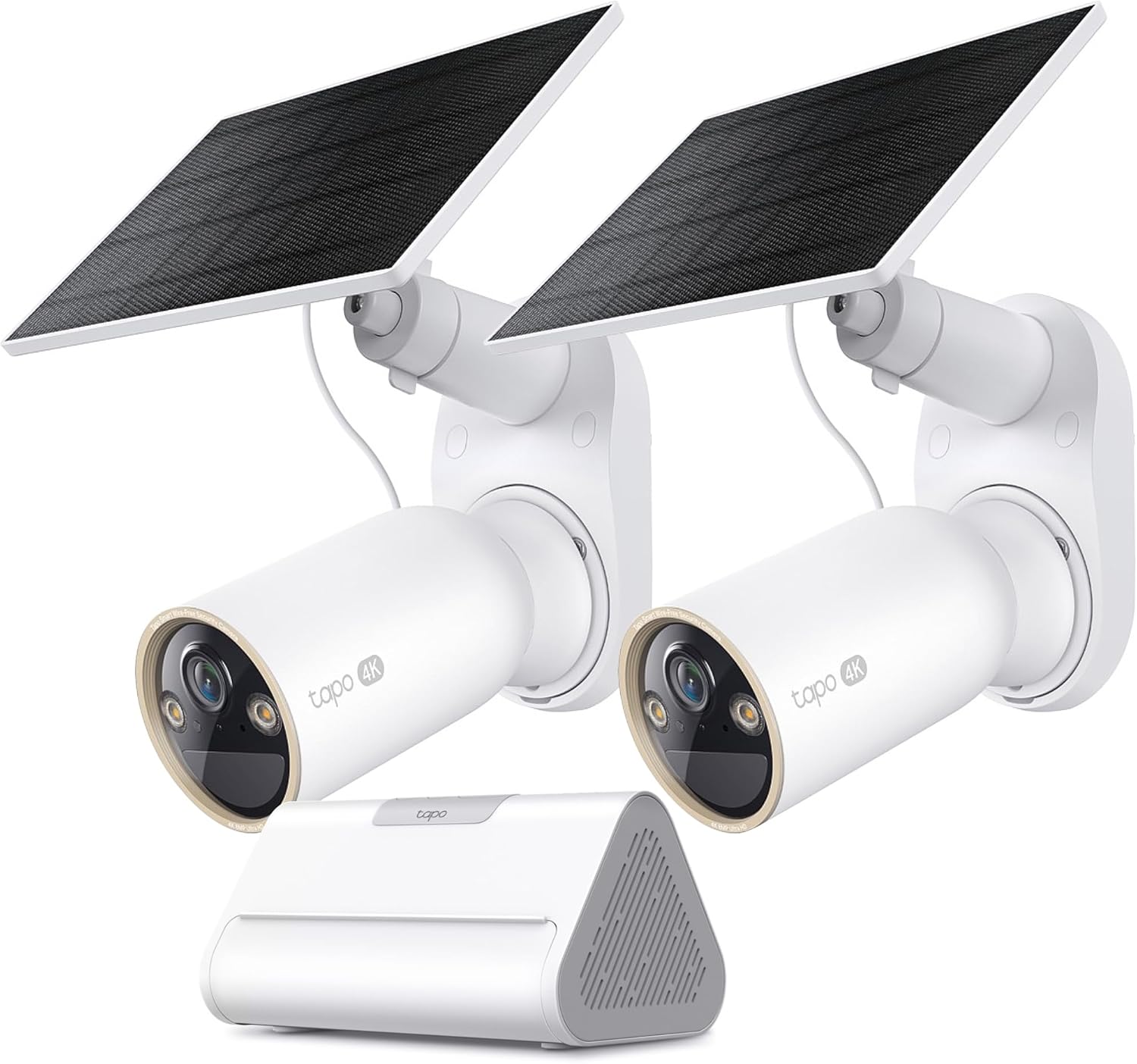
Tapo 4K Outdoor Solar-Powered Cameras C460 KIT x 2-Camera...

Tapo TP-Link 2K Pan/Tilt Security Camera for Baby Monitor...
As an Amazon Associate we earn from qualifying purchases.
Official Manufacturer Manual
Tapo provides official product documentation through their online manual rather than downloadable PDF. Access setup guides, troubleshooting steps, and product specifications for your Tapo Camera.
Source: tapo.com
Need More Help? Tapo Support
Note: The contact information below connects you directly to Tapo's official customer support team, not Trunetto. They can help with warranty claims, device replacements, and advanced technical issues.


