

Why Is My Wyze Mesh Router Not Providing Full Internet Speed?
- Router set to Access Point mode instead of full Router mode
- ISP modem and Wyze router both doing NAT creating double NAT
- QoS traffic shaping enabled and limiting bandwidth unintentionally
Problem Description
After setting up your Wyze Mesh Router you are getting significantly lower internet speeds through the Wyze network than your ISP connection delivers. Speed tests show a fraction of your subscribed bandwidth. Slow speeds through a Wyze Mesh Router are caused by the router operating in access point mode instead of router mode, the WAN port not connected correctly, QoS settings throttling specific traffic, or devices connecting to the slower 2.4GHz band instead of 5GHz.
Why This Happens in Real Homes
Slow speeds right after setting up a Wyze mesh router usually come from a configuration mismatch, not the hardware. The common one is the router left in Access Point mode instead of full Router mode (or the reverse), or a double-NAT where your ISP's modem is also routing.
Start by confirming the mode: if the Wyze unit sits behind an ISP modem/router that also routes, put that modem in bridge mode to avoid double NAT, or set the Wyze correctly. Then test speed wired to the primary to separate ISP throughput from mesh placement, and space satellites for a strong backhaul.
Symptoms
- Speed test results are much lower through Wyze than without it
- WiFi shows connected but downloads are slow and pages load slowly
- Speeds are fine near router but drop significantly further away
- Wyze app shows all devices connected but internet feels sluggish
- Speeds were fine right after setup but degraded after a few days
- 5GHz band delivers good speed but 2.4GHz is very slow
Recognize these? Here's what usually causes it.
Common Causes
- Router set to Access Point mode instead of full Router mode
- ISP modem and Wyze router both doing NAT creating double NAT
- QoS traffic shaping enabled and limiting bandwidth unintentionally
- Devices connecting to 2.4GHz instead of 5GHz at same location
- Wyze mesh backhaul operating over 2.4GHz due to node placement
- Router firmware not updated to latest version with performance fixes
Most fixes happen in the first 3 steps.
Do not place Wyze Mesh Router nodes in enclosed cabinets or media consoles. Heat buildup in confined spaces degrades router performance and reduces WiFi range significantly.
Tools & Requirements
These tools will help you complete this fix.
As an Amazon Associate we earn from qualifying purchases.
Step-by-Step Solution
Verify Router Mode vs Access Point Mode
Open the Wyze app and go to Router Settings then Internet Connection. Confirm the mode is set to Router not Access Point. In Access Point mode the Wyze router relies on the upstream modem router for DHCP and routing which can create bottlenecks and double NAT. If you are using the Wyze as your main router set it to Router mode and connect the ISP modem to the Wyze WAN port directly.
Check WAN Port Connection
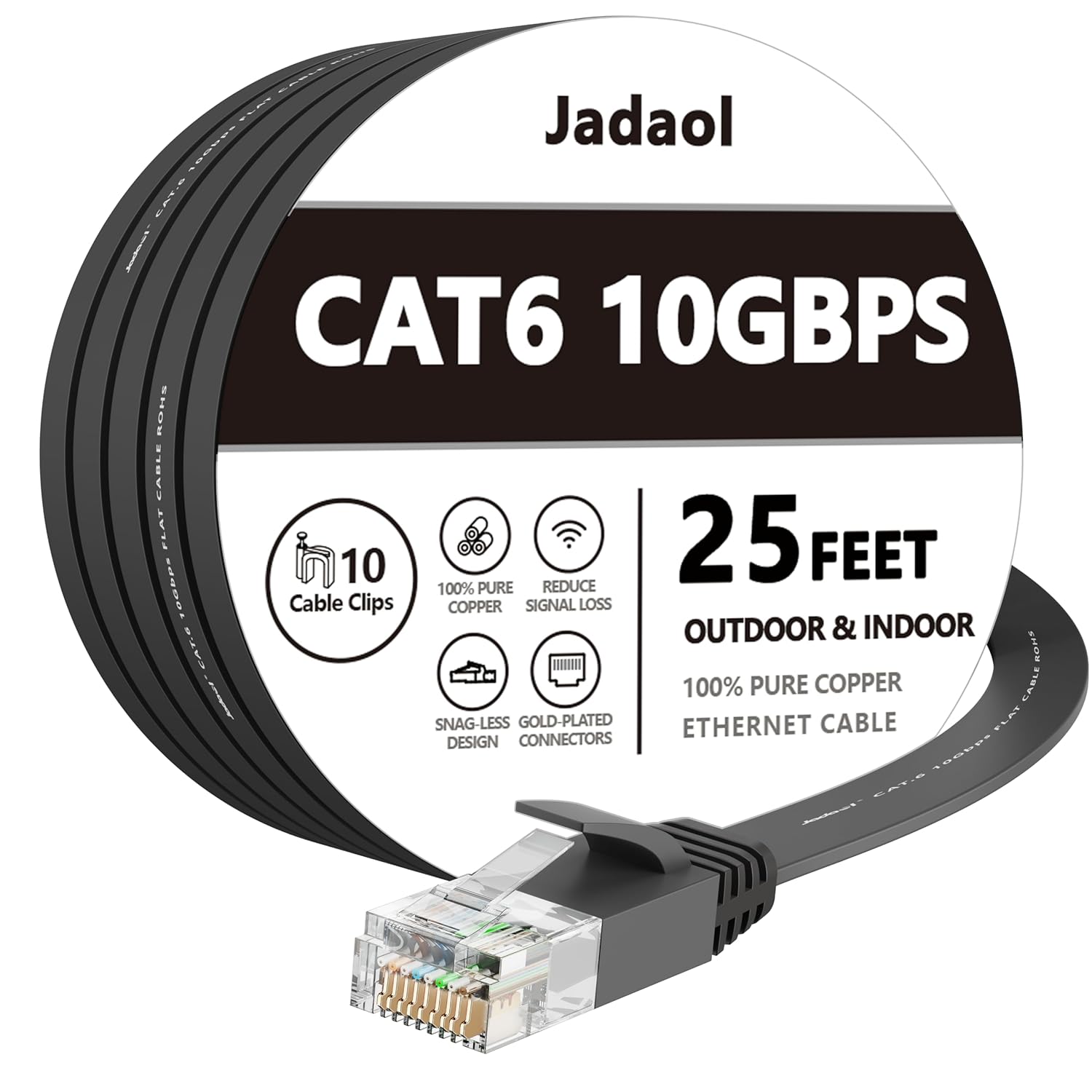
Make sure the Ethernet cable from your ISP modem is connected to the Wyze Mesh Router WAN port not a LAN port. The WAN port is typically coloured or labelled differently from the 4 LAN ports. Connecting the modem to a LAN port puts the router in switch mode bypassing all routing functions and producing very slow or no internet even though devices show as connected to the network.
Needed for this step
Jadaol Cat 6 Ethernet Cable 25 ft, 10Gbps Suppo...
This helps complete the fix you are currently reading.
$9.99Disable or Adjust QoS Settings
Open the Wyze app and go to Router Settings then Advanced then QoS or Traffic Management. If QoS is enabled and has bandwidth limits configured lower than your actual ISP speed it will artificially throttle all devices. Either disable QoS entirely or set the download and upload bandwidth limits to match your actual ISP subscription speed. After saving the settings run a speed test to confirm the throttling has been removed.
Enable Band Steering
In the Wyze app router settings look for Band Steering or Smart Connect and enable it. Band Steering automatically moves capable devices from the congested 2.4GHz band to the faster 5GHz band. If devices are connecting to 2.4GHz when they are close enough for 5GHz they receive a fraction of the available speed. Band Steering resolves this without requiring manual per-device band selection.
Update Router Firmware and Reposition Nodes
Open the Wyze app and go to Router Settings then Firmware Update and install any pending update. Performance improvements are included in many firmware releases. Also verify mesh nodes are placed no more than 15 metres apart with minimal wall obstructions between them. Nodes too far apart use 2.4GHz backhaul which dramatically reduces total mesh throughput for all connected devices.
Quick Solutions
Still having issues? This is usually the deeper cause below.
If this comes back after following these steps, check whether a recent app or firmware update reset a default setting — the fix works, but the setting gets reverted silently.
Run a wired speed test by connecting a laptop directly to a Wyze router LAN port with an Ethernet cable. If wired speed matches your ISP plan the issue is WiFi coverage not the router itself.
Mesh devices that drop repeatedly are almost always missing a repeater between hub and endpoint — initial pairing works because you held the devices close.
- Router set to Access Point mode instead of full
- ISP modem and Wyze router both doing NAT
- QoS traffic shaping enabled and limiting bandwidth unintentionally
- Devices connecting to 2.4GHz instead of 5GHz at same
- Wyze mesh backhaul operating over 2.4GHz
Before you go — try one of these (they fix most cases).
Official Manufacturer Manual
Wyze provides official product documentation through their online manual rather than downloadable PDF. Access setup guides, troubleshooting steps, and product specifications for your Wyze Mesh Router.
Source: support.wyze.com
Need More Help? Wyze Support
Note: The contact information below connects you directly to Wyze's official customer support team, not Trunetto. They can help with warranty claims, device replacements, and advanced technical issues.
How Does Wyze Compare?
Before replacing your Wyze device, see how it stacks up against alternatives in our full comparison guides.


