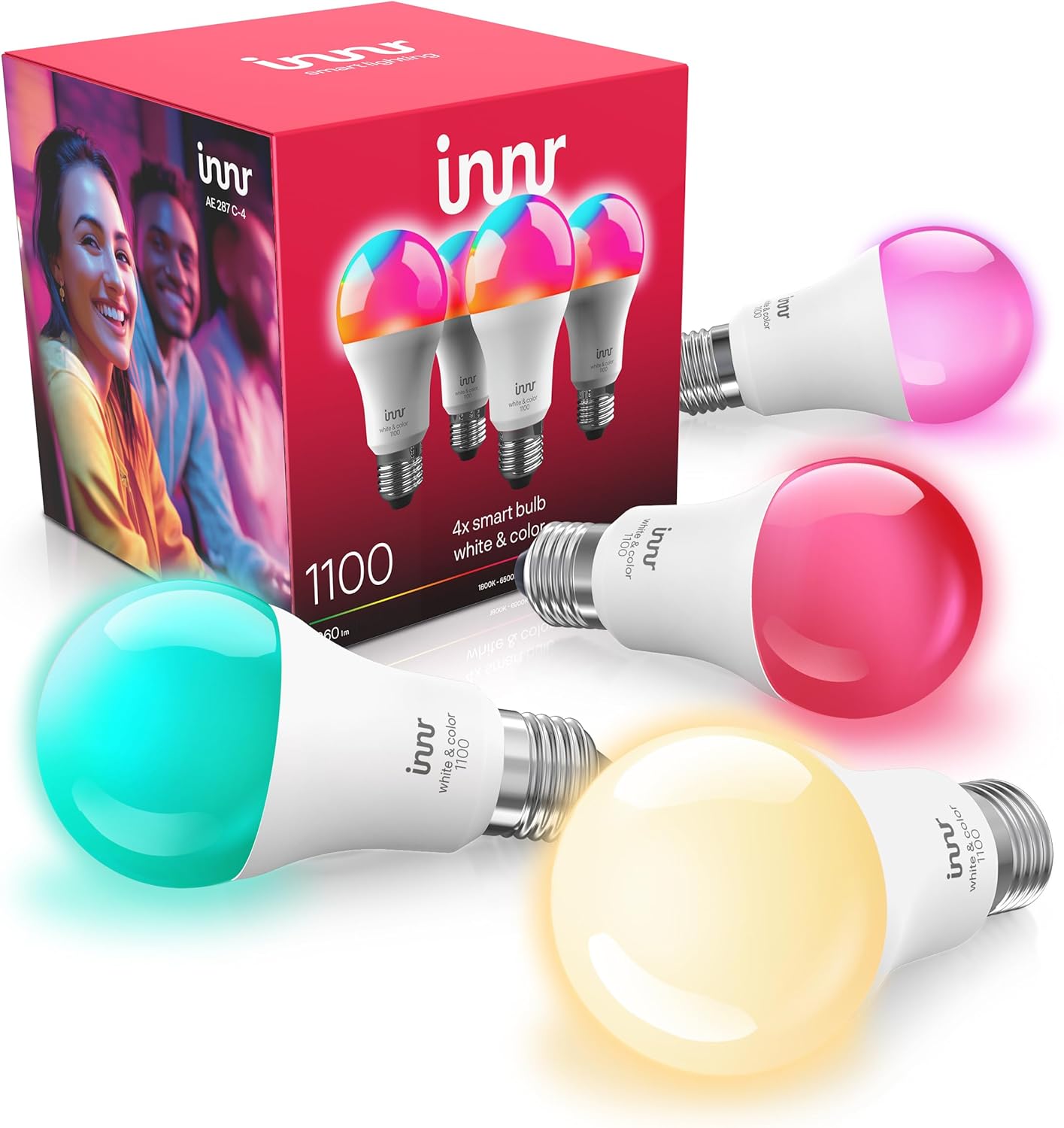
Innr Bulb Blinking or Flashing on Its Own?
- Bulb dropping off and rejoining the Zigbee network
- Weak signal causing repeated reconnects
- Wall dimmer on the circuit disrupting power
Problem Description
Your Innr bulb blinks, flashes, or pulses by itself without a command. Depending on the pattern, this is usually the bulb dropping off and rejoining the Zigbee network, a wall dimmer or loose socket disrupting power, old firmware, or an automation or group command briefly flashing it.
Why This Happens in Real Homes
An Innr bulb that blinks on its own is telling you something, and the pattern is the clue. Occasional single flashes usually mean the bulb is at the edge of range and keeps dropping off and rejoining the Zigbee network, which a mains-powered repeater between it and the hub fixes by giving it a steady connection. A whole group flashing in unison is almost always an automation, scene, or identify command doing it on purpose, so the fix is in your routines, not the bulb. Rapid, random flashing on certain models, especially some GU10 and color bulbs, was a firmware bug that Innr patched, so updating through the hub resolves it. Two physical causes round it out: a wall dimmer, which no Innr bulb tolerates and which causes flashing and pulsing, and a bulb loose in its socket getting intermittent power. Work from the pattern, rule out the dimmer and seating, strengthen the mesh, update firmware, and re-pair only a bulb that still misbehaves.
Symptoms
- Bulb blinks or flashes without a command
- Bulb pulses or briefly dims on its own
- Blinking happens every so often
- Flashes when it reconnects to the hub
- Blinking worse when far from the hub
- Whole group flashes together
- Blinks after a power blip
- Random flashing on certain bulbs
Recognize these? Here's what usually causes it.
Common Causes
- Bulb dropping off and rejoining the Zigbee network
- Weak signal causing repeated reconnects
- Wall dimmer on the circuit disrupting power
- Loose bulb or poor socket contact
- Old firmware (known on some GU10 and color models)
- An automation, scene, or identify command flashing it
- Zigbee channel overlapping busy WiFi
- Brief power fluctuations on the circuit
Most fixes happen in the first 3 steps.
Never run Innr bulbs on a dimmer; it is a common cause of unexplained flashing. If flashing persists after firmware, mesh, and seating checks, re-pair the specific bulb.
Tools & Requirements
Step-by-Step Solution
Note the Pattern
How it blinks tells you a lot. A single flash now and then usually means the bulb dropped off and rejoined the network. A whole group flashing together points to an automation or an identify command. Rapid random flashing on certain models points to firmware. Observe before changing things.
Rule Out a Dimmer
If the bulb is on a wall dimmer, that alone causes flashing and pulsing, because Innr bulbs cannot run on chopped dimmer power. Set the dimmer to full or, better, replace it with a plain on/off switch and dim in the app.
Re-Seat the Bulb
A bulb loose in the socket, or a GU10 not fully twisted in, gets intermittent power that shows as blinking. With the power off, seat it firmly and clean the contacts, then see if the blinking stops.
Strengthen the Mesh
Reconnect flashes come from a bulb at the edge of range dropping and rejoining. Add a mains-powered Zigbee repeater (a plug or an always-on bulb) between the bulb and the hub so it holds a steady connection instead of bouncing.
Update the Firmware
Some Innr bulbs, notably certain GU10 and color models, had firmware that caused random flashing, and Innr fixed it in updates. Update the bulb through the hub (on Hue, Settings > Software update) with the bulb powered.
Move the Zigbee Channel
A Zigbee channel overlapping a busy 2.4GHz WiFi channel causes the drop-and-rejoin flashing across your network. In the hub settings, shift the Zigbee channel away from your WiFi channel.
Check Automations and Scenes
If a group flashes on a schedule, an automation, a wake-up or notification scene, or an identify command from the app, is flashing it on purpose. Review your routines to find and adjust the one responsible.
Re-Pair a Persistent Offender
If one bulb keeps dropping and flashing after the mesh is solid and firmware is current, delete it, reset it (6 power cycles, ending on), and re-add it to rebuild a clean connection.
Quick Solutions
Still having issues? This is usually the deeper cause below.
If flickering only happens on dimming, the issue is almost always the dimmer's minimum-load setting, not the bulb — it's drawing less current than the dimmer expects.
The blink pattern is your best clue: occasional single flashes are network reconnects (fix the mesh), synchronized group flashes are an automation (check routines), rapid random flashing is firmware (update it).
Battery-related failures are almost always flagged too late — the device degrades silently for days before the app catches up to what's actually happening.
- Bulb dropping off and rejoining the Zigbee network
- Weak signal causing repeated reconnects
- Wall dimmer on the circuit disrupting power
- Loose bulb or poor socket contact
- Old firmware (known on some GU10 and color models)
Before you go — try one of these (they fix most cases).
Most popular upgrades chosen by Innr Smart Bulb owners.

innr Zigbee A19 Smart Bulb, Works with Hue*, Alexa, Smart...
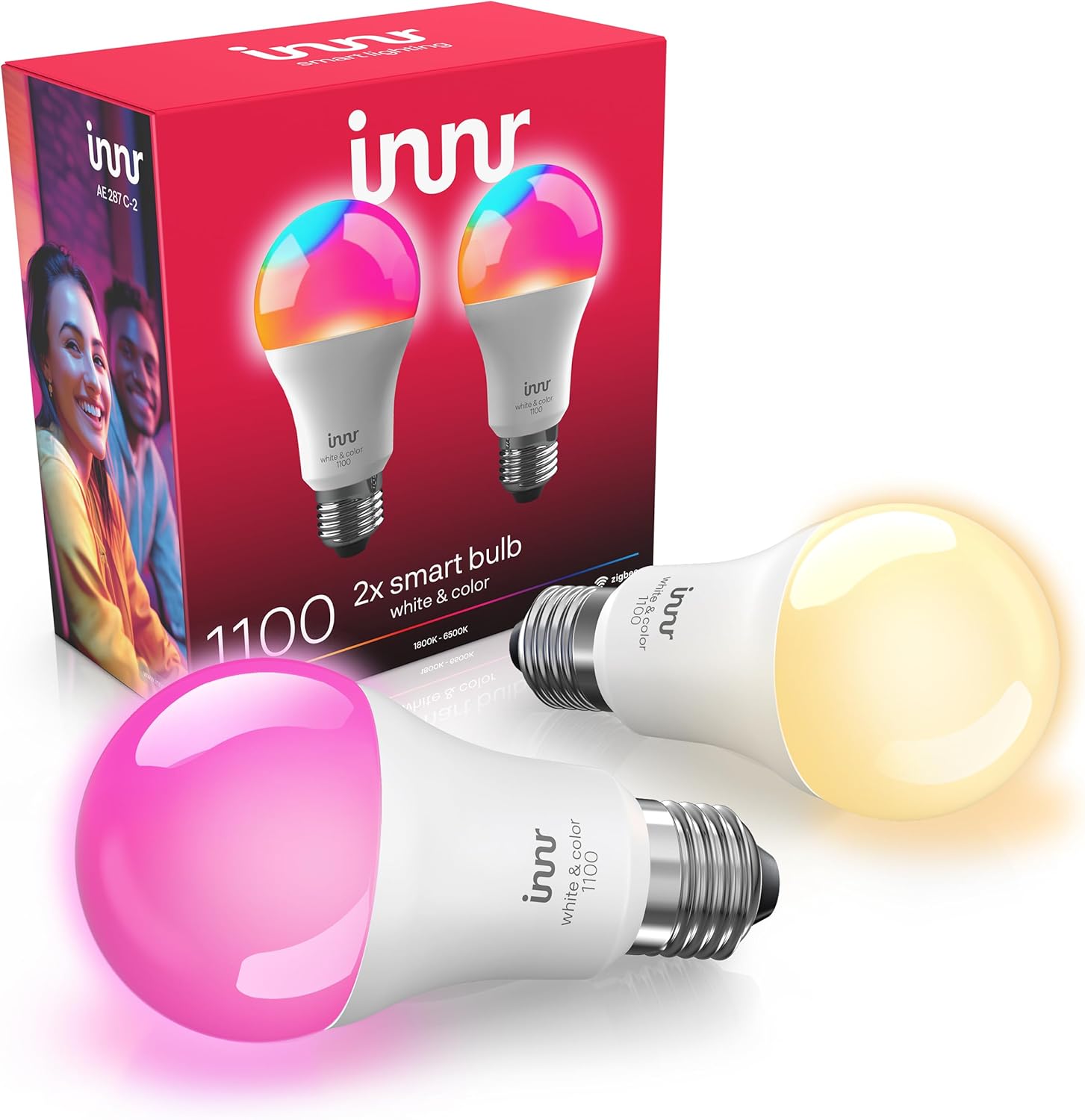
innr Zigbee A19 Smart Bulb, Works with Hue*, Alexa, Smart...

innr Zigbee A19 Smart Bulb, Works with Hue*, Alexa, Smart...
As an Amazon Associate we earn from qualifying purchases.
Official Manufacturer Manual
Innr provides official product documentation through their online manual rather than downloadable PDF. Access setup guides, troubleshooting steps, and product specifications for your Innr Smart Bulb.
Source: innr.com
Need More Help? Innr Support
Note: The contact information below connects you directly to Innr's official customer support team, not Trunetto. They can help with warranty claims, device replacements, and advanced technical issues.