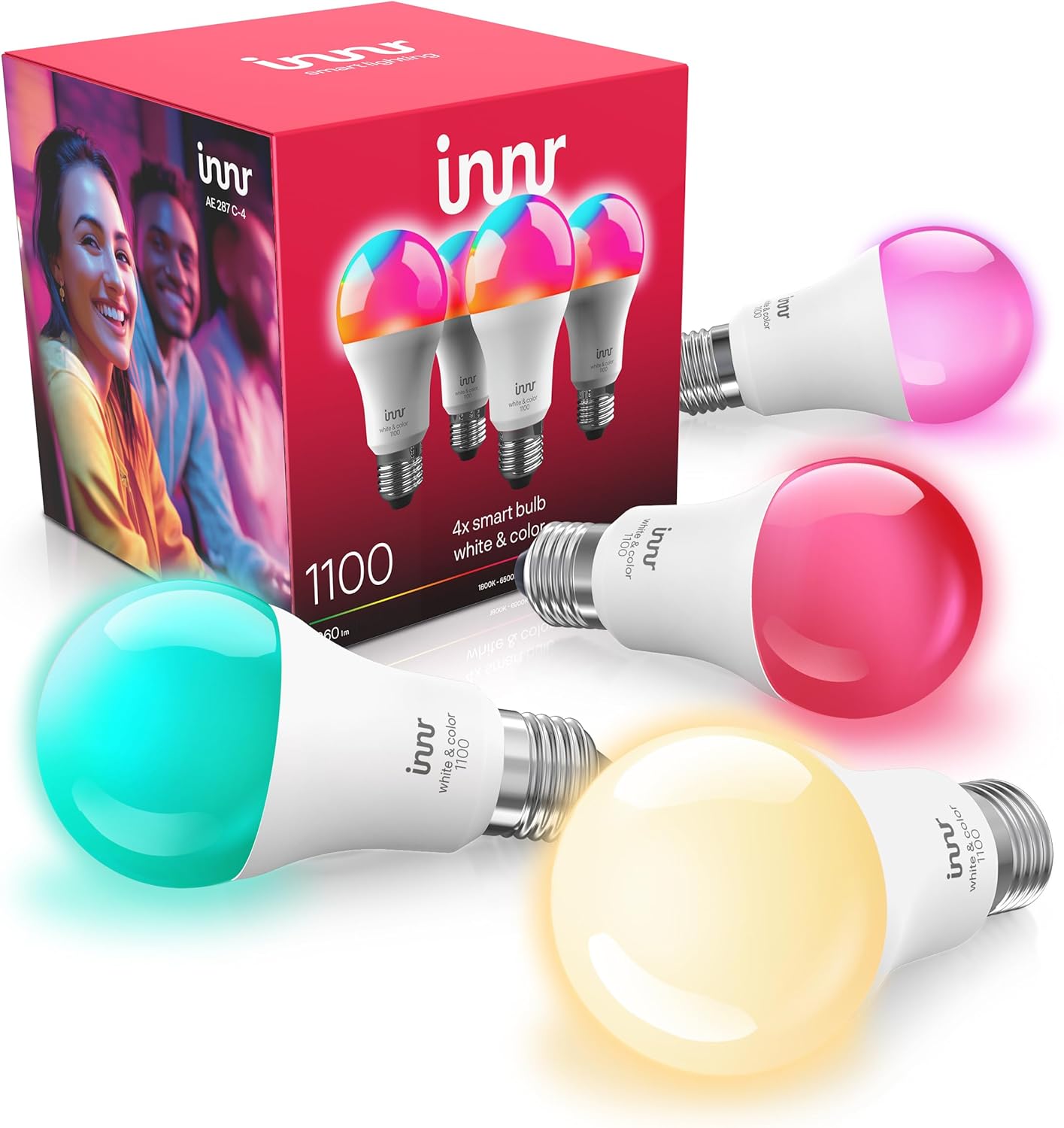
Innr Color Bulb Not Changing Color?
- Bulb is a white-only model (not RGBW)
- Color bulb added to the hub as a white device
- Bulb grouped with white bulbs, hiding color controls
Problem Description
Your Innr bulb will not change to colors, or the color you pick does not show. First rule out the obvious: many Innr bulbs are white-only. If you do have a color (RGBW) model, the cause is usually how it was added to the hub, grouping, or firmware, rather than a broken bulb.
Why This Happens in Real Homes
When an Innr bulb will not change color, the first and most important check is the model, because Innr makes warm-white, tunable-white, and full-color RGBW bulbs, and only the RGBW ones can show colors. The model number on the base settles it against Innr's specs, and a tunable or warm-white bulb will never produce color no matter what you do. If you genuinely have a color model but see only white controls, the problem is how the hub added it: a mis-detected bulb comes in as a plain white device and hides the color wheel, so deleting it, resetting it with the six-cycle power toggle, and re-adding it usually restores full color. Grouping is the other common culprit, since some apps only show controls common to a group, so a color bulb grouped with white bulbs loses its color options until you ungroup it. After that, a firmware update and a check for scenes that force the bulb back to white handle the remaining cases.
Symptoms
- Bulb will not switch to colors
- Color wheel has no effect
- Only white shades change, no color
- Color looks wrong or washed out
- Some bulbs show color, this one does not
- Color controls missing in the app
- Bulb reverts to white after picking a color
- Color works in one app but not another
Recognize these? Here's what usually causes it.
Common Causes
- Bulb is a white-only model (not RGBW)
- Color bulb added to the hub as a white device
- Bulb grouped with white bulbs, hiding color controls
- Hub or integration not exposing color
- Firmware out of date on the bulb
- Scene or automation forcing it back to white
- Voice assistant limiting it to white
- Bulb needs re-adding to restore capabilities
Most fixes happen in the first 3 steps.
White-only Innr models cannot be made to show color by any setting or update; only RGBW models do. Confirm the model before troubleshooting further.
Tools & Requirements
Step-by-Step Solution
Confirm You Have a Color Model
The most common answer is that the bulb is not a color bulb. Innr sells warm-white, tunable-white, and full-color (RGBW) bulbs, and only the RGBW models show colors. Check the model number printed on the bulb's base against Innr's specs. If it is tunable or warm white, no setting will produce color.
Check How It Was Added
A genuine color bulb can be added to a hub as a plain white or dimmable device if it was mis-detected, which hides the color controls. In the app, look at the bulb's type; if it shows only brightness or white temperature, it needs re-adding.
Re-Add the Color Bulb
Delete the bulb from the app, reset it (toggle power 6 times, ending on, until it flashes 3 times), and add it back. On a clean add, the hub should detect it as a color bulb and show the full color wheel.
Ungroup to Reveal Color
If the color bulb is grouped with white-only bulbs, some apps show only the controls common to the group, which hides color. Take the bulb out of that group, or control it individually, to get its color options back.
Update the Firmware
Out-of-date firmware can leave capabilities missing or color rendering off. Update the bulb through the hub, then re-check the color controls.
Look for a Scene Resetting It
If the bulb takes a color then reverts to white, a scene, schedule, or automation may be setting it back. Check your routines and any default power-on color, and adjust the one that is overriding your choice.
Set Color in the Full App
Voice assistants and some simplified integrations offer limited color control. Set the color in the full hub app (Hue, SmartThings) to confirm the bulb itself can do it, then narrow down any assistant limitation.
Verify Across Integrations
If color works in the hub app but not in a linked service, the limitation is in that integration, not the bulb. Use the hub app as the source of truth for what the bulb can do.
Quick Solutions
Still having issues? This is usually the deeper cause below.
If flickering only happens on dimming, the issue is almost always the dimmer's minimum-load setting, not the bulb — it's drawing less current than the dimmer expects.
Check the model number first; it settles instantly whether you have a color bulb or a white-only one. Re-adding a mis-detected color bulb is the usual fix when it is genuinely RGBW.
This issue almost always looks more complex than it is — the majority of cases trace back to a single setting, a stale credential, or a default that shipped wrong.
- Bulb is a white-only model (not RGBW)
- Color bulb added to the hub as a white
- Bulb grouped with white bulbs, hiding color controls
- Hub or integration not exposing color
- Firmware out of date on the bulb
Before you go — try one of these (they fix most cases).
Most popular upgrades chosen by Innr Smart Bulb owners.

innr Zigbee A19 Smart Bulb, Works with Hue*, Alexa, Smart...
innr Zigbee A19 Smart Bulb, Works with Hue*, Alexa, Smart...

innr Zigbee A19 Smart Bulb, Works with Hue*, Alexa, Smart...
As an Amazon Associate we earn from qualifying purchases.
Official Manufacturer Manual
Innr provides official product documentation through their online manual rather than downloadable PDF. Access setup guides, troubleshooting steps, and product specifications for your Innr Smart Bulb.
Source: innr.com
Need More Help? Innr Support
Note: The contact information below connects you directly to Innr's official customer support team, not Trunetto. They can help with warranty claims, device replacements, and advanced technical issues.